Running Windows apps on Linux lets you combine Linux's control, stability, and security with Windows-only software, without leaving the Linux ecosystem.
Instead of giving up essential apps, you can run many Windows applications directly on Linux using compatibility layers or virtual machines.
This article will explain how to run Windows apps on Linux and when each approach makes sense.
Prerequisites
- A machine running Linux.
- A user account with root privileges.
How to Run Windows Apps on Linux
Running Windows applications on Linux is no longer a niche workaround. Depending on the app, performance needs, and how much setup you are willing to do, Linux offers several reliable ways to run Windows software, from lightweight compatibility layers to full virtualization.
Before diving into individual tools, it helps to understand the landscape. Each method solves a slightly different problem and targets a different type of software.
The table below covers the most prominent ways to run Windows apps on Linux:
| Method | Description | Best for | Performance | Ease of setup | When to use it |
|---|---|---|---|---|---|
| Wine | Compatibility layer | Productivity apps, older software | High (native-like) | Medium | When you want lightweight Windows app support. |
| Proton | Wine-based gaming layer | Steam games | Very high | Easy | For gaming via Steam. |
| Bottles | Wine with GUI and presets | Mixed apps and games | High | Easy | When you want simplicity and control. |
| CrossOver | Commercial Wine build | Professional apps | High | Very easy | When reliability matters more than cost. |
| Dual Boot | Native Windows install | Any Windows software | Native | Hard | When full compatibility is required. |
| Virtual Machine | Windows inside Linux | Testing, legacy apps | Medium | Medium | When isolation is important. |
Wine: Run Windows Apps on Linux
Wine is a compatibility layer that allows Windows applications to run directly on Linux by translating Windows API calls into their Linux equivalents. Unlike virtualization, Wine does not emulate hardware or require a Windows license, which makes it lightweight and fast. Many everyday Windows applications, especially older or less complex ones, run surprisingly well under Wine.
Pros
Wine excels when you need speed and flexibility without running a full Windows environment. Its main advantages are:
- Near‑native performance. Runs without virtualization overhead, keeping CPU/RAM usage low.
- Free and open-source. No license cost, transparent development, and frequent community updates.
- Wide app support. Works well with many productivity tools and older Windows software.
- Highly configurable. Supports custom prefixes, DLL overrides, and Windows version spoofing per app.
Cons
Wine struggles most with modern software that depends on protected drivers or strict hardware/DRM requirements. The main disadvantages are:
- Not 100% compatible. Some apps may fail to launch or behave incorrectly.
- Setup can be complex. May require extra libraries, registry edits, or manual configuration.
- Weak DRM/driver support. Kernel-level anti-cheat, DRM, and proprietary drivers often break.
- Windows knowledge needed. Debugging logs and DLL errors can be confusing for newcomers.
Installation
Wine is available in most Linux distribution repositories. On 64-bit systems, you usually need to enable 32-bit architecture support before installation. Once installed, Wine automatically creates a default environment (called a Wine prefix) that mimics a Windows directory structure.
Follow our step-by-step guide to install Wine on Ubuntu.
Basic Usage
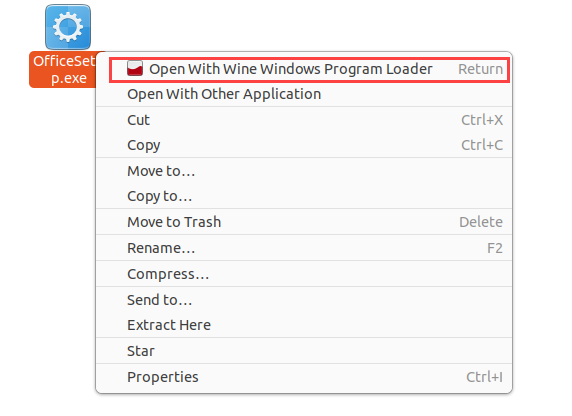
You can launch Windows executables by double-clicking them or running them from the terminal. Wine includes configuration tools that let you set the Windows version, manage libraries, and adjust graphics or audio backends. For best results, many users create separate Wine prefixes for different applications.
Proton: Play Steam Games on Linux
Proton is Valve's Wine-based compatibility layer designed to run Windows games on Linux via Steam. It integrates Wine with additional technologies such as DXVK and VKD3D, which translate DirectX calls into Vulkan for high-performance graphics rendering.
Note: Proton can also run non-Steam games via Steam's "Add a Non-Steam Game" feature.
Pros
Proton shines when your game library lives on Steam, and you want minimal friction and maximum FPS.
Its main advantages are:
- Excellent gaming performance. Uses Vulkan translation (DXVK/VKD3D) for near-native frame rates.
- Seamless Steam integration. No manual prefix or dependency management for most games.
- Automatic updates. Steam manages multiple Proton versions behind the scenes.
Cons
Proton is tightly coupled with Steam, which limits its usefulness outside of gaming.
Some disadvantages include:
- Steam-centric. Not built for running non-Steam Windows applications.
- Anti-cheat barriers. Some multiplayer games still fail due to kernel-level protections.
- No built-in GUI for tuning. Customization relies on launch options or community tools.
Installation
Proton comes bundled with the Linux version of Steam. Follow the steps below to install Steam on Ubuntu 24:
1. Enable required repositories
Your Ubuntu installation may not include all the repos Steam depends on. Enable the multiverse repository, then refresh package metadata:
sudo add-apt-repository multiversesudo apt update2. Enable 32-bit (multi-arch) support
Steam relies on 32-bit runtime libraries, even on 64-bit systems. Add the i386 architecture and update the repository again:
sudo dpkg --add-architecture i386sudo apt update3. Install modern 32-bit graphics libraries
Older package names like libgl1-mesa-glx:i386 were removed in Ubuntu 24.04. Install the current OpenGL/EGL + Vulkan multi-arch drivers instead:
sudo apt install libgl1:i386 libegl1:i386 libgles2:i386 mesa-vulkan-drivers:i3864. Install the Steam runtime package
Run the following command to install the package:
sudo apt install steam:i3865. Launch Steam
Start Steam from the terminal or Applications menu. On first launch, Steam will self-update and download any additional components (including Proton when games require it).
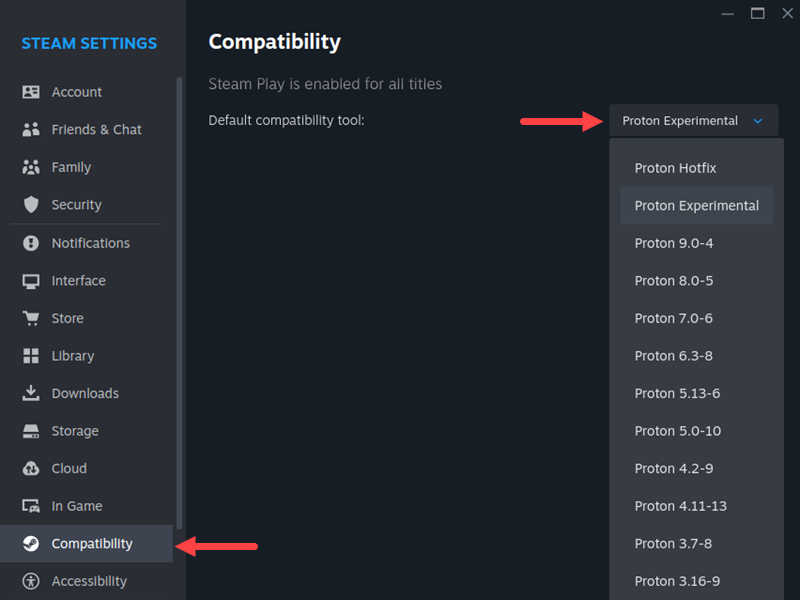
After installing Steam, you can enable Proton in the Settings > Compatibility menu for supported titles or force it for all Windows games.
Basic Usage
Once enabled, you install and launch games normally through Steam. Proton automatically selects compatibility tools and manages per-game environments. Advanced users can override Proton versions or apply custom launch options.
Bottles: Wine + GUI
Bottles is a user-friendly front-end for Wine that focuses on simplicity, isolation, and modern workflows. Instead of managing a single global Wine environment, Bottles lets you create separate containers (bottles) for different applications.
Pros
Bottles is ideal when you want organization, isolation, and a graphical way to manage compatibility.
The key advantages are:
- User-friendly GUI. No terminal needed for runners, prefixes, or dependencies.
- Smart presets. One-click templates optimize settings per app or game.
- App isolation. Prevents library conflicts by separating environments.
Cons
Even with presets, Bottles still inherits Wine’s fundamental compatibility limits and occasional sandbox friction.
Some disadvantages include:
- Still Wine-based. Unsupported apps may still break.
- Flatpak sandbox quirks. Some niche driver or file behaviors may be restricted.
- Advanced fixes are complex. Certain apps still need manual DLL or registry tweaks.
Installation
Bottles is commonly installed via Flatpak, which ensures access to up-to-date Wine runners and dependencies. This also helps keep the host system clean. Follow the steps below to install Bottles on Ubuntu 24:
1. Enable 32-bit architecture
Many Windows apps and games require 32-bit libraries, even on a 64-bit system. Enable i386 support with:
sudo dpkg --add-architecture i386Refresh package metadata after enabling i386 support:
sudo apt update2. Install the required 32-bit graphics libraries
Install the modern OpenGL/EGL/Vulkan 32-bit libraries:
sudo apt install libgl1:i386 libegl1:i386 libgles2:i386 mesa-vulkan-drivers:i386This ensures Wine and DXVK can run 32-bit and 64-bit Windows applications.
3. Install Flatpak
Flatpak is the recommended way to install Bottles. Run the command below:
sudo apt install flatpakAdd the Flathub repository (where Bottles is hosted):
sudo flatpak remote-add --if-not-exists flathub https://flathub.org/repo/flathub.flatpakrepo4. Install Bottles via Flatpak
sudo flatpak install flathub com.usebottles.bottlesThe command automatically downloads Bottles and all runtime dependencies.
5. Launch Bottles
You can start it from the Applications menu or via terminal:
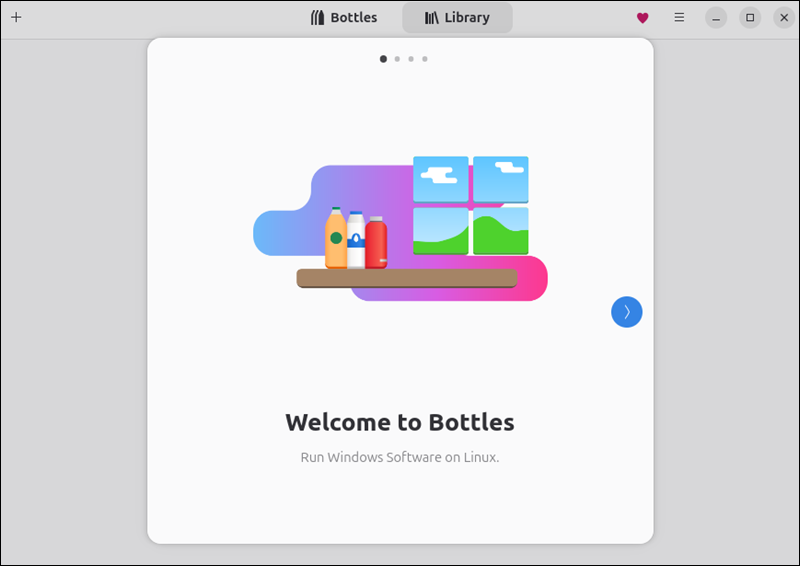
flatpak run com.usebottles.bottlesOn the first launch, Bottles guides you through creating environments (bottles) for Windows apps or games.
Basic Usage
You create a new bottle, select a preset, and install your Windows application inside it. Bottles manages runners, dependencies, environment variables, and performance settings through its interface.
CrossOver: Commercial Wine
CrossOver is a commercial product built on Wine, developed by CodeWeavers. It focuses on a polished user experience, improved compatibility with popular applications, and professional support.
Pros
CrossOver works best when stability, professional support, and simplified installation matter more than cost.
The key advantages are:
- Curated installers. Automated scripts handle many popular apps.
- Official support. You get developer assistance, not just forums.
- Frequent, tested updates. Builds are optimized for specific software targets.
- Suitable for professional environments. It offers professional support and frequent updates.
Cons
Despite improvements, CrossOver still cannot guarantee universal compatibility and requires a paid license.
Its disadvantages are:
- Paid product. Subscription or license required.
- Not universally compatible. Unsupported apps may still fail.
- Less DIY control. Prioritizes reliability over deep manual customization.
Installation
CrossOver is distributed as native packages for major Linux distributions. Installation is straightforward and does not require manual dependency handling. Follow the steps below:
1. Enable 32-bit architecture
Windows apps often need 32-bit libraries. Run the following commands to enable the 32-bit architecture and refresh package metadata:
sudo dpkg --add-architecture i386sudo apt update2. Install the required 32-bit graphics libraries
CrossOver relies on OpenGL/EGL/Vulkan for graphics, including 32-bit apps. Run the command below:
sudo apt install libgl1:i386 libegl1:i386 libgles2:i386 mesa-vulkan-drivers:i3863. Download CrossOver
CrossOver is not in the standard repositories, so download the latest .deb file from the official website. Navigate to the official downloads page, provide the necessary details, and click DOWNLOAD TRIAL NOW.

4. Install CrossOver
Use apt to handle dependencies automatically. Install CrossOver with:
sudo apt install ~/Downloads/crossover_25.1.0-1.debReplace ~/Downloads/crossover_25.1.0-1.deb with the actual path to the .deb file you downloaded, and wait for the installation to complete.
5. Launch CrossOver
You can start it from the Applications menu or the terminal with:
/opt/cxoffice/bin/crossoverBasic Usage
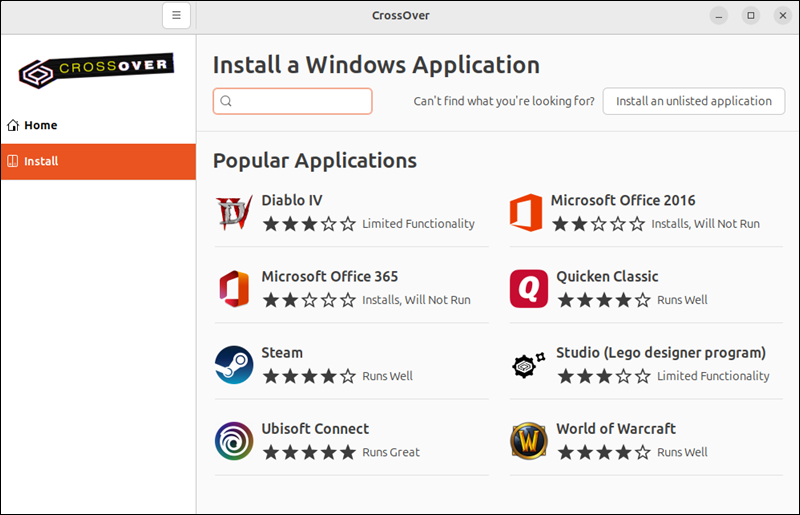
Applications are installed through CrossOver's interface using predefined installers. The tool automatically creates isolated environments and manages Windows versions and libraries.
Dual Boot
Dual booting installs Linux and Windows on the same machine, allowing you to choose which operating system to run at startup. This method does not involve compatibility layers or translation.
Pros
Dual boot is the most reliable option when you need full native Windows compatibility and hardware performance.
The main pros are:
- 100% compatibility. No API translation layer involved.
- Native hardware performance. Best possible drivers, GPU, audio, and peripherals.
- Supports driver-dependent or DRM-heavy software. Ideal for pro apps and protected games.
Cons
Dual boot adds workflow disruption and system-maintenance complexity compared to compatibility layers.
Some disadvantages include:
- Requires rebooting. No side-by-side OS runtime, as switching between systems requires a reboot.
- Partitioning risk. Backups are mandatory to avoid data loss, and disk partitioning adds complexity.
- Two OS maintenance cycles. Maintaining two operating systems increases update and maintenance overhead.
Installation
Dual booting requires careful partition planning and installing each operating system on its own partition. You can follow these general steps to get started dual-booting Linux and Windows:
1. Back up your data.
Save important files to external storage or the cloud before changing partitions.
2. Create space on your drive.
Shrink your existing Linux partition using a disk tool (e.g., GParted or your system's partition manager) to free unallocated space for Windows.
Important: Ensure Linux is installed in the same mode (UEFI or Legacy) as Windows, as mixing modes can prevent the system from booting. Most modern PCs use UEFI, so disable Secure Boot if needed during installation.
3. Install Windows first.
Boot from a Windows USB media and install the OS into the unallocated space. Make sure to disable Windows Fast Startup after the first successful boot to prevent Linux from misreading the Windows partition when switching back.
Note: If you already have Linux installed, Windows will likely replace GRUB during its installation. In that case, boot into a Linux Live USB afterward and run the following commands to restore GRUB and trigger a fresh OS scan so Windows appears in the boot menu:
grub-installupdate-grub4. Install Linux next (skip if already installed).
Boot from your Linux USB installer and install Linux on its own partition (or reuse your existing Linux installation).
5. Restore the bootloader (if needed).
Most Linux installers will detect Windows and automatically configure GRUB. If not, you may need to reinstall or repair GRUB from a live Linux session.
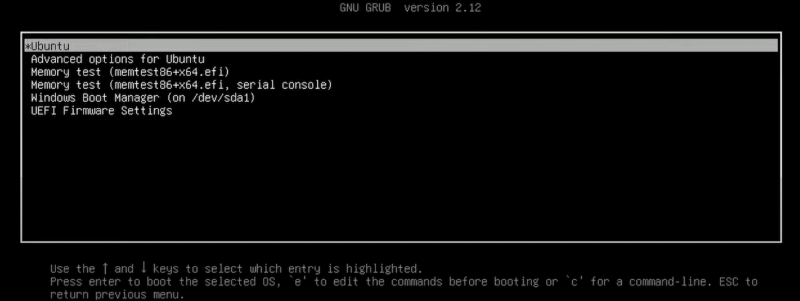
6. Choose OS at startup.
After the setup, the GRUB menu should display both Linux and Windows, allowing you to choose which to boot.
Basic Usage
At boot time, you select either Linux or Windows. Applications run natively within their respective environments with no compatibility limitations.
Virtual Machine
A virtual machine (VM) runs Windows as a guest operating system inside Linux using virtualization software such as VirtualBox or KVM. This approach provides full Windows compatibility in a contained environment.
Pros
VMs are best when you want isolation, snapshots, and a parallel desktop workflow without rebooting.
The main advantages are:
- Strong isolation. Crashes and malware stay contained due to excellent isolation and flexibility.
- Snapshots. Roll back instantly while testing or debugging.
- Linux keeps running. Use both OS environments simultaneously.
Cons
Virtual machines demand more resources and typically deliver weaker graphics performance than native or Vulkan-accelerated layers.
Some disadvantages include:
- Resource-heavy. Requires dedicated CPU, RAM, and storage.
- Lower GPU performance. Not ideal for modern gaming without passthrough, as performance is lower than native execution, especially for graphics-intensive tasks.
- Needs a Windows license. Full OS installation required with a valid Windows license.
Installation
First, you need to install virtualization software on your system. For example, you can install VirtualBox on Ubuntu, Rocky Linux or CentOS. An alternative option is to install VMware on Ubuntu.
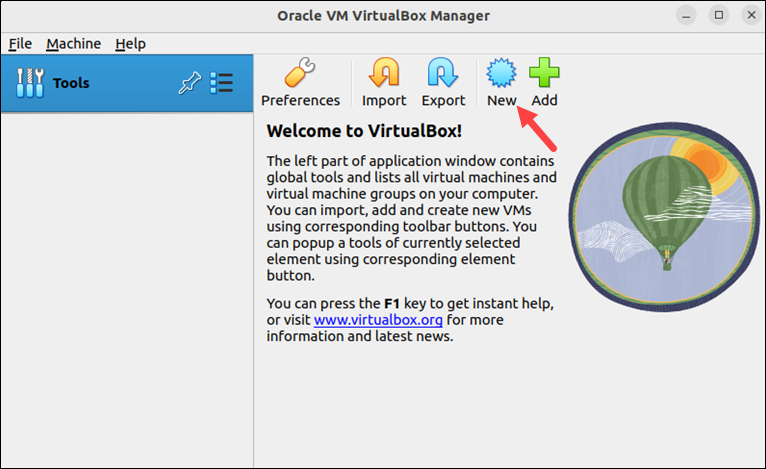
Next, you must create a virtual machine in which to install Windows from an ISO image. Hardware virtualization support (VT-x or AMD-V) is recommended.
Basic Usage
Windows runs in a window or full-screen mode on your Linux desktop. Applications behave exactly as they would on a physical Windows machine, with shared folders and clipboard support.
Run Windows Apps on Linux: Choosing the Right Method
Choosing the best method depends on what you want to run and how important performance and convenience are.
The following guidelines can help you make your decision:
- Choose Proton for Steam gaming.
- Choose Wine or Bottles for lightweight apps.
- Choose CrossOver for professional or work-critical software.
- Choose Virtual Machines for isolation and testing.
- Choose Dual Boot when nothing else works reliably.
If an app fails with one method, it is often worth trying another before giving up.
Troubleshooting Windows Apps on Linux
Even with the right method, issues can happen. Understanding common problems makes troubleshooting much easier:
| Problem | Likely cause | Suggested solution |
|---|---|---|
| App won't start | Missing libraries or dependencies. | Install required DLLs or supporting libraries, check Wine/Bottles logs. |
| Graphical glitches | GPU or DirectX/Vulkan translation issues. | Switch Wine runner, update graphics drivers, or enable Vulkan (DXVK/VKD3D). |
| Installer crashes | Unsupported Windows version or missing components. | Adjust the Windows version in Wine/Proton settings, and install the necessary runtimes. |
| Poor performance | Wrong execution method or resource limits. | Try Proton (for games), use native drivers, or switch to a VM for stability. |
| No sound | Audio backend misconfiguration. | Check PulseAudio or PipeWire settings, or switch Wine audio backend. |
| App detects the wrong environment | Missing environment variables or incorrect prefix. | Use a clean Wine prefix, configure environment variables correctly in Bottles/CrossOver. |
Tips for smoother troubleshooting:
- Always check the logs for errors (wine app.exe in the terminal, or the Wine/Proton logs).
- Consider isolated environments (Bottles) to prevent conflicts between apps.
- Keep your compatibility layers up to date, as bug fixes and new features are released frequently.
Conclusion
Linux provides multiple practical ways to run Windows applications without abandoning your preferred operating system. By understanding the strengths and limitations of each approach, you can choose the right tool, avoid unnecessary complexity, and keep your Linux system flexible and powerful.
Next, learn what a VDI is and how it works, or learn the difference between containers and virtual machines.