Git's reset --hard command is a powerful history-and-state rewriting tool. It moves the branch pointer to a specified commit and overwrites the staging area and working directory to match that commit.
Unlike safer modes, it discards uncommitted changes entirely. Understanding how a hard reset works and how to use it safely is essential for avoiding accidental data loss.
This tutorial will explain how Git's hard reset command works, when to use it, and shows its risks and best practices.
Prerequisites
- Git installed (install Git on Ubuntu, macOS, Windows, or FreeBSD).
- A working Git repository.
Git Hard Reset Syntax
Before using git reset --hard, it is important to understand the basic syntax and what each part of the command controls. This section explains how the command is structured, what arguments it accepts, and how Git interprets them when resetting your repository state.
The syntax is:
git reset --hard [commit][commit] can be:
- A commit hash.
- A relative reference, like
HEAD~2. - A branch name (e.g.,
main).
Without [commit], the command defaults to HEAD, effectively discarding uncommitted local changes.
How Does Hard Reset in Git Work?
A hard reset updates multiple internal Git components simultaneously. Instead of only moving the branch pointer, it forces your entire local repository state to match a specific commit. This makes git reset --hard one of the most aggressive reset modes available.
When you run a hard reset, Git performs the following actions in order:
- Moves HEAD and the current branch pointer (if
HEADis attached to a branch) to the target commit, effectively rewriting branch history. - Resets the staging index to match the snapshot of the specified commit.
- Overwrites the working directory, replacing tracked files with the versions stored in that commit.
As a result, any tracked changes that are not committed are permanently discarded. Commits that existed after the reset point are no longer referenced by the current branch, although they may still be recoverable temporarily via the reflog.
Important: Hard reset is destructive by design. Uncommitted tracked changes cannot be restored after a hard reset unless you created a stash or external backup beforehand.
Git Hard Reset Use Cases
A hard reset is best suited for scenarios where preserving local changes is unnecessary or undesirable. It is primarily a cleanup and rollback tool for local development, not a collaborative workflow command.
Common use cases include:
- Discarding all local changes. When your working directory and staging area contain experimental or broken changes you no longer want, a hard reset restores the repository to a clean, committed state.
- Undoing recent local commits. If you created commits that should not exist, such as incomplete work or commits made on the wrong branch, a hard reset lets you remove them entirely from your local history.
- Cleaning up after failed experiments. During prototyping or testing, a hard reset provides a fast way to abandon an approach and return to a known-good commit without manually reverting files.
- Synchronizing a local branch with a remote branch. When your local branch has diverged, and you want it to exactly match the remote version, a hard reset can realign it after fetching the latest state.
Because git reset --hard discards data, it should only be used when you are certain the affected changes are no longer needed. For shared branches or uncertain situations, safer alternatives such as git reset --soft, git reset --mixed, or git revert are usually more appropriate.
Hard Reset in Git - Examples
The following examples demonstrate how git reset --hard behaves in common real-world scenarios. Each example shows when you might use the command and what happens to your repository afterward.
Example 1: Discard All Uncommitted Changes
This example resets your working directory to match the latest commit. It is useful when your local edits are broken or no longer needed.
First, check your repository status:
git status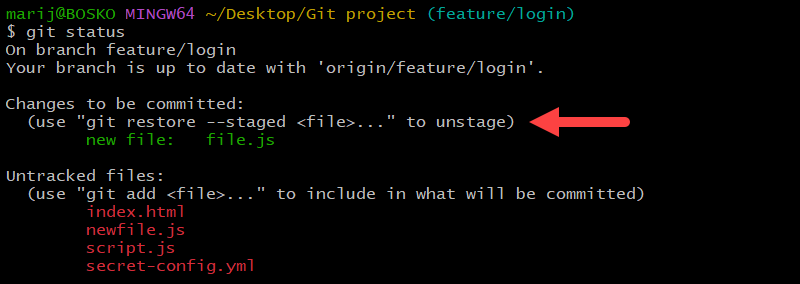
In the example above, we have one staged file - file.js. To perform a hard reset, use this command:
git reset --hard HEADThe command removes the changes in both the staging area and the working directory. After the hard reset:
- Modified tracked files return to their committed versions.
- Staged changes are cleared.
- Your repository matches the current commit exactly.
- Untracked files remain untouched.
That means after a hard reset, the repo restores the file to its last committed version. If it was newly added but never committed, it becomes untracked.
Example 2: Undo the Last Commit
This example removes the most recent commit and discards its changes. It is helpful when a commit was created by mistake or contains unusable work.
Reset to the previous commit:
git reset --hard HEAD~1Git moves the branch pointer back one commit and rewrites your workspace to match it.
After the reset:
- The latest commit disappears from the branch history.
- Its file changes are permanently removed.
- Your project state matches the earlier commit.
- Untracked files are left untouched.
This only affects your local repository unless you force push afterward.
Example 3: Reset to a Specific Commit
This example rewinds your branch to an older known-good state. It is useful when recent commits introduced major issues.
First, run the following command to view commit history:
git log --oneline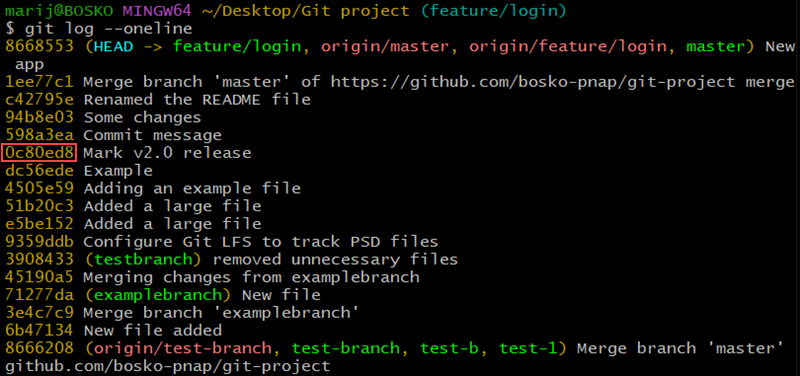
Copy the hash of the target commit (e.g., 0c80ed8 in the example above) and use it in the following command:
git reset --hard [commit-hash]After this operation:
- All commits after the target are removed from the current branch.
- Your files match the selected commit.
- Later commits may still exist temporarily in the reflog.
This approach is common during debugging or rollback scenarios.
Example 4: Align Local Branch with Remote
This example forces your local branch to match the remote version exactly. It is useful when your local history is messy, and you want a clean sync.
First, fetch remote updates:
git fetch originThen reset your branch:
git reset --hard origin/mainReplace origin and main with your remote repository name and target branch. These values may differ depending on your project configuration, e.g., master instead of main, or a completely different branch.
The reset:
- Removes local commits that do not exist on the remote.
- Discards local tracked changes.
- Your branch becomes identical to
origin/main.
Use this only when you are certain your local work is not necessary.
Hard Reset in Git - Caution and Best Practices
Git's hard reset is intentionally destructive. It exists to permanently remove local changes and rewrite branch history. While this option can be useful, misuse can result in data loss, broken workflows, and team conflicts.
It is essential to understand the risks and how to reduce them before running the command.
Hard Reset - Potential Risks
A hard reset affects both your workspace and commit history. Always consider the following risks before executing the command:
- Permanent loss of uncommitted work. Any tracked file changes that are not committed are deleted immediately.
- Accidental deletion of important commits. Commits removed from the branch may become difficult to recover if the reflog expires.
- History rewriting on shared branches. Resetting a branch that others rely on can cause conflicts and broken repositories.
- Force push complications. If you push a reset branch with
--force, collaborators must manually reconcile their history. - False sense of reversibility. Recovery is not always possible because reflog entries expire after a period of time.
How to Mitigate Potential Risks
Before running a hard reset, take steps to protect your work. These precautions create recovery paths if something goes wrong.
Follow the steps below to mitigate potential risks before a hard reset:
1. Inspect the repository state with these commands:
git statusgit log --onelineAnalyze the output to understand potential losses from a hard reset.
2. Next, create a temporary backup branch. For example:
git branch backup-before-resetThis lightweight branch preserves your current commit pointer. Even if the reset fails, you can return to this snapshot instantly.
3. If you have uncommitted changes you might need later, stash them. Create a Git stash with:
git stash push -m "backup before hard reset"Stashing provides a reversible safety net without polluting commit history.
By following the steps above, you can prevent hours of recovery work after a miscalculated hard reset.
How to Recover Operations
Recovery may be possible after a hard reset, but it depends on Git still retaining references to the discarded commits. The sooner you act, the higher the chance of success.
Git Reflog
The reflog tracks every movement of HEAD, including resets. It is the primary recovery mechanism after history rewrites.
Run the following command:
git reflog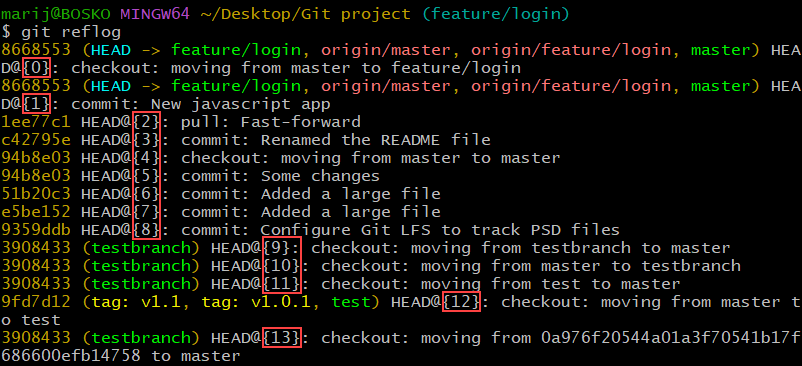
Locate the commit reference you want to restore, then reset back:
git reset --hard HEAD@{n}Replace n with the correct reflog entry number.
Reflog data expires over time, so recovery is time-sensitive.
Stash Recovery
If you stashed changes before resetting, list your stash entries:
git stash list
Restore the desired snapshot with the following syntax:
git stash apply stash@{n}Replace n with the stash entry number.
This returns your uncommitted work to the working directory.
Branch Backup
If you created a backup branch earlier, switch back to it:
git checkout backup-before-resetReplace backup-before-reset with your backup branch name. Your original state remains intact because the branch still references the previous commit.
How to Prevent Any Future Loss of Operations
Preventing data loss starts with predictable Git habits and clear workflows. Adopting disciplined Git habits reduces the risk of destructive mistakes.
Some best practices include:
- Commit small, frequent checkpoints.
- Push important work to a remote repository.
- Use feature branches for experiments.
- Avoid rewriting shared branch history.
- Prefer
git revertfor collaborative workflows. - Use soft or mixed reset when you want to preserve changes.
- Treat hard reset as a tool, not a routine workflow command.
Conclusion
This tutorial explained how Git's hard reset works, when to use it, its potential risks, and how to mitigate them. The command is powerful, and it can quickly restore a repository, but it permanently removes local changes. Make sure to verify your target commit before running it and rely on safeguards such as backups and reflog to reduce the risk of accidental data loss.
Next, see how to configure Git or follow our comprehensive Git tutorial for beginners.