Port 8443 is a commonly used alternate port for HTTPS services, especially when the default HTTPS port (443) is already in use or when an app needs its own dedicated secure channel. It is a practical choice for staging servers, local dev stacks, admin panels, and isolated APIs that require TLS but need clean separation from external services.
This article will explain port 8443 and how to configure it on your system.

What is Port 8443?
Port 8443 is an alternate HTTPS port used to deliver HTTP traffic over a secure channel encrypted with SSL/TLS. It serves as a practical fallback when the default secure browsing port (443) is occupied, blocked, or filtered.
This port is most commonly used for HTTPS traffic, meaning data sent between the client and server is encrypted in transit. It is essential for protecting credentials, admin interfaces, APIs, and sensitive transactions in development or internal environments.
In summary, port 8443:
- Provides a secure channel when 443 is unavailable or restricted.
- Helps isolate internal or staging services from public endpoints.
- Prevents accidental exposure of management consoles or dev APIs.
Note: Using port 8443 alone does not secure a service. Isolation must be enforced through firewalls, authentication, and network controls.
Port 8443 vs. Port 443
Port 443 is the default HTTPS port used by browsers and public websites, while 8443 is a common alternative used when 443 is already assigned or intentionally avoided.
Both ports support SSL/TLS encryption and handle HTTPS traffic, but clients default to 443. On the other hand, port 8443 is typically used for internal services, staging environments, and secure admin interfaces where isolation and port flexibility are priorities.
The following table compares the key features of the two ports:
| Feature | Port 443 | Port 8443 |
|---|---|---|
| Default for HTTPS | Yes | No (alternate) |
| Browser expects it automatically | Yes | No (must specify port) |
| SSL/TLS support | Yes | Yes |
| Typical exposure | Public websites | Internal, staging, admin tools |
| Port conflicts | More common | Less common |
| Needs port in URL | No | Yes |
Port 8443 Use Cases
Port 8443 is commonly used when secure communication is required, but the default HTTPS port is unavailable or intentionally avoided. It helps teams separate public-facing traffic from internal services while maintaining full SSL/TLS protection.
Common use cases include:
- Staging and testing environments. Run HTTPS-enabled pre-production services without interfering with live traffic on port 443.
- Administrative dashboards and control panels. Keep management interfaces isolated from public-facing web services.
- Internal APIs and microservices. Secure service-to-service communication within private or restricted networks.
- Development environments. Host multiple secure applications on a single machine without port conflicts.
- Application servers and platforms. Expose encrypted web interfaces for tools such as Tomcat, Keycloak, or Proxmox using a non-default port.
These use cases make port 8443 a practical choice for maintaining security, flexibility, and clean service boundaries in modern infrastructure setups.
Port 8443 and Security
Port 8443 is designed to carry encrypted traffic, and it is typically used when security and access control are a priority.
While the port itself does not provide security by default, it is almost always paired with SSL/TLS encryption and strict network rules to protect sensitive services.
SSL/TLS Support on Port 8443
Port 8443 fully supports SSL/TLS, just like the standard HTTPS port 443. When configured correctly, all data transmitted over this port is encrypted in transit, which prevents eavesdropping, tampering, and credential theft. This makes it suitable for admin panels, APIs, and internal applications that handle sensitive information.
To ensure strong security, services running on port 8443 should use valid certificates, modern TLS versions, and secure cipher suites. Although browsers do not treat 8443 as a default HTTPS port, they still apply the same HTTPS security checks once the connection is established.
Firewall Rules and Intrusion Detection
Because port 8443 often exposes internal or management services, it should be protected by strict firewall rules. In many setups, access is limited to specific IP addresses, internal networks, or VPN connections rather than being open to the public internet.
Intrusion detection systems (IDSs) and intrusion prevention systems (IPSs) can also monitor traffic on port 8443 for suspicious activity, such as repeated login attempts or unusual request patterns. Combined with logging and rate limiting, this helps detect attacks early and reduces the risk of unauthorized access to critical services.
Working with Port 8443
This section walks through common tasks related to port 8443, including configuring web servers, checking port status, and opening the port on Linux and Windows systems.
Follow the steps below in the section that corresponds to your needs.
How to Set Up Port 8443 on Apache?
Before configuring port 8443, Apache and SSL support need to be available on your system. Make sure that:
- Apache web server is installed (follow our tutorials for installing Apache on Ubuntu, Windows, CentOS, or Rocky Linux).
- SSL module is available.
- You have an existing SSL certificate and private key.
This tutorial applies to Ubuntu/Debian-based systems. Follow the steps below:
1. Enable SSL support
Enable the SSL module so Apache can serve HTTPS traffic. Run the following command:
sudo a2enmod sslRestart Apache for the changes to take effect:
sudo systemctl restart apache22. Configure Apache to listen on port 8443
Edit the ports configuration file and add port 8443. First, open the configuration file:
sudo nano /etc/apache2/ports.confAdd the following line to the file:
Listen 8443Exit and save the file.
3. Create or update the SSL virtual host
You can copy the default SSL site configuration and use it as a template. Run the following command:
sudo cp /etc/apache2/sites-available/default-ssl.conf \
        /etc/apache2/sites-available/8443-ssl.conf
4. Edit the new virtual host file
Open the file in a text editor, such as nano:
sudo nano /etc/apache2/sites-available/8443-ssl.confChange the virtual host definition from port 443 to 8443:
<VirtualHost *:8443>Exit and save the file.
Note: This example keeps the default snakeoil SSL certificate path in the conf file provided by Ubuntu for testing purposes. In a production environment, replace SSLCertificateFile and SSLCertificateKeyFile with paths to your own valid SSL/TLS certificate and private key.
5. Enable the site and reload Apache
Activate the new virtual host with:
sudo a2ensite 8443-ssl.conf
Reload Apache to apply the changes:
sudo systemctl reload apache2Now the port 8443 is set up on Apache.
6. Verify the configuration
Confirm Apache is listening on port 8443 by opening the following URL in your browser:
https://localhost:8443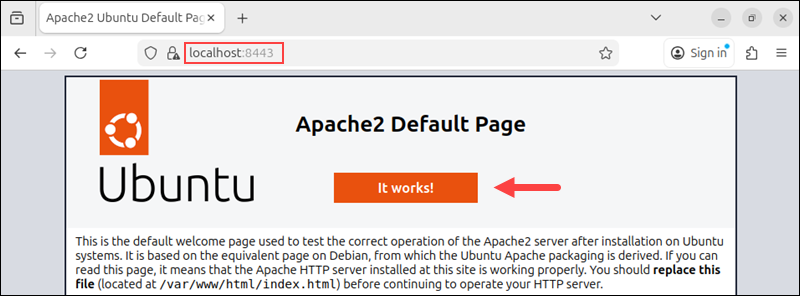
A certificate warning is expected when using a self-signed certificate.
How to Set Up Port 8443 on Nginx?
Nginx requires a server block configured to listen on port 8443 with SSL enabled. Make sure you have Nginx installed along with an SSL certificate and private key. Follow the steps below:
1. Open your Nginx server block configuration
Edit an existing site configuration or create a new one in the conf.d directory. Run the following command:
sudo nano /etc/nginx/conf.d/8443-ssl.confNote: Some Nginx installations use /etc/nginx/sites-available/ and others use /etc/nginx/conf.d/. Check which one your installation uses and specify that one for the configuration file.
2. Configure Nginx to listen on port 8443
Add or update the server block in the file:
server {
    listen 8443 ssl;
    server_name localhost;

    ssl_certificate /etc/ssl/certs/ssl-cert-snakeoil.pem;
    ssl_certificate_key /etc/ssl/private/ssl-cert-snakeoil.key;

    root /var/www/html;
    index index.html;
}Note: For this tutorial, Nginx is configured with Ubuntu's default snakeoil SSL certificate for testing. Replace ssl_certificate and ssl_certificate_key with paths to your own SSL/TLS certificate and private key before using this setup in production.
3. Test and reload Nginx
Verify the configuration and reload Nginx to apply the changes:
sudo nginx -t
sudo systemctl reload nginx4. Verify the setup
Confirm that Nginx is listening on port 8443 and that everything is working as intended by opening the following URL in your browser:
https://localhost:8443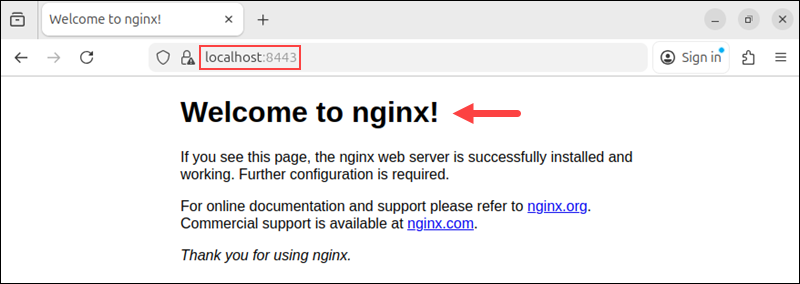
A certificate warning is expected when using a self-signed certificate.
How to Check if Port 8443 is Open on Linux?
You can verify whether port 8443 is open and listening using built-in networking tools. Follow the steps below:
1. Check listening ports
Verify whether port 8443 is in use. Run:
ss -tuln | grep 8443
If there is no output, no service is listening on the port.
2. Test connectivity
Confirm that the service responds.
curl -k https://localhost:8443How to Check if Port 8443 is Open on Windows
Windows provides built-in tools to check whether a port is open and in use. Follow the steps below:
1. Open Command Prompt or PowerShell
Press the Windows key and type PowerShell. Press Enter to run it with standard user privileges.
2. Check listening ports
Use netstat to see if port 8443 is active. Run the following command:
netstat -ano | findstr :8443If there is no output, no process is currently listening on port 8443, and Windows has nothing bound to that port.
3. Test connectivity
If the service is remote, test the connection.
Test-NetConnection -Port 8443 -ComputerName localhost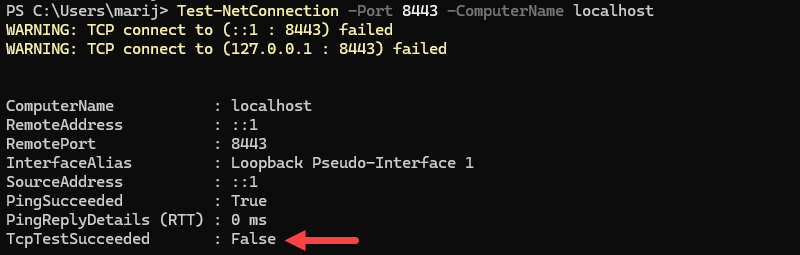
The example above states that the test failed because port 8443 is not open and no service is using it.
Note: If these commands return no output or show TcpTestSucceeded : False, it means no service is currently listening on port 8443. Opening the firewall alone is not enough since an application must be actively using the port.
How to Open Port 8443 on Linux?
If a firewall is enabled, you must explicitly allow traffic on port 8443. For this tutorial, we will use Ubuntu and UFW.
1. Allow the port using UFW
Open the port for TCP traffic with the following command:
sudo ufw allow 8443/tcpReload UFW for the changes to take effect:
sudo ufw reload2. Verify firewall rules
Confirm the rule was applied:
sudo ufw status
How to Open Port 8443 on Windows?
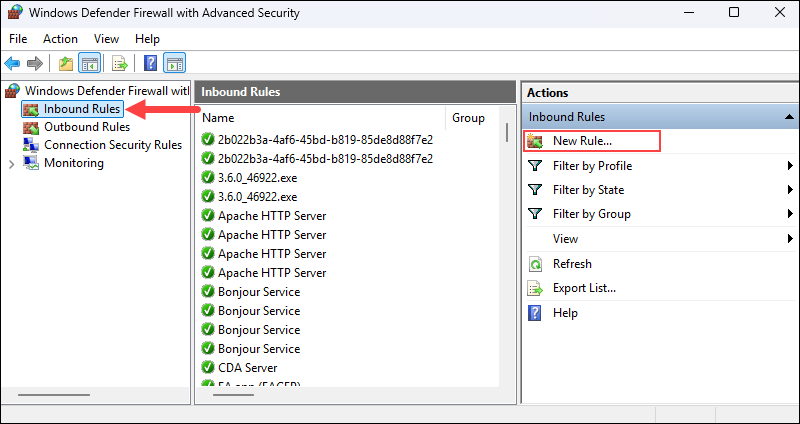
Windows Defender Firewall controls inbound port access, and it is where you open port 8443. Follow the steps below:
1. Open Windows Defender Firewall as an administrator.
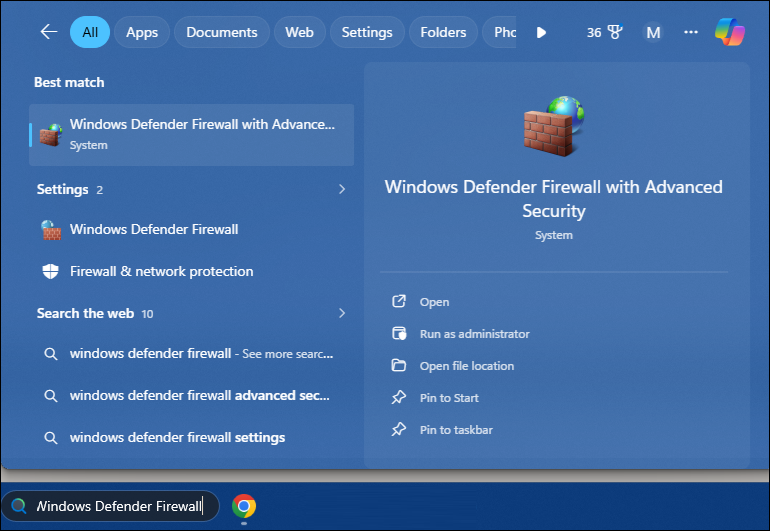
2. Navigate to Advanced settings and create a new inbound rule.
3. Select Port, choose TCP, and specify port 8443.
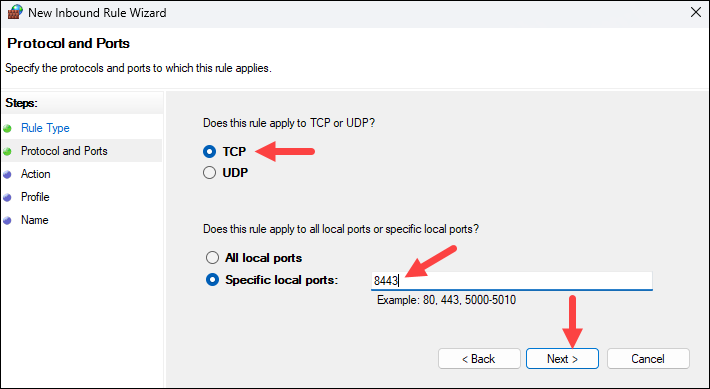
4. Apply the rule to the required network profiles.
5. Save the rule and name it clearly (for example, Allow HTTPS 8443). Now the port is open for any service you want it bound to.
Conclusion
This article explained port 8443 and showed how to configure it in various environments. Port 8443 provides a flexible and secure alternative to the default HTTPS port, making it ideal for internal services, staging environments, and admin interfaces. With proper SSL/TLS configuration and firewall controls, it offers the same level of security as port 443.
Next, learn about SSH port forwarding or see how to ping a specific port number in Linux, Windows, and macOS.