The shift towards cloud-native applications relies heavily on Docker technology. The platform's client-server architecture comprises several interacting components that allow users to build, ship, and run containerized applications.
This guide explores the Docker Daemon, the central component driving containerization on a host machine.
What Is Docker Daemon?
The Docker Daemon, officially named dockerd, is a persistent background service that runs on the host operating system. It manages the Docker objects (images, containers, volumes, and networks) by listening for API requests and forwarding them to other Docker components.
The daemon acts as the central control point, fielding client requests and orchestrating the necessary lower-level actions to achieve the desired state of the container ecosystem. Its continuous operation ensures that container resources remain available and managed according to the defined specifications.
The daemon also maintains the local storage of images and container writable layers, making it the single source of truth for the local Docker environment.
Docker Daemon Functions
The daemon performs the essential work of building, running, and distributing containers. It handles resource allocation, security, and communication with other daemons.
The daemon's responsibilities span the full container lifecycle. The following sections analyze its role in each stage.
Image Management
The Docker Daemon is responsible for pulling and storing images from registries (such as Docker Hub) and building new images from Dockerfiles. It handles complex tasks such as:
dockerd also manages the content-addressable storage system to ensure integrity and efficiency in image storage.
Container Lifecycle
The daemon creates, starts, stops, and deletes containers based on image instructions. This function involves resource allocation (assigning CPU limits, memory constraints, and I/O prioritization using Linux kernel features such as cgroups).
When starting a container, the daemon initiates the necessary calls to the low-level runtime (containerd/runC) to set up the container's isolated namespace and execute the entrypoint command.
Networking
The dockerd process configures and manages virtual networks that allow containers to communicate with each other and the outside world. The daemon utilizes the Container Network Interface (CNI) specification and its own networking driver stack (e.g., bridge, overlay, macvlan) to create virtual network interfaces, configure routing rules, and manage IP addressing. It also handles port mapping, translating ports exposed by a container to ports on the host machine.
Volume Management
To enable persistent storage of container data, the daemon creates and mounts Docker volumes. This process involves interacting with storage drivers to manage local volumes or coordinating with external volume plugins for networked storage solutions.
The daemon ensures data integrity and availability, even after a container stops or is removed.
Security
The Docker Daemon implements security features such as AppArmor or SELinux, and restricts kernel access and container privileges. It also manages seccomp profiles to limit the system calls a container can make, significantly reducing the attack surface.
Registry Interaction
The daemon handles the authentication and data transfer processes for pulling and pushing images to and from remote registries. Its duties include managing credentials securely and handling layered image transfer protocols.
Docker Daemon Architecture
The Docker Daemon operates in a client-server architecture. The daemon acts as the server, and the Docker CLI (Command Line Interface) acts as the client. The daemon exposes a REST API which the CLI uses to send commands over a Unix socket, or a network interface.
The layered design delegates specific tasks, ensuring stability and modularity. The architecture separates the high-level management API from the low-level container execution. This separation is key to Docker's modularity.
Below is a breakdown of the core interacting components in Docker and their functions:
- Docker client (CLI). The user-facing tool that translates commands (like docker run or docker build) into REST API calls. It manages user sessions and outputs presentations.
- Docker engine (daemon). The persistent service that receives API calls. It handles:
- Managing the storage and retrieval of image layers (using storage drivers like OverlayFS or Aufs).
- Validating client credentials and enforcing access control policies.
- Routing API requests to the appropriate internal components.
- containerd. A component that resides between the daemon and the actual container execution. It is responsible for:
- Managing the transfer of images to and from the registry.
- Handling image content and metadata storage.
- Monitoring running containers and managing their state. The daemon delegates the heavy lifting of container execution to containerd.
- runC. The actual low-level container runtime that creates and runs containers according to the Open Container Initiative (OCI) specification. It handles:
- Setting up isolated kernel namespaces (PID, Net, Mnt, UTS, IPC, User) for the container.
- Applying resource limits specified by the daemon.
- Spawning the initial container process inside the isolated environment.
The hierarchy (Client -> Daemon -> Containerd -> RunC) isolates the core container execution from higher-level orchestration logic, improving resilience and enabling runtime interchangeability.
Working with Docker Daemon
Interacting with the Docker Daemon requires understanding how to configure, control, and troubleshoot its operation. The following sections describe how to configure, start, and manage dockerd.
How to Configure Docker Daemon
Configuration dictates the daemon's behavior, controlling aspects like default networks and log settings. Two primary configuration methods, via a JSON file and via dockerd commands, allow for both permanent system-wide settings and temporary overrides.
Via JSON File
The most common method involves editing the daemon's configuration file, typically named daemon.json. This file resides in a host-specific location, such as /etc/docker on Linux systems. It provides a persistent and structured way to manage the daemon's environment.
Note: daemon.json might not exist by default after a fresh Docker installation. If the file is not present, Docker will use its default configuration settings.
The file uses standard JSON format to define settings, keys mapping directly to daemon parameters.
After editing, the daemon requires a restart for the new configuration to take effect. The system manager (such as systemd) handles the service reload or restart operation.
The key configuration parameters are:
log-level. Controls the verbosity of the daemon's output (debug,info,warn,error,fatal). Default isinfo.data-root. Specifies the absolute path where Docker stores all its persistent data (images, volumes, etc.).insecure-registries. Lists registries that the daemon should connect to without requiring TLS encryption. Necessary for local or internal private registries.storage-driver. Selects the underlying storage driver (e.g., overlay2, aufs). This choice heavily impacts performance and disk usage.hosts. Specifies the network interfaces and protocols the daemon listens on (e.g., tcp://0.0.0.0:2375 for remote access or unix:///var/run/docker.sock for local CLI).default-address-pool. Defines a custom range of subnets used for the default bridge network. This parameter prevents IP address conflicts with the host network environment.
Below is an example of a customized daemon.json file:
{
  "log-level": "warn",
  "data-root": "/mnt/docker-storage/data",
  "insecure-registries": ["registry.internal.corp:5000"],
  "storage-driver": "overlay2",
  "dns": ["8.8.8.8", "8.8.4.4"]
}
Via dockerd Command with Flags
For one-off changes or testing, configuration parameters can pass directly to the daemon startup command using command-line flags. Flags override settings defined in the daemon.json file, allowing for temporary configuration adjustments.
To pass the configuration parameters via CLI, use the dockerd executable followed by the desired flag. The flags often correspond directly to JSON parameters (e.g., --log-level matches log-level). The system service definition (e.g., in the systemd unit file) often includes standard flags when the daemon starts automatically.
Below is an example of a dockerd command:
dockerd --log-level debug --default-address-pool base=172.18.0.0/16,size=24 --tlsverify --tlscacert=/certs/ca.pemThis method is generally less suitable for permanent configuration in production systems where daemon.json provides centralized control.
Daemon Data Directory Explained
The daemon uses a designated directory on the host machine to store all its state and persistent data. This data root directory is critical to the daemon's operation and requires careful planning, especially regarding disk space and I/O performance.
By default, this location is:
- /var/lib/docker on Linux.
- C:\ProgramData\Docker on Windows Server.
- Within the VM context on macOS and Windows Desktop.
Its contents include:
- Image layers. Stored by the selected storage driver (e.g., overlay2). The image layers consume the most space.
- Container metadata. JSON files detailing the configuration, state, and logging settings for every container.
- Volumes. By default, local volumes are stored here under a subdirectory, ensuring data persists independently of the container.
- Network configurations. Internal database files detailing bridge, overlay, and macvlan network settings.
- Swarm state. If Swarm mode is active, the cluster state information resides here.
Changing the data root directory is a common operational task, often to move storage to a larger, faster, or dedicated disk partition. It requires setting the data-root option in the daemon.json file and executing a clean stop and start of the daemon.
How to Start Docker Daemon?
The daemon must be running for container operations to proceed. The startup method depends on the host system's initialization system, usually systemd or init.d.
Start Daemon on Boot
Most modern Linux distributions use systemd to manage services, ensuring that daemons start automatically at boot. This approach ensures the immediate availability of container services without manual intervention.
To set up Docker to start on system boot, enable the service:
sudo systemctl enable dockerEnabling a service creates a symbolic link, causing the service to start at the next boot.
Execute the following command to start the service immediately:
sudo systemctl start dockerThe command starts the daemon according to its systemd unit file definition.
To verify the status of the service, use the following command:
sudo systemctl status dockerThe output confirms the daemon is active and running.
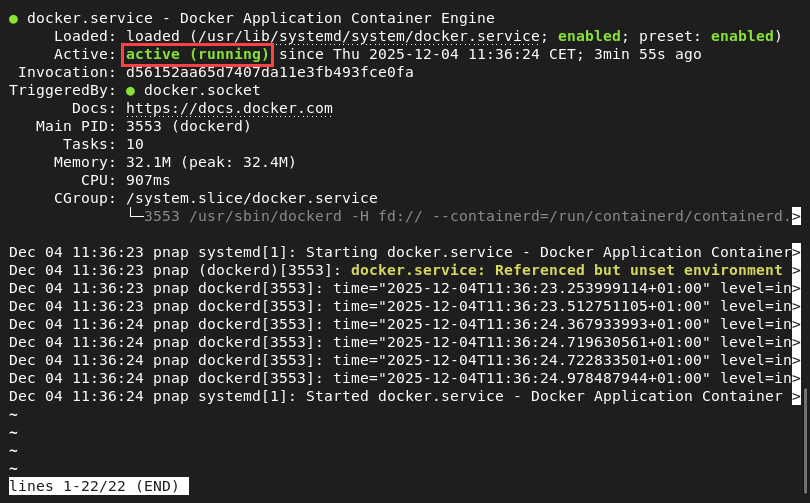
The system manager handles restarts, logging, resource limits, and dependencies automatically. The systemd unit file typically defines the dockerd command and its startup flags.
Start Daemon Manually
Starting the daemon manually is sometimes necessary for debugging, testing custom configurations, or when operating in environments without a service manager.
The steps below show how to execute the dockerd binary directly:
1. Ensure no existing instance is running:
sudo systemctl stop docker2. Execute the following command to start the daemon with default settings:
sudo dockerdWhen run directly, the daemon prints logs to the standard output and runs in the foreground, tying the process to the terminal session. This feature allows for real-time observation of its internal operations.
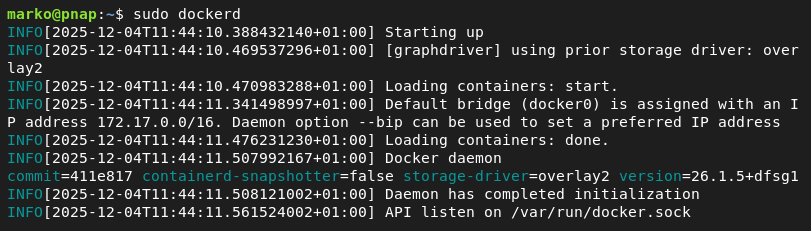
For custom configuration, run:
sudo dockerd --config-file [path_to_custom_json]Note: For background operation without a service manager, the command must use shell features such as nohup or & to detach the process.
Docker Daemon Debugging
When unexpected behavior occurs, debugging the daemon involves inspecting logs and checking process status. Below are the common steps to execute when troubleshooting a problem with Docker:
1. Check the daemon's status:
sudo systemctl status dockerThe output immediately reveals if the service is active, exited, or failed, and shows the last few log lines.
2. View daemon logs:
journalctl -u docker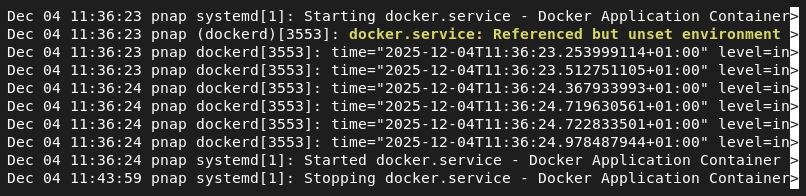
The output provides a comprehensive, timestamped history of the daemon's output, including startup errors and runtime warnings.
3. Increase log detail. Set log-level to debug in daemon.json and restart the daemon. Debug logs show detailed information about API requests, image layer operations, network configurations, and calls to Containerd/RunC. This action is often necessary to pinpoint issues such as storage driver failures or network misconfigurations.
4. Use the following command:
docker infoThis command contacts the daemon and retrieves detailed system information, including the storage driver in use, the root directory, kernel version, cgroups driver, and the number of running containers.

5. Check the daemon process state:
ps aux | grep dockerdThe output confirms the process is running.

Conclusion
After reading this article, you should have a clearer picture of the Docker Daemon's position within the larger Docker platform. Understanding the daemon's functions, configuration methods, and systematic debugging techniques is essential for anyone managing containerized applications.
Next, read about Docker monitoring tools we recommend.