The latest Ubuntu LTS releases will work on most desktops and laptops manufactured in the last 10 years. However, some applications may feel slow on older equipment, especially under heavy workloads.
This matters in always-on environments like business workstations and production servers, where consistent performance is more important than just booting successfully.
This article discusses the minimum and recommended system requirements for Ubuntu 26.04 Desktop, Ubuntu Server, and the various Ubuntu flavors.
Minimum System Requirements for Ubuntu
The minimum requirements for Ubuntu 26.04 LTS are:
| Minimum Requirements | |
|---|---|
| Processor | 64-bit dual-core CPU (2 GHz) |
| Memory (RAM) | 6 GB |
| Storage | 25 GB available disk space |
| Graphics/Display | 1024 x 768 resolution (Integrated graphics) |
| Firmware | UEFI or legacy BIOS |
These specifications provide a usable desktop experience, allowing you to browse the web, run office applications, and perform light development. If your system falls below these levels, consider using one of the lightweight Ubuntu flavors instead.
Recommended System Requirements for Ubuntu
For a smooth and responsive experience when running Ubuntu 26.04 LTS, use:
| Recommended Requirements | |
|---|---|
| Processor | 64-bit quad-core CPU |
| Memory (RAM) | 8 GB or more |
| Storage | 50 GB or more (SSD) |
| Graphics/Display | Full HD 1920 x 1080 (Integrated or dedicated GPU) |
| Firmware | UEFI |
With the recommended setup, the system boots faster, and you can expect better performance from desktop applications, virtual machines (VMs), containers, and dev tools.
Ubuntu Server Requirements
Ubuntu Server is a server-focused OS and can run on anything from small virtual machines to enterprise and mainframe systems.
The minimum requirements are good enough for testing environments and lightweight cloud instances. If you plan to host databases, use orchestration tools, or support virtualization, provision the recommended specifications or higher.
| Minimum Requirements | Recommended Requirements | |
|---|---|---|
| Processor | 64-bit CPU | 64-bit multi-core CPU |
| Memory (RAM) | 3 GB or more | |
| Storage | 25 GB or more | |
| Architecture |
If you are unsure about the intended workload, invest in slightly more memory and storage than you need today to give yourself breathing room as usage increases.
Note: Ubuntu Server does not include a graphical user interface (GUI) by default. But you can install a desktop environment on Ubuntu Server later if you need one.
System Requirements for Lightweight Ubuntu Flavors
The standard Ubuntu desktop (GNOME) is a great choice for modern workstations, but it may not feel as quick or responsive on systems with limited hardware.
Lightweight Ubuntu flavors are stripped-down versions of Ubuntu designed for older computers, servers that need a simple desktop, or virtual machines.
Lubuntu
Lubuntu is one of the lightest Ubuntu flavors. It works on very low-end or older hardware:
| Minimum | Recommended | |
|---|---|---|
| Processor | 1 GHz CPU | 2 GHz dual-core CPU |
| Memory | 2 GB | 3-4 GB |
| Storage | 8 GB | 25 GB or more |
| Graphics/Display | 1024 x 768 (Integrated graphics) | Integrated graphics or dedicated GPU |
Note: If your system feels slow, learn how to check memory usage in Linux using both the command line (CLI) and the GUI.
Xubuntu
Xubuntu is also a lightweight option, but it is more fully featured than Lubuntu. It works on low to mid-range systems with 2-4 GB of RAM. Besides virtual machines, Xubuntu is a good choice for older computers with traditional HDDs:
| Minimum | Recommended | |
|---|---|---|
| Processor | 64-bit Intel or AMD CPU | 1.5 GHz dual-core CPU |
| Memory | 1 GB | 2 GB or more |
| Storage | 8.6 GB | 20 GB or more |
| Graphics/Display | 1024 x 768 (Integrated graphics) | Integrated graphics or dedicated GPU |
Note: Whether you're using SDD or HDD, here are the five most common ways to check disk space in Linux.
Ubuntu Mate
Ubuntu MATE is best used for mid-range desktops and laptops with 4-8 GB of RAM. It comes close to providing the same experience as GNOME, and is a good fit for modern workstations and single-board computers, such as Raspberry Pi.
| Minimum | Recommended | |
|---|---|---|
| Processor | Core 2 Duo | Core i3 or better |
| Architecture | amd64 | amd64 |
| Memory | 2 GB | 4 GB |
| Storage | 10 GB HDD | 25 GB SSD |
| Graphics/Display | 1024 x 768, integrated graphics or dedicated GPU | 1440 x 900 or higher |
Note: Raspberry Pi boards ship with their own operating system by default. However, many developers and power users prefer installing Ubuntu MATE on a Raspberry Pi for its familiar interface and regular updates.
Kubuntu
Kubuntu is a desktop designed for modern hardware powered by KDE Plasma. Thanks to its deep customization options, it's a good fit for business workstations with 8 GB of RAM or more, especially those that rely on multi-monitor setups and multitasking.
| Minimum | Recommended | |
|---|---|---|
| Processor | 64-bit dual-core CPU 2GHz | Quad-core CPU or better |
| Memory | 4 GB | 4-8 GB |
| Storage | 10 GB HDD | 25 GB or more |
| Graphics/Display | 1024 x 768, (Integrated graphics or dedicated GPU) | Full HD (1920 x 1080) or higher |
Note: If you are concerned that a modern desktop, like Kubuntu, might be putting extra load on your system, use commands like top, mpstat, sar, and iostat to check CPU usage in Ubuntu.
Ubuntu System Requirements: Special Considerations
System requirements don't stop at CPU, RAM, and storage. Driver support, swap configurations, and virtualization needs also affect how Ubuntu performs in real-world scenarios
Swap Space
Swap space (also known as swap memory) uses disk storage (HDD or SSD) to temporarily hold inactive data when memory is under pressure. It does not replace RAM, but can help keep the system responsive and prevent slowdowns when available memory runs out.
Systems with limited memory, especially those with less than 4 GB of RAM, benefit the most from having swap enabled. In Ubuntu, swap is usually handled through a swap file, which lets you create, resize, or remove it without repartitioning the disk.
Note: If you want to see how aggressively your system uses swap memory (swappiness), learn how to check the swappiness value on Linux.
Because swap data is read from disk, it's slower than RAM. Swap works best as a backup, not a substitute for more memory. If your system uses an SSD, swap will perform noticeably better than on a traditional hard disk.
Graphics and Visual Effects
Ubuntu desktops are known for their visuals and smooth user experience. Ubuntu supports the following GPU vendors:
- Intel. Integrated graphics using the i915 driver or newer.
- AMD. Most modern Radeon GPUs.
- NVIDIA. Supported via proprietary NVIDIA drivers on Ubuntu.
By default, when Ubuntu detects a supported GPU, it enables visual effects, such as animations and transitions. These effects result in a clear and easier-to-use desktop.
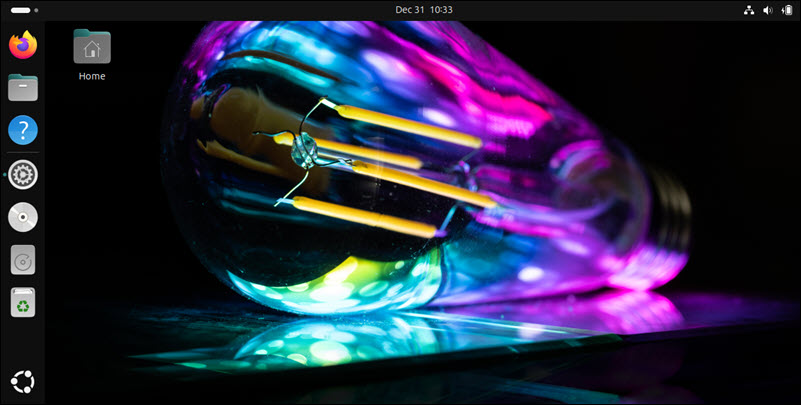
Visual effects are optional. When running Ubuntu on older or lower-end hardware, you can turn them off to improve system responsiveness. Ubuntu remains fully usable without them.
Virtualization and Hypervisor Requirements
If you plan to run Ubuntu as a virtual machine or use it as a virtualization host, there are a few additional hardware considerations to keep in mind.
When running Ubuntu as a guest OS:
- Choose lightweight Ubuntu flavors like Lubuntu or Xubuntu as they perform best with limited resources.
- Check that your hypervisor, for example, VMware or Virtualbox, supports graphics acceleration if you plan to use a desktop environment.
- Install Ubuntu from cloud images, as they require fewer resources than installing from a full ISO image.
- Consider Ubuntu Server for headless workloads, since it uses fewer resources than desktop installs.
If using Ubuntu as a virtualization host:
- Ensure the system has enough RAM to support both the host and all guest virtual machines.
- Confirm that the CPU supports hardware virtualization (AMD-V or Intel VT-x).
- Use SSD storage to improve the VM disk performance.
Avoid running virtualization workloads on systems that only meet minimum requirements. Plan for at least the recommended specifications, or higher, based on the number of VMs and the expected workload.
Networking Hardware and Drivers
One of the main reasons for Ubuntu's popularity is that you can install it and expect Wi-Fi adapters, graphics drivers, and peripherals to work right away. Network connectivity is often taken for granted, but when it doesn't work, it can quickly become a problem.
To avoid network hardware compatibility surprises:
- Always check if the Wi-Fi adapter is compatible with Ubuntu. Some vendors don't always support open-source drivers or may restrict access to firmware. In these cases, basic connectivity may not work until the appropriate driver or firmware package is installed.
- Be prepared to manually configure network interfaces (NICs). This is especially common on servers and headless systems that use static IP addresses or VLANs.
- Double-check configurations in cloud and PXE setups. These environments depend on stable network booting and remote access. A missing driver or misconfigured interface can prevent the system from operating or even installing correctly.
Storage Type
SSDs can have a much bigger impact on how responsive a system feels than raw CPU speed. If possible, use SSD storage for running Ubuntu, applications, and active data because:
- Systems boot almost immediately.
- Applications open without visible delay, and files load much faster than on traditional hard drives.
- Swap usage and package operations are faster, which is essential when the system is low on RAM.
- Databases read and write data with much lower latency. This improves response times for data-driven applications.
- Containers start and stop faster.
Note: Use this handy data storage converter to calculate storage values when working with different units or comparing storage capacities.
That does not mean that HDDs don't have a place. Use HDDs for long-term storage, like backups and media libraries, because they are much cheaper per terabyte.
Proprietary Drivers
Ubuntu's open-source drivers work out of the box in most scenarios. However, some workloads can benefit from installing proprietary drivers.
Consider installing proprietary drivers in the following cases:
- NVIDIA GPUs that need full graphics acceleration for 3D rendering or gaming.
- High-performance GPUs used for machine learning, CUDA- or Tensor Core-based applications, or AI workloads.
- Advanced power management or display support for certain laptop models.
- RAID storage controllers or enterprise network cards that rely on vendor-specific drivers.
Note: If you are planning a RAID setup, use this free RAID calculator to determine the most appropriate RAID level and configuration for your specific needs.
You can install proprietary drivers using Ubuntu's built-in driver management tools, such as apt or ubuntu-drivers.
Conclusion
Now that you have established the system requirements for Ubuntu, you can avoid potential surprises and adjust or upgrade your hardware configuration before committing to an expensive setup.
If you plan to build a dedicated server from scratch, our How to Build a Server guide walks you through the process.