The 408 Request Timeout error occurs when a server closes the connection because the client takes too long to send a complete request.
The error prevents the page from loading and disrupts regular browsing or workflow, which often leads users to assume the website is down even when the issue is temporary or localized. The error originates from either the client or the server, so the underlying cause is not always obvious.
This guide will explain what the 408 error means, why it happens, and the steps required to fix it on both the client and server sides.
What Is 408 Error?
A 408 Request Timeout error is an HTTP status code that indicates the server closed the connection because it waited too long for the client to finish sending a request. The server interprets the delay as an abandoned connection and terminates the session. Therefore, the browser or application receives a timeout message instead of the expected response.
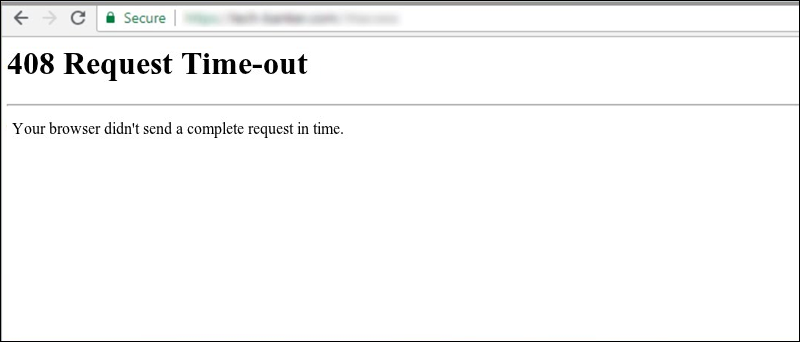
The error occurs during normal browsing, form submission, or when loading dynamic pages that require multiple requests. It often appears to be a connectivity issue, but the underlying problem is a communication delay between the client and the server.
The code itself does not point to a specific failure, so additional checks are required to identify the exact timeout source.
What Causes Error 408?
A 408 Request Timeout error occurs when the server waits longer than its configured timeout period for the client to complete a request.
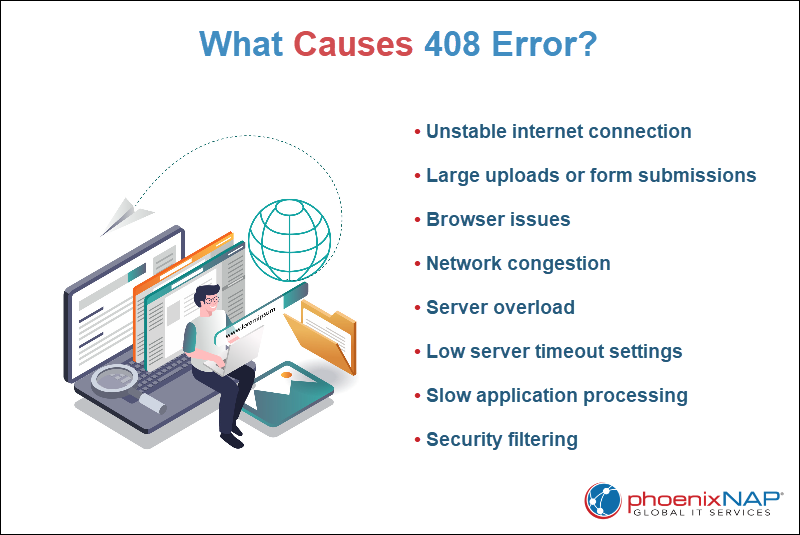
Several factors slow down or interrupt the exchange:
- Slow or unstable internet connection. A weak or inconsistent network often delays the request long enough for the server to time out.
- Heavy uploads. Uploading large files or sending forms with many fields increases processing time, which often pushes the request past the server’s timeout limit.
- Browser interruptions. Frozen browser tabs, stalled scripts, or corrupted cache files sometimes prevent the request from completing.
- Network congestion. High latency or overloaded local networks slow down a request before it reaches the server.
- Server overload. High traffic or insufficient resources reduce the server’s ability to handle incoming requests promptly.
- Misconfigured server timeout values. Low timeout settings cause the server to drop connections faster than expected.
- Application delays. Slow database queries or poorly optimized code hold up the request long enough for the server to time out.
- Firewall or security filters. Rate limiters, Web Application Firewall (WAF) rules, or intrusion detection tools sometimes block or delay requests long enough to trigger a timeout.
How to Fix 408 Error Client-side?
Client-side fixes focus on issues originating in the browser, the local network, or recent website changes. These steps aim to remove anything that slows down communication with the server and prevents the request from completing on time.
The following sections focus on practical checks and corrective actions to isolate and resolve timeout-related issues from the client side.
Note: In strict technical terms, client-side refers to actions performed on the user’s device before a request reaches the server, while server-side refers to actions performed on the server after the request arrives. For practical guidance, this article uses a more site-owner–oriented approach. This means actions labeled as client-side include tasks that a website administrator can perform through the Content Management System (CMS) or hosting dashboard, while server-side covers deeper configuration and infrastructure adjustments.
Check URL
An incorrect or malformed URL delays the request and sometimes causes a 408 error. Before you change browser or server settings, confirm the request points to a valid and reachable address.
Take the following actions to verify the URL:
- Check for typing errors. Look for missing characters, extra symbols, or broken paths that prevent the request from reaching the correct resource.
- Verify the protocol. Some websites accept only HTTPS, and automatic redirects from HTTP add a delay that sometimes triggers a timeout.
- Remove query strings. Delete everything after the question mark (?) in the address bar and reload the page to eliminate unnecessary request data.
- Test in a private window. Open the URL in an incognito session to bypass cached redirects, cookies, and stored sessions that interfere with requests.
If the page loads after these checks, the timeout was caused by an invalid or overly complex request rather than a server-side issue.
Check Internet Connection
A slow or unstable network causes requests to time out, which results in a 408 error. Attempt to stabilize your connection with the following actions:
- Test your connection. Open other websites or run a speed test to confirm connectivity and latency.
- Switch networks. If possible, try a different Wi-Fi or wired connection to rule out local network issues.
- Restart network devices. Power cycle your router or modem to resolve temporary connectivity problems.
- Check for VPNs or proxies. Disable them temporarily to see if they are delaying requests.
Restart Browser or Device
Sometimes requests get stuck due to hung processes or temporary glitches in the browser or operating system. A restart sometimes clears these issues and allows requests to complete.
Take the following actions:
- Close and reopen your browser. Ensure all tabs are closed before restarting to reset network sessions.
- Restart your device. A full reboot clears temporary memory and network connections that interfere with requests.
- Test the website again. Open the URL in a private window to verify whether the 408 error persists.
Back Up Website
Creating a backup before making any changes prevents permanent data loss and allows you to roll back if a fix introduces new issues. Even client-side adjustments sometimes affect files, configurations, or database content, especially on content management systems.
The following sections explain two reliable methods for backing up a website: using a hosting control panel or backing up manually.
Back Up Using Hosting Control Panel
Most hosting providers offer a built-in backup feature through their control panel, such as cPanel, Plesk, or a managed hosting dashboard. This method is fast, requires no command-line knowledge, and covers both files and databases.
Take the following steps:
1. Log in to your hosting dashboard using the credentials provided by your hosting provider.
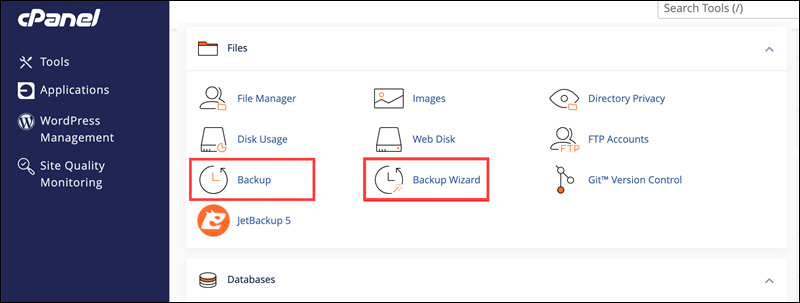
2. Locate the backup section. In cPanel, open Backup or Backup Wizard. In Plesk, go to Website & Domains and open Backup Manager.
3. Create a full backup that includes website files and databases. Select a local download or a remote storage location if available.
4. Verify the backup completed successfully and confirm both files and databases are included.
Back Up Website Manually
A manual backup provides full control over website data and works even when hosting dashboards or automated tools are unavailable. This method involves downloading website files and exporting the database separately, which makes it suitable for both shared and unmanaged hosting environments.
Take the following steps to back up website files:
1. Connect to the server using an FTP or SFTP client and authenticate with your hosting credentials.
2. Navigate to the website root directory, often named public_html, www, or htdocs.
3. Download all files and directories to a secure local directory and wait for the transfer to complete.
Follow these steps to back up the database:
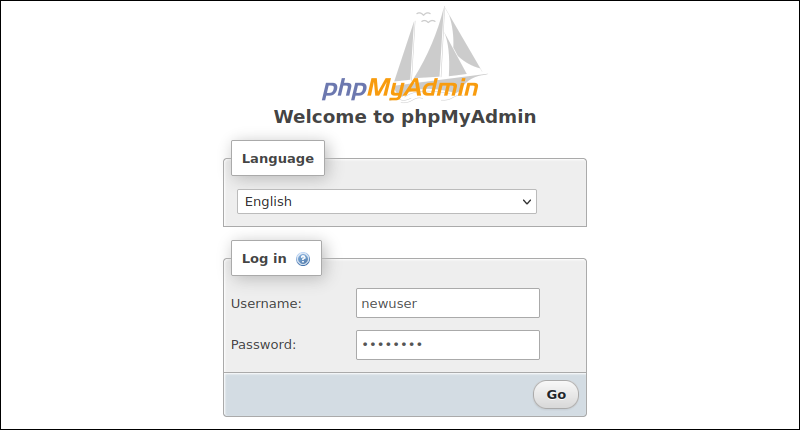
1. Open the database management tool provided by your host, such as phpMyAdmin.
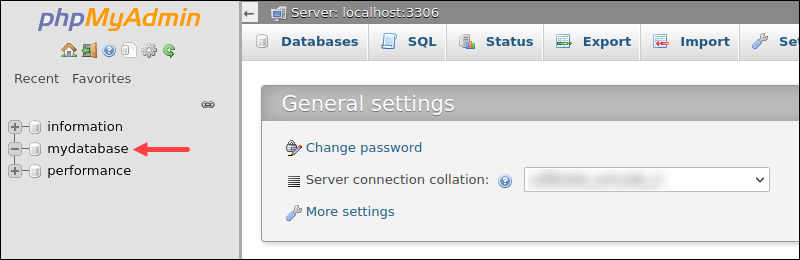
2. Select the website database from the list.
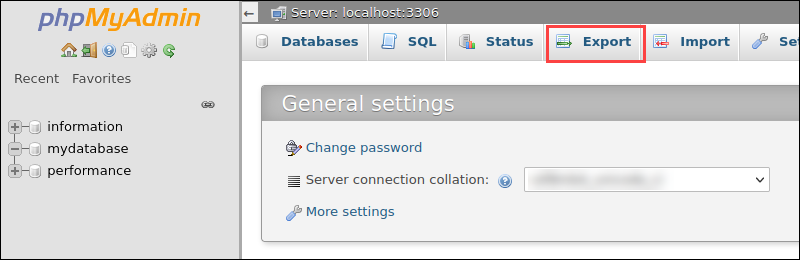
3. Open the Export option.
4. Choose a full export with the SQL format and download the file to a secure location.
Check Extensions and Plugins
Extensions and plugins add processing overhead, which sometimes causes requests to exceed server timeouts. Outdated, incompatible, or poorly optimized add-ons are common causes for the error.
Take the following actions:
- Disable plugins temporarily. For example, in WordPress, deactivate plugins via the dashboard or rename plugin folders via FTP.
- Re-enable add-ons one by one. Activate each plugin individually to identify the one causing the delay.
- Update extensions. Ensure all plugins, themes, or modules are running supported, up-to-date versions.
- Remove unused add-ons. Delete unnecessary plugins to reduce request overhead and potential conflicts.
Note: The process varies by platform. Steps for WordPress differ from Joomla, Drupal, or custom CMS systems.
Check Database Changes
Recent database activity has sometimes delayed requests, which results in 408 errors. Large imports, table modifications, or unoptimized queries increase processing time and exceed server timeout limits.
Verify the following:
- Identify recent changes. Look for updates, imports, or migrations performed before the error appeared.
- Roll back recent modifications. Restore a backup or undo specific changes to see if the issue resolves.
- Check for long-running queries. For example, look for queries that scan large tables without indexes or that use complex joins that take excessive time.
- Verify database connectivity. Confirm credentials and connection settings have not changed.
Note: Exact steps depend on your database type and CMS. Methods differ between MySQL, PostgreSQL, and custom backends.
How to Fix 408 Error Server-Side?
When client-side issues are ruled out, 408 errors often stem from server-side problems, such as resource limitations, misconfigurations, or application-level delays.
Troubleshooting on the server requires you to check logs, analyze application performance, and review configuration files.
The following sections explain practical methods to identify and resolve server-side causes of 408 errors.
Check Application Logs
Application logs record every request, script execution, and error on your server. Reviewing them reveals why requests take too long and cause 408 errors. The reason is often a slow plugin, a heavy database query, or a delayed API call.
Take the following actions:
- Locate the logs. Web servers and applications keep logs in specific folders. Look for files labeled access.log, error.log, or names related to your application.
- Identify slow requests. Find entries for requests that took unusually long to complete or appear repeatedly around the time users experienced 408 errors.
- Check error messages. Warnings or fatal errors often interrupt request processing, contributing to timeouts.
- Compare timestamps. Matching log entries to when the error occurred helps identify patterns or specific scripts causing delays.
Note: Accessing these logs usually requires server or administrative access. If you don’t have the permissions, you may need to contact your hosting provider or developer for assistance.
Troubleshoot WordPress Bugs Using Debugging Tools
On WordPress sites, poorly coded plugins, themes, or custom scripts delay requests and trigger 408 errors. Debugging tools help identify the source of slow requests and errors.
The following sections present two effective tools for this purpose: Query Monitor and WP_DEBUG.
Query Monitor
Query Monitor tracks slow database queries, PHP errors, and HTTP requests in real time. It provides an overview of which components are causing delays.
Do the following steps:
1. Install and activate Query Monitor. The plugin is available in the WordPress repository.
2. Use the admin bar panel to see slow queries, hooks, and external requests.
3. Look for plugins, themes, or custom scripts that repeatedly appear in slow requests.
4. Adjust configurations, update code, or temporarily deactivate the problematic plugin to reduce processing time.
WP_DEBUG Mode
WP_DEBUG is a WordPress feature that logs PHP errors and warnings. This helps reveal hidden issues that delay requests or trigger timeouts.
Take the following actions:
1. Open the wp-config.php file in the root of your WordPress installation and add these lines before the “That’s all, stop editing!” comment:
define('WP_DEBUG', true);<br>define('WP_DEBUG_LOG', true);<br>define('WP_DEBUG_DISPLAY', false);This enables debugging and tells WordPress to log errors to a file instead of showing them on the site. Access the file via FTP, your hosting file manager, or SSH.
2. Visit the page or perform the action that previously triggered the timeout. This ensures the relevant error details are captured in the debug log
3. Open /wp-content/debug.log and look for errors or warnings related to plugins, themes, or custom scripts.
4. Once you identify the problematic code, adjust it, update the plugin/theme, or temporarily deactivate it to prevent further delays.
Note: Always disable debugging on live sites after troubleshooting to avoid exposing sensitive information.
Check Server Configuration Files
Server settings determine how long a request can run before timing out. Misconfigured timeouts, low resource limits, or inefficient server settings cause 408 errors even if the client is working correctly.
Do the following to check these settings:
- Understand your web server type. Apache and Nginx are the most common web servers. Apache uses a
Timeoutsetting, while Nginx usesproxy_read_timeoutorfastcgi_read_timeout. These values are set in the server's configuration files and can be increased to help long-running requests complete. Restart the server after making changes. Adjust these values to help long-running requests complete. - Review PHP limits. Settings like
max_execution_timeandmemory_limit, set in the PHP configuration file, define how long scripts can run and how much memory they use. Low values cause timeouts for heavy scripts. - Check database timeouts and connections. Ensure your database can handle expected queries, and timeout settings match your site's needs.
- Restart services if changes are made. To apply updates safely, you need to restart the web server or PHP service, which ensures new settings take effect.
- Monitor server resources. High CPU, memory, or disk I/O usage slows request processing. Tools like
htop, top, or your hosting dashboard help identify bottlenecks. - Implement caching. Page, object, or operation code caching reduces server load by serving repeated requests faster.
- Optimize database queries. Index large tables, remove unnecessary joins, and streamline queries to reduce execution time.
- Limit simultaneous connections if necessary. Configure server or database connection limits to prevent overload during traffic spikes.
Note: These checks differ depending on your server type, hosting environment, and access level. If you do not have administrative privileges, contact your hosting provider or developer with these details.
How to Avoid Future 408 Errors: Best Practices
To prevent 408 errors, you need a combination of client-side and server-side strategies. Following best practices reduces request timeouts, improves website performance, and ensures a smoother experience for visitors.
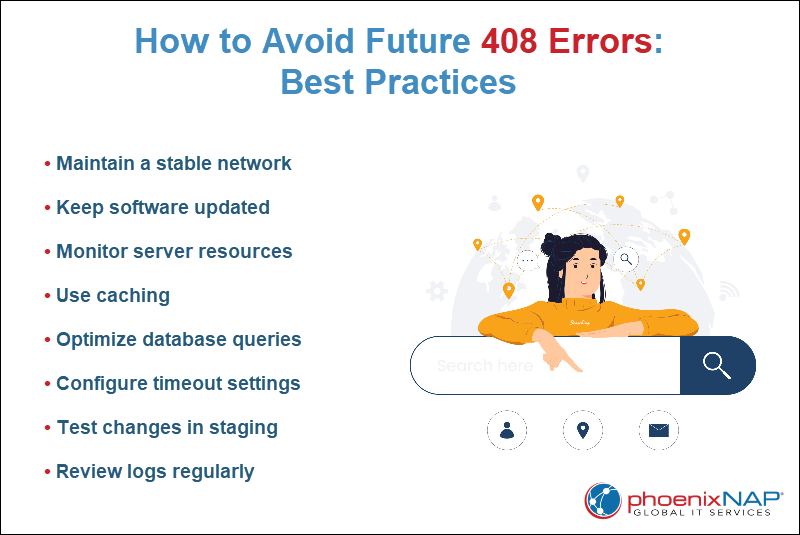
Some actions to take to prevent error 408 are:
- Maintain a stable network. Ensure reliable internet connectivity for both users and servers.
- Keep software updated. Regularly update CMS platforms, plugins, themes, and server software to maintain performance and security.
- Monitor server resources. Track CPU, memory, and disk usage to identify bottlenecks before they cause timeouts.
- Implement caching. Use page, object, or opcode caching to reduce server load and speed up request handling.
- Optimize database queries. Index large tables, remove unnecessary joins, and streamline queries for faster execution.
- Adjust timeout settings appropriately. Configure web server and PHP timeouts to match typical request loads.
- Test new plugins, scripts, or custom code in staging. Ensure changes don't introduce slow requests before deploying to production.
- Review error logs regularly. Regular log checks help identify potential issues early and prevent repeated timeouts.
Conclusion
This article explained what a 408 error is and its causes. It also provided several ways to fix it, both on the client side and on the server side. The tutorial elaborated on ways to avoid encountering the error in the future.
Next, learn how to fix timeout error: 524.