When the Windows operating system encounters a critical error, it halts all processing to prevent data corruption. The Kernel Security Check Failure ranks among the most common stop codes. This error can interrupt a user's workflow and require immediate troubleshooting to restore system stability.
This article will show you how to fix the Kernel Security Check Failure Error in Windows.

What Is Kernel Security Check Failure, i.e., Blue Screen of Death (BSOD)?
A Kernel Security Check Failure occurs when the Windows kernel detects corrupt data in a critical data structure. Common causes of the error are incompatible drivers, faulty physical memory (RAM), or a compromised file system.
Modern operating systems perform routine integrity checks on memory and drivers. When these checks fail, the system triggers a bug check (Stop Code 0x00000139). This mechanism acts as a safety valve, forcing a system crash (i.e., the Blue Screen of Death) to protect the hardware and the file system from further damage.
What Causes Kernel Security Check Failure?
Several hardware and software issues trigger the Kernel Security Check Failure error:
- Incompatible or outdated drivers. Drivers that lack digital signatures or fail to communicate correctly with the kernel.
- Memory corruption. Physical defects in RAM modules or improper memory allocation.
- System file integrity issues. Missing or damaged Windows system files.
- Malware infections. Malicious code attempting to modify kernel-level processes.
- Disk errors. Bad sectors on the primary boot drive.
- Overclocking. Excessive hardware speeds cause data synchronization failures.
- Security software conflicts. Antivirus programs intercept kernel calls incorrectly.
How to Fix Kernel Security Check Failure?
Given that the Kernel Security Check Failure error can have many causes, troubleshooting it requires ruling out each cause one by one.
Read the sections below to learn how to fix the system that is experiencing BSODs.
Boot in Safe Mode
Safe mode loads a minimal set of drivers and services. If the BSOD does not occur in this environment, a third-party driver or application is likely the culprit. To enable safe mode:
1. Navigate to Settings > System > Recovery.
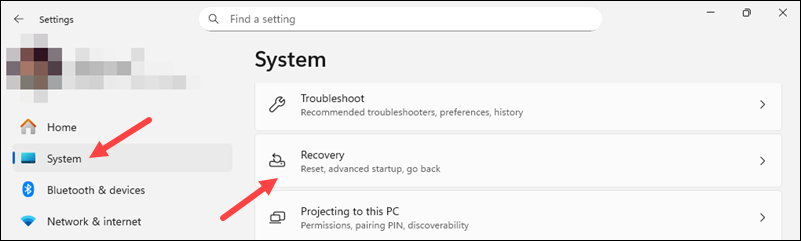
2. In the Recovery options, select Advanced Startup and click Restart Now.

After the computer restarts, a new screen appears featuring basic management options.
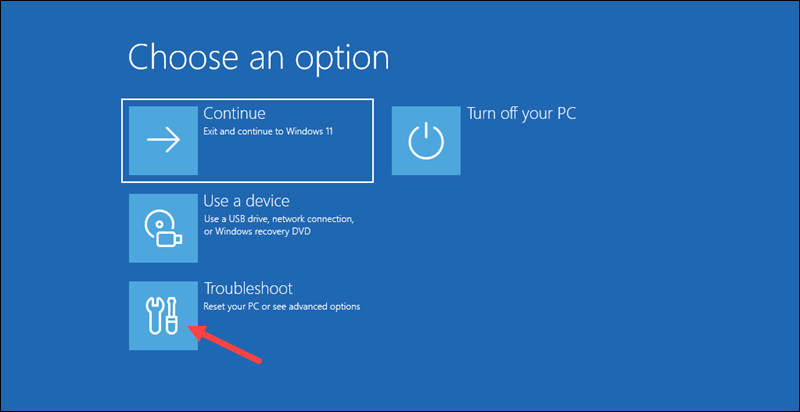
3. Select the Troubleshoot tile.
4. Go to Advanced options > Startup settings.
5. Click the Restart button.
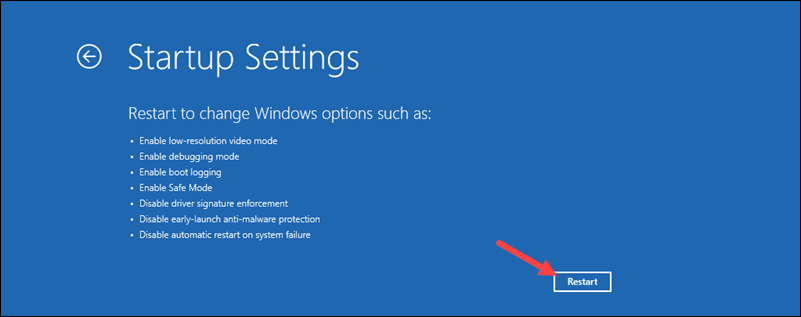
6. After the computer restarts, Press 4 or F4 to enter safe mode.
Update Drivers
Discrepancies between the OS version and hardware drivers frequently cause kernel failures. Use the steps below to fix hardware-related issues:
1. Search for and open Device Manager.
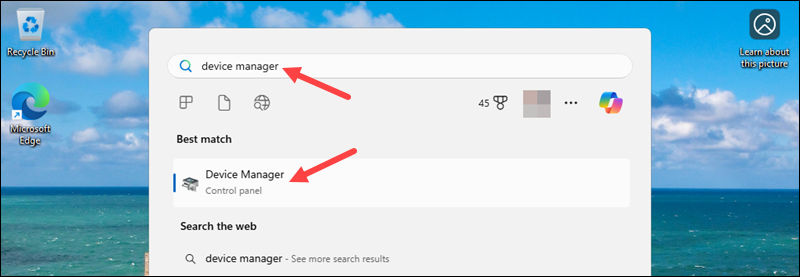
2. Identify hardware components that feature yellow warning icons.
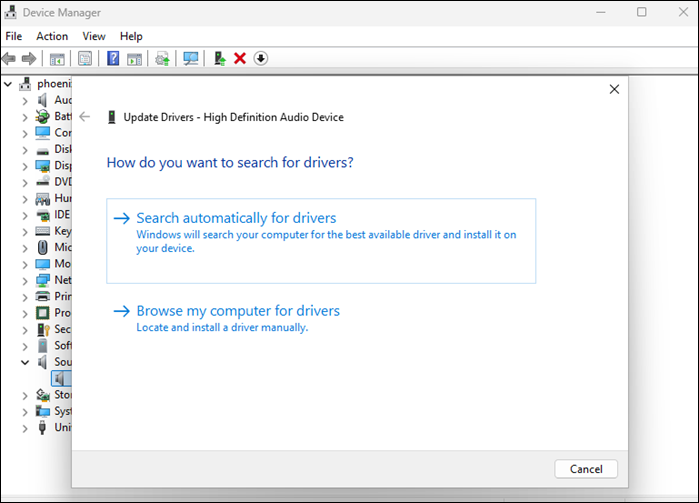
3. Right-click the device and select Update driver.
4. Select Search automatically for drivers or click Browse my computer for drivers if you have downloaded specific packages from the manufacturer's website.
Check for Corrupted System Files
Windows includes built-in tools to verify and repair the local image and system files.
The following section provides a step-by-step guide to fixing corrupted system files:
1. Open Command Prompt as Administrator.

2. Execute the following command:
DISM.exe /Online /Cleanup-image /Restorehealth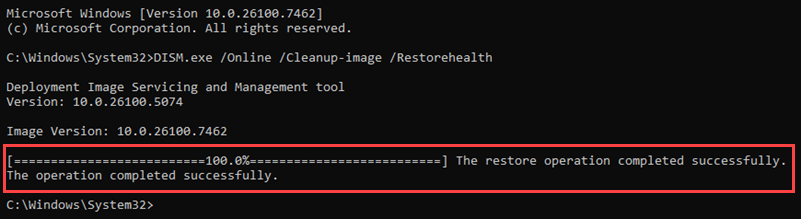
3. After the restore operation is complete, use the sfc command to start a system scan:
sfc /scannowThe system performs verification, then scans and repairs any detected corrupt files.
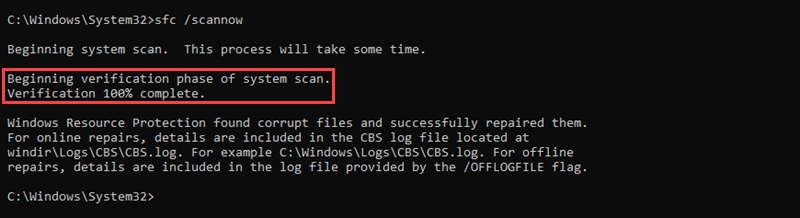
4. Restart the system if the tool reports successful repairs.
Check RAM
Memory instability is the primary cause of kernel-level stop codes. Use the Windows Memory Diagnostic tool to identify faulty modules:
1. Press Win + R to open the Run dialog and enter mdsched.exe.

2. Select Restart now and check for problems.
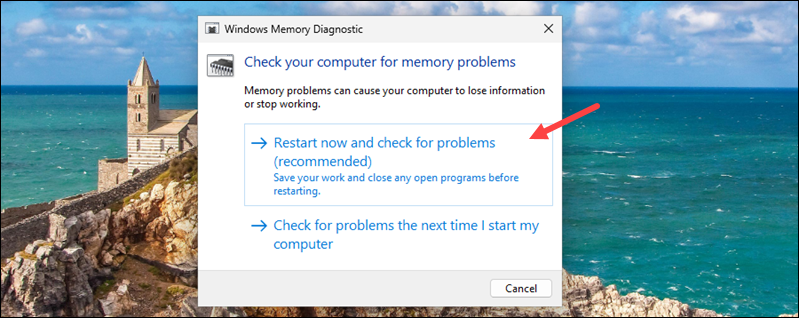
3. The system reboots into a diagnostic interface.
4. Replace any RAM sticks that reported hardware errors.
Check Hard Drive
Logical errors or physical bad sectors on the disk cause data corruption that the kernel cannot resolve. Check the local hard drives for corrupt data:
1. Run Command Prompt as Administrator.
2. Enter the following chkdsk command:
chkdsk C: /f /r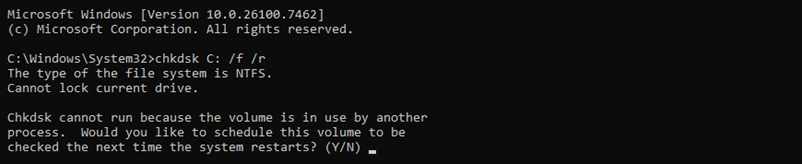
3. Enter Y to schedule the scan for the next restart.
4. Restart the computer and wait for the scan to finish.
Note: After the disk scan is complete, review the log in Event Viewer under Windows Logs > Application.
Scan for Viruses
Rootkits and viruses often target kernel structures. Perform an offline scan to detect threats that may go undetected while the OS is fully active.
1. Go to Windows Security > Virus & threat protection.
2. Select Scan options.
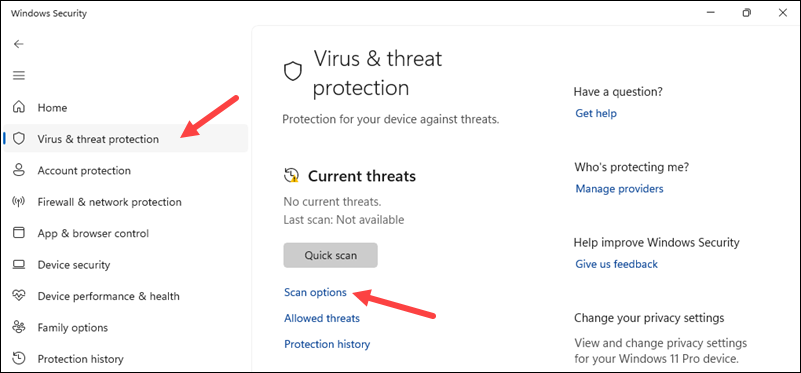
3. Choose Microsoft Defender Offline scan and click Scan now.

Disable Antivirus
Third-party security suites sometimes flag legitimate kernel operations as threats, causing a crash. Temporarily disable third-party antivirus software to determine whether it causes the error. If the crashes stop, update the security software or switch to Microsoft Defender.
Update Windows
Microsoft regularly releases patches for kernel-level vulnerabilities and compatibility issues. Check if the Windows version on the machine is fully up to date:
1. Open Settings.
2. Navigate to Windows Update.
3. Click Check for updates.
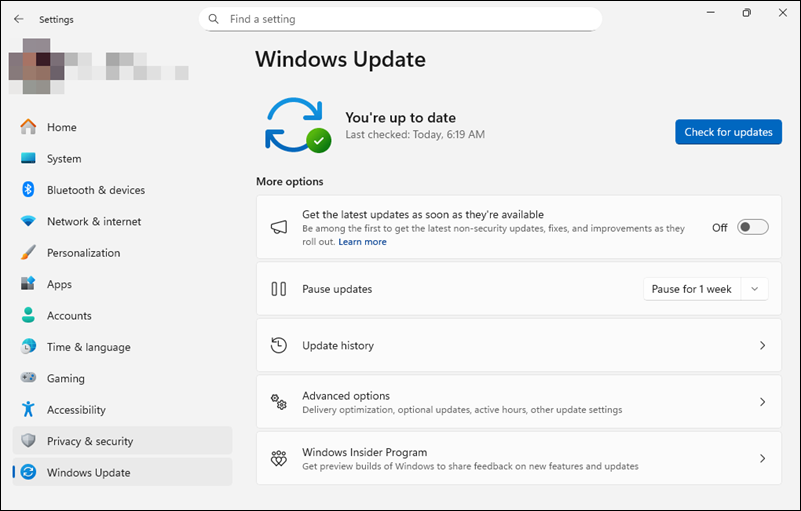
4. Install all "Critical" and "Optional" updates.
Reinstall Windows
If the error persists after exhaustive hardware testing and file repair, the OS installation requires a reset. To perform a full system reset:
1. Backup all critical data.
2. Navigate to Settings > System > Recovery.
3. Select Reset PC.

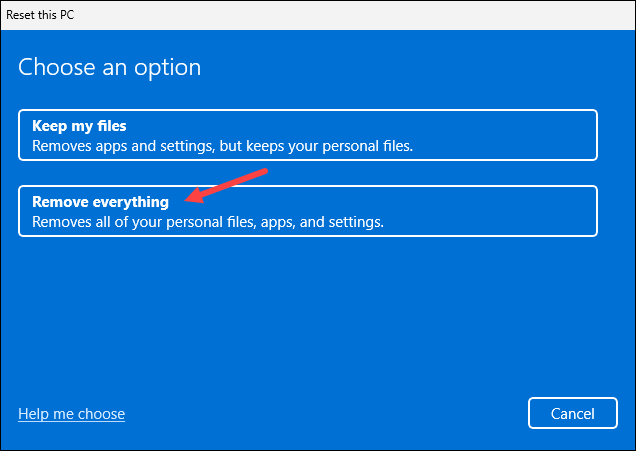
4. Choose Remove everything for a clean installation to ensure no corrupted configurations remain.
Warning: This action removes all your files. Ensure you back up your system before proceeding.
Conclusion
This article provided troubleshooting steps to help resolve the Kernel Security Check Failure error. Completing the diagnostic steps outlined above enables you to re-establish system integrity and minimize downtime.