Every email includes hidden technical metadata that shows how the message moves between mail servers. This information, stored in the email headers, often includes the IP address of the sending server.
Locating an IP address from an email helps with security investigations, spam analysis, and delivery troubleshooting, though modern email services limit the amount of sender data exposed.
This guide will explain how to find an IP address from an email and how to interpret the results correctly.

Reasons to Track an IP Address from an Email
Tracking an IP address from an email provides visibility into how and where a message entered the mail delivery chain.
The following list outlines practical reasons to identify an IP address from an email message.
- Phishing and spam analysis. IP data helps identify suspicious content and format, and assess whether a message originated from a known malicious network.
- Source identification for abusive messages. The sending server IP provides a starting point for understanding where the email entered the delivery chain.
- Email delivery troubleshooting. IP information helps determine whether messages are routed through unexpected servers or blocked by reputation-based filters.
- Email authenticity verification. Comparing IP addresses against Domain Name System (DNS), Sender Policy Framework (SPF), or Domain-based Message Authentication, Reporting, and Conformance (DMARC) records helps validate the legitimacy of senders.
- Compromised account detection. Unusual IPs sometimes indicate unauthorized access or misconfigured mail clients.
How to Track an IP Address from an Email
Email clients do not display IP addresses in the message body. The information is stored in the email headers, which contain routing details added by each mail server that handled the message.
To find the IP address, you must view the full email headers and locate the fields that show the sending server information. Based on the provider, this usually appears in entries such as Received, X-Originating-IP, or X-Sender-IP. However, modern webmail services often hide the sender's real IP address and expose only the mail server's IP address instead.
The sections below show how to access email headers and locate IP address data in popular email clients.
Track IP Address in Gmail
Gmail does not expose the sender's real IP address when emails are sent via Gmail web interface, mobile apps, or official SMTP servers. Google replaces the originating IP with its own mail server IPs to protect user privacy. As a result, Gmail headers show Google infrastructure details, not the sender's device or network.
You can still view the full headers with the following steps:
1. Open an email in Gmail.
2. Select the three-dot menu next to the reply button.
3. Click Show original.
4. Review the Received header entries for IP addresses.
The listed IP addresses belong to Google's mail servers and reflect where the email was processed, not where the sender is physically located.
A real sender IP appears only if the email was sent through a self-hosted mail server or an external system that does not mask originating IPs. In that case, the IP is often visible in the earliest Received header entry.
Track IP Address in Outlook
Outlook applies similar privacy protections to Gmail. When an email is sent through Outlook’s web interface, desktop client, or mobile apps, Microsoft hides the sender's original IP address. The message headers expose Microsoft mail server IPs rather than the sender's device or network.
Access the full message headers to review routing details with:
1. Open the email in Outlook.
2. Select File, then Properties, or use View message details in Outlook on the web.
3. Locate the Internet headers section.
4. Review the Received entries for IP addresses.
The IP addresses listed in these headers belong to Microsoft’s mail servers and reflect how the message moved through Microsoft's infrastructure.
The sender IP appears only when the email originates from a self-managed mail server or an external system that does not mask the originating IP address. In those cases, the earliest Received entry often contains the relevant IP address.
Track IP Address in Yahoo
Yahoo Mail does not expose the sender's real IP address for messages sent through its web interface or official mail clients. Yahoo replaces the originating IP with its own mail server addresses to prevent sender tracking and abuse.
Still, view the full email headers to inspect the delivery path and sending infrastructure.
1. Open the email in Yahoo Mail.
2. Select More.
3. Click View raw message.
4. Review the Received header entries for IP addresses.
The IP addresses shown belong to Yahoo's mail servers and indicate where the message was processed, not the sender's actual network.
A real sender IP appears only when the email comes from an external or self-hosted mail server that does not apply IP masking. In those cases, the first Received entry often reveals the originating server IP.
Track IP Address in Apple Mail
Apple Mail behaves differently from web-based email services because it is a mail client, not an email provider. Whether you can see a sender's IP address depends on the email service the sender uses, not on Apple Mail itself.
Apple Mail displays the full message headers without modifying them:
1. Open the email in Apple Mail.
2. Select View, then Message, then All Headers.
3. Review the Received header entries for IP addresses.
If the email was sent through iCloud Mail, Gmail, Outlook, or Yahoo, the headers show only the provider's mail server IPs. Apple does not remove or add sender IP data, nor does it bypass provider-level privacy protections.
A sender IP is visible only when the message originates from a self-hosted or unmanaged mail server that includes the originating IP in the headers.
Track IP Address in Thunderbird
Mozilla Thunderbird is a desktop email client that connects to existing email accounts with IMAP or POP3. It does not provide email services itself and does not modify message headers.
Thunderbird displays full email headers as received. To see them, do the following:
1. Open the email in Thunderbird.
2. Select View, then Headers, then All.
3. Review the Received header entries for IP addresses.
If the email was sent through a major provider such as Gmail, Outlook, Yahoo, or iCloud, the headers expose only the provider's mail server IPs. Thunderbird does not remove sender data, but it cannot bypass provider-level IP masking.
A sender IP appears only when the message originates from a self-hosted mail server or an external system that includes the originating IP in the headers.
IP Address Tracking Tools
Email headers usually reveal only the mail server's IP address, not the sender's device or location. IP tracking tools interpret those addresses because they identify ownership, network type, reputation, and routing context. These tools do not bypass privacy protections enforced by Gmail, Outlook, or other major providers.
The tools below work well when you need to analyze IP addresses extracted from email headers.
WhatIsMyIPAddress
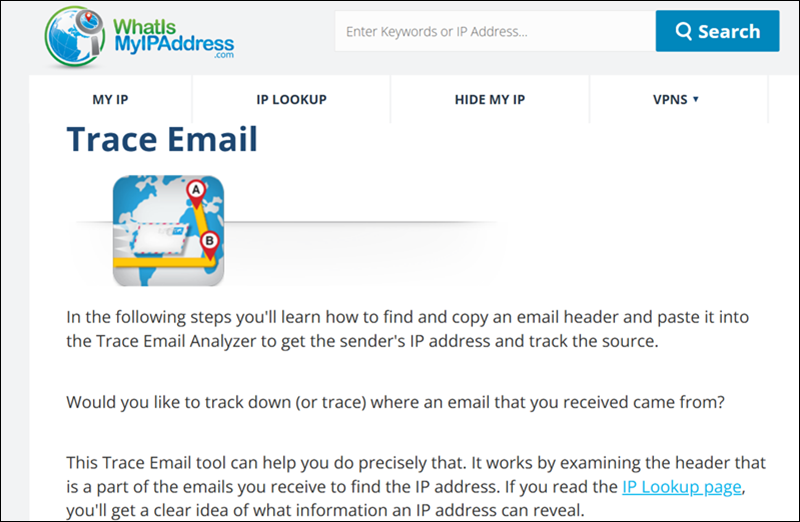
WhatIsMyIPAddress works in two ways when analyzing IP addresses from email messages. It supports both direct IP lookups and email header analysis, but these functions are located on different pages.
For email-specific analysis, WhatIsMyIPAddress provides a Trace Email tool where you paste the full email header. The tool parses Received fields and extracts IP addresses involved in message delivery.
However, it does not bypass privacy protections and usually reveals only mail server IPs.
This tool works best when you want to confirm whether an IP belongs to a major email provider, cloud platform, or hosting company. It is useful to quickly rule out end-user networks when you review Received headers.
The location data is approximate and reflects the registered network, not the physical sender.
The tool also focuses on high-level network identification. When you already have an IP address, the standard IP lookup pages display the Internet Service Provider (ISP) ownership or organizational details, the Autonomous System Number (ASN), and an estimated geographic location.
IPinfo
IPinfo is an IP metadata lookup platform, not an email header analyzer. It provides detailed information about a single IP address, such as organization, Internet Service Provider (ISP), Autonomous System Number (ASN), and approximate location. It does not include a feature to paste a full email header.
To use IPinfo for email analysis, first extract an IP address from the email headers, from a Received line. Then enter that IP into the main lookup field on the IPinfo home page. The tool displays ownership and network details for the IP. If you need to analyze multiple IPs, IPinfo also offers API access for batch queries, which requires registration.

IPinfo is valuable because it helps interpret IP addresses you extract from headers. Even though modern email providers hide sender IPs, the server IPs that remain can be contextualized with IPinfo. This helps differentiate between large email providers and smaller hosting networks, which provides insight for spam investigations, delivery analysis, and security reviews.
MXToolbox
MXToolbox offers an Email Header Analyzer that allows you to paste a full email header and view a parsed, human‑readable version of the message path. This highlights each mail server hop, timestamps, and any IP addresses involved in delivery.
To use it, go to the main menu at the top of the MXToolbox website and select Analyze Headers. Paste the full email header into the input field and click Analyze.
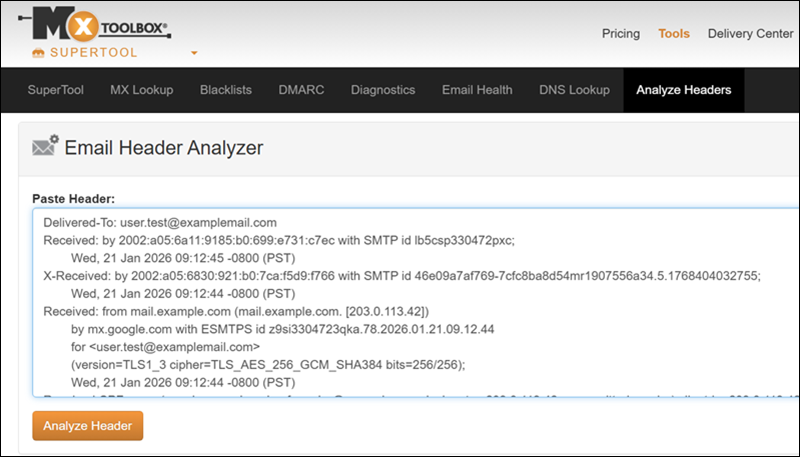
The results show the routing sequence, extracted IPs, and mail server details, which makes it easier to understand how the message traveled.
This tool is useful for investigating spam, phishing, or delivery issues. It also integrates with other MXToolbox services, such as blacklist checks and DNS diagnostics, to provide a broader view of mail server reputation.
MXToolbox does not reveal the sender's private IP if the provider masks it, but it is valuable for interpreting the headers and identifying mail server infrastructure.
Conclusion
This article explained why you might want to track an IP address from an email and provided ways to do this on different email platforms. It also outlined three third-party tools to accomplish this task.
Next, learn what cloud email is and how to use it.