Selenium WebDriver is an industry-standard framework for automating web browser interactions. It verifies that web applications function correctly across multiple browsers and platforms.
This tutorial will introduce Selenium WebDriver and provide a quick reference for its usage.
Prerequisites
- An IDE installed (e.g., IntelliJ IDEA, Eclipse, or Visual Studio Code).
- JDK or Language Runtime installed.
- Browser drivers installed (e.g., ChromeDriver or GeckoDriver).
- A dependency management system (e.g., Maven or Gradle).
What Is Selenium WebDriver?
Selenium WebDriver is an open-source API that enables programmatic control of web browsers. It works by sending commands directly to the browser through a native interface, avoiding the need for an intermediate server. This direct communication model improves execution speed and script reliability.
Selenium supports multiple programming languages for creating test scripts. The most frequently used languages include Java, Python, C#, and JavaScript.
Selenium WebDriver vs. Selenium RC
Selenium WebDriver interacts with the browser natively, removing the need for an external proxy. It provides a realistic simulation of user activity.
Selenium Remote Control (RC) is a deprecated framework that used a JavaScript-based proxy server to inject code into the browser. This approach often encountered limitations due to browser security policies and the Same Origin Policy.
Selenium WebDriver Features
The framework offers several capabilities that support complex automation requirements. These features enable effective handling of various web elements and browser behaviors.
Essential Selenium WebDrivers features are:
- Multi-browser support. Compatibility with Chrome, Firefox, Safari, Edge, and Internet Explorer.
- Cross-platform execution. Ability to run tests on Windows, macOS, and Linux.
- Language bindings. Availability of libraries for diverse development ecosystems.
- Headless testing. Support for browser execution without a GUI to save resources.
Selenium WebDriver Architecture
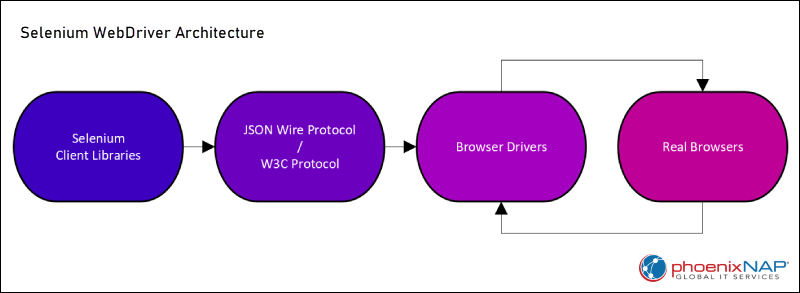
The WebDriver architecture comprises four main components. Each component plays a distinct role in translating code into browser actions:
- Selenium client libraries. The language-specific APIs used by developers (bindings for Java, Ruby, C#, Python, and JavaScript).
- JSON wire protocol / W3C protocol. The communication standard for data transfer between the client and the driver.
- Browser drivers. The browser-specific components that interpret commands (e.g., Firefox driver, Chrome driver, Safari driver, etc.).
- Real browsers. The final destination where the automation occurs (e.g., Firefox, Chrome, Safari, etc.).
How Does Selenium WebDriver Work?
When a script runs, the Selenium client library converts the code into a standardized format. This data travels to the browser driver, which serves as a bridge to the physical browser application.
The browser driver launches the browser instance and executes the requested actions, such as clicking buttons or entering text. Once the browser performs the action, it sends a response back through the driver to the script. This loop continues until the test script reaches completion or encounters an error.
For example, the following Python script initializes the Chrome driver, gets information from the page, and closes the browser:
from selenium import webdriver
from selenium.webdriver.common.by import By

# Initialize the Chrome driver
driver = webdriver.Chrome()

# Open a website
driver.get("https://www.google.com")

# Get information from the page
print(f"Page Title: {driver.title}")

# Close the browser
driver.quit()
Selenium WebDriver Benefits
The adoption of WebDriver provides important advantages for software testing. It allows teams to execute repetitive tasks with high precision and minimal human intervention.
Other important WebDriver benefits include:
- Native interaction. Simulates actual user movements and clicks more accurately than older tools.
- Parallel execution. Supports running multiple tests simultaneously to reduce total execution time.
- Open source. No licensing costs for use or distribution.
- Community support. A large user base provides extensive documentation and troubleshooting resources.
Selenium WebDriver Challenges
Despite its strengths, WebDriver users may experience technical hurdles. The following limitations must be addressed through strategic design and additional integrations:
- No built-in reporting. Requires third-party libraries like TestNG or ExtentReports to generate visual results.
- No image testing. Difficulty in validating images or barcodes without external tools.
- Handling pop-ups. Requires specific logic to manage OS-level windows and alerts.
- Maintenance. Changes in web application UI often require frequent updates to locator strategies.
Selenium WebDriver Commands
Selenium commands allow the script to interact with the browser and the Document Object Model (DOM). These are categorized by their function within the automation lifecycle. Refer to the sections below for examples.
Browser Commands
Browser commands control the application window's high-level state. These actions impact the entire session rather than specific elements.
get()- Loads a new web page in the current browser window.getTitle()- Fetches the title of the current web page for verification. In Python Selenium, the title is accessed as a property (driver.title) rather than a methodgetTitle()(which is more common in the Java implementation).close()- Closes the current window that has focus.
Note: quit() is usually preferred to shut down the entire driver process, but close() is used for specific window management.
Below is an example Python script that includes the commands listed:
from selenium import webdriver

driver = webdriver.Chrome()

try:
    driver.get("https://www.wikipedia.org")

    page_title = driver.title
    print(f"The current page title is: {page_title}")

finally:
    driver.close()
Navigation Commands
Navigation commands manage the browser history and URL transitions. They mimic the forward, back, and refresh buttons found in standard browsers.
navigate().to()- Moves the browser to a specific URL, similar to theget()command but with history tracking.navigate().back()- Directs the browser to move back one page in the session history.navigate().refresh()- Reloads the current page. This command is useful when testing web apps that update content live or when you encounter a temporary "Element is not clickable" error.
The following example shows the navigation commands integrated into a JavaScript code:
const { Builder } = require('selenium-webdriver');

async function runNavigationTest() {
    let driver = await new Builder().forBrowser('chrome').build();

    try {
        await driver.navigate().to('https://www.wikipedia.org');
        console.log("Current Title:", await driver.getTitle());

        await driver.get('https://www.python.org');
        console.log("Moved to:", await driver.getTitle());

        await driver.navigate().back();
        console.log("Back to:", await driver.getTitle()); // Should be Wikipedia

        await driver.navigate().refresh();
        console.log("Page refreshed.");

    } catch (error) {
        console.error("An error occurred:", error);
    } finally {
        await driver.quit();
    }
}

runNavigationTest();
Element Interaction Commands
These commands target specific HTML elements within the DOM:
click()- Simulates a mouse click on a button, link, or checkbox.sendKeys()- Types a sequence of characters into an input field or text area.clear()- Removes any text from an input element. Useful for resetting a form before entering new data.
The following JavaScript example performs a test search for Selenium WebDriver documentation:
const { Builder, By, Key, until } = require('selenium-webdriver');

async function elementInteractionExample() {
    let driver = await new Builder().forBrowser('chrome').build();

    try {
        await driver.get('https://www.google.com');

        // Google's search box usually has the name 'q'
        let searchBox = await driver.findElement(By.name('q'));

        await searchBox.sendKeys('Example text.');
        console.log("Typed into the search box.");

        await searchBox.clear();
        console.log("Cleared the search box.");

        await searchBox.sendKeys('Selenium WebDriver documentation');

        let searchButton = await driver.findElement(By.name('btnK'));

        // Wait until the button is clickable
        await driver.wait(until.elementIsVisible(searchButton), 5000);
        await searchButton.click();

        console.log("Clicked the search button.");

    } catch (error) {
        console.error("Error interacting with elements:", error);
    } finally {
        await driver.quit();
    }
}

elementInteractionExample();
When to Use Selenium WebDriver?
WebDriver is most effective for functional and regression testing of web-based applications. It is the best choice when the goal is to validate UI flows across browser environments.
Advanced Use Cases for WebDriver
Beyond simple form submission, WebDriver handles complex scenarios like AJAX-heavy applications and nested frames. It integrates into CI/CD pipelines to deliver immediate feedback on code changes.
WebDriver also supports data-driven testing. In this approach, a single script runs against multiple data sets stored in external files.
Selenium WebDriver on Cloud
Cloud-based platforms grant access to large grids of real devices and browser versions. These services remove the burden of maintaining local hardware infrastructure.
Using the cloud, users can scale the number of concurrent tests to meet project needs, while providers handle browser driver updates and configuration. Furthermore, the cloud enables teams to run tests from any location while the results remain centralized.
Selenium WebDriver Best Practices
Consistent application of design patterns ensures that automation suites remain readable and easy to update. Conforming to these standards prevents the accumulation of technical debt:
- Create separate classes for each web page to store locators and methods.
- Use dynamic waits instead of hard-coded sleep commands to improve stability.
- Prioritize ID and Name attributes over complex XPath or CSS selectors.
- Ensure each test case can run in isolation without depending on the state of other tests.
Conclusion
This tutorial introduced Selenium WebDriver and provided examples for its use. After reading it, you should have the basic knowledge to automate web browser interactions.
Next, read our list of the best automation testing tools.