Docker-in-Docker (DinD) is a method of running Docker workloads from inside a containerized environment. It is used in Continuous Integration and Continuous Delivery (CI/CD) pipelines, containerized build systems, testing environments, and automation workflows that need Docker access from within a container.
When you run Docker inside containers, it introduces additional limitations related to privileged access, storage handling, networking behavior, and host security exposure.
This guide will explain how Docker-in-Docker works, compare the two most common approaches, show how to configure both methods, and cover common use cases, security considerations, and troubleshooting steps.
Approaches to Running Docker in Docker
There are two primary approaches to running Docker workloads from inside containers.
The first approach runs a separate Docker daemon inside a container, while the second approach allows containers to communicate directly with the host Docker daemon through the Docker socket.
Both methods provide Docker access inside containers, but they differ in isolation, security, storage behavior, and operational complexity.
The following sections cover the two primary approaches to running Docker workloads from inside containers: Docker-in-Docker (DinD) and Docker-outside-of-Docker (DooD).
Docker-in-Docker (DinD)
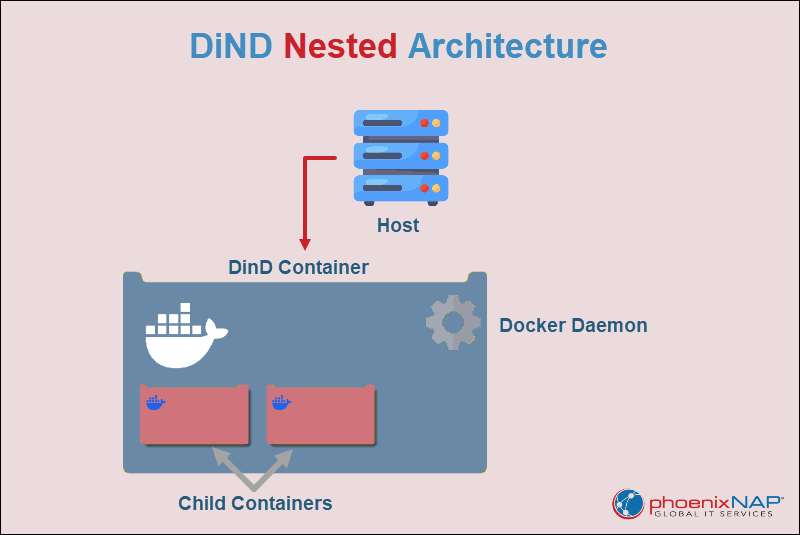
Docker-in-Docker (DinD) runs a separate Docker daemon inside a container. The nested daemon manages its own images, containers, networks, and storage independently from the host Docker daemon. This approach provides stronger workload isolation and is used in isolated build or testing environments.
Key characteristics of DinD include:
- Separate Docker daemon. The container runs its own Docker daemon instead of using the host daemon.
- Nested container environment. Child containers run inside the DinD container instead of directly on the host.
- Privileged container requirements. Most DinD deployments require the
--privilegedflag to provide the kernel capabilities necessary for nested container operations. - Higher isolation. Workloads remain more isolated from the host Docker environment compared to Docker socket binding.
- Additional overhead. When you run a nested daemon, it increases the complexity of storage, networking, and management.
Docker Socket Binding (DooD)
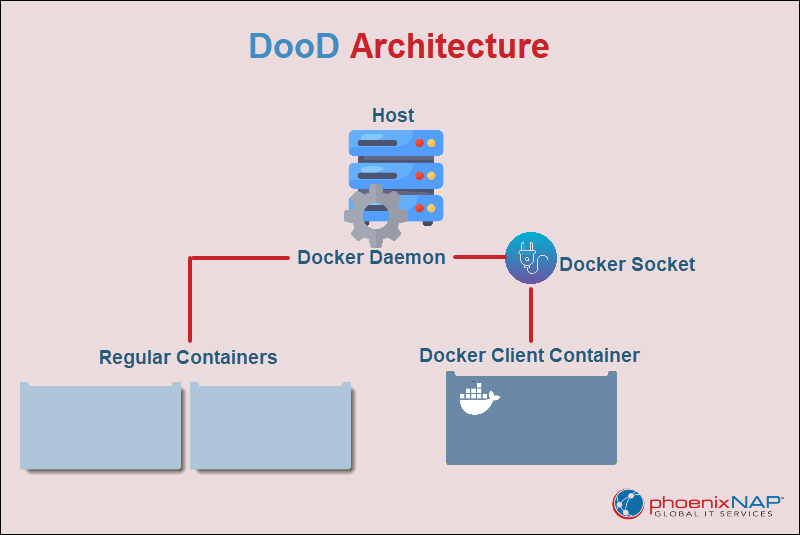
Docker-outside-of-Docker (DooD) allows a container to communicate directly with the host Docker daemon through the Docker socket, usually mounted at /var/run/docker.sock.
A socket is a communication interface that allows applications and services to exchange data locally on the system.
Instead of running a separate daemon inside the container, the container reuses the host Docker engine to manage workloads.
Key characteristics of DooD include:
- Host daemon access. Containers communicate directly with the host Docker daemon.
- No nested daemon. The setup avoids the creation of another Docker engine inside a container.
- Simpler configuration. Socket binding is easier to configure and maintain than DinD.
- Lower isolation. Containers gain significant control over the host Docker environment.
- Common CI/CD usage. Many CI/CD runners and automation systems use Docker socket binding for build and deployment tasks.
The following table compares the main differences between DinD and DooD, including daemon architecture, isolation, security exposure, and operational complexity.
| Feature | DinD | DooD |
|---|---|---|
| Docker daemon location | Separate daemon inside the container. | Uses the host Docker daemon. |
| Isolation | Better workload isolation. | Lower isolation. |
| Complexity | Higher. | Lower. |
| Security considerations | Requires privileged containers. | Exposes the host Docker daemon. |
| Performance overhead | Higher. | Lower. |
| Storage handling | Nested container storage. | Shared host storage. |
| Common use cases | Isolated builds and testing. | CI/CD pipelines and automation. |
Docker-in-Docker (True DinD)
Docker-in-Docker (DinD) runs a separate Docker daemon inside a container and does not reuse the host Docker daemon. This creates an isolated nested Docker environment with its own containers, images, networks, and storage. DinD works in isolated testing environments, containerized build systems, and CI/CD pipelines that require dedicated Docker environments.
Most DinD deployments require privileged containers because nested Docker operations need additional kernel capabilities for storage management, networking, and container runtime functionality.
The steps below show how to configure and test a basic DinD deployment using the official Docker DinD image.
Step 1: Pull Docker DinD Image
The official docker:dind image includes the Docker daemon, Docker CLI, and the startup scripts to run Docker inside a container.
Before you create a DinD container, pull the image from Docker Hub to the local system with docker pull.
docker pull docker:dind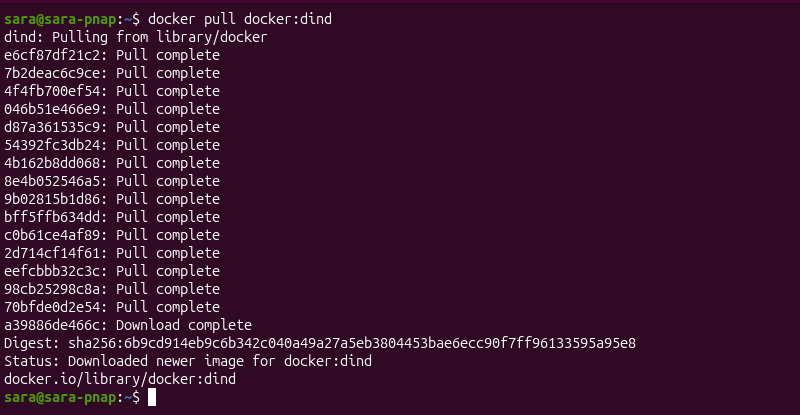
The command downloads the Docker DinD image. After the image download completes, verify the image exists locally with:
docker images
Step 2: Start Privileged DinD Container
Start a container that runs its own Docker daemon. Most Docker-in-Docker deployments require privileged mode because nested container operations need additional Linux kernel capabilities for networking, storage management, and container runtime functionality.
Use docker run to start a privileged DinD container:
docker run --privileged --name dind-test -d docker:dind
The command consists of the following elements:
--privileged. Grants the container elevated kernel capabilities required for nested Docker operations.--name dind-test. Assigns a readable name to the DinD container for easier management and troubleshooting.-d. Runs the container in detached mode so it continues running in the background.docker:dind. Specifies the official Docker-in-Docker image.
The command starts a background container named dind-test that runs a nested Docker daemon. After the container starts, verify it is running correctly.
Use docker ps to list running containers:
docker ps
The output confirms the dind-test container is running and the nested Docker daemon started successfully.
Step 3: Access Nested Docker Environment
Access the container shell to interact directly with the nested Docker environment. This allows you to run Docker commands inside the DinD container rather than on the host system.
Use docker exec to open an interactive shell inside the DinD container:
docker exec -it dind-test sh
The command consists of:
exec. Runs a command inside an existing container.-it. Starts an interactive terminal session.dind-test. Specifies the target DinD container.sh. Opens a shell session inside the container.
The shell prompt changes after you enter the container. At this point, commands run inside the DinD container rather than on the host Ubuntu system.
Verify the nested Docker daemon is running with:
docker version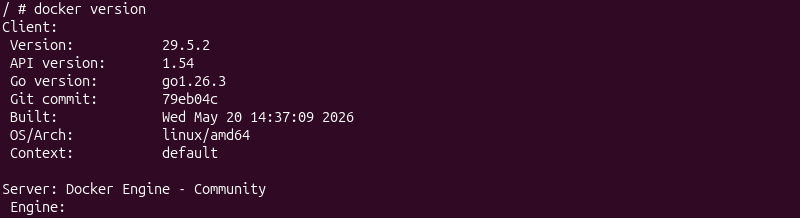
The output confirms the nested Docker daemon is running successfully inside the DinD container.
Step 4: Run Containers Inside DinD
Start a container in the DinD environment to confirm the nested Docker daemon is able to pull images, create containers, and manage workloads independently of the host Docker daemon.
Use docker run inside the DinD container to start a test container:
docker run --name hello-test hello-world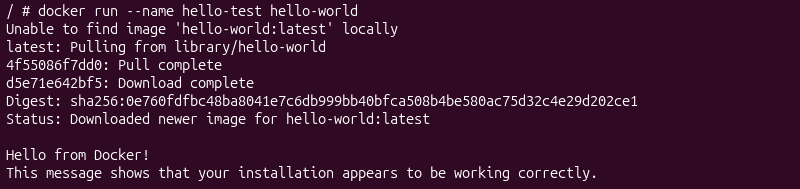
The command consists of:
run. Creates and starts a new container.--name hello-test. Assigns a readable name to the test container.hello-world. Uses the lightweight Docker test image from Docker Hub.
The output confirms the nested Docker daemon successfully pulled an image from Docker Hub, created a child container, and started it in the DinD environment.
At this point, Docker is running successfully inside another Docker container. Verify the child container exists inside the nested Docker environment with:
docker ps -a
The output shows the hello-test container exists inside the nested DinD environment instead of on the host Docker daemon.
Step 5: Exit and Remove DinD Container
After you test the nested Docker environment, exit the DinD container shell with:
exit
Return to the host shell and remove the container from the host system:
docker rm -f dind-test
The command consists of the following elements:
rm. Removes a container from the system.-f. Forces the container to stop before removal.dind-test. Specifies the DinD container to remove.
The command stops and removes the DinD container along with its nested Docker environment.
Verify the container no longer exists with:
docker ps -a
The output confirms the dind-test container was removed successfully.
Docker Socket Binding (DooD)
Docker-outside-of-Docker (DooD) allows containers to communicate directly with the host Docker daemon instead of running a separate nested Docker daemon. This approach uses Docker socket binding to provide Docker access inside a container by mounting the host Docker socket, from /var/run/docker.sock.
Because DooD reuses the host Docker daemon, it is simpler and more lightweight than Docker-in-Docker (DinD). However, containers with access to the Docker socket gain significant control over the host Docker environment, which introduces important security considerations.
The following sections show how to configure and test Docker socket binding with a container that communicates directly with the host Docker daemon.
Step 1: Verify Docker Socket
Docker socket binding works by mounting the host Docker socket into a container. The socket acts as the communication interface between the Docker CLI and the Docker daemon.
Before you start a DooD container, verify the Docker socket exists on the host system.
Use the ls command to inspect the Docker socket:
ls -l /var/run/docker.sock
The output confirms the Docker socket exists and shows the socket ownership and permissions.
The command includes the following elements:
s. Indicates the file is a UNIX socket instead of a regular file.root docker. Shows the socket belongs to the root user and the docker group.rw. Indicates read and write permissions for authorized users and groups.
Step 2: Start Container with Docker Socket Binding
Start a container that mounts the host Docker socket, which allows it to communicate directly with the host Docker daemon instead of running a separate nested daemon.
Use docker run to start a temporary container with Docker socket binding:
docker run --rm -it \
-v /var/run/docker.sock:/var/run/docker.sock \
docker sh
The command includes the following elements:
--rm. Automatically removes the container after it exits.-it. Starts an interactive terminal session.-v /var/run/docker.sock:/var/run/docker.sock. Mounts the host Docker socket into the container.docker. Uses the official Docker image.sh. Opens a shell session inside the container.
The shell prompt changes after entering the container. The container now communicates directly with the host Docker daemon through the mounted Docker socket.
Step 3: Verify Docker Access from Inside the Container
Because the Docker socket is mounted from the host system, Docker commands executed inside the container interact directly with the host Docker environment. Use docker ps to list running containers from inside the DooD container:
docker ps
The output confirms the container can access the host Docker daemon and view containers running on the host system.
Use docker images to verify the container can also access host Docker images:
docker images
The output shows the container has visibility into the host Docker environment rather than using isolated nested Docker resources.
Step 4: Run a Container Through the Host Docker Daemon
Create a test container via the mounted Docker socket to confirm it can create and manage workloads directly on the host Docker daemon.
Use docker run inside the DooD container to start a test container:
docker run --name dood-test hello-world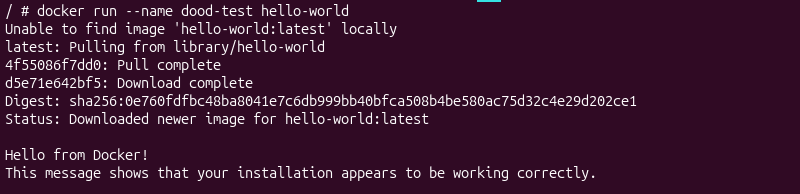
The command includes the following elements:
run. Creates and starts a new container.- -
-name dood-test. Assigns a readable name to the test container. hello-world. Uses the lightweight Docker test image from Docker Hub.
The output confirms the container successfully communicated with the host Docker daemon, pulled an image, and created a new container on the host system.
Use docker ps -a to verify the new container exists on the host Docker daemon:
docker ps -a
The output shows the dood-test container was created directly on the host Docker environment through Docker socket binding.
Step 5: Exit and Remove DooD Container
To keep the Docker environment clean and prevent unused containers from accumulating on the host system, use exit to leave the DooD container shell:
After returning to the host shell, verify the temporary DooD container was removed automatically with ps -a:
docker ps -a
The output confirms the temporary DooD shell container was removed automatically because the --rm flag was used when the container started. The dood-test container still exists because it was created separately through the host Docker daemon.
Docker in Docker Use Cases
Docker-in-Docker (DinD) and Docker-outside-of-Docker (DooD) are used in environments that need Docker access from inside containers. These approaches are used in automation platforms, testing workflows, and containerized development environments where workloads need to build, run, or manage other containers.
Common Docker in Docker use cases include:
- CI/CD pipelines. CI/CD runners often use DinD or DooD to build container images, run automated deployment tasks, and execute container-based workflows during software delivery pipelines.
- Automated container testing. Development and QA environments use nested Docker environments to test container images, Dockerfiles, and orchestration workflows in isolated environments.
- Isolated build environments. DinD provides separate Docker environments for individual projects or build jobs without exposing the host Docker daemon directly.
- Temporary development environments. Developers use DinD containers to create disposable sandbox environments for testing Docker configurations, networking behavior, or container runtime changes.
- Container image building. Build systems frequently use Docker-enabled containers to build and package application images inside automated workflows.
- Training and learning environments. DinD environments allow users to practice Docker administration, container deployment, and troubleshooting without directly modifying the host Docker environment.
- Automation platforms and self-hosted runners. Many automation tools and self-hosted CI/CD runners use Docker socket binding to control the host Docker daemon from inside containers.
Docker in Docker Key Considerations
Docker-in-Docker (DinD) and Docker-outside-of-Docker (DooD) provide flexible ways to run Docker workloads from inside containers, but both approaches introduce operational and security limitations.
Before using DinD or DooD in production environments, learn how these setups affect container isolation, host security, storage usage, and resource management.
Important Docker in Docker considerations include:
- Privileged container requirements. Most DinD deployments require the
--privilegedflag to provide additional Linux kernel capabilities for nested container operations. Privileged containers reduce isolation boundaries and increase the potential impact of container compromise. - Docker socket security exposure. Containers that mount /var/run/docker.sock communicate directly with the host Docker daemon. This provides significant control over the host Docker environment, including the ability to start containers, manage images, and mount host resources.
- Storage and resource overhead. DinD environments create additional storage layers, image caches, and nested container resources. Over time, unused containers and images consume disk space if they are not cleaned regularly.
- Nested networking complexity. DinD deployments introduce additional container networking layers that complicate port mappings, service discovery, and troubleshooting workflows.
- Cleanup and resource management. Temporary containers, unused images, and stopped workloads accumulate quickly in Docker environments. Regular cleanup helps reduce unnecessary resource usage and storage growth.
- Docker socket mounting limitations. Some Docker images attempt to expose /var/run/docker.sock with the
Dockerfile VOLUMEinstruction to simplify Docker socket binding. However, Docker socket access should be configured at container runtime with the-vflag or Docker Compose bind mounts, because the socket cannot be reliably exposed as a standard persistent Docker volume. - Shared host daemon access in DooD. Unlike DinD, DooD containers interact directly with the host Docker daemon rather than with an isolated nested daemon. Misconfigured containers or untrusted workloads directly affect the host Docker environment.
- Alternative container build approaches. Some CI/CD and Kubernetes environments use daemonless image build tools instead of privileged DinD deployments or Docker socket binding. These tools help reduce direct exposure of the Docker daemon in automated build environments.
Troubleshooting Docker in Docker
Docker-in-Docker (DinD) and Docker-outside-of-Docker (DooD) environments introduce additional layers of container runtime, networking, storage, and daemon communication. As a result, configuration mistakes, permission issues, and resource limitations often cause containers or Docker services to fail unexpectedly.
The following troubleshooting sections cover common DinD and DooD problems, their likely causes, and the steps required to resolve them.
DinD Not Starting
A DinD container sometimes exits immediately after startup or fails to remain running. This issue is commonly caused by missing privileged container permissions, Docker daemon startup failures, or unsupported container runtime configurations.
Use docker ps -a to inspect the DinD container status:
docker ps -a
If the DinD container exits immediately after startup, and the status shows Exited (1) or another non-zero exit code instead of Up, the nested Docker daemon failed during initialization.
Common causes include:
- Missing privileged mode. DinD containers usually require the
--privilegedflag to access the kernel capabilities needed for nested Docker operations. - Docker daemon startup failure. The nested Docker daemon inside the container failed during initialization.
- Container runtime restrictions. Some restricted container environments do not allow nested containers.
- Resource limitations. Low memory or insufficient storage space sometimes prevents the nested Docker daemon from starting correctly.
Use docker logs to inspect the DinD container logs:
docker logs dind-testReview the daemon startup logs for errors, permission issues, storage driver failures, or cgroup-related warnings.
To resolve the issue:
- Verify the container starts with the
--privilegedflag. - Confirm the Docker daemon is running correctly on the host system.
- Check available disk space and memory usage on the host system.
- Restart the container after correcting configuration issues.
Cannot Connect to DinD
Docker commands executed inside a DinD container sometimes fail to connect to the nested Docker daemon. This issue occurs when the Docker daemon inside the container fails to start correctly, or the DinD container is no longer running.
Use docker version inside the DinD container to verify daemon connectivity:
docker version
If this error appears, the Docker CLI inside the container cannot communicate with the nested Docker daemon.
Common causes include:
- DinD container stopped unexpectedly. The nested Docker daemon is no longer running because the container exited or crashed.
- Docker daemon startup failure. The nested daemon failed during initialization because of storage driver issues, missing privileges, or resource limitations.
- Incorrect container access workflow. Docker commands were executed on the host system rather than in the DinD container shell.
Use docker ps on the host system to verify the DinD container is still running:
docker psIf the DinD container does not appear in the running container list, restart the container and verify it starts with the --privileged flag enabled.
Use docker logs to inspect daemon startup errors:
docker logs dind-testReview the log output for Docker daemon initialization failures, storage driver errors, and permission issues.
docker.sock Permission Error
Docker socket binding sometimes fails because the current user or container does not have permission to access /var/run/docker.sock. When this happens, Docker commands return permission-related errors rather than communicating successfully with the Docker daemon.
Test Docker socket access with:
docker ps
If this error appears, the current user or container does not have permission to access the Docker socket.
Common causes include:
- User not added to the docker group. Non-root users usually require membership in the docker group to access the Docker daemon.
- Incorrect socket permissions. The Docker socket ownership or permissions were modified incorrectly.
- Restricted container permissions. Some containers do not inherit the required socket access permissions during runtime.
Use groups to verify whether the current user belongs to the docker group:
groupsIf the docker group does not appear in the output, add the current user to the group with usermod:
sudo usermod -aG docker $USERNote that you need sudo permissions for this command. After updating group membership, log out and log back in before testing Docker commands again.
Use ls -l to inspect the Docker socket permissions:
ls -l /var/run/docker.sockReview the socket ownership and verify the docker group has read and write access to the socket.
Nested Containers Fail to Start
Nested containers in a DinD environment sometimes fail to start due to missing privileges, storage driver issues, or restricted container runtime capabilities.
In most cases, the Docker daemon inside the DinD container starts successfully, but child containers fail when Docker attempts to create or initialize them.
Test nested container creation with:
docker run hello-world
If this error appears, the nested Docker daemon cannot start child containers correctly.
Common causes include:
- Missing privileged mode. DinD containers started without the
--privilegedflag fail when creating nested containers. - Storage driver incompatibility. Some storage drivers do not support nested container layers correctly in restricted environments.
- Restricted kernel features. Some virtualized or containerized environments limit the kernel features required for nested container operations.
- Insufficient system resources. Low memory or limited storage space sometimes prevents nested container creation.
Use docker info inside the DinD container to inspect storage driver and runtime information:
docker infoReview the output for storage driver warnings, limitations, or runtime-related errors.
To resolve the issue:
- Verify the DinD container starts with the
--privilegedflag. - Restart the DinD container after correcting runtime configuration issues.
- Check available system memory and storage space.
- Verify the host environment correctly supports nested container workloads.
Services Inside DinD Containers Are Not Reachable
Services running inside nested DinD containers are sometimes unreachable from the host system or external clients. In most cases, the required container ports were not published to the host system during container startup.
Use docker port to inspect published host port mappings:
docker port dind-test
If the command returns no output, the container does not publish any ports to the host system.
Docker images sometimes expose ports internally without automatically publishing them to the host system.
The following example publishes container port 80 to host port 8080:
docker run -p 8080:80 nginxUnlike the previous example, this container exposes a host port accessible to external systems.
Common causes include:
- Missing port publishing configuration. Required ports were not published with the
-pflag during container startup. - Incorrect host port mappings. The container publishes ports to unexpected or conflicting host ports.
- Port conflicts. Another container or host service is already using the required port.
- Firewall restrictions. Host firewall rules or security policies block container network traffic.
To resolve the issue:
- Verify that required ports are published with the
-pflag. - Check for conflicting services already using the target ports.
- Restart affected containers after updating networking or port mapping configurations.
- Verify firewall rules and container network settings on the host system.
No Space Left on Device
DinD environments sometimes run out of available storage space because nested containers, cached images, build layers, and temporary resources accumulate over time. This issue is common in CI/CD environments that frequently create and remove containers.
Docker commands or image builds sometimes return errors similar to:

If this error appears, the Docker environment no longer has enough available storage space for additional images, containers, or build layers.
Common causes include:
- Unused Docker images. Old images continue consuming storage space after builds or testing workflows complete.
- Stopped containers. Exited containers remain in the system unless they are manually removed.
- Build cache accumulation. Repeated image builds create cached layers that increase disk usage over time.
- Nested DinD storage overhead. DinD environments maintain additional image layers and container storage inside nested Docker environments.
Use docker system df to inspect Docker disk usage:
docker system dfThe command displays disk usage information for Docker images, containers, local volumes, and the build cache. Large image, container, or build cache sizes often indicate accumulated unused resources.
Use df -h to inspect overall filesystem usage on the host system:
df -hThe command displays available and used disk space for mounted filesystems. If the root filesystem approaches full capacity, Docker operations fail due to insufficient storage space.
To remove unused Docker resources and free storage space, use docker system prune:
docker system pruneThe command removes unused containers, dangling images, unused networks, and cached build data.
To help prevent future storage issues:
- Remove unused containers and images regularly.
- Clean Docker build cache periodically in CI/CD environments.
- Monitor available disk space on the host system.
- Avoid storing unnecessary build artifacts inside DinD containers.
Conclusion
This tutorial explained how running Docker in Docker works, as well as different approaches to this method, including Docker-in-Docker (True DinD) and Docker Socket Binding (DooD). It also covered common Docker-in-Docker use cases, limitations, and troubleshooting scenarios.
Next, learn how to install Docker on different platforms, including Ubuntu, Rocky Linux, and macOS.