By default, Docker isolates applications from the host operating system and external networks, providing security but restricting network communication. Port mapping solves this problem by enabling network access to services without sacrificing container isolation.
This article will explain Docker port mapping by delving into internal routing rules, network modes, syntax patterns, and diagnostics that govern Docker network traffic.
What Is Docker Port Mapping?
Docker port mapping establishes a communication channel between the host OS network and a container network interface. The container engine binds a specific port number or port range on the host machine to a corresponding port inside the container.
Containers run within isolated network namespaces, where each containerized application listens on an internal port, e.g., port 8080 for a Java application or port 80 for an Nginx web server. The host network cannot see this internal port natively, but port mapping creates an entry point on the host interface.
When an external client sends a request to the host's IP address and the designated host port, the Docker engine intercepts the traffic and redirects it to the container's private IP address and internal port. This translation ensures the rest of the container network space is not exposed.
Why Map Ports in Docker?
Container isolation is an important security feature, but software often needs to communicate with external networks to function properly. Port mapping is the primary feature for establishing external network visibility.
For example, a PostgreSQL database running inside a container remains inaccessible to an administration tool on the host machine unless a path is available. Mapping port 5432 from the host to the container grants access to development tools.
Furthermore, port mapping allows developers to resolve port conflicts on a single host machine. Multiple containers can run Nginx web servers, each listening on port 80 internally. The host machine can map container A to host port 8081, container B to host port 8082, and container C to host port 8083. This flexibility allows full utilization of host hardware resources while preserving the internal configurations of individual apps.
How Docker Port Mapping Works
The Docker engine coordinates port mapping directly with the Linux kernel networking subsystem. The daemon utilizes kernel-level packet filtering and routing tables to forward network traffic.
When the daemon starts a container with published ports, it modifies the host iptables rules. Specifically, Docker injects rules into the PREROUTING chain of the NAT table.
The kernel inspects incoming packets on the host interfaces. If a packet matches the specified host port, the kernel performs Destination Network Address Translation (DNAT). The kernel rewrites the destination IP address from the host IP to the container's internal IP address.
Docker Network Mode Behavior
The following network modes change how Docker containers interact with host interfaces:
- Bridge. Relies on translation rules to pass traffic through the virtual bridge.
- Host. Removes isolation boundaries by merging the container network space with the host.
- Container. Links multiple containers together to share a single network interface.
- None. Disables networking.
The chosen network mode determines whether port mapping rules apply or become redundant. The table below shows how network modes affect port exposure, configuration needs, and underlying traffic mechanisms:
| Port Mapping | Possible Port Conflicts | Mechanism | |
|---|---|---|---|
| Bridge (Default) | Required. | Only on host ports. | Uses iptables DNAT and docker-proxy user-space routing. |
| Host | Not required. | Directly on the host. | Shares the host network namespace; the container uses the host IP directly. |
| Container | Not required for target container. | Within shared space. | Reuses the network namespace of another existing container. |
| None | N/A | N/A | Disables all networking. The container lacks external interfaces. |
Docker Port Mapping Syntax
The Docker CLI provides the --publish (-p) flag, which accepts argument patterns to control address binding and define port exposure during container creation.
The flag accepts a colon-separated sequence, with the host configuration on the left and the container configuration on the right. The full structure supports binding specific interfaces, host ports, container ports, and transport-layer network protocols.
The standard syntax follows the layout below:
-p [host_ip]:[host_port]:[container_port]/[protocol]For example:
docker run -d -p 127.0.0.1:8080:80/tcp nginx:alpineOmitting segments tells the Docker daemon to apply default behaviors, such as binding to all available host network interfaces or selecting random host ports.
Note: While omitting information is possible, clear syntax definition prevents accidental exposure of private services to public internet interfaces.
Bridge Network (Default) Port Mapping
The default bridge network creates an isolated virtual network environment that the Docker engine manages. Port mapping is the primary gateway for routing external packets into the bridge network.
The sections below provide details on setting up bridge network port mapping.
Map to Same Port Number
Mapping to the identical port number unifies the external port identity with the internal app configuration. This approach simplifies configuration tracking across environments.
Execute the following command to map port 80 of the host to port 80 of the container:
docker run -d -p 80:80 nginxTraffic directed to http://localhost:80 is routed directly to the Nginx server inside the container. This pattern is useful for scenarios where the host machine runs a single primary instance of a web service.
Map to Different Host Port
Mapping to a different host port avoids conflicts when multiple containers use the same internal port. This allows for parallel execution of identical service images on a single server.
Deploy two separate Nginx containers by changing the host-side ports:
docker run -d -p 8081:80 --name web1 nginx
docker run -d -p 8082:80 --name web2 nginx
The host routes requests on port 8081 to web1, and requests on port 8082 to web2. Both containers continue to listen internally on port 80 without interference.
Map to Random Host Port
Dynamic port assignment allows the Docker daemon to select an available ephemeral port from the host system. This mechanism prevents initialization failures caused by hardcoded port conflicts.
To allocate a random port automatically, omit the host port number:
docker run -d -p 80 nginxAlternatively, use the -P or --publish-all flag to map all ports declared in the container image EXPOSE metadata to random host ports.
Bind to Specific Interface
Binding to a specific host interface restricts container access to a network card or IP address. This restriction prevents external networks from accessing services intended only for local-host communication.
To restrict an application to the loopback interface, specify the local IP address before the host port:
docker run -d -p 127.0.0.1:8080:80 nginxExternal machines on the physical local area network cannot connect to this service. The kernel rejects packets arriving from external network interfaces directed at this mapping.
Specify Protocol
Network applications use different transport layer protocols depending on performance and reliability requirements. Docker can handle both TCP and UDP streams.
When an operator omits the suffix, TCP is assumed by default. To bind a UDP service, append the /udp suffix to the port configuration:
docker run -d -p 53:53/udp coredns/corednsNote: To publish the same port number for both TCP and UDP simultaneously, use two separate -p flags in one command.
Publishing Multiple Ports
Complex apps often run several internal services that require independent external access. Provide multiple -p flags to publish multiple ports:
docker run -d -p 8080:80 -p 9090:9090 custom-appThe daemon processes each flag independently, updating the iptables rules to construct routing pathways for both targets.
Using Port Ranges
Certain systems, including media streaming clusters and VoIP gateways, require large blocks of continuous ports to function correctly. Specifying individual flags for hundreds of ports breaks command readability.
Use hyphens to allocate a port range:
docker run -d -p 4000-4005:4000-4005 [image]This command maps host ports 4000 through 4005 directly to container ports 4000 through 4005. The host-side range length must match the container-side range length.
Host Network Mode
Host network mode bypasses the virtual bridge layer provided by the container runtime. The container operates directly inside the main host networking namespace.
When an operator provisions a container with --network host, the container does not receive its own private IP address. An application listening on port 80 inside the container directly binds to port 80 of the host network interface. Consequently, the runtime ignores -p and --publish flags.
This mode minimizes network latency and maximizes throughput by eliminating NAT overhead, but it may cause port collision. If a containerized application binds to port 80 in host mode, no other application on the host machine or within other host-mode containers can use port 80 simultaneously.
Container Network Mode
Container network mode reuses the entire network stack of an already existing container instance. It links the network lifecycle of a secondary container directly to a primary target.
The secondary container attaches to the same network interface, IP address, and port as the target container. To implement this mode, use the following syntax:
docker run -it --network container:[primary_container_name_or_id] [image] shThe new container communicates with the primary container via the localhost interface. Applications within these joined containers must not bind to the same internal port number, or initialization will fail due to local address conflicts.
Note: External port mapping must occur when creating the primary container. The secondary container cannot declare independent external port mappings since it lacks a separate network interface.
Port Mapping with Docker Compose
Docker Compose uses a declarative configuration to manage multi-container applications. This tool converts manual CLI flags into structured definitions.
The docker-compose.yml file handles port configurations within a dedicated ports block under each service definition. The YAML structure supports both short-form string formatting and long-form object definitions.
The following example demonstrates standard port declarations within a docker-compose.yml file:
version: '3.8'

services:
  web_server:
    image: nginx:alpine
    ports:
      - "8080:80"
      - "127.0.0.1:443:443"
  analytics:
    image: custom-analytics
    ports:
      - target: 9000
        published: 9000
        protocol: tcp
        mode: host
The short-form string uses the standard CLI layout. The long-form object syntax improves readability by explicitly naming the target port inside the container and the published port on the host machine.
Port Mapping in Custom Bridge Networks
Custom user-defined bridge networks provide better isolation and automatic service discovery compared to the default system bridge. Port mapping on custom bridges follows the same syntax rules but benefits from improved internal routing capabilities.
Create a custom bridge network by executing the command below:
docker network create [network_name]Containers on this network communicate with each other using their container names as DNS hostnames, completely skipping port-mapping requirements for internal traffic. Port mapping remains necessary only when external clients outside the Docker host require access to a service inside the custom network.
expose vs. Port Forwarding
The EXPOSE directive in a Dockerfile or the --expose flag in the command line serves as operational documentation. It declares the ports that the containerized application intends to listen on, but it does not open any communication channels on the host network interfaces.
In contrast, port forwarding creates the active runtime routing rules in the host kernel. An operator can map host port 8080 to container port 80 even if the underlying Dockerfile lacks an EXPOSE 80 instruction.
Checking Port Mappings in Docker
Verifying active port configurations ensures successful deployment. Docker provides multiple inspection commands for auditing network access points.
The docker ps command provides an overview of running containers and their exposed ports under the PORTS column:

For a focused look at port mappings, run the docker port command:
docker port [container_name_or_id]
This command returns the active bindings, showing which host IPs and ports map to the container's internal targets.
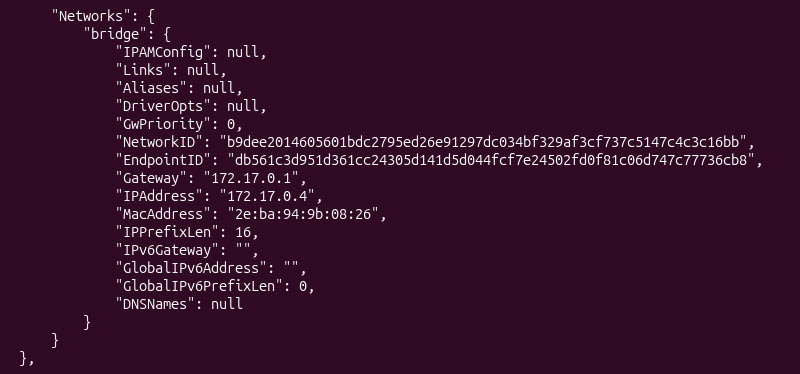
To view the complete networking metadata, including private IP addresses and network aliases, execute the docker inspect command:
docker inspect [container_name_or_id]This command outputs a JSON structure that shows the network configuration state:
Troubleshooting Port Mapping Issues in Docker
Network connectivity errors arise from configuration mistakes, firewall blocks, or local resource contention. The following sections show how to isolate issues along the network path.
Port Already in Use
The system throws an error if a requested host port is already bound to another active process or container. The Docker daemon cannot overwrite an existing host binding.
Identify the conflicting process on the host machine using the ss command. For example:
sudo ss -tulpn | grep 8080
Terminate the conflicting process or modify the docker run command to target an available host port instead. This modification avoids deployment blocks during service rollouts.
Firewall and iptables Conflicts
Ensure the firewall configuration allows forward traffic on the destination host ports. Host-level firewalls like UFW or Firewalld can interfere with Docker's automated network rule injection.
If the system firewall daemon is restarted while Docker is running, the firewall may wipe out Docker's custom iptables chains. Restart the Docker service to regenerate these mandatory routing rules:
sudo systemctl restart dockerApplication Binding to localhost inside Container
If the internal application binds to 127.0.0.1 within its own network namespace, it rejects packets from the virtual bridge interface.
Configure the application to bind to 0.0.0.0 instead. This setting instructs the application to accept traffic on all internal network cards.
Container Crashes Instantly
A container that encounters initialization errors terminates immediately, destroying its associated port mapping paths. Check the execution state using the following command:
docker ps -aIf the container stopped, review the internal application error traces using the logging utility:
docker logs [container_name_or_id]Fixing underlying runtime application bugs restores container stability and brings the network ports back online.
Docker Port Mapping Best Practices
Adhering to structured security and operational patterns ensures that container deployments remain maintainable. Bad port assignments expose systems to intrusion risks and configuration drift.
The sections below introduce best practices for port mapping in Docker.
Avoid Publishing Unnecessary Ports
Reduce the available host's attack surface by minimizing the public network footprint. Only publish ports that external consumers or public ingress controllers must access directly.
Keep backend components, including caches and internal microservices, unmapped on the host. Allow these components to communicate only over private, user-defined Docker bridge networks.
Explicitly Bind to 127.0.0.1 for Internal Services
Omitting the binding IP address instructs Docker to bind to 0.0.0.0, exposing the port on all available host network interfaces.
Always prepend 127.0.0.1: to the port mapping string for internal databases or administration dashboards. This practice ensures that only local processes or secure SSH tunnels can access the sensitive port, blocking external access from public networks.
Use Standardized Port Layouts in Compose Files
Maintain a central repository or a shared master Docker Compose file that documents all assigned host ports. Grouping port mappings logically by service type helps the team quickly identify open slots and prevents port-overlapping errors.
Leverage Non-Standard Host Ports for Security
Automated malicious scanners continuously probe public IP addresses for standard application entry points like port 80, 443, or 8080.
Map standard internal container ports to unpredictable, high-number host ports in development or staging setups. For example, routing public port 39482 to internal port 80 adds an extra layer of obscurity against basic scanning scripts.
Conclusion
After reading this article, you should have a comprehensive understanding of Docker port mapping. The article covered internal translation mechanics, interface bindings, declarative multi-container deployments, and advanced network modes to ensure predictable execution environments.
Next, read about best practices for Docker container management.