The terraform show command displays the contents of Terraform state files and saved execution plans in a human-readable format. It helps inspect managed resources, review infrastructure details, verify planned changes, and troubleshoot Terraform-managed infrastructure.
Whether you need to examine the current state of deployed resources, inspect a saved execution plan before applying changes, or export machine-readable data for automation, terraform show provides a single command for viewing Terraform's stored information.
The following article will explain how to use the terraform show command, including its syntax, options, practical examples, and best practices.
Prerequisites
- A Linux system (this tutorial uses Ubuntu 26.04).
- Access to the terminal.
- Terraform installed.
- A user account with permission to run Terraform commands.
- A Terraform state file (terraform.tfstate) or saved execution plan (tfplan).
What Is the terraform show Command?
The terraform show command reads and displays information stored in a Terraform state file or saved execution plan. Instead of querying the target infrastructure directly, it presents the information Terraform has already recorded, which allows you to inspect resource configurations, attributes, dependencies, and planned changes.
Because terraform show supports both state files and saved plan files, it is useful throughout the infrastructure lifecycle. Use it to review the current state of deployed resources, inspect planned changes before applying them, or export the output as JSON, a structured, machine-readable format commonly used for automation and system integrations.
The following sections compare terraform show with other commonly used Terraform commands to help you understand when to use each one.
terraform show vs. terraform state show
Although both commands display information about Terraform-managed infrastructure, they serve different purposes.
terraform show displays the contents of an entire Terraform state file or saved execution plan, while terraform state show displays detailed information about a single resource stored in the state.
The following table summarizes the main differences between the two commands.
| Feature | terraform show | terraform state show |
|---|---|---|
| Purpose | Displays the entire Terraform state or a saved execution plan. | Displays detailed information about a single resource in the Terraform state. |
| Input | Reads the current state file or a saved plan file. | Requires the address of a specific resource in the state. |
| Scope | All managed resources. | One managed resource. |
| JSON support | Supports the -json option. | Does not support JSON output. |
| Common use cases | Reviews infrastructure, inspects saved plans, exports data for automation. | Examines the attributes of an individual resource or troubleshoots a specific resource. |
terraform show vs. terraform state list
Both terraform show and terraform state list inspect Terraform-managed infrastructure, but they provide different levels of detail.
The first command displays detailed information about managed resources, while the second presents only the resource addresses stored in the Terraform state.
For instance, use terraform show to inspect the complete configuration and attributes of managed resources.
terraform show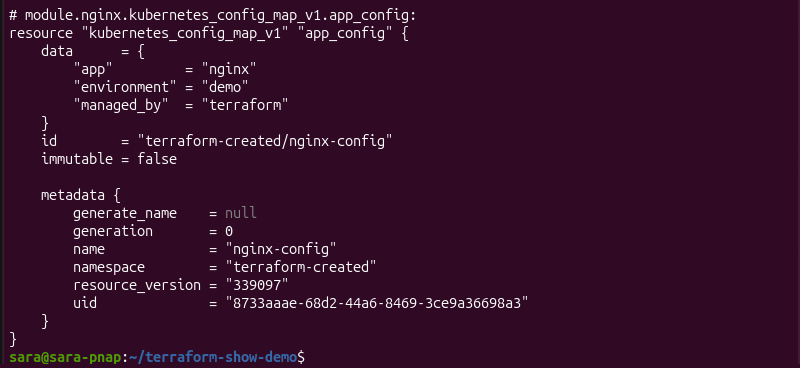
The output displays the selected resource's configuration, metadata, and current attribute values, which allows you to inspect its state in detail.
However, use terraform state list to display all resources managed by the current Terraform state.
terraform state list
The output lists only the resource addresses stored in the Terraform state, which makes it useful for identifying managed resources before inspecting a specific resource or reviewing the complete state.
terraform show vs. terraform plan
Although terraform show and terraform plan are often used together, they perform different tasks.
terraform show displays the contents of the current Terraform state or a saved execution plan without generating a new one. In contrast, terraform plan compares the current Terraform configuration with the existing infrastructure and creates an execution plan that shows the proposed changes.
For example, use terraform show to inspect a saved execution plan without generating a new one.
terraform show tfplan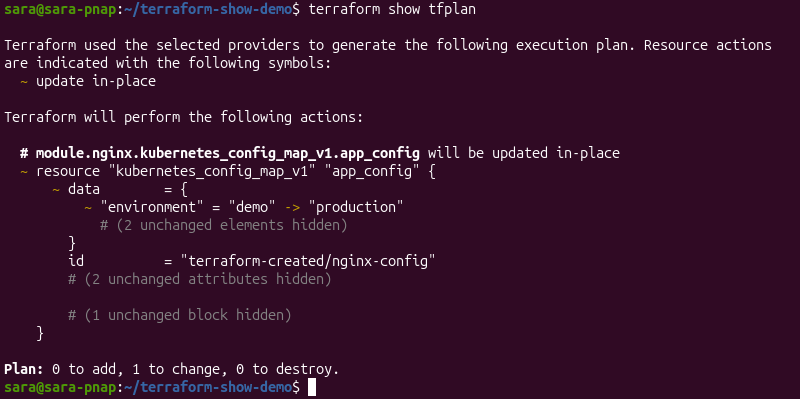
The output displays the actions stored in the saved execution plan, allowing you to review proposed infrastructure changes before running terraform apply, to provision or modify infrastructure.
However, use terraform plan to generate and save an execution plan before reviewing or applying infrastructure changes.
terraform plan -out=tfplan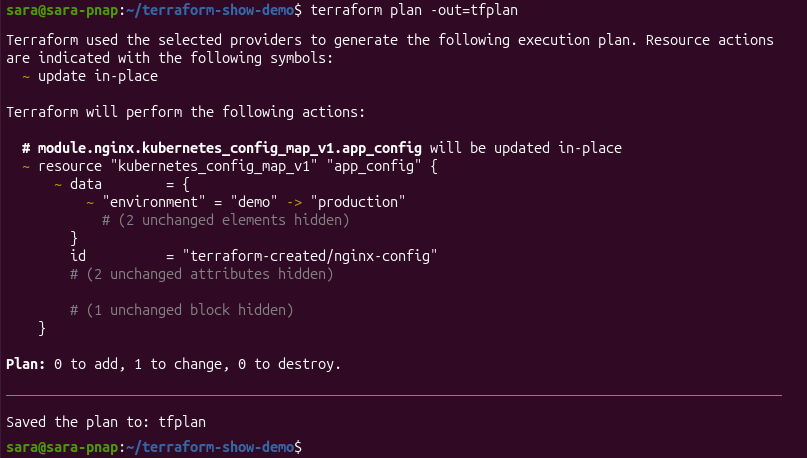
terraform show Syntax and Options
The terraform show syntax consists of the command name, optional flags, and an optional file path. If you do not specify a file path, Terraform displays the current Terraform state. Otherwise, it displays the specified state file or saved execution plan.
The following sections describe the command syntax, supported options, and the different Terraform files to inspect.
Global Command Syntax
The basic syntax for the terraform show command is:
terraform show [options] [path]The command includes the following elements:
terraform show. Displays the contents of a Terraform state file or saved execution plan.[options]. Modify how Terraform displays the output.[path]. Specifies a Terraform state file or saved execution plan. If omitted, Terraform displays the current Terraform state.
Command options modify the default behavior of terraform show, which allows you to change how Terraform formats or displays the output.
The command supports the following options:
| Option | Description |
|---|---|
-json | Displays the output in JSON format for automation, integrations, and programmatic processing. |
-no-color | Removes ANSI color codes from the output, making it easier to redirect or process in scripts. |
The -json Flag for Automation
By default, terraform show formats its output for interactive use. The -json option changes the output to JSON, a structured, machine-readable format automation tools, scripts, and external applications are able to process.
For instance, use terraform show -json to export a Terraform state file or saved execution plan as JSON:
terraform show -json tfplan > tfplan.json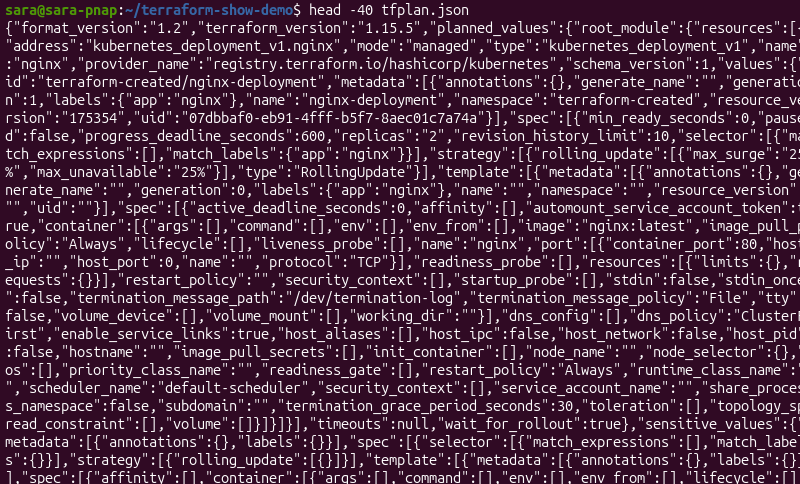
The output contains structured data that preserves the complete execution plan, which is useful for automation, compliance checks, reporting, and integration with external tools. For example, use JSON output to inspect planned changes before deploying resources managed with Terraform, such as Kubernetes workloads.
Note: Learn more about integrating Terraform with Kubernetes.
Viewing Different Terraform Files
By default, terraform show displays the current Terraform state. However, you can also specify the path to a Terraform state file or saved execution plan. This allows you to inspect different Terraform artifacts without modifying your infrastructure.
For example, specifying terraform.tfstate displays the contents of that Terraform state file. Similarly, specifying tfplan displays the contents of a saved execution plan created with terraform plan -out, which allows you to review planned infrastructure changes without generating a new execution plan.
terraform show Command Examples
The terraform show command supports a wide range of tasks, from inspecting deployed infrastructure to reviewing execution plans and exporting data for automation. Understand these workflows to validate Terraform-managed resources, troubleshoot configuration issues, and verify planned infrastructure changes before deployment.
The following sections demonstrate terraform show practical usage examples
Note: The following examples describe common workflows for inspecting and validating infrastructure managed with Terraform on PhoenixNAP Bare Metal Cloud.
Learn more about BMC IaC integration, and check out our automation tools page.
Displaying the Current State Architecture
One of the most common uses of terraform show is inspecting the current Terraform state. The command displays detailed information about every resource Terraform manages.
For instance, run the following command to inspect the current Terraform state:
terraform show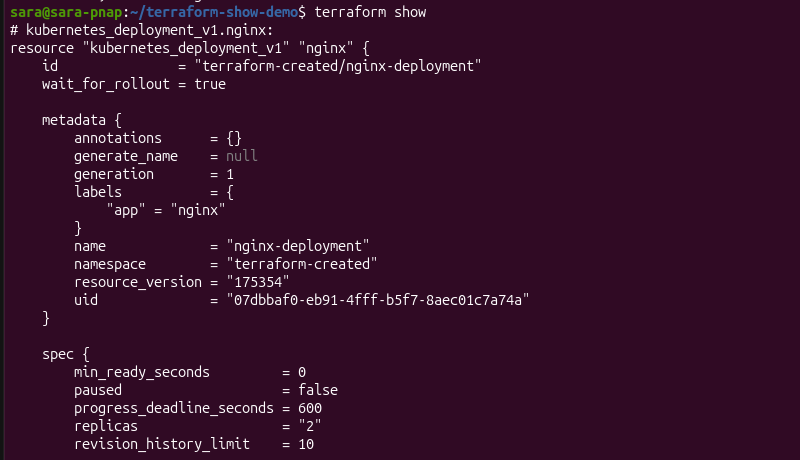
The output displays the configuration, metadata, and current attribute values for each managed resource in the Terraform state. This information helps verify the deployed infrastructure and confirm Terraform is tracking the expected resources.
After reviewing the current Terraform state, inspect a saved execution plan to verify proposed infrastructure changes before deployment.
Inspecting a Saved Plan File Before Deployment
Instead of applying changes immediately, inspect the saved plan to confirm Terraform modifies only the intended resources.
For instance, generate and save an execution plan by running the following command:
terraform plan -out=tfplanThe output confirms Terraform generated an execution plan and saved it to tfplan. This process creates a fixed snapshot of the proposed infrastructure changes you can review before deployment.
Next, inspect the saved execution plan with:
terraform show tfplanThe output shows the proposed infrastructure changes stored in the saved execution plan, allowing you to verify resource updates and confirm that the deployment matches your expectations before applying them.
After validating the execution plan, you have an option to export it as JSON to integrate Terraform data with automation tools and external workflows.
Exporting State Data as JSON for Parsing
Although the default terraform show output is intended for interactive use, automation tools often require structured data. The -json option exports Terraform state files and saved execution plans as JSON, which makes the information easier to process programmatically.
For instance, export a saved execution plan as JSON by running:
terraform show -json tfplan > tfplan.jsonThe output preserves the complete execution plan in a structured, machine-readable format for consumption by scripts and external tools. This approach is useful for automation workflows, compliance validation, reporting, and integrations with CI/CD pipelines.
After exporting the execution plan as JSON, use standard JSON-processing tools such as jq to retrieve specific resource information.
Extracting Specific Resource Attributes with jq
Exporting a Terraform execution plan as JSON becomes even more useful when combined with jq, a command-line tool for processing JSON data. You don’t review the entire JSON document. Instead, you extract only the information relevant to your workflow.
For instance, run the following command to display the resource addresses together with their planned actions:
jq '.resource_changes[] | {address: .address, actions: .change.actions}' tfplan.json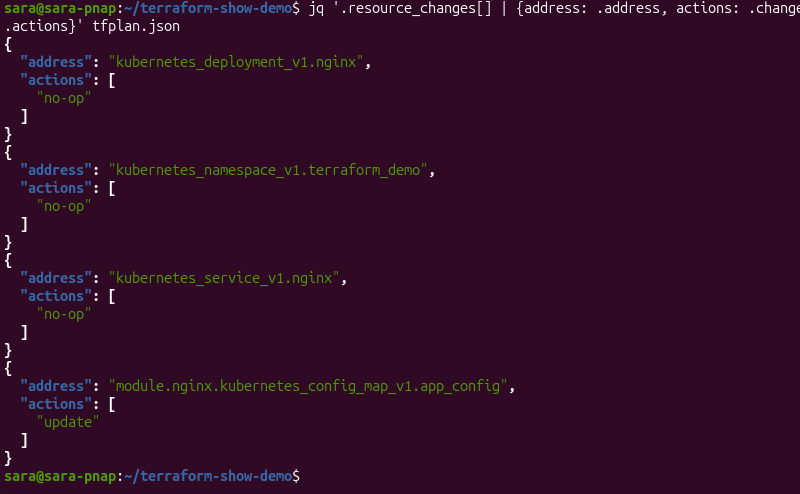
The output filters the execution plan to display only the resource address and the associated action, such as create, update, or no-op. Filtering the output makes it easier to validate infrastructure changes, build automated checks, or generate concise reports without reviewing the complete JSON document.
The same approach can be used to extract other resource attributes.
Reviewing Complex Module Outputs
Terraform modules help organize and reuse infrastructure code by grouping related resources into reusable components. When working with modular configurations, terraform show preserves the module hierarchy, making it easier to identify which resources belong to each module.
For instance, run the following command to inspect the current Terraform state:
terraform showThe output prefixes resources created by child modules with the module name, making it easy to identify where each resource is defined within the Terraform configuration.
This additional context simplifies troubleshooting, validates module-managed resources, and helps navigate complex Terraform projects that use reusable modules.
Verifying Provisioned Physical Server Specs
After provisioning physical infrastructure with Terraform, use terraform show to verify the deployed server configuration matches the expected state.
Reviewing the Terraform state confirms the provisioned server attributes align with the original infrastructure definition before performing additional infrastructure operations.
For example, when you use Terraform to manage dedicated servers on PhoenixNAP Bare Metal Cloud (BMC), terraform show displays information such as:
- Server name.
- Location.
- Operating system.
- Billing model.
- Other server configuration details stored in the Terraform state.
Review these attributes to validate successful deployments, identify configuration discrepancies, and confirm the deployed infrastructure matches the Terraform configuration before provisioning additional servers or modifying existing resources.
The same approach also applies to larger Terraform deployments, such as dedicated infrastructure managed through Terraform.
Auditing Allocated BMC Network Blocks
Use terraform show to verify the network configuration matches the intended infrastructure design. Reviewing the Terraform state helps confirm the allocated network resources are correct before you deploy workloads or modify existing resources.
For example, when you use Terraform to manage BMC network assets, terraform show displays information about:
- Allocated public IP addresses.
- Private networks.
- VLANs.
- Other network configuration stored in the Terraform state.
Reviewing these attributes helps identify configuration discrepancies, validate network assignments, and confirm the deployed network configuration matches the Terraform configuration.
Automating BMC Resource Audits via JSON Outputs
Exporting Terraform data as JSON simplifies infrastructure audits and validation by providing structured output automation tools process. This approach helps reduce manual verification and ensures consistent infrastructure checks across multiple environments.
For example, when you manage BMC with Terraform, JSON output is able to support infrastructure automation tasks such as:
- Infrastructure compliance checks.
- Automated resource inventory reports.
- Configuration validation.
- CI/CD pipeline integration.
- Automated deployment verification.
Using terraform show -json as part of an Infrastructure as Code (IaC) workflow, it automates infrastructure validation, improves deployment consistency, and simplifies large-scale infrastructure management across dedicated server environments.
Pre-Flight Validation of Bare Metal Server Plans
Terraform allows you to review infrastructure changes before provisioning or modifying dedicated servers. Inspecting an execution plan before deployment helps confirm the planned changes match your expectations and reduces the risk of unintended infrastructure changes.
For example, when you use Terraform to provision dedicated servers, review the execution plan to verify:
- The correct servers will be created, modified, or removed.
- Planned network configuration changes are accurate.
- Resource dependencies are resolved correctly.
- Infrastructure changes match the intended deployment.
Validating the execution plan before deployment helps prevent configuration errors, supports predictable infrastructure changes, and provides greater confidence when managing dedicated servers through Terraform.
Common Problems with terraform show
Although terraform show is straightforward to use, issues that prevent the command from displaying the expected output or returning accurate information show up. Most problems originate from missing or outdated Terraform state files, incompatible execution plans, or configuration issues.
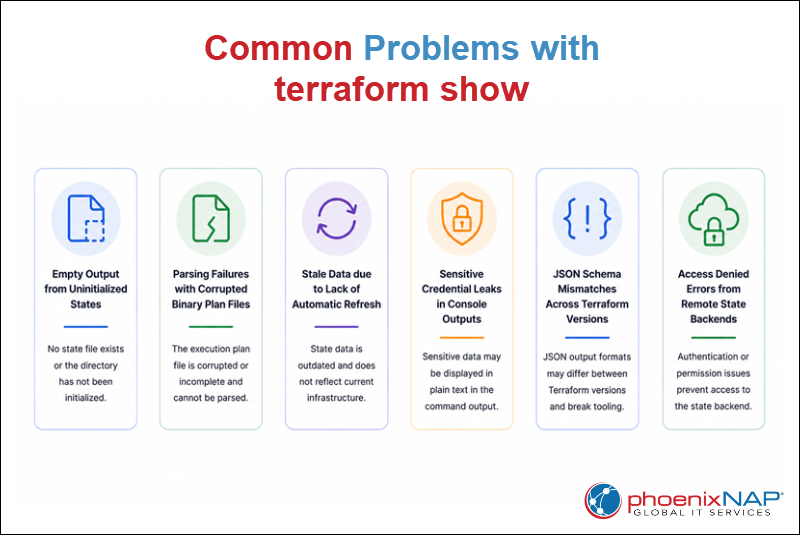
The following sections describe common terraform show problems, explain their causes, and provide practical solutions to help you resolve them.
Empty Output from Uninitialized States
The terraform show command requires a Terraform state file or a saved execution plan. If you run the command in an uninitialized working directory or before Terraform creates a state file, it cannot display any infrastructure information.
For instance, running terraform show in a new directory that does not contain a Terraform state file produces an error.
terraform show
The output shows the mkdir command used to create a new directory terraform-empty-demo and cd to navigate to it. However, there is no state file, and terraform show outputs an error:
no stateInitialize the working directory with terraform init and create infrastructure with terraform apply, or specify an existing Terraform state file or saved execution plan when running terraform show.
Once a valid state file is available, the command displays the stored infrastructure information.
Parsing Failures with Corrupted Binary Plan Files
The terraform show command displays saved execution plans only if the plan file is valid and complete. If the plan file is corrupted, truncated, or modified after creation, Terraform cannot parse its contents.
Generate a new execution plan with terraform plan -out=tfplan instead of attempting to repair the existing file. Regenerating the plan ensures terraform show reads a valid execution plan that matches the current Terraform configuration.
Stale Data due to Lack of Automatic Refresh
The terraform show command displays information stored in the Terraform state file and does not query the target infrastructure. Therefore, the output does not reflect manual changes or updates made outside Terraform.
Generate a new execution plan with terraform plan to refresh the state before reviewing it with terraform show. This ensures the displayed information reflects the current infrastructure.
Sensitive Credential Leaks in Console Outputs
The terraform show output sometimes includes sensitive resource attributes stored in the Terraform state. Displaying the output directly in a shared terminal or saving it to unsecured files exposes confidential information.
Limit access to Terraform state files, mark sensitive variables appropriately, and avoid sharing console output that contains confidential data. When exporting JSON output for automation, ensure the generated files are stored securely and protected by appropriate access controls.
JSON Schema Mismatches Across Terraform Versions
The JSON output generated by terraform show -json sometimes differs between Terraform versions. Scripts or automation tools that rely on a specific JSON structure fail if the output format changes after an upgrade.
Use compatible Terraform versions across development, testing, and production environments. Before upgrading Terraform, validate existing automation workflows continue to process the JSON output correctly.
Access Denied Errors from Remote State Backends
When Terraform stores the state in a remote backend, terraform show requires access to the backend before it retrieves the state file. Authentication failures, missing permissions, or backend connectivity issues prevent the command from displaying the stored infrastructure information.
Verify your backend credentials are valid, confirm you have permission to access the remote state, and ensure the backend service is reachable. Once Terraform accesses the remote state, terraform show displays the current infrastructure state as expected.
Best Practices for Using terraform show
Using terraform show effectively requires more than understanding its syntax. Following established best practices helps improve security, support infrastructure automation, and ensure infrastructure changes are validated before deployment.
The following recommendations help you use terraform show more effectively in development, testing, and production environments.
Use JSON Outputs for CI/CD Pipeline Gatekeeping
The terraform show -json command generates structured output CI/CD pipelines and automation tools process before infrastructure changes are applied. Automated validation helps identify configuration issues early and supports consistent infrastructure automation across deployment environments.
Identify configuration issues by doing the following:
- Export execution plans with
terraform show -json. - Validate JSON output before applying infrastructure changes.
- Configure CI/CD pipelines to stop deployments when validation or policy checks fail.
- Include automated infrastructure validation in every deployment workflow.
Using JSON output as part of an automated deployment process improves deployment consistency and reduces the risk of configuration errors.
Restrict Console Access to Prevent Data Exposure
The output generated by terraform show may contain sensitive infrastructure information stored in the Terraform state. Restricting access to console output and state files helps prevent accidental exposure of confidential data.
To restrict console access, do the following:
- Limit access to Terraform state files.
- Avoid sharing raw
terraform showoutput. - Store exported JSON files in secure locations.
- Apply the principle of least privilege when granting access to Terraform resources.
Protecting Terraform output helps reduce the risk of unauthorized access to sensitive infrastructure information.
Combine Output Inspection with Automated Policy Checkers
Manual inspection of Terraform output is useful during development, but automated policy validation provides an additional layer of protection for production environments. Combining both approaches helps identify configuration issues before infrastructure changes are deployed.
Best practices regarding this issue are to:
- Review execution plans before applying infrastructure changes.
- Validate infrastructure against organizational policies.
- Integrate policy checks into automated deployment pipelines.
- Perform manual reviews for critical infrastructure changes.
Combining manual inspection with automated policy validation improves deployment reliability, supports consistent Infrastructure as Code (IaC) practices, and helps ensure more predictable infrastructure deployments.
Conclusion
This tutorial explained what the terraform show command is, how it works, and its syntax and options. It also presented several real-world use cases for the command. The text also elaborated on common problems and best practices of using the command,
Next, learn what Terraform providers are, how they work, and what they do.