Postman allows you to interact with APIs through a simple graphical interface. Instead of writing commands, you can build requests visually and inspect responses, headers, and status codes.
For this reason, Postman has become the go-to tool for developers when building, testing, or integrating with APIs.
In this guide, you will learn how to install Postman on Linux, macOS, or Windows.
Install Postman on Linux
Postman is not available through Linux package managers such as apt, dnf, or yum. Instead, you can install it via Snap, Flatpak, or perform a manual installation.
Install Postman via Snap
Snap is a convenient way to install desktop applications on any Linux distribution. All required dependencies are bundled into a single package, and updates are handled automatically.
Snap is available by default on Ubuntu. On other distributions, Snap (snapd) must be installed manually:
| Distribution | Command to install snap |
|---|---|
| Debian | sudo apt update && sudp apt install snapd |
| Fedora | sudo dnf install snapd |
| RHEL/Rocky/AlmaLinux | sudo dnf install snapd |
| Arch Linux | sudo pacman -S snapd |
| openSUSE | sudo zypper install snapd |
To install Postman on Linux using Snap, enter:
sudo snap install postmanTo run Postman from the terminal, type:
postmanNote: If using a GUI, open Applications, search for Postman, and launch the app.
When you first open Postman, you can create a free account to access advanced functionality or continue as an unregistered user with basic features.
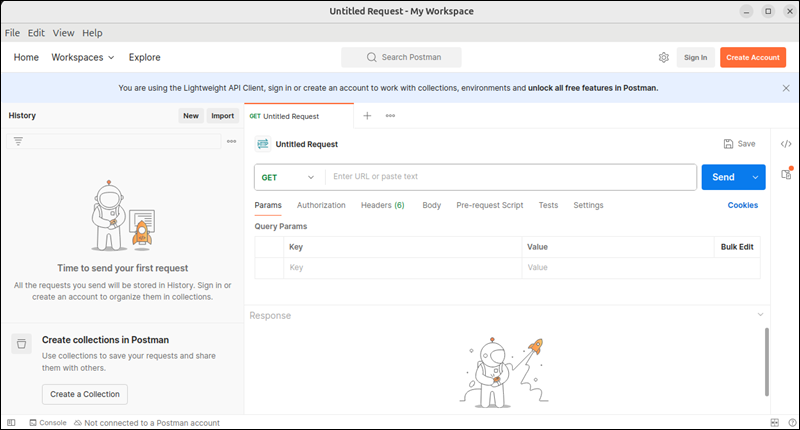
From the interface, you can start interacting with APIs by sending requests and inspecting responses.
Install Postman via Flatpak
Unlike Snap, Flatpak is primarily used in desktop environments. It packages Linux applications into portable bundles using shared runtimes. Flatpak does not automatically update applications, and it lets you manage permissions explicitly.
Flatpak is preinstalled on Fedora, but needs to be manually installed on other distributions:
| Distribution | Command to install Flatpak |
|---|---|
| Ubuntu/Debian | sudo apt update && sudp apt install flatpak |
| RHEL/Rocky/AlmaLinux | sudo dnf install flatpak |
| Arch Linux | sudo pacman -S flatpak |
| openSUSE | sudo zypper install flatpak |
After installing Flatpak, add Flathub using the following command:
flatpak remote-add --if-not-exists flathub https://flathub.org/repo/flathub.flatpakrepoTo install Postman on Linux using Flatpak, enter:
flatpak install flathub com.getpostman.PostmanThis type of installation works on all Linux distributions.
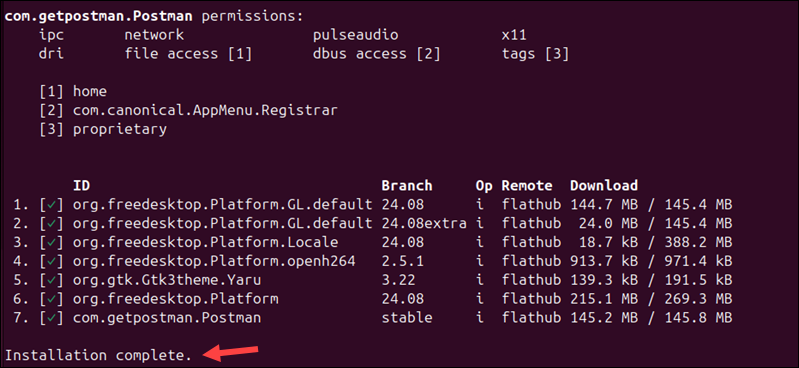
To run Postman after a Flatpak installation, type:
flatpak run com.getpostman.PostmanThe Postman app will launch instantly.
Install Postman on Linux Manually
A manual Postman installation is ideal for minimal environments, like servers. Updates are handled manually, and since there are no background services, you have full control over binaries.
Access the Downloads directory:
cd ~/DownloadsUse wget to download the Postman archive:
wget https://dl.pstmn.io/download/latest/linux64 -O postman.tar.gz
Extract the archive into /opt, the recommended directory for third-party software:
sudo tar -xzf postman.tar.gz -C /optThis creates an /opt/Postman directory.
Create a symlink to be able to run Postman from anywhere:
sudo ln -s /opt/Postman/Postman /usr/local/bin/postmanRemove the downloaded file:
rm postman.tar.gzRun Postman to verify it works:
postmanThe app launches immediately in the GUI environment.
Install Postman on Windows
Postman works on Windows 10, Windows 11, and Windows Server, and the installation steps are identical across all versions.
1. Open a web browser.
2. Go to the official Postman download page.
3. Select Windows (64-bit) and download the installer.

4. Locate the downloaded file and launch the installation wizard. The installer automatically extracts and installs Postman. No configuration is required. Postman launches automatically after installation.
5. After Postman starts, sign in with an existing account or create a free Postman account.
6. Alternatively, click Continue without an account to use the Lightweight API Client.

7. Click Open Lightweight API Client.
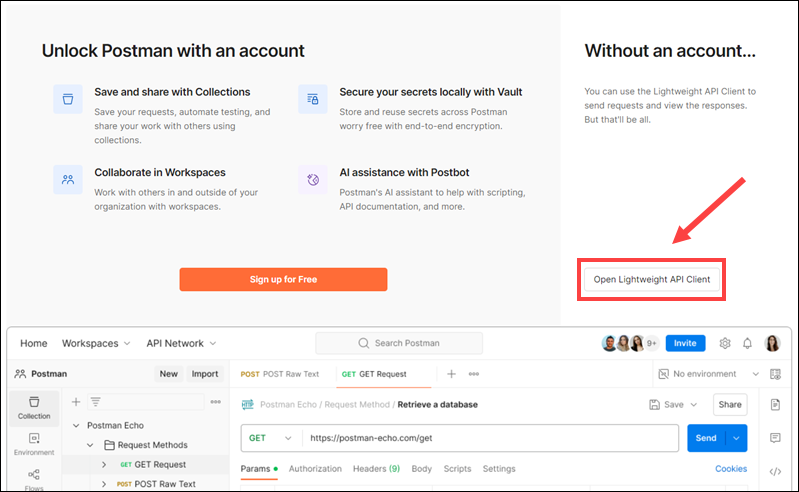
This mode allows you to send requests and view responses.
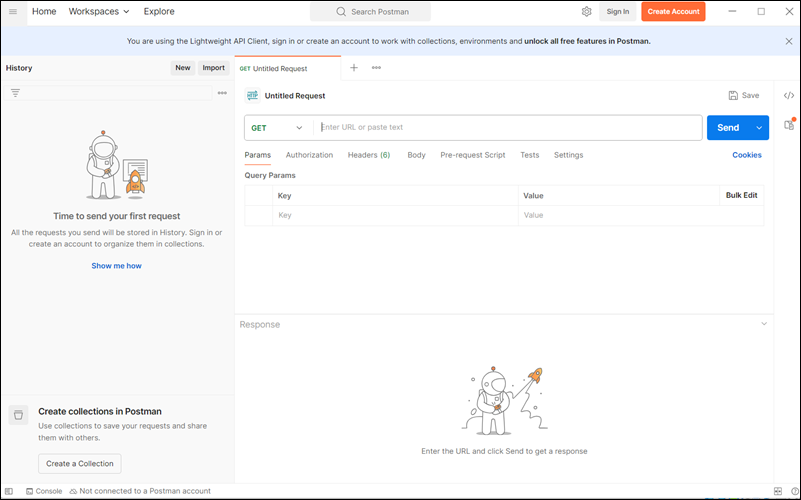
To access advanced features, you need to sign in to a Postman account.
Install Postman on macOS
On macOS, you can install Postman manually or via the Homebrew package manager.
Install Postman via Homebrew
Homebrew is the preferred way to install, update, or remove software on macOS, as it lacks a native command-line package manager.
To install Postman using Homebrew:
1. Confirm Homebrew is installed:
brew --version
2. If not installed, install Homebrew on macOS with:
/bin/bash -c "$(curl -fsSL https://raw.githubusercontent.com/Homebrew/install/HEAD/install.sh)"3. Enter the following command to install Postman:
brew install --cask postman
After the installation, open Applications and click Postman to launch the app.
Install Postman on macOS Manually
If you do not want to use a package manager, you can install Postman using the native macOS drag-and-drop method.
To install Postman manually:
1. Go to the official Postman download page.
2. Depending on your system, download the version for Intel Chip or Apple Chip.
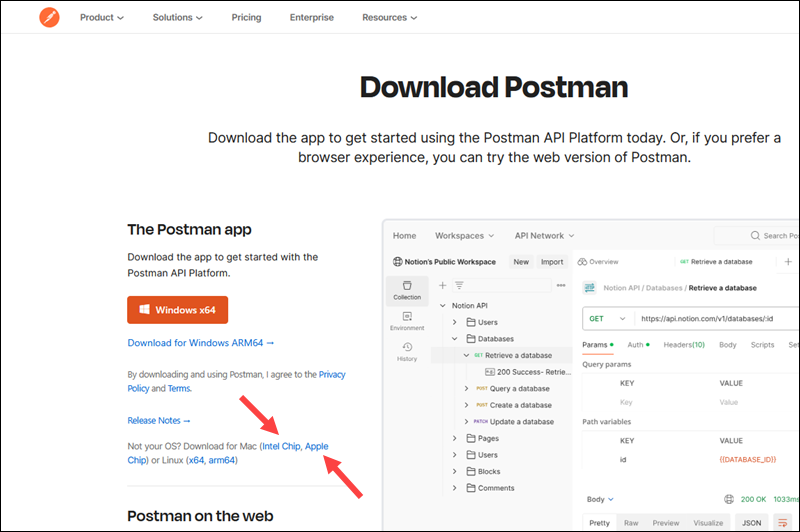
3. Double-click the downloaded .zip file.
4. Drag the Postman.app into the Applications folder.
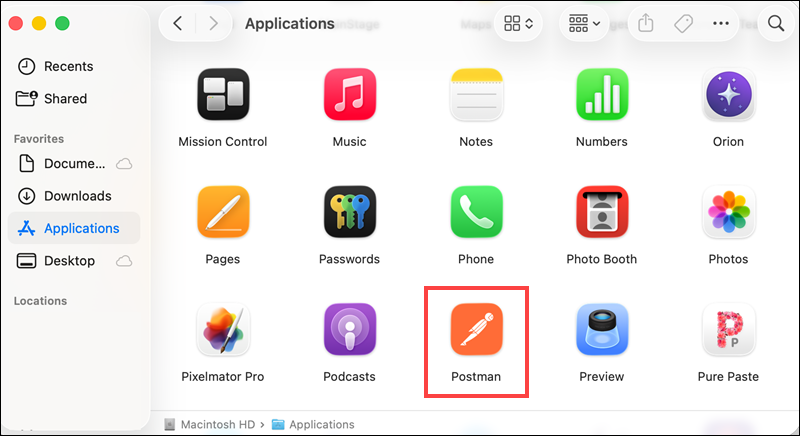
After the installation is complete, click Postman to launch the app.
How to Uninstall Postman
The steps to uninstall Postman depend on how it was installed and on the operating system.
Uninstall Postman on Linux
If Postman was installed via the Snap package manager, remove it using the following command:
sudo snap remove postmanIf you installed Postman using Flatpak, the uninstall command is:
flatpak uninstall com.getpostman.PostmanTo remove unused Flatpak runtimes and dependencies, type:
flatpak uninstall --unusedIf you installed Postman manually, remove the application files and symlink using:
sudo rm -rf /opt/postmansudo rm /usr/local/bin/postmanEnter the following commands to remove configuration and user-specific data:
rm -rf ~/.config/Postmanrm -rf ~/.cache/Postmanrm -rf ~/.local/share/PostmanThis also removes all cached Postman data.
Uninstall Postman on Windows
To uninstall Postman on Windows:
1. Open Settings.
2. Go to Apps and Installed Apps.

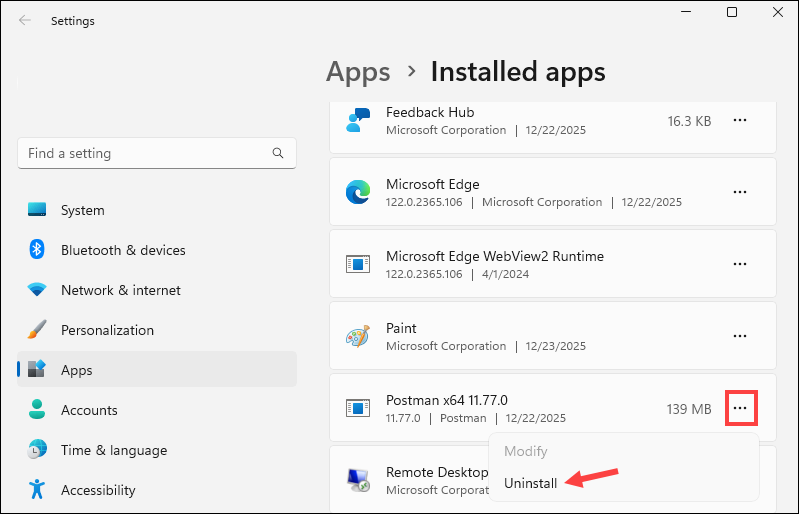
3. Find Postman and click the ellipsis (…) next to it.
4. Select Uninstall and confirm the prompt.
Uninstall Postman on macOS
If you installed Postman via Homebrew, uninstall it using the following command:
brew uninstall --cask postmanIf Postman was installed manually:
1. Open Applications.
2. Drag Postman.app to the Trash.
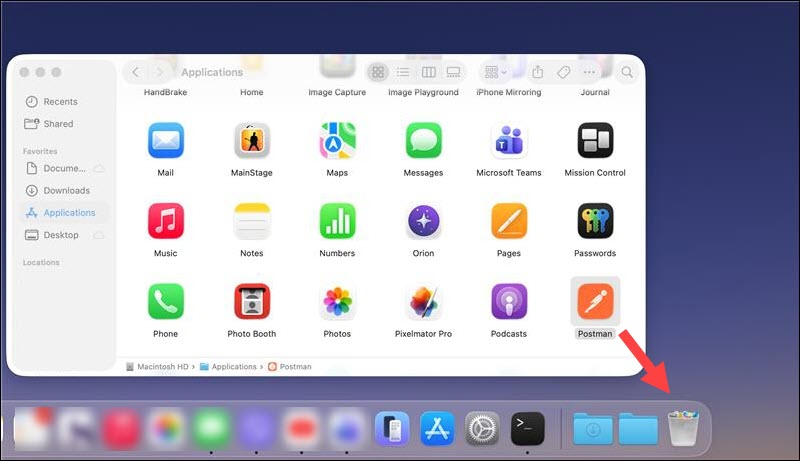
Empty the Trash to remove the app completely from the system.
Conclusion
By following the steps in this guide, you can now install and uninstall Postman across desktops and servers running different operating systems.
If you are developing an API or testing integrations, a light framework like Flask is ideal for building simple APIs that you can test with Postman.