Linux provides several options for renaming files, including the GUI and multiple dedicated terminal commands. Renaming individual files is straightforward, but renaming multiple files simultaneously can be challenging.
In this tutorial, we will go over different commands you can use in the Linux terminal to rename files in Linux.
Prerequisites
- A system running a Linux distribution.
- An account with sudo privileges.
- Command-line access.
- A text editor, such as Vim or nano.
Rename Files with the mv Command
The Linux mv (move) command moves or renames files and directories. The command's effects depend on the provided destination:
- If the user specifies a directory as the destination when using the
mvcommand, the source file moves to that directory. - If the destination is another file name, the
mvcommand renames the source file to that name.
Therefore, to rename files with the mv command, provide a new file name and, optionally, a destination directory.
Note: Learn more about using the mv command in our guide to moving directories in Linux.
mv Command Syntax and Options
The mv command uses the following syntax:
mv [options] [source] [destination]The command has several options to control overwrite and display behavior. Some options are in the table below:
| Option | Description |
|---|---|
-f--force | Overwrites without prompting. |
-i--interactive | Prompts before overwriting. |
-n--no-clobber | Avoids overwriting an existing file. |
-v--verbose | Shows a verbose output. |
Use the man command to view all the available options.
mv Command Examples
Renaming a file with the mv command is a straightforward process. Combining it with other commands and Bash scripts enables advanced renaming operations.
Below are several examples showcasing how to use mv to rename files.
1. Rename a File
The mv command with its default syntax allows the user to rename a single file. For example, to rename example1.txt into example2.txt, use:
mv example1.txt example2.pdfThe command does not show any output. Use -v option with the command or the ls command to check the name change before and after executing the mv command:
ls -l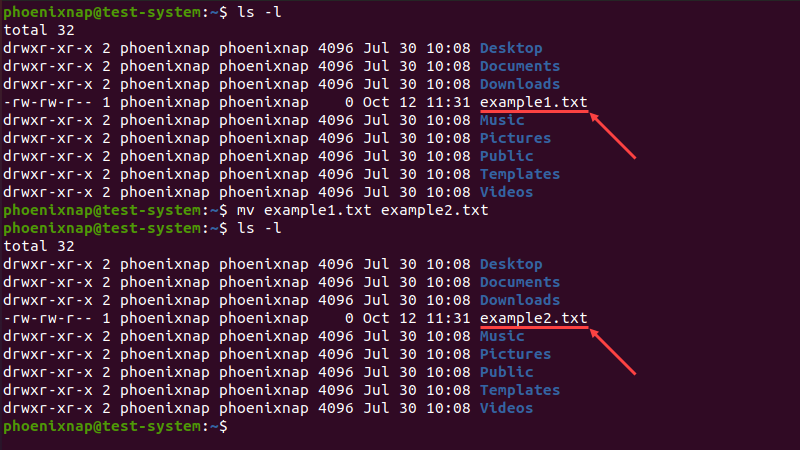
Use this method to change a single file's extension or to rename a file.
2. Move and Rename a File
Provide the destination path and new file name to move and rename a file. For example:
mv dir1/example1.txt dir2/example2.txtThe command moves the file from dir1 to dir2 and renames it from example1.txt to example2.txt.
3. Prompt on Overwrite
To avoid accidental overwrites, add the -i option to enter interactive mode:
mv -i example1 example2
If the file exists, the system prompts for confirmation before overwriting it. Use this mode to avoid losing a file when renaming.
4. Rename Multiple Files Command
Use the find command to select multiple files with a similar name, and then use the mv command to rename them.
Warning: Before making bulk modifications to files, create backup copies of critical files to preserve original names. Renaming files is irreversible.
For example:
find . -depth -name "[current pattern]" -exec sh -c 'f="{}"; mv -- "$f" "${f%[current pattern]}[new pattern]"' \;The find command searches through nested directories and defines the [current pattern] as the search parameter. Next, the -exec option executes the mv command on files matching the pattern. Lastly, the changes apply according to the [new pattern].
For instance, to change the .txt extension to .pdf for multiple files, use the following command:
find . -depth -name "*.txt" -exec sh -c 'f="{}"; mv -- "$f" "${f%.txt}.pdf"' \;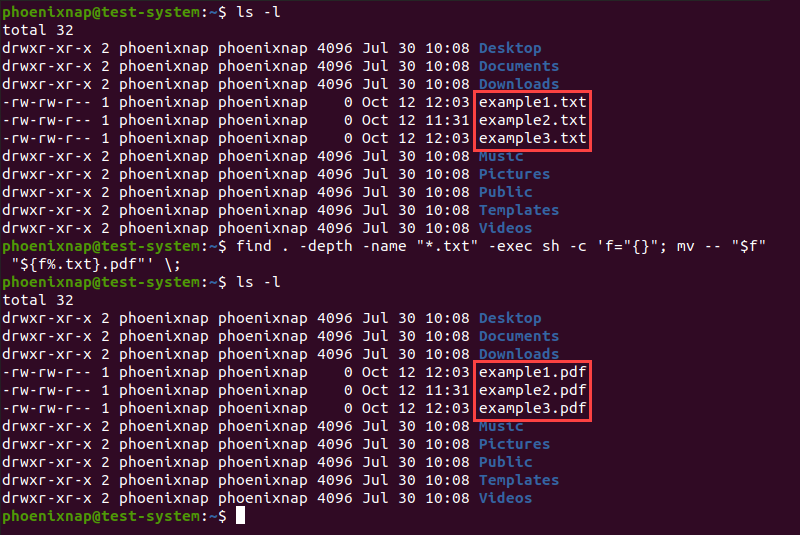
The command changes the file extension of all files in the current directory from .txt to .pdf. Use this command to perform complex batch renaming
5. Rename Multiple Files Bash Script
Instead of the find command, you can use the mv command as a part of a Bash for loop to rename multiple files.
Using the same example as in the section above, do the following:
1. Create and open a Bash script file via a text editor such as nano:
nano rename_files.shNote: Learn more about using bash scripts to manage files and directories in Linux.
2. Add the following lines to the script:
#!/bin/bash
for f in *.txt; do
    mv -- "$f" "${f%.txt}.pdf"
done
Each line does the following:
- The first line is the shebang, indicating a Bash script.
- The second line begins a
forloop to iterate through files in the current directory ending with .txt. - The third line uses the
mvcommand on each file found to replace the .txt extension with .pdf. - The last line ends the loop segment.
Save the changes to the script and exit.
3. Use the sh command to execute the script:
sh rename_files.sh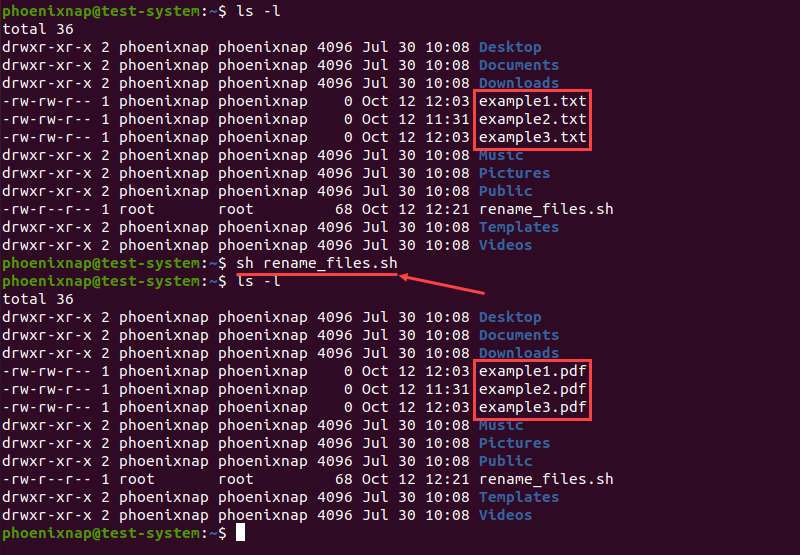
Note: Learn how to compare two files using the diff command.
Rename Files with the rename Command
The rename command can rename multiple files or directories in Linux. It offers more features than the mv command, but it can be challenging since it requires knowledge of Perl expressions.
How to Install the rename Command
On many Linux distributions, the rename command is not available by default. If your system does not have the rename command, use one of the commands below (depending on the distribution) to install it:
- For Ubuntu and Debian, use:
sudo apt install rename- For CentOS and Fedora, use:
sudo yum install prename- For Arch Linux, use:
sudo pacman -S renamerename Command Syntax and Options
Perl regular expressions have three modes of operation: match, substitute, and translate. The rename command uses substitute and translate expressions to change file and directory names.
Substitute expressions replace a part of the file name with a different string. They use the following syntax:
rename [options] 's/[pattern]/[replacement]/' [file name]The command above renames the file by replacing the first occurrence of the pattern with the replacement. The command consists of the elements below:
rename. Invokes the rename command.[options]. Provides an optional argument that alters how the command executes.s. Indicates a substitute expression.[pattern]. Specifies the part of the file name you want to replace.[replacement]. Specifies a replacement for the part of the current filename.[file name]. Defines the file you want to rename.
A translate expression translates one string of characters into another, character for character. This type of expression uses the following syntax:
rename [options] 'y/[string 1]/[string 2]/' [filename]An example of a rename command using a translate expression:
rename 'y/abc/xyz/'In this example, every "a" character in the filename is replaced by an "x", every "b" by a "y", and every "c" by a "z".
The rename command uses the following options:
-a. Replaces all the file name element occurrences instead of just the first one.-f. Forces an overwrite of existing files.-h. Displays the help text.-i. Displays a prompt before overwriting existing files.-l. Replaces the last occurrence of the filename element instead of the first one.-n. Performs a dry run, making no permanent changes. Best combined with the verbose output (-v).-s. Renames the target instead of the symlink.-v. Shows a verbose version of the output.-V. Displays the command version.
rename Command Examples
1. Change File Extension
Using our last example, change the file extension from .txt to .pdf with:
rename -v 's/.txt/.pdf/' *.txt
2. Replacing a Part of a Filename
Replacing a different part of the filename follows the same syntax as the example above. To rename example1.txt, example2.txt, and example3.txt to test1.txt, test2.txt, and text3.txt, use:
rename -v 's/example/test/' *.txt
3. Delete a Part of a Filename
The rename option also allows the user to delete a part of the filename by omitting the replacement part of the expression. For instance, to shorten example into ex, type the following expression:
rename -v 's/ample//' *.txt
4. Rename Files with Similar Names
Another use for the rename option is to rename files with similar names. For instance, if we want to rename files with example and sample in their name to test, use this command:
rename -v 's/(ex|s)ample/test/' *.txt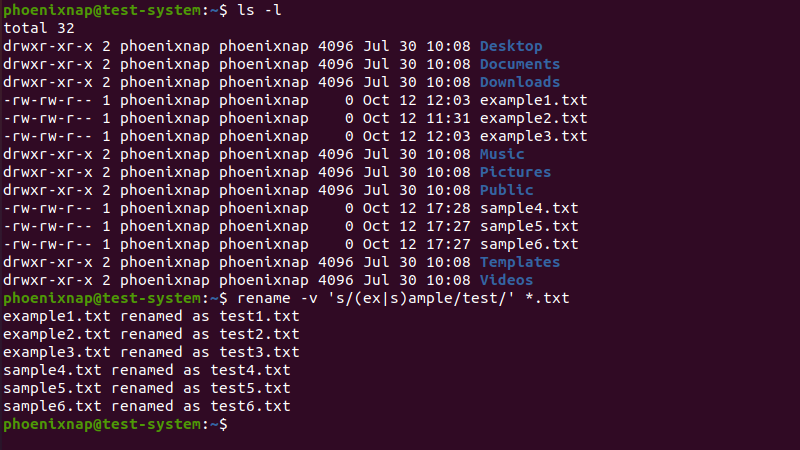
5. Rename Files Character-by-Character
The rename command also allows using translate expressions to rename files character-by-character. For instance, to rename multiple files named example file by replacing the blank space with an underscore (_), use:
rename -v 'y/ /\_/' *.txt
6. Convert Lowercase/Uppercase Characters
To convert lowercase characters in filenames into uppercase characters, enter:
rename -v 'y/a-z/A-Z/' *.txt
The reverse also works if we switch the order of the uppercase and lowercase characters in the expression:
rename -v 'y/A-Z/a-z/' *.TXT
Note: Be careful when changing the character case, as this also changes the file extension.
Rename Files with GUI
The GUI is a convenient way to rename one or multiple files. To rename one or more files through the GUI, do the following:
1. Open the Files menu and navigate to the correct location.
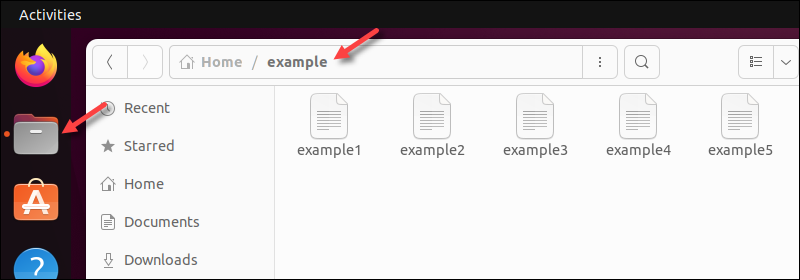
2. Select a file or all the files to be renamed.
3. Press F2 to open the renaming prompt. Alternatively, right-click and choose Rename.
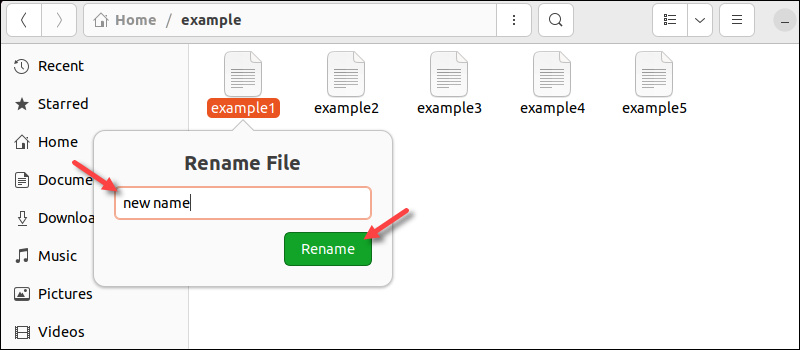
4a. (One file) Enter the new file name and press Rename to confirm for a single file. The prompt does not allow renaming if the chosen file name exists in the directory.
4b. (Multiple files) Choose whether to rename the files using a template (such as appending numbers to file names) or to find and replace text in names. The menu shows a preview before renaming.
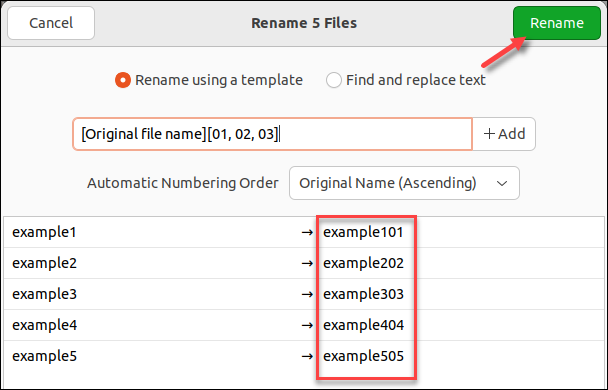
Click Rename to confirm renaming multiple files.
Conclusion
After reading this tutorial, you should know how to rename files using the mv and rename commands in Linux. The article also presented a GUI method for renaming files in Linux.
Learn more about using Linux commands in our Linux Commands Cheat Sheet.