Role-Based Access Control (RBAC) manages system security by assigning permissions to defined professional roles rather than individual users, ensuring employees access only the data necessary for their specific job functions.
This article will introduce you to Role-Based Access Control in phoenixNAP's Bare Metal Cloud portal.
User Roles
The phoenixNAP's BMC portal uses an RBAC model to ensure that team members have the appropriate level of authority for their tasks.
Each phoenixNAP Bare Metal Cloud portal user belongs to one of the following user roles:
- Account Owner.
- Account Admin.
- Technical Admin.
- Billing Admin.
- Read Only.
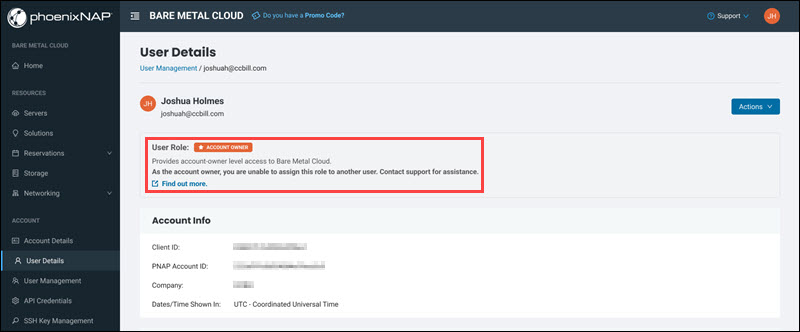
The role of each user is visible in the User Details page of the portal:
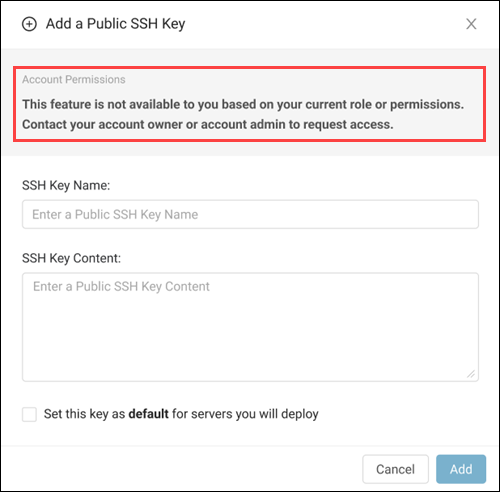
If a user attempts to access a restricted feature, the system displays a notification about the role's limitations:
The sections below explain each role in the Bare Metal Cloud portal.
Account Owner
The Account Owner is the user who established the phoenixNAP Bare Metal Cloud account. This user has primary administrative control over the account, including the authority to invite and manage all other users within the organization. As the root user, it cannot be disabled.
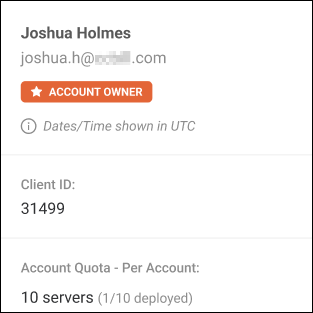
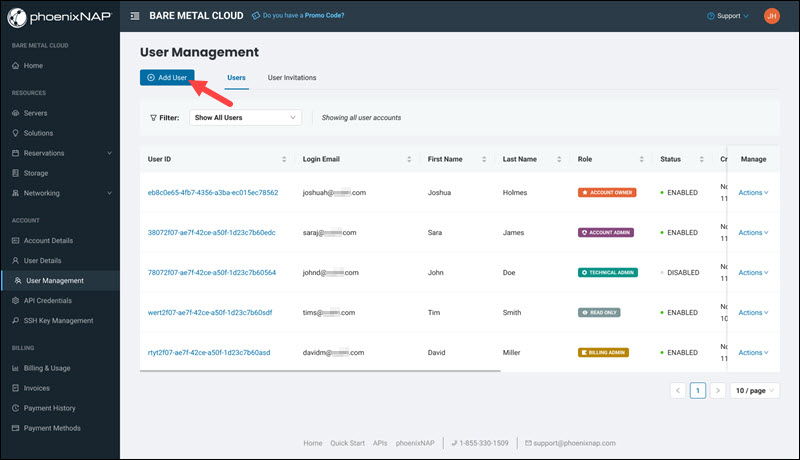
The Account Owner has an orange badge that shows up below their name and email address in the profile card and user lists:
Note: The Account Owner cannot assign the Account Owner role to other users. To perform this action, contact support.
Account Admin
The Account Admin role has the same permissions as the Account Owner, but it can be disabled. Account Admin users maintain full control over resource management, account settings, and payment methods.
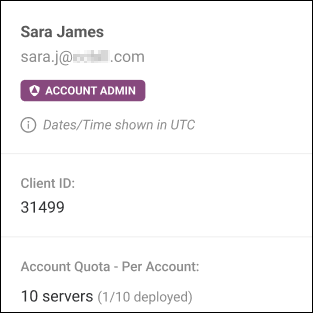
Account Admin has a purple badge:
Technical Admin
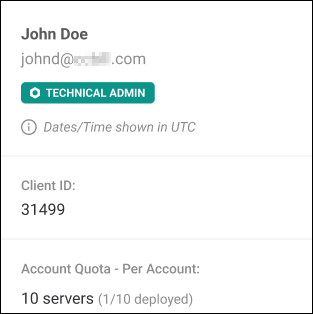
The Technical Admin role is designed for users who need to provision and manage Bare Metal Cloud resources and view billing data. This role does not include access to payment methods, account settings, or user management.
Technical Admin has a cyan badge:
Billing Admin
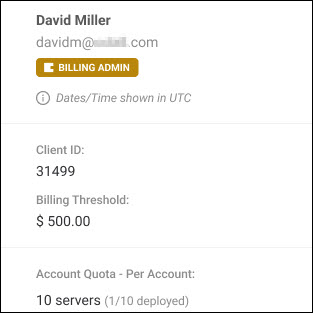
Billing Admin has admin-level access to all billing and payment-related features in the Bare Metal Cloud portal, including the ability to add/replace payment methods and pay invoices. They have read-only access to technical resources and no access to account/user management.
Billing Admin has a gold badge:
Read Only
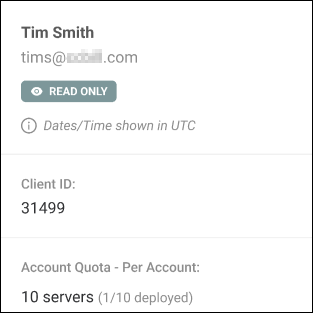
The Read Only role provides full visibility into Bare Metal Cloud resources without administrative or modification rights. Users in this role can view and access system data, but cannot provision servers or modify account settings.
The Read Only role has a gray badge:
Assigning Role to New User
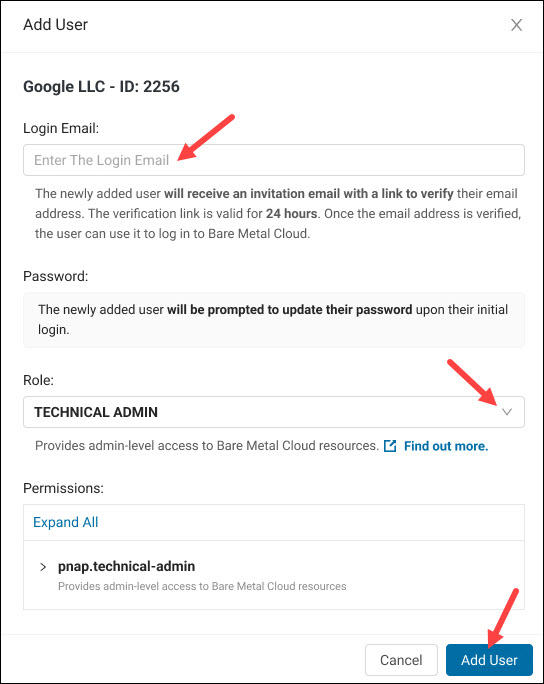
Each new user is assigned a role during user creation. Follow the steps below to create a new user and assign a role:
1. In the User Management section, select the Add User button.
2. In the Add User dialog, enter the new user's login email address.
3. Choose a role for the user. The Technical Admin role is selected by default. To learn which permissions are granted by the new role, expand the Permissions section.
4. Select the Add User button.
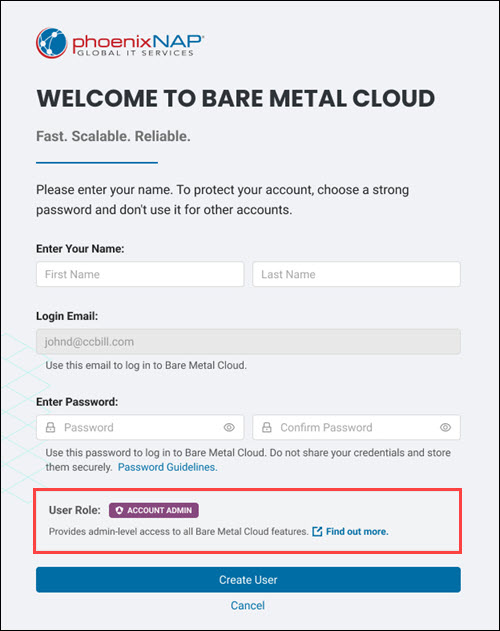
The user receives an invitation to create a phoenixNAP Bare Metal Cloud account at the email address entered in Step 2. When the user clicks the invitation link, the page opens where they can finish the process. Their assigned account role is visible on the page.
Manage Existing Users
The User Management dashboard provides a centralized interface for reviewing, editing, and updating the status of all current portal members. This environment allows administrators to modify role assignments and ensure correct account permissions.
Filter Users by Role
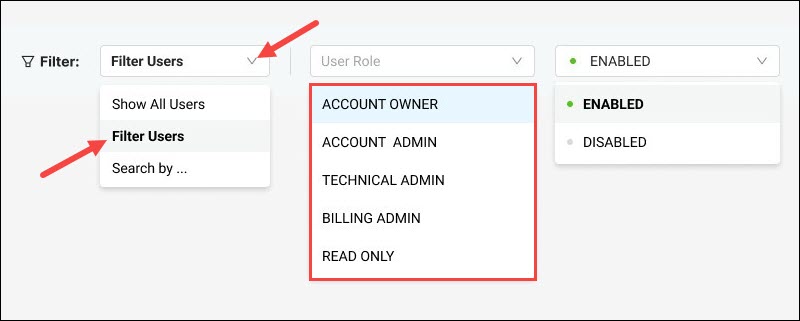
The filter functionality in the Users and User Invitations tab of the User Management page lets you filter users by role.
To filter the users:
1. Go to User Management.
2. Expand the Filter menu and select the Filter Users option.
3. Choose the role to see the list of users who have it.
Edit Roles
To edit a user's role:
1. Go to the User Management section.
2. Select the Actions button next to the user whose role you wish to edit and click Edit Role.
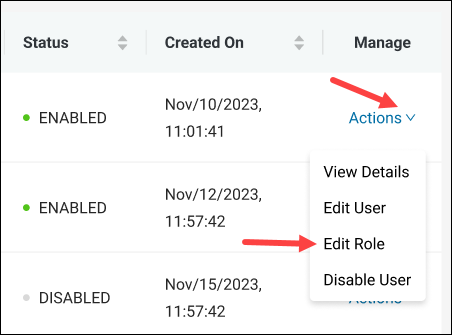
The Edit Role dialog appears.
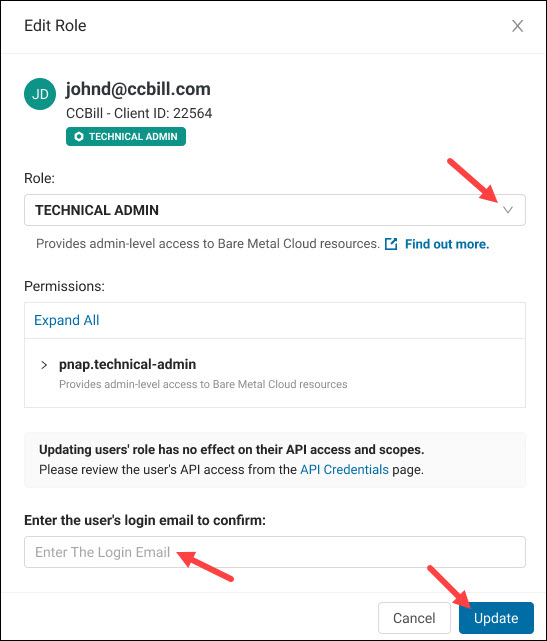
3. Choose a new role for the user. If unsure about the permissions granted by the new role, read the list of permissions in the Permissions section.
4. Enter the user's login email address to confirm the change.
5. Select the Update button.
Conclusion
After reading this article, you learned how to configure Role-Based Access Control in the phoenixNAP Bare Metal Cloud portal. The article covered all roles and explained how to assign, view, and edit them in the portal.