The docker attach command is a Docker utility that reconnects a terminal session to a running container. It is commonly used to reconnect to containers that were started in detached mode and monitor or interact with their primary process when supported.
The command works with the container's existing primary process, allowing users to continue interactive sessions and observe container activity without restarting workloads.
This tutorial will explain how docker attach works, its syntax and options, common use cases, limitations, and the differences between attach, exec, and run.
Prerequisites
- Docker installed (see how to install Docker on Ubuntu, Windows, macOS, Debian, Rocky Linux).
- Access to the terminal.
- A user account with permission to run Docker commands.
What Does docker attach Do?
The docker attach command connects your terminal to a running container's primary process. After attaching, you can view the process output and, if the application supports user input, interact with it directly from the terminal.
Unlike docker exec, which launches a new process inside a container, docker attach reconnects to an existing one. This distinction is important because any input or signals you send are delivered to the container's main process.
Note: Learn the difference between a container and a Docker image.
How docker attach Works
Docker uses a client-server architecture. When you run a Docker command, the Docker client communicates with the Docker daemon, which manages containers and their resources. The docker attach command instructs the daemon to reconnect your current terminal to a running container.
After attaching, Docker forwards the terminal's standard input (STDIN), standard output (STDOUT), and standard error (STDERR) streams to the container's primary process. Because the command reconnects to an existing process, the container continues running in its current state, and no additional shell session is created.
This behavior is most noticeable when attaching to an interactive application such as Bash. Instead of launching a new shell, Docker reconnects you to the original shell process that is already running inside the container.
Docker also allows multiple clients to attach to the same container simultaneously. All attached sessions share the same input/output streams connected to the primary process.
Attached vs. Detached vs. Interactive Mode
Docker containers can run in different modes, depending on how they are started. Understanding these modes helps clarify when docker attach is useful.
Those modes are:
- Attached. The container runs in the foreground and remains connected to the current terminal.
- Detached. The container runs in the background and releases the terminal prompt.
- Interactive. The container keeps STDIN open, allowing user interaction.
A container can be both detached and interactive. For interactive input to work after attaching, the container must have been started with the -i (interactive) option. Otherwise, you may be able to view output but not provide input.
For example, the -dit options start a container in detached mode while keeping STDIN available. In such cases, docker attach can reconnect you to the running process later.
The command is most commonly used with containers that were started in detached mode and require occasional interaction or monitoring.
docker attach vs. exec
Although both commands provide access to running containers, they are designed for different purposes. When you use docker exec, Docker creates a new process inside the container. This process runs independently of the container's primary process and can be a shell, script, or administrative command.
By contrast, docker attach reconnects to the process that is already running. Because of this behavior, attach is useful for continuing an existing session, while exec is generally preferred for routine management and debugging tasks.
If the container's primary process is not a shell, docker attach does not create one. To open a shell inside a running container, use docker exec.
The table below summarizes the key differences between the two commands:
docker attach | docker exec |
|---|---|
| Connects to the container's existing primary process. | Starts a new process inside the container. |
| Uses the container's existing STDIN, STDOUT, and STDERR streams. | Creates a new process with its own command session. |
| Does not create a new shell. | Often used to launch a shell. |
| Best for reconnecting to running processes. | Best for administration and troubleshooting. |
docker attach vs. run
The docker run command creates and starts a new container, while docker attach connects to a container that is already running.
In a standard workflow, use docker run to create and start a container. If the container remains active after being detached, docker attach allows reconnecting to its primary process without restarting it.
These commands often complement each other rather than compete. One creates the container, while the other reconnects to it after it is already running.
The table below shows the key differences between the two commands:
docker run | docker attach |
|---|---|
| Creates a new container. | Connects to an existing container. |
| Can start containers in attached or detached mode. | Requires a running container. |
| Launches a new process. | Reconnects to an existing process. |
docker attach Syntax
The docker attach command requires only a container name or container ID. Docker then connects the current terminal session to the container's primary process.
The basic syntax is:
docker attach [OPTIONS] CONTAINER- Replace
CONTAINERwith the target container's name or ID. The container must already be running, or Docker returns an error. - The
[OPTIONS]are not mandatory, and they are covered in the section below.
docker attach Options
The docker attach command supports a small set of options that control how Docker handles keyboard input and signal forwarding. In most cases, the default behavior is sufficient, and no options are required.
However, custom detach keys can be useful when working in terminal environments where the default key combination conflicts with existing shortcuts.
The table below explains the available docker attach options:
| Option | Description |
|---|---|
--detach-keys | Overrides the default key sequence for detaching from the container. |
--no-stdin | Disables forwarding of STDIN to the container. |
--sig-proxy | Proxies received signals to the container process. Enabled by default when attaching. |
The --sig-proxy option is particularly important because signals sent from the terminal, such as Ctrl+C, may be forwarded directly to the container's primary process.
docker attach Examples
The examples below demonstrate common docker attach workflows.
Attach to a Running Container
Use this method when a container is already running, and you want to reconnect to its primary process. This scenario is common when working with interactive containers that were started in the background but still accept user input.
Run the following command to start an Ubuntu container in detached and interactive mode:
docker run -dit --name ubuntu-test ubuntu bash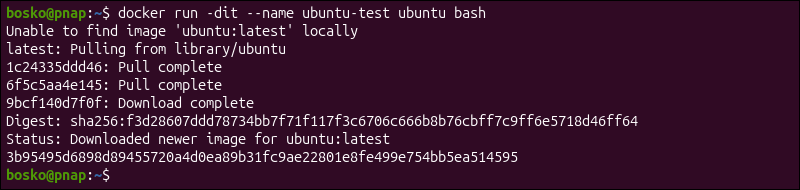
The command starts a container in the background while keeping STDIN open for future interaction. Verify that the container is running by listing containers:
docker ps
Locate the ubuntu-test container in the output and attach to it:
docker attach ubuntu-test
You are now connected to the container's existing Bash process and can interact with it as if the original terminal session were still active.
Detach Without Stopping the Container
After attaching to a container, you may need to return to the host terminal without terminating the running application. Docker provides a detach sequence that disconnects the current session while leaving the container running.
Use the default detach sequence:
Ctrl+P or Ctrl+Q
After pressing these keys, Docker disconnects your terminal and returns you to the host prompt while the container continues running in the background.
Warning: Pressing Ctrl+C sends an interrupt signal to the foreground process. Depending on the application, this may terminate the process and cause the container to stop.
Use a Custom Detach Key Sequence
Use a custom detach sequence when the default Ctrl+P and Ctrl+Q combination conflicts with terminal shortcuts or other tools. This situation is common when working with terminal multiplexers such as tmux or screen.
Use the --detach-keys option to specify a custom key sequence when attaching to a container:
docker attach --detach-keys="ctrl-x" ubuntu-test
After attaching, press the specified key combination to detach without stopping the container. In the example above, it is Ctrl+X.
Custom detach sequences can simplify workflows and help avoid accidental command conflicts in complex terminal environments.
Attach to a Container Started in Detached Mode
Many production workloads run in detached mode and continue operating after the terminal session ends. In these situations, you may want to reconnect to the container to observe its output or verify that the application is running as expected.
For example, start an Nginx container:
docker run -d --name my-container nginxAttach to the container:
docker attach my-container
Because Nginx is not an interactive application, attaching does not provide a shell prompt. You may see log output from the container's primary process when activity occurs, but you cannot interact with the service directly via the attached session.
This example highlights an important limitation of docker attach. The command reconnects only to the existing process. If that process does not accept user input, attaching provides limited interaction.
docker attach Use Cases
The docker attach command is most useful when you need to reconnect to an existing process instead of creating a new one. Although many administration tasks are better suited to docker exec, there are several situations where attaching is the preferred approach.
The following sections provide an overview of the most common docker attach use cases.
Monitor an Interactive Process
Some containers run applications that require direct user interaction. Common examples include Bash shells, Python interpreters, database clients, and custom command-line tools.
When these containers are started with interactive mode enabled, the primary process remains available for user input. The docker attach command allows you to reconnect to that existing process instead of launching a separate session, preserving the application's current state.
Reconnect to a Detached Container
Containers started in detached mode continue running in the background after the terminal session ends. While this behavior is useful for long-running workloads, there are times when you need to reconnect to the original process.
The docker attach command provides a direct connection to the container's primary process, allowing you to continue working with a previously detached application without restarting it.
Troubleshoot Container Behavior
Attaching to a running container can help diagnose application issues by providing direct access to process output and error messages. This approach is especially useful when troubleshooting interactive applications that generate output in real time.
However, because docker attach connects directly to the main process, it provides fewer administrative capabilities than docker exec. For tasks such as inspecting files, checking system information, or running diagnostic utilities, docker exec is usually the better choice.
Attach from Multiple Terminals
Docker allows multiple clients to attach to the same container simultaneously. Each attached session receives output generated by the container's primary process.
This capability can be useful during collaborative troubleshooting, demonstrations, or training sessions where several users need to observe the same application behavior. However, because input from the attached sessions is forwarded to the same process, interactive applications can become difficult to manage when multiple users are connected simultaneously.
docker attach Limitations
Although useful in specific scenarios, docker attach has several limitations that make it less versatile than other Docker management commands.
Most importantly, the command reconnects only to the container's primary process. It cannot start a new shell session or launch additional commands inside the container. As a result, many administrative tasks require docker exec instead.
Other limitations include:
- Requires the target container to be running.
- Connects only to the container's primary process.
- Does not create a new shell session.
- May inadvertently stop the container if signals are sent to the main process.
- Provides limited value for containers running non-interactive services.
- Offers less flexibility than
docker execfor administration and troubleshooting.
Understanding these limitations helps determine when to attach and when another Docker command provides a better solution.
Note: Docker uses an internal ~1 MB memory buffer when forwarding streams through an attached session. Under very high output rates, this may introduce slight delays compared to viewing logs directly.
Conclusion
The docker attach command is useful for monitoring and resuming interactive sessions. However, it is less flexible than docker exec and should be used carefully when working with production workloads. Understanding the differences between docker attach, docker exec, and docker run helps you choose the most effective way to interact with running containers.
Next, learn the difference between Docker and Docker Compose.