jq is a command-line tool that reads JSON input, applies filters you define, reshapes the data, and returns the values in a structured format. You can use the output on its own or combine it with other tools in pipelines and scripts.
In this tutorial, you will learn how to install jq and use it to extract fields, modify values, and transform data directly from the terminal without opening files in a text editor.

jq Command Syntax
This is the basic syntax for the jq command:
jq 'filter' somefile.jsonIn this command:
jqruns the command-line tool.'filter'tellsjqwhat to do with the JSON input.somefile.jsonis the name of the JSON file used as the input source.
Besides a JSON file, input data can also be piped from another command. For example, you can use the curl command to fetch an API response, then pipe it to jq to filter the data before outputting the result.
jq Command Basic Example
To understand how a jq command works, you first need a sample input file. In this example, the servers.json file lists four servers and their configurations:
{
  "servers": [
    {
      "id": "srv1",
      "hostname": "web1",
      "role": "web",
      "environment": "production",
      "status": "provisioning",
      "ip": null,
      "cpu": 2,
      "memory_gb": 4,
      "tags": ["frontend", "nginx"]
    },
    {
      "id": "srv2",
      "hostname": "db1",
      "role": "database",
      "environment": "production",
      "status": "running",
      "ip": "10.0.0.20",
      "cpu": 4,
      "memory_gb": 8,
      "tags": ["postgres"]
    },
    {
      "id": "srv3",
      "hostname": "worker1",
      "role": "worker",
      "environment": "staging",
      "status": "failed",
      "ip": null,
      "cpu": 2,
      "memory_gb": 4,
      "tags": ["queue", "jobs"]
    },
    {
      "id": "srv4",
      "hostname": "cache1",
      "role": "cache",
      "environment": "production",
      "status": "running",
      "ip": "10.0.0.30",
      "cpu": 2,
      "memory_gb": 2,
      "tags": ["redis"]
    }
  ]
}
The file includes details such as server roles, status, and available resources. Data like this is often used in scripts to manage and automate infrastructure deployments.
For example, you can use jq to extract all server hostnames:
jq '.servers[] | .hostname' servers.jsonThis filter iterates over the servers array and extracts the hostname field from each object.

The output shows each server's hostname.
jq Command Filters
Filters are expressions you pass to jq to select and transform JSON data. Here are some of the most common filters, along with example commands you can try on the servers.json file introduced earlier:
| Filter | Description | Example |
|---|---|---|
. | Returns the input data without changes. | jq '.' servers.json |
.field | Accesses a field in a JSON object. | jq '.servers' servers.json |
.field1.field2 | Accesses nested fields inside objects. | jq '.servers[0].hostname' servers.json |
.[index] | Accesses an array element by index, starting at 0. | jq '.servers[0]' servers.json |
.[] | Goes through all elements in an array and returns each one. | jq '.servers[]' servers.json |
select(condition) | Filters items based on a condition. | jq '.servers[] | select(.status=="running")' servers.json |
map(filter) | Applies a filter to each element in an array and returns a new array. | jq '.servers | map(.hostname)' servers.json |
length | Returns the number of elements in an array or the number of characters in a string. | jq '.servers | length' servers.json |
keys | Returns an array of keys from an object. | jq '.servers[0] | keys' servers.json |
has("key") | Checks if an object contains a specific key. | jq '.servers[0] | has("ip")' servers.json |
del(.field) | Deletes a field from an object. | jq '.servers[0] | del(.ip)' servers.json |
.field = value | Sets or updates a field value. | jq '.servers[] | .status="active"' servers.json |
.field += value | Modifies a field (e.g., increments numbers or appends to strings). | jq '.servers[] | .cpu += 1' servers.json |
{key: value} | Creates a new JSON object. | jq '.servers[] | {name: .hostname}' servers.json |
[ ... ] | Creates a new JSON array. | jq '[.servers[].hostname]' servers.json |
tostring | Converts a value to a string. | jq '.servers[0].cpu | tostring' servers.json |
tonumber | Converts a value to a number. | jq '"10" | tonumber' |
type | Returns the type of the value, such as "string" or "number". | jq '.servers[0].cpu | type' servers.json |
sort | Sorts an array of values. | jq '[.servers[].cpu] | sort' servers.json |
unique | Removes duplicate values from an array. | jq '[.servers[].role] | unique' servers.json |
How to Install jq
jq is a small, standalone binary that installs quickly. You do not need to install extra dependencies, and the setup on most systems is minimal.
Install jq on Linux
To install jq on Linux, open the terminal and enter the command for your distribution:
| Distribution | Command |
|---|---|
| Ubuntu/Debian | sudo apt update && sudo apt install jq -y |
| RHEL/Rocky/AlmaLinux | sudo dnf install jq -y |
| openSUSE | sudo zypper install jq |
| Arch Linux | sudo pacman -S jq |
| Alpine Linux | sudo apk add jq |
Confirm jq was successfully installed using the following command:
jq --version
In this example, the jq version is 1.7.
Install jq on Windows
There are a couple of ways to install jq on Windows. You can use a package manager like winget or Chocolatey, or download the binary manually.
One of the easiest methods is to use winget from the Command Prompt:
winget install jqThe winget tool installs jq from the official package repository. The installation files are typically downloaded from the jq project's GitHub releases.
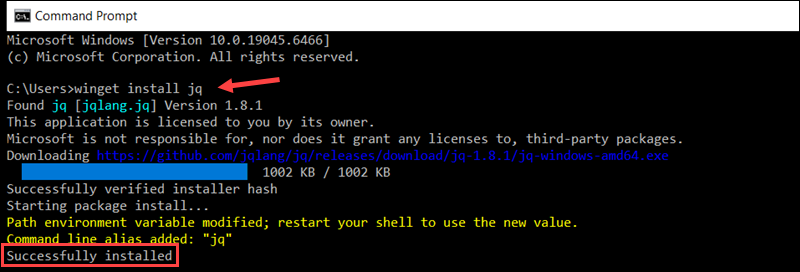
Restart the Command Prompt, then check if jq was installed:
jq --version
The output confirms that version 1.8.1 is installed.
Note: If you see an error that jq is not recognized, check that the installation folder is in your system PATH.
Install jq on macOS
To install jq on macOS, use Homebrew:
brew install jq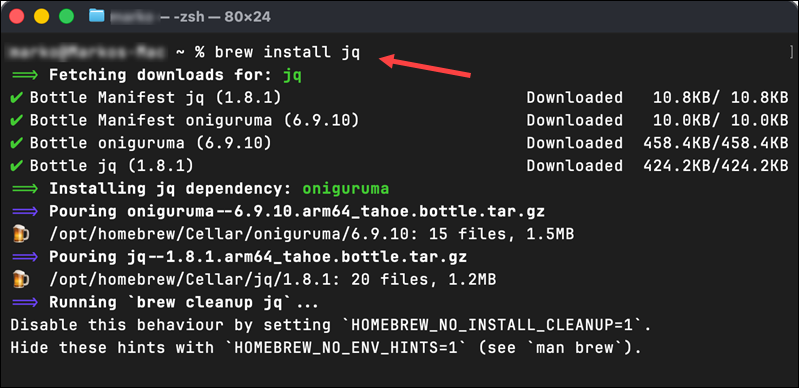
Confirm that jq was installed:
jq --version
The output shows the installed jq version.
jq Command Examples
You can perform many different actions on JSON data using jq filters and arguments. Here are some of the most widely used examples in practice.
Filter JSON Data
Filtering data based on specific conditions is an everyday task when working with JSON. For example, let's use servers.json to show only the running servers in the cluster:
jq '.servers[] | select(.status == "running")' servers.json.servers[]. Iterates over each server in the array.select(.status == "running"). Filters the objects where the status field matches"running".
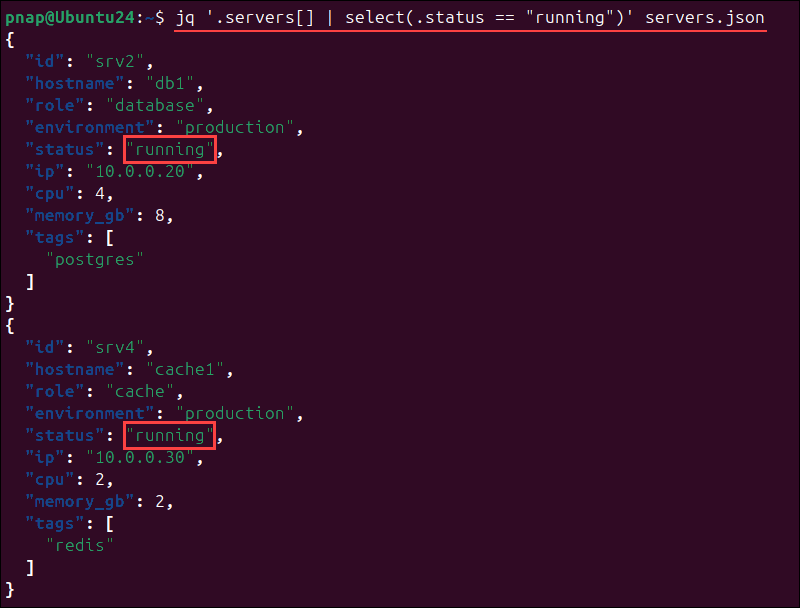
The output displays full details for each running server in the cluster.
Extract Specific Fields
Often, you do not need the full object, but, for example, just the hostnames of the running servers. You can extend the previous command to extract only the hostname field:
jq '.servers[] | select(.status == "running") | .hostname' servers.json.servers[]. Goes through each server in the array.select(.status == "running"). Filters only the servers with the"running"status..hostname. Extracts the hostname field for each object with the"running"status.

The output now shows only the hostnames of the running servers.
Filter and Transform Data
With jq, you can filter specific items and reshape the output at the same time. The following command filters data from the servers.json file and creates a new object that includes the specified fields:
jq '.servers[] | select(.status == "running") | {hostname: .hostname, cpu: .cpu, ip: .ip}' servers.json.servers[]. Iterates over each server in the array.select(.status == "running"). Filters only servers where the status is"running".{hostname: .hostname, cpu: .cpu, ip: .ip}. Creates a new object with only the selected fields.
The command both filters the data and transforms it into a new structure, while the original servers.json file remains intact.
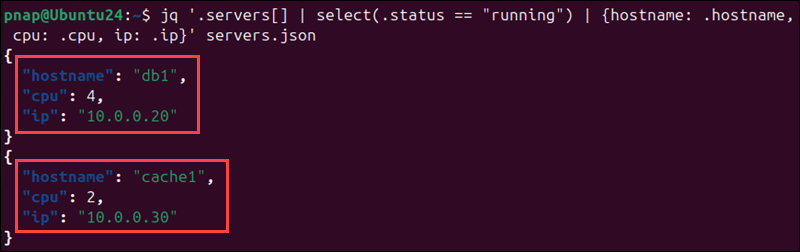
The output displays the new object containing the hostname, CPU count, and IP addresses for each running server.
Filter Data with Multiple Conditions
You can combine conditions in jq with logical operators like and and or. For example, this command returns servers that are running and have more than 2 CPUs:
jq '.servers[] | select(.status == "running" and .cpu > 2)' servers.json.servers[]. Iterates over each server in the array.select(.status == "running" and .cpu > 2). Filters only servers with the"running"status and more than 2 CPUs.
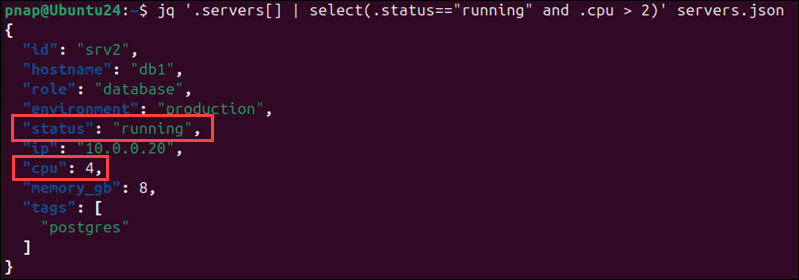
The only server that matches both conditions is the Postgres database server.
Output Data as an Array
By default, jq prints each item as a separate JSON object. However, in some cases, you may need to return a single JSON array.
To combine the results into an array, put the entire filter inside square brackets:
jq '[.servers[] | select(.status == "running") | {hostname: .hostname, cpu: .cpu, tags: .tags}]' servers.json[..]. Collects all results into one array..servers[]. Iterates over each server.select(.status == "running"). Filters only servers where the status is"running".{hostname: .hostname, cpu: .cpu, tags: .tags}. Creates a new object with thehostname,cpu, andtagsfields.
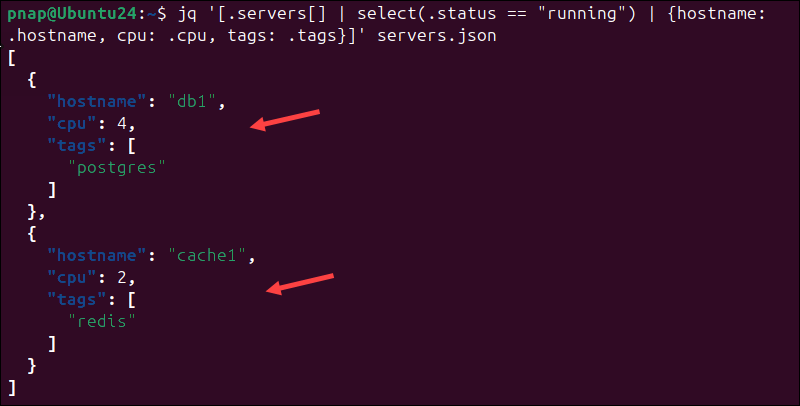
The result is a single JSON array with the filtered and transformed data.
Sort and Organize Data
When working with large datasets, you need a way to make the data easier to read. Once the results are in an array, you can sort them using sort or sort_by().
This is the basic sort command:
jq '[.servers[].cpu] | sort' servers.json[.servers[].cpu]. Extracts all the CPU values in a new array.sort. Arranges the array in order from smallest to largest.
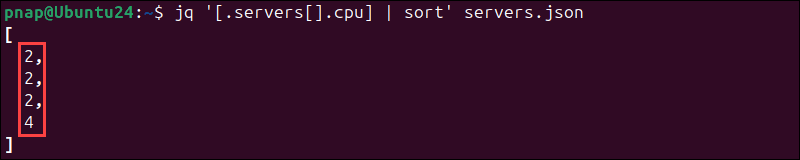
You can also sort objects based on a specific field with sort_by:
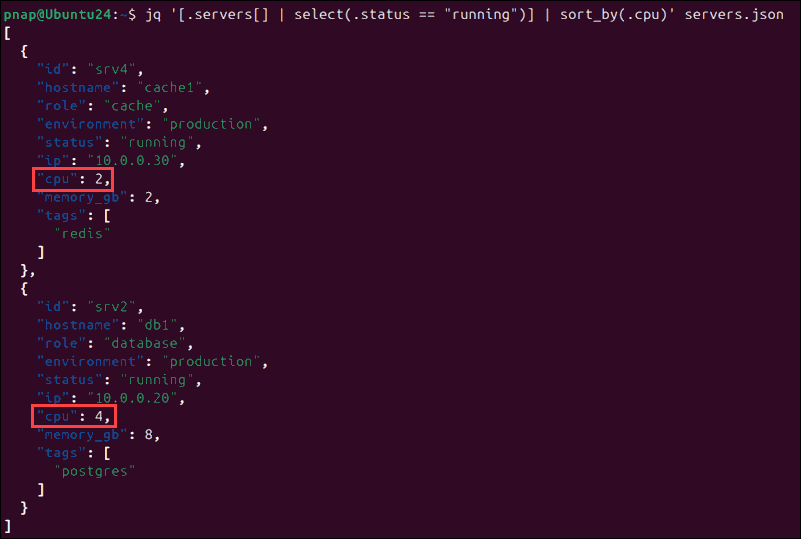
jq '[.servers[] | select(.status == "running")] | sort_by(.cpu)' servers.json[…]. Collects the filtered results into an array.select(.status == "running"). Filters running servers.sort_by(.cpu). Sorts the objects by theircpuvalue.
You can also use the sort_by() filter to combine filtering, sorting, and transforming data:
jq '[.servers[] | select(.status == "running")]
| sort_by(.cpu)
| .[]
| {hostname: .hostname, cpu: .cpu, tags: .tags}' servers.json[…]. Collects the filtered results into an array.select(.status=="running"). Filters running servers.sort_by(.cpu)Sorts objects based on thecpufield..[]Iterates over the sorted results.{hostname: .hostname, cpu: .cpu, tags: .tags}. Reshapes each object to show only thehostname,cpu, andtags.
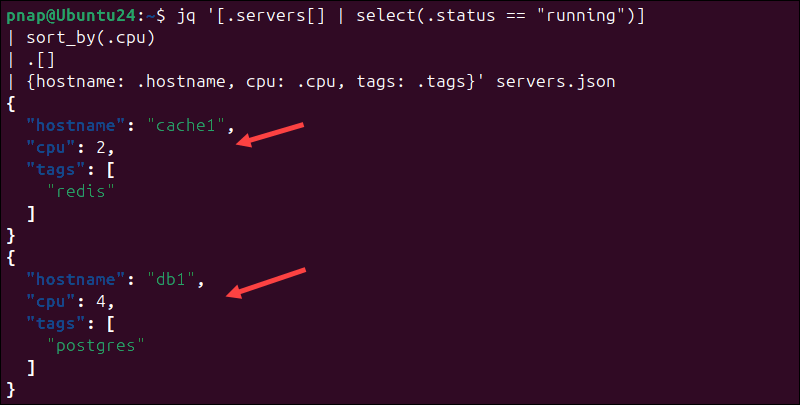
The output lists the running servers, sorted by CPU, and shows only the fields you picked.
Remove Duplicate Values
Large datasets often have duplicate values. You can use the unique filter to remove them:
jq '[.servers[].role] | unique' servers.json[.servers[].role]. Extracts all role values into an array.unique. Removes duplicate values from the array.
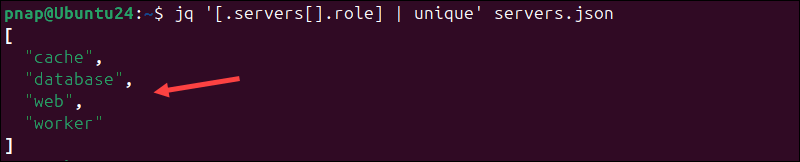
The results are sorted alphabetically by default.
Count and Aggregate Data
The length filter helps you do simple counts. Use it when you want to count items or summarize results. This command selects the servers array and shows how many items it has:
jq '.servers | length' servers.json.servers. Selects the array of servers.length. Returns the number of elements in the array.

The next example counts only the servers that are running:
jq '[.servers[] | select(.status == "running")] | length' servers.json
You can also count how many unique roles there are:
jq '[.servers[].role] | unique | length' servers.json
The length filter is mainly used to count items in arrays, but it also works on strings and objects.
Use Variables in jq
You can add variables to a jq command with options like --arg for string values and --argjson for numbers. This helps you write scripts and automate tasks without hardcoding values, making your commands easier to reuse.
Use the following command to define a variable:
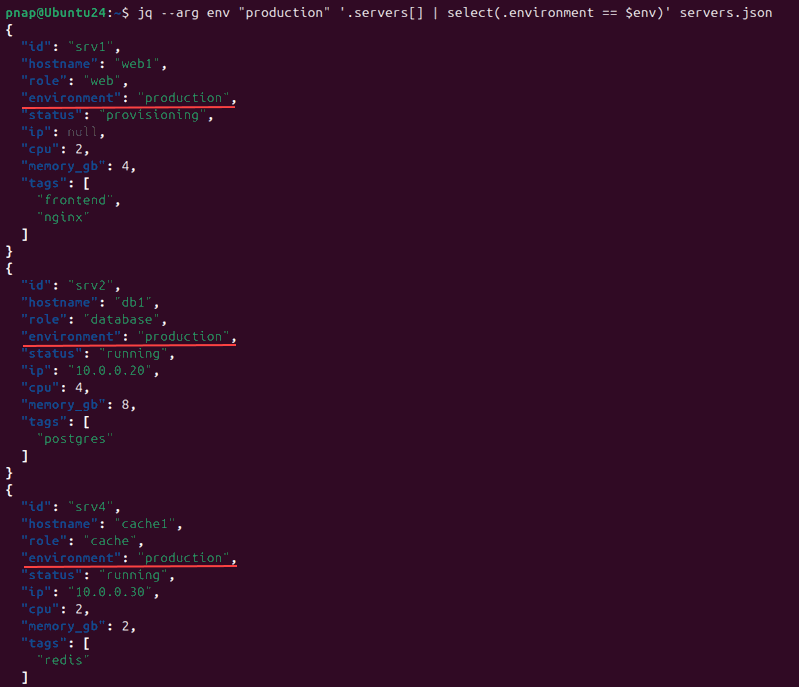
jq --arg env "production" '.servers[] | select(.environment == $env)' servers.json--arg env "production". Sets a variable named $env to the string"production"..environment == $env. Checks if each server's environment matches the variable.
You can set variables and, at the same time, transform data:
jq --arg env "production" \ '.servers[]
| select(.environment == $env)
| {hostname: .hostname, cpu: .cpu}' servers.json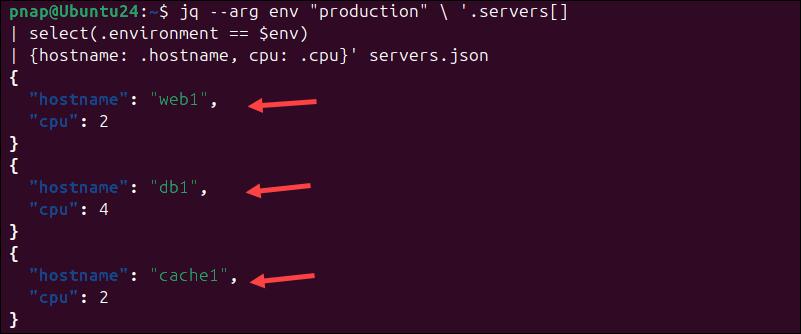
For numeric values, use --argjson:
jq --argjson min_cpu 2 \ '.servers[] | select(.cpu > $min_cpu)' servers.json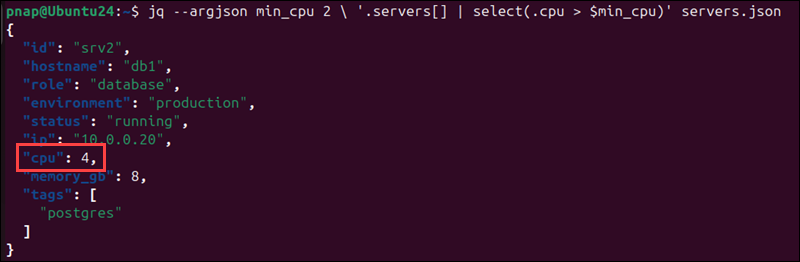
This keeps the value as a number instead of a string, which is useful for calculations and comparisons.
Apply Conditional Logic
Besides filtering data, you can use the if…then…else…end expression to return different values depending on certain conditions.
To return simple values, enter:
jq '.servers[] | if .cpu > 2 then "high" else "low" end' servers.json.servers[]. Iterates over each server.if .cpu > 2. Checks if the CPU value is greater than 2.then "high". Returns"high"if the condition is true.else "low". Returns"low"if the condition is false.

You can also create new fields and combine them with filtering:
jq '.servers[]
| select(.environment=="production")
| {hostname: .hostname, tier: (if .cpu > 2 then "high" else "low" end)}' servers.jsonselect(.environment=="production"). Filters production servers.tier: (if .cpu > 2 then "high" else "low" end). Adds a new field based on the condition.
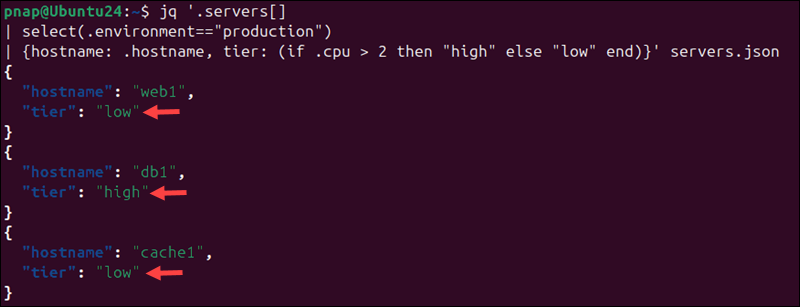
In this example, the output filters for production servers and adds a new tier field based on CPU usage.
Group Data
In large datasets, you may want to group items by a specific field using the group_by() filter. Before using group_by(), sort the data by the same field:
jq '.servers
| sort_by(.environment)
| group_by(.environment)' servers.json.servers. Selects the array of servers.sort_by(.environment). Sorts the servers by environmentgroup_by(.environment). Puts servers into groups based on the environments field
The result is an array of arrays, where each inner array contains servers from the same environment.
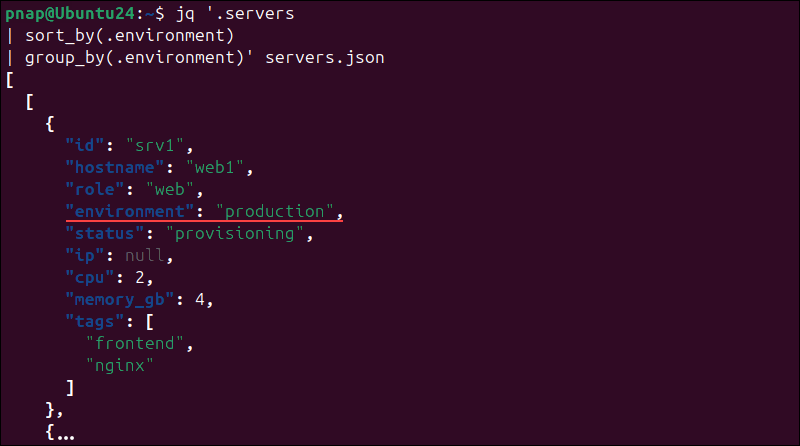
You can also change the structure of the grouped result to make it easier to read. For example, to count how many items are in each group:
jq '.servers
    | sort_by(.environment)
    | group_by(.environment)
| map({environment: .[0].environment, servers: .})' servers.jsonmap(…). Transforms each group.- .
[0].environment. Gets the environment value from the first item in each group. servers: .. Keeps all items in the group.
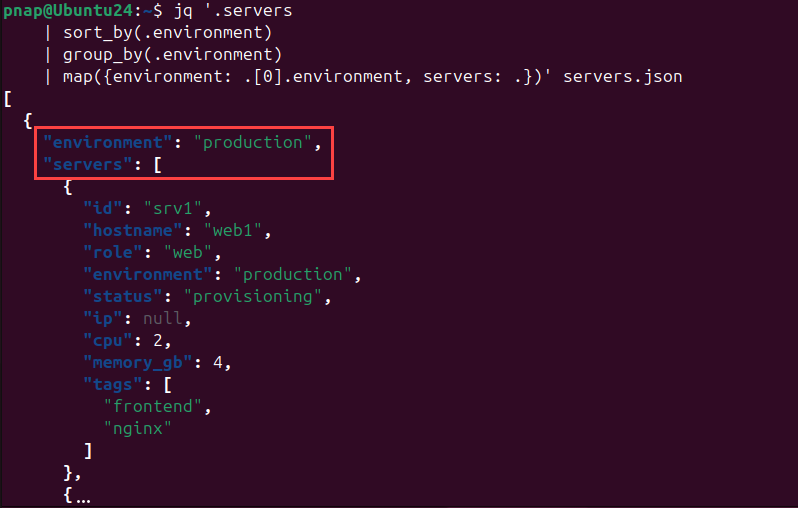
You can also use group with the length filter to count how many items there are in each group:
jq '.servers
| sort_by(.environment)
| group_by(.environment)
| map({environment: .[0].environment, count: length})' servers.jsonlength. Returns the number of items in each group.
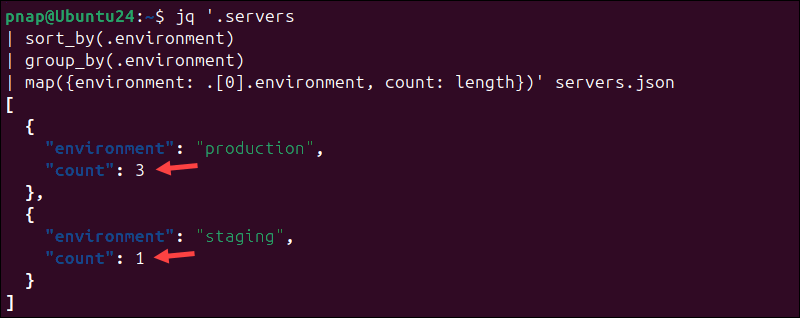
The output lists each environment and shows how many servers are in each group.
Working with Multiple Files
To combine several JSON files into one dataset, use the -s (slurp) option:
jq -s '.' file1.json file2.jsonThe -s option reads each input file and combines them into a single array.
jq does not merge the contents of the files. Each file just becomes an item in the resulting array. If your files have different fields or arrays, you will need to extract and combine the data yourself.
Using Filter Files
Writing complex filters on the command line can become hard to read and maintain. The -f option lets you save filters in a file so you can reuse them. For example, create a file called filter.jq and add this content:
.servers[]
| select(.status == "running")
| {hostname: .hostname, cpu: .cpu}
To use the filter file with your JSON file, run this command with the -f flag:
jq -f filter.jq servers.jsonjq applies the filters from the file to the JSON file and shows the results.
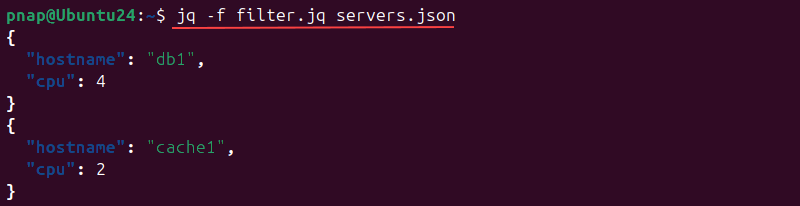
It works the same way as using a filter directly on the command line, except it is much more user-friendly and reusable.
jq Command Arguments
jq has several command-line options that let you control how it reads input and formats output. Here are some of the most common arguments, along with example commands you can try on the servers.json file:
| Argument | Description | Example |
|---|---|---|
-c | Prints each result on a single line instead of formatting it across multiple lines. | jq -c '.servers[]' servers.json |
-r | Removes quotes and outputs raw strings instead of JSON. This is helpful when you want to pass values to other commands or scripts. | jq -r '.servers[].hostname' servers.json |
-s | Reads all input into a single array before applying the filter (slurp mode). | jq -s '.' servers.json |
-n | Let's you create JSON data directly from the command line, without using an input file. | jq -n '{hostname:"web2"}' |
-e | Sets the exit status based on the filter result. It returns 0 if the result is not false or null, making it useful for success/failure checks in scripts. | jq -e '.servers[].status=="running"' servers.json |
-f | Reads the filter from the file instead of the command line. | jq -f filter.jq servers.json |
--arg | Passes a string variable into the filter. You can use it to compare values or build dynamic expressions. | jq --arg name "web1" '.servers[] | .hostname==$name' servers.json |
--argjson | Passes a JSON value, such as a number, object, or array, into the filter. | jq --argjson cpu 2 '.servers[] | .cpu==$cpu' servers.json |
--slurpfile | Reads a file and stores its JSON content in a variable as an array. | jq --slurpfile data servers.json '.' |
--indent n | Sets the number of spaces used for indentation to make output easier to read. The default is 2. | jq --indent 4 '.' servers.json |
--sort-keys | Outputs JSON with the keys sorted alphabetically. | jq --sort-keys '.' servers.json |
-r, -c, -f, and -s are the options you will use most often when working with scripts and pipelines.
Best Practices for jq Scripting
The following best practices will help you write cleaner and more reliable jq commands:
- Keep filters simple and easy to read. Try not to use overly complex one-liners. Break longer commands into several steps using the
|operator and put each step on a new line. This makes it easier to understand how data flows through the pipeline. - Create filter files for reusable logic. If you always use the same filters, store them in a separate file. You can then use the
-foption to include them in different scripts. - Use variables for dynamic values. Rather than hardcoding values such as environment names and thresholds, use
--argand--argjsonto pass them into your filters. This way, you can reuse commands across different contexts without having to modify the filter itself. - Limit output size when possible. Large datasets can slow down scripts or make results harder to process. Use the
-coption to get a more compact output and improve readability in your pipelines. - Use arrays for structured output. jq often outputs results as a stream of individual values. If you need a single structured result, wrap your filter in
[]to collect the output in an array. - Handle missing fields safely. JSON data is not always consistent, and some fields may be missing or set to null. Use the
//operator to provide fallback values. For example, the commandjq'.servers[] | .ip // "N/A"' servers.jsonreturns"N/A"if theipfield is missing or null. This keeps your output predictable, even if the input data changes. - Use raw output when needed. jq always outputs valid JSON, which means that strings have quotation marks. This can cause issues when passing data to other tools or scripts. The
-roption outputs raw strings without quotes, making the data easier to use in shell pipelines. - Avoid extra processing. Apply filters early in the pipeline to reduce the amount of data being processed, especially with large datasets.
- Sort data before grouping. The
group_by()filter expects data to be sorted by the same field. Always usesort_by()first to get accurate results. If you skip this step, you may end up with incorrect or unexpected groupings.
Troubleshooting Potential Issues with jq Scripting
This section lists issues beginners often face when using jq, along with tips on how to fix them.
Syntax Errors
jq commands are sensitive to syntax. Some of the most common mistakes are:
- Missing quotes.
- Missing brackets or braces.
- Incorrect use of commas.
In this example, the closing quote after running is missing:
jq '.servers[] | select(.status == "running)' servers.jsonWhen jq runs into invalid syntax, it returns a parse error, such as:
jq: error: syntax error, unexpected end of file, expecting QQSTRING_TEXT or QQSTRING_INTERP_START or QQSTRING_END (Unix shell quoting issues?) at <top-level>, line 1:
.servers[] | select(.status == "running)
jq: 1 compile error
The error message often indicates where the problem occurred. Here, it highlights running as the issue.

To fix the problem, add the missing quotation marks:
jq '.servers[] | select(.status == "running")' servers.jsonNow the command works and gives you the expected result.
Invalid JSON
jq requires valid JSON input. If the JSON is not formatted correctly, the command does not run. Common invalid JSON issues include:
- Extra commas at the end of lists or objects.
- Missing quotation marks around keys or values.
- Brackets that do not match up, like
{}or[]. - Using single quotation marks instead of double quotation marks.
For example, this JSON has an extra comma at the end, which makes it invalid:
{
  "servers": [
    { "id": "srv1", "status": "running", }
  ]
}
If you try to use jq to read this file, you will get an error message:
parse error: Expected another key-value pair at line 3, column 45The error message shows where the problem is. To fix the issue, you need to remove the extra comma at the specified line.
Unexpected Output
If jq produces unexpected results, it is usually because of an incorrect assumption about the data structure or field names, not a syntax error. For example, this command will cause an error:
jq '.servers.hostname' servers.json
This happens because .hostname is applied directly to the array, not to each item inside .servers. You need to iterate through the array before accessing the field:
jq '.servers[] | .hostname' servers.jsonAnother example is trying to return a field that does not exist in the data:
jq '.servers[] | .ip_address' servers.jsonjq iterates over each object, but returns a null value because the ip_address field does not exist.

Always check both the structure of the data and the fields you are accessing before issuing a command.
Build and Test Queries Incrementally
When building complex filters, test your queries one step at a time and check the output after each change. This way, you can see how the data changes and spot errors more easily.
Start with a simple filter:
jq '.servers[]' servers.jsonIf the output is correct, add a condition:
jq '.servers[] | select(.status == "running")' servers.jsonNext, make the filter more specific:
jq '.servers[] | select(.status=="running") | .hostname' servers.jsonEach step builds on the last, so it's simpler to find mistakes in your logic or data structure. Debugging also becomes easier because you can test each part of the query separately and quickly isolate problems.
Use --debug-trace
If a query does not behave as expected, try using the --debug-trace option to find out why. It will show you how jq evaluates each part of your filter. For example:
jq --debug-trace '.servers[] | select(.status == "running")' servers.jsonjq prints the internal steps it takes as it processes the filter.
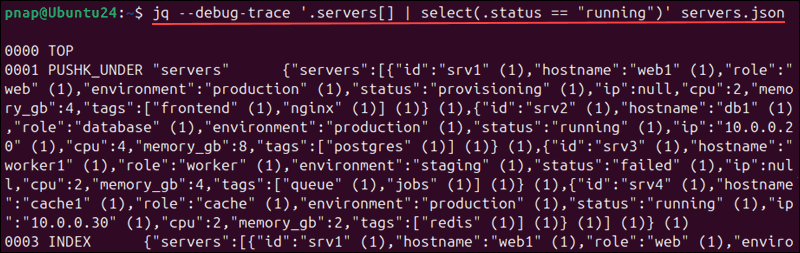
The output can be very detailed and long, so it is best used when debugging complex logic. For simple queries, it might be harder to read than it is helpful.
Conclusion
By following the steps in this article, you installed jq and can now filter and transform JSON data from the command line. The examples and troubleshooting tips in this guide will help you to integrate jq into scripts and automate tasks.
For a more complete workflow, learn how to send cURL POST requests and pipe the responses directly into jq for filtering.