The "no such file or directory" error is a common error encountered on the Linux command line. It appears when a command attempts to access a file, directory, or executable the system cannot locate at the specified path.
The error indicates the system cannot find the specified resource, which often happens when a path or file reference is incorrect.
This guide will explain what the "no such file or directory" error means in Linux, the most common causes, and how to resolve it.

What is the “no such file or directory” Error in Linux?
The "no such file or directory" error occurs when a Linux command attempts to access a file or directory that does not exist at the specified path. The system returns this message because it cannot locate the requested resource in the filesystem.
For example, when the specified file or directory does not exist, the error often appears with commands such as:
- cd. Changes the current working directory.
- ls. Lists the contents of a directory.
- cat. Displays the contents of a file.
- cp. Copies files or directories.
- mv. Moves or renames files and directories.
For instance, if you run cat on a file that does not exist, it produces the following output:
cat example.txt
In this case, the command attempts to read example.txt, but the file is not present in the current directory. Therefore, the system returns the error and stops the command execution.
Common Causes for “no such file or directory
The "no such file or directory" error occurs when a command attempts to access a file or directory the system cannot locate.
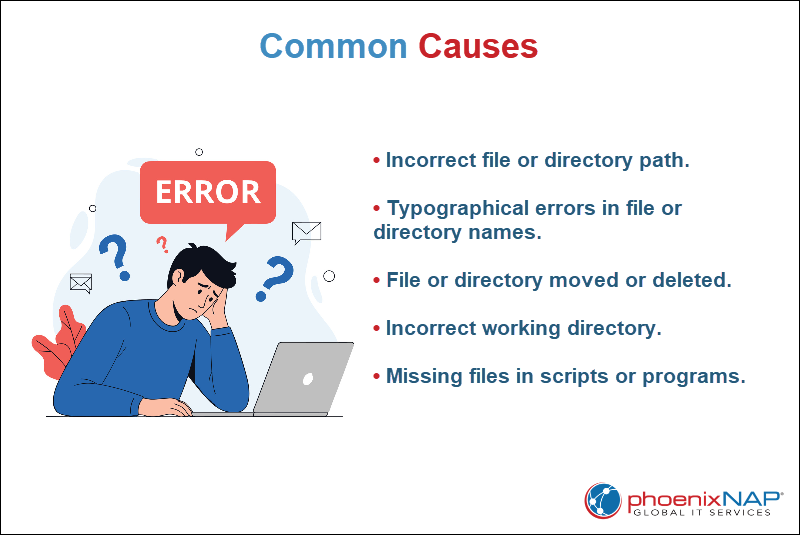
Several common issues trigger this error. The following list shows the most frequent causes:
- Incorrect file or directory path. The specified path does not match the actual location of the file or directory in the filesystem.
- Typographical errors in file names. Linux filesystems are case-sensitive. Therefore, a spelling difference in a file or directory name prevents the system from finding it.
- File or directory moved or deleted. The command references a resource that no longer exists at the expected location.
- Incorrect working directory. The command uses a relative path, but the current working directory is not the one where the file or directory exists.
- Missing files in scripts or programs. Shell scripts or applications sometimes reference files that were never created or are located in a different directory.
How to Resolve “no such file or directory” Error in Linux
To resolve the "no such file or directory" error, identify why the system cannot locate the specified file or directory. In most cases, the issue relates to incorrect paths, missing files, or commands executed from the wrong location.
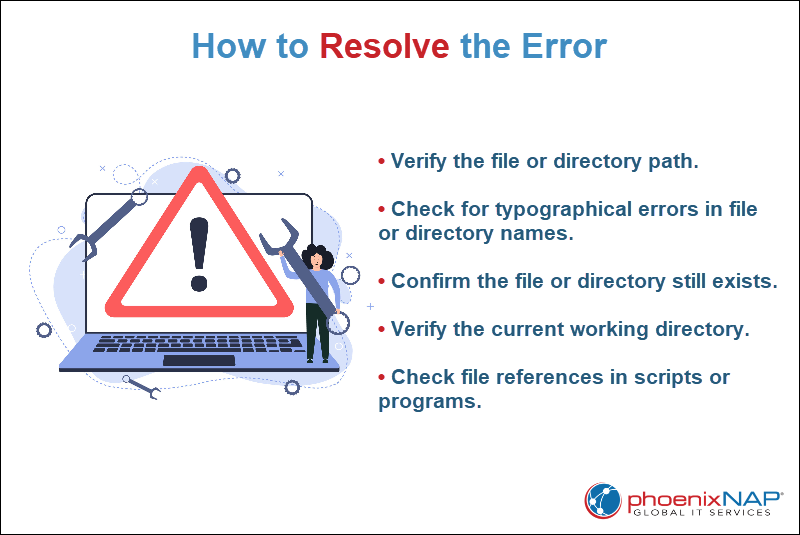
The following methods elaborate on the best ways to resolve the error.
- Verify the file or directory path. Ensure the specified path matches the actual file or directory location in the filesystem. Use
lsto confirm the resource exists at the provided path. If the command returns the same error, review the directory structure and correct the path. - Check for typographical errors in file names. Linux filesystems are case-sensitive, so capitalization must match the exact file or directory name. Spelling mistakes, missing characters, or incorrect file extensions also trigger this error. Use
lsto list the current directory contents and verify the exact name before running the command again. - Confirm the file or directory still exists. If a file or directory was moved or deleted, commands that reference the original location produce this error. Verify the resource still exists in the expected location and update the path or recreate the file if necessary.
- Verify the current working directory. Commands that use relative paths depend on the directory from which the command runs. Use pwd to confirm the current working directory, then use cd to navigate to the correct location if needed.
- Check file references in scripts or programs. Scripts often reference configuration files, input files, or executables that use fixed paths. Review the script to confirm the referenced files exist and the paths match their actual locations.
Conclusion
This tutorial explained what the "no such file or directory" Error in Linux is and its common causes. It also elaborated on the ways to resolve this error.
Next, learn how to change file and directory permissions.