The mkdir command creates new directories in Unix-like systems such as Linux and macOS. By default, it creates only the specified directory and returns an error if the parent directory does not exist.
The -p option modifies this behavior because it creates the specified directory along with any missing parent directories in the path. This allows you to build nested directory structures with a single command.
This guide will explain the difference between mkdir and mkdir -p, the command syntax, and the risks and limitations of this option.
Difference Between mkdir and mkdir -p
The mkdir command creates a new directory at the specified location. However, it creates only the final directory in the path. If any parent directory in the path does not exist, the command returns an error.
The -p option modifies this behavior because it creates all missing parent directories in the specified path. This allows the command to build the full directory structure in one step, rather than creating each level separately.
To demonstrate the difference, consider the following directory structure:
- projects. The top-level directory.
- app. The directory inside projects.
- config. The directory inside app.
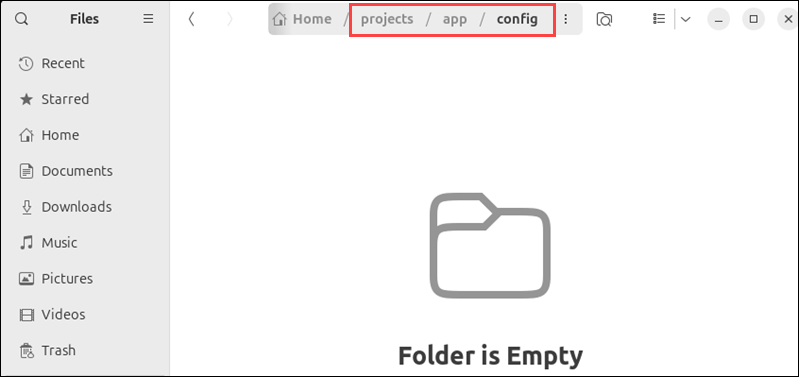
The full path is:
projects/app/config,
In this case, each directory is nested inside the previous one.
When you use mkdir without options, you must create each directory level separately because the command does not create missing parent directories.
To accomplish this, take the following steps:
1. Create the top-level directory:
mkdir projects2. Create the directory inside it:
mkdir projects/app3. Create the last directory in the path:
mkdir projects/app/config4. None of the commands above produces any output. Therefore, to verify the directory structure, use ls with the -R (recursive) option that shows all subdirectories inside the specified directory.
ls -R projects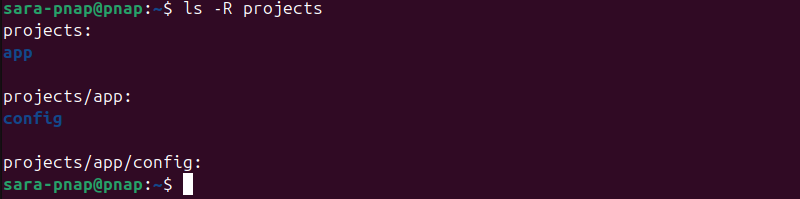
If you try to create the full path in a single step with mkdir, the command fails because the parent directories do not yet exist.
mkdir projects/app/config
The -p option changes this behavior because it automatically creates any missing parent directories. Instead of creating each directory level manually, create the entire structure with one command:
mkdir -p projects/app/configThis command creates projects, app, and config if they do not already exist. Since it also produces no output, verify the result with:
ls -R projects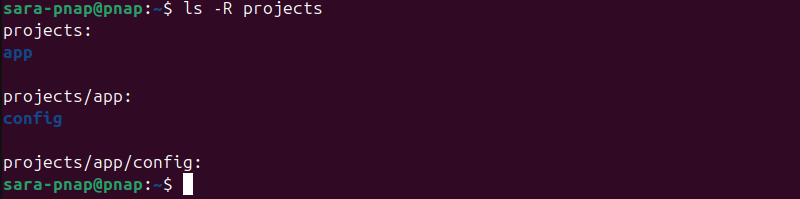
The -p option is defined by the POSIX standard and is supported on Linux distributions and macOS.
Windows shells, such as Command Prompt and PowerShell, do not include a -p flag because their mkdir command already creates intermediate directories automatically. Unix environments on Windows, such as Windows Subsystem for Linux (WSL) or Git Bash, support mkdir -p and behave the same as Linux systems.
mkdir -p Syntax
The mkdir command uses the -p option to create parent directories automatically when they do not exist. This option allows you to create a full directory path in a single command.
The basic mkdir -p syntax is:
mkdir -p [directory_path]The command consists of the following elements:
mkdir. Creates a new directory.-p. Creates any missing parent directories in the specified path.[directory_path]. Specifies the directory or nested directory structure to create.
mkdir -p Risks and Limitations
The -p option simplifies directory creation, but it also creates behaviors that hide mistakes or lead to unintended results.
Some of the command limitations are:
- Silent directory creation. The
mkdir -pcommand creates all missing directories in the specified path without a prompt for confirmation. If the path contains a typo, the command creates the incorrect directory structure instead of returning an error. For example, the following command creates a directory named confg instead of config if the path is misspelled:
mkdir -p projects/app/confgBecause the parent directories are created automatically, the command does not indicate that the directory name is incorrect.
- Errors go unnoticed in scripts. The
-poption suppresses errors when directories already exist. While this behavior helps prevent script failures, it also hides issues when scripts rely on detecting whether a directory was newly created. - Permission restrictions still apply. The
mkdir -pcommand cannot create directories in locations where the current user does not have sufficient permissions. In such cases, the command returns a permission error:
mkdir -p /root/projects/app
If the user does not have permission to create in the root directory, the command fails even when the -p option is used.
Conclusion
This tutorial explained the differences between mkdir and mkdir -p commands. It also provided mkdir-p syntax and elaborated on the command risks and limitations.
Next, learn how to add a directory to PATH.