The File Transfer Protocol (FTP) is a network protocol used to transfer files between a computer and a remote server. Although modern alternatives exist, FTP remains an essential tool for web developers and anyone working with files on remote servers.
This article will show you how to use FTP on a Mac computer.
How to Connect to FTP Server on Mac
macOS enables users to connect to an FTP server natively using Finder. However, there are two important limitations with this approach:
- Read-only access. Users can browse and download files, but cannot upload or edit them.
- Security. Finder does not support secure protocols such as FTPS or FTPES.
Mac users can also access FTP via the terminal. This method provides more control, but requires command-line knowledge and is less convenient for everyday use.
For a complete and user-friendly experience, a dedicated FTP client like Commander One is a better option.
Connecting to FTP Server with Commander One
Commander One is a versatile all-in-one file manager and Mac FTP client that makes it easy to move files between local drives, cloud services, and remote servers. With its dual-panel interface, it allows working with multiple servers or cloud storage accounts simultaneously and transferring files directly between them, without downloading them locally.
Follow the steps below to set up an FTP connection on a Mac with Commander One:
1. Download and install Commander One.
2. Open the app and click Connections Manager in the top toolbar. You can also access it via the Window menu or by pressing Cmd+F.
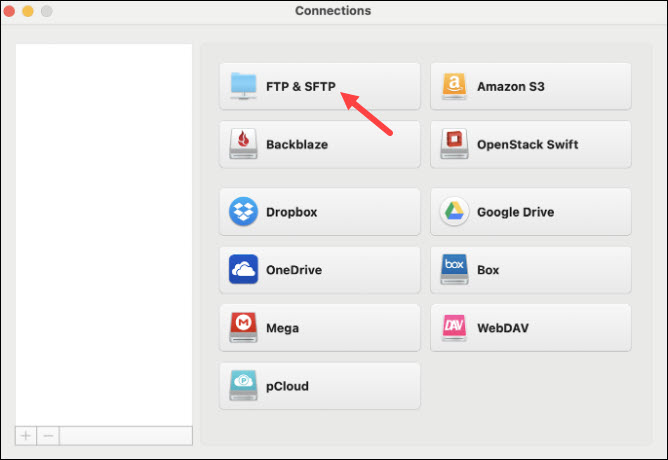
3. Click on FTP & SFTP in the connections list.
4. Enter the required connection details:
- Name. A custom name to recognize this connection.
- Server. An FTP server address.
- Port. Typically 21 for FTP.
- Login. An FTP username.
- Password. An FTP password.
- Remote path. The folder where the uploaded files will be saved.
If supported by the server, you can also enable Anonymous login.
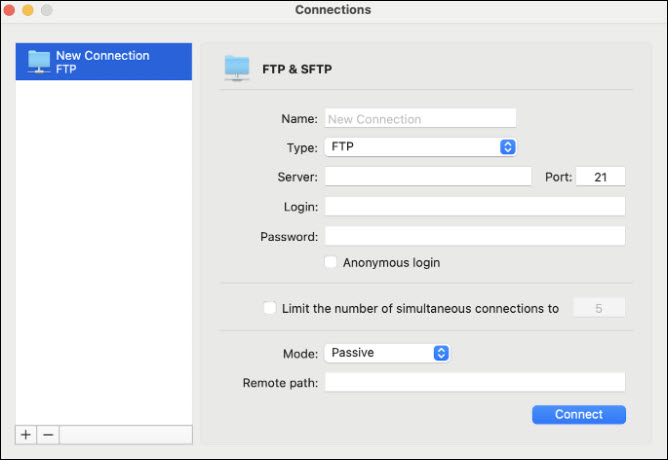
5. Click Connect to establish the connection.
Once connected, the FTP server appears in one of the panels, allowing the user to view local and remote files side by side. To transfer files, drag and drop them between the Mac and the remote location. Commander One also allows renaming, copying, deleting, or editing files directly on the server, as well as adjusting file permissions.
How Safe Is FTP?
Standard FTP is vulnerable to security threats because it lacks encryption. Data, including usernames and passwords, is transmitted in plain text and can be intercepted by attackers.
Furthermore, FTP relies on a single authentication step, which increases the risk when working with sensitive files. For secure transfers, use FTPS (FTP over SSL/TLS) or SSH File Transfer Protocol (SFTP), both of which encrypt the data exchanged between the client and the server.
Connecting via Commander One enhances security by introducing AES-256 encryption to protect files and credentials from unauthorized access. Only users with the correct decryption key (password) can access the data. Additionally, Commander One supports secure connections via FTPS (FTP with TLS/SSL), FTP with Implicit SSL, and SFTP.
Conclusion
After reading this article, you know how to use FTP to connect your Mac to a remote server. The tutorial provided steps for connecting via Commander One, an app that offers a balance between control and ease of use.