The terraform apply command runs an execution plan and reconciles your infrastructure with the desired state defined in a Terraform configuration.
After reviewing the proposed changes with terraform plan, terraform apply creates, updates, or destroys infrastructure resources to match the configuration while recording the results in the Terraform state. The command also supports options that control how Terraform performs deployments. You can automate non-interactive workflows, target specific resources, replace existing infrastructure, apply previously saved execution plans, and adjust execution behavior for large-scale environments.
This guide will explain how the terraform apply command works, its syntax and options, practical usage examples, common mistakes, and tips for safely deploying infrastructure.
Prerequisites
- A Linux system (this guide uses Ubuntu 26.04 LTS).
- Terraform installed on the system.
- Access to a terminal or command-line interface.
- A Terraform working directory initialized with
terraform init. - A configured Terraform provider and sufficient permissions to create and manage infrastructure resources.
What Is the terraform apply Command?
The terraform apply command provisions and manages infrastructure by executing an execution plan. It compares the desired state defined in the Terraform configuration with the current infrastructure state, determines the required changes, and then creates, updates, or removes resources to reconcile the two.
By default, Terraform generates an execution plan, displays the proposed changes, and asks for confirmation before modifying infrastructure. After the changes are applied, Terraform updates the state file to reflect the current infrastructure, to ensure that future operations use an accurate record of managed resources.
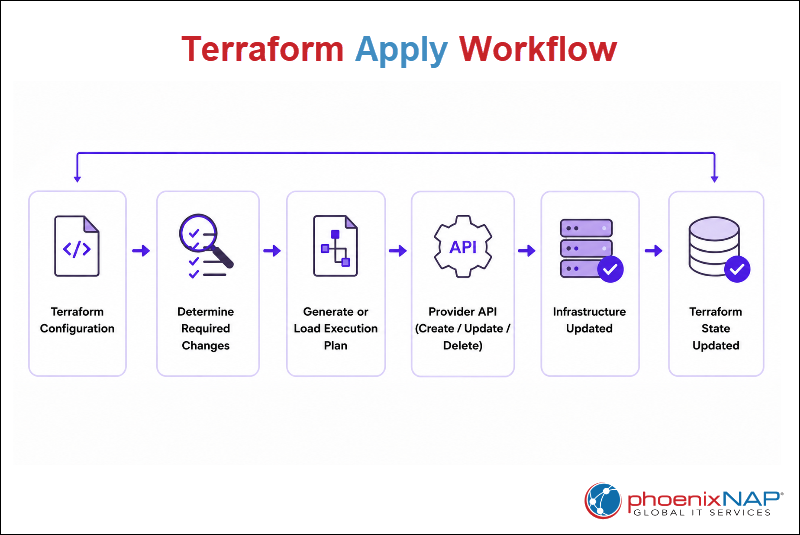
The following sections compare terraform apply with terraform plan and terraform destroy, to highlight what they have in common and how they differ.
terraform apply vs. terraform plan
Although both commands evaluate Terraform configurations, they serve different purposes. terraform plan previews the changes Terraform intends to make, while terraform apply executes those changes and modifies the target infrastructure.
The following table shows the differences between the two commands.
terraform plan | terraform apply | |
|---|---|---|
| What It Does | Previews the proposed infrastructure changes. | Executes the proposed infrastructure changes. |
| Resource Modification | Does not modify infrastructure resources. | Creates, updates, or removes infrastructure resources. |
| State Updates | Does not update the Terraform state. | Updates the Terraform state after a successful deployment. |
| Use Case | Reviewing changes before deployment. | Provisioning or modifying infrastructure. |
In most workflows, you run terraform plan first to verify the proposed changes before you execute them with terraform apply.
However, terraform apply can also execute a previously saved execution plan, ensuring the reviewed plan is the exact one applied.
terraform apply vs. terraform destroy
While terraform apply provisions and manages infrastructure throughout its lifecycle, terraform destroy removes all resources managed by the current Terraform configuration.
The table below shows how the two commands function.
terraform apply | terraform destroy | |
|---|---|---|
| What It Does | Creates, updates, or removes resources to match the configuration. | Removes all resources managed by the current configuration. |
| Resource Modification | Reconciles infrastructure with the desired state. | Deletes managed infrastructure. |
| Use Case | Infrastructure provisioning and maintenance. | Infrastructure decomissioning. |
| Result | Supports incremental infrastructure changes. | Removes the entire managed deployment. |
Both commands modify infrastructure and require confirmation before execution unless you explicitly disable interactive prompts using options such as -auto-approve.
terraform apply Syntax, Flags, and Core Options
The terraform apply command supports a range of options that control how Terraform executes infrastructure changes. These options allow you to automate deployments, customize execution behavior, limit resource operations, replace existing resources, and pass configuration values at runtime.
While many workflows only require the default command, you need to understand the available flags to manage more complex deployments, integrate Terraform into CI/CD pipelines, and troubleshoot infrastructure changes more effectively. The following sections explain the most used syntax forms and options for terraform apply.
Standard Command-Line Syntax
The terraform apply command supports multiple syntax forms depending on whether Terraform generates a new execution plan or applies a previously saved one.
The general syntax is:
terraform apply [options] [plan]terraform apply command parameters are:
[options]. Optional flags that modify the command's behavior, such as bypassing approval prompts, targeting specific resources, or supplying variable values.[plan]. An optional saved execution plan generated withterraform plan -out. When specified, Terraform applies the saved plan instead of creating a new one.
In most workflows, you can run the command without additional options. The command evaluates the current configuration, generates a new execution plan, displays the proposed changes, and prompts for approval before applying them.
The following table summarizes the core options discussed in this guide.
| Option | Description |
|---|---|
-auto-approve | Skips the interactive approval prompt before applying changes. |
-target | Limits the operation to the specified resource instances. |
-replace | Forces Terraform to destroy and recreate a specified resource. |
-var | Assigns one or more input variable values at runtime. |
-var-file | Loads input variable values from an external variable definition file. |
-parallelism | Limits the number of concurrent resource operations Terraform performs. |
-json | Produces structured JSON output for automation tools and CI/CD workflows. |
Bypassing Prompts with -auto-approve
By default, terraform apply displays the execution plan and prompts you to confirm the changes before modifying infrastructure. As shown below, Terraform waits for you to type yes before proceeding.

The -auto-approve option skips this confirmation step and immediately executes the planned changes.
The syntax is:
terraform apply -auto-approveUsing -auto-approve is common in automated environments, such as CI/CD pipelines, where user interaction is not possible. It is also useful for scripted deployments or testing workflows.
However, use this option with caution. Since Terraform does not request confirmation, any unexpected changes in the execution plan are applied immediately. To reduce the risk of unintended infrastructure modifications, review the execution plan beforehand or apply a previously saved execution plan.
Scoping Changes via -target and -replace
Although terraform apply evaluates the entire Terraform configuration, use the -target and -replace options to modify its default behavior for specific scenarios.
The -target option limits the apply operation to a specified resource or module instead of processing the entire configuration. This option is useful for troubleshooting, recovering from failed deployments, or applying isolated infrastructure changes.
The syntax is:
terraform apply -target=RESOURCE_ADDRESSThe -replace option forces Terraform to destroy and recreate a specified resource during the apply operation, even if no configuration changes are detected. It is used when a resource becomes unhealthy, corrupted, or requires reprovisioning.
The syntax is:
terraform apply -replace=RESOURCE_ADDRESSAlthough these options provide greater control over infrastructure changes, they should be used selectively.
The -target option is intended for exceptional situations because limiting Terraform's evaluation to specific resources can result in infrastructure that no longer reflects the complete configuration. The -replace option should only be used when it's necessary to recreate a resource, as it can temporarily interrupt services that depend on it.
Passing Variables and External Definition Files (-var and -var-file)
The -var and -var-file options allow you to provide input variable values at runtime without modifying the Terraform configuration. These options are useful when deploying the same infrastructure with different settings across development, testing, and production environments.
Use the -var option to assign a value to an individual input variable directly on the command line.
The syntax is:
terraform apply -var="VARIABLE_NAME=VALUE"Use the -var-file option to load multiple variable values from an external variable definition file instead of specifying them individually.
The syntax is:
terraform apply -var-file="terraform.tfvars"You can also combine both options in the same command. When the same variable is defined in multiple locations, values passed with -var take precedence over those loaded from a variable definition file.
Using external variable files simplifies configuration management by separating environment-specific values from the Terraform configuration. This approach also makes deployments easier to maintain and reduces the need to edit configuration files before each apply operation.
Limiting Cloud API Throttling with -parallelism
By default, Terraform performs independent resource operations concurrently to reduce deployment time. The -parallelism option limits the number of simultaneous operations Terraform executes during the apply process.
The syntax is:
terraform apply -parallelism=NUMBERThe NUMBER value specifies the maximum number of concurrent resource operations Terraform can perform.
When you reduce this value, it prevents cloud API throttling, minimizes timeout errors, or reduces the load on environments with limited resources.
Increasing parallelism shortens deployment times. However, when you set the value too high, it may exceed provider API limits or negatively affect infrastructure stability. In most cases, the default parallelism value is sufficient. Modify it only when your environment requires more controlled resource provisioning.
Enabling Structured Machine Output via -json
By default, terraform apply displays progress and results in a human-readable format. The -json option outputs structured, machine-readable data that external tools can parse and process automatically.
Instead of generating human-readable console output, Terraform returns structured JSON objects containing information about the execution progress, planned actions, diagnostics, and results.
The syntax is:
terraform apply -jsonStructured JSON output is intended for automation workflows, such as CI/CD pipelines, monitoring systems, and custom integrations that need to analyze Terraform's execution programmatically instead of relying on console output.
Since the JSON output is optimized for automated processing rather than human readability, it is not used during interactive deployments. Instead, it enables external tools to monitor progress, capture results, and respond to deployment events in a consistent format.
terraform apply Examples
The following sections show common terraform apply examples.
Note: The following examples use Bare Metal Cloud (BMC) instances to demonstrate common terraform apply workflows. Learn more about Bare Metal Cloud storage management, and explore our Network File Storage page for scalable, persistent storage solutions.
Spawning a Fleet of High-Performance BMC Servers
Bare Metal Cloud (BMC) instances are physical dedicated servers that provide direct access to hardware resources without a virtualization layer. Organizations commonly deploy multiple BMC instances as a fleet to support high-performance workloads, improve availability, or separate application tiers while managing the infrastructure through Terraform.
The following example provisions a fleet of three BMC instances by applying the Terraform configuration created earlier.
Run terraform apply without additional options to generate an execution plan, display the proposed infrastructure changes, and get prompts for confirmation before provisioning the servers.
terraform apply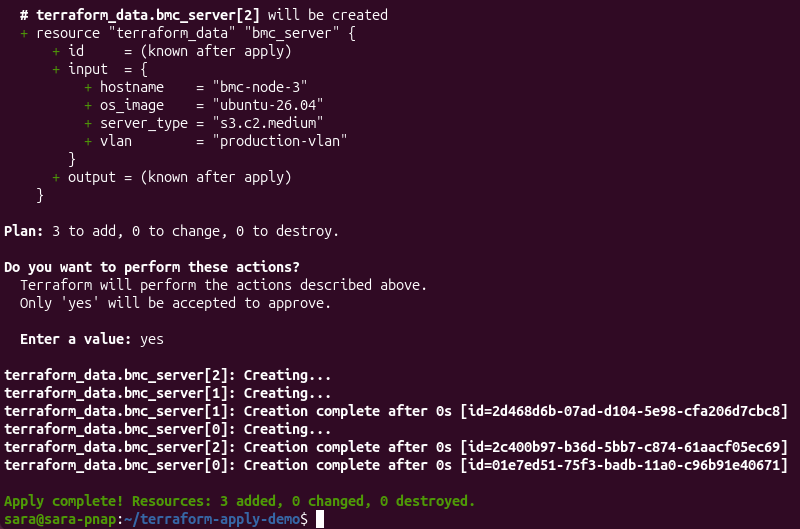
After you confirm the deployment, Terraform provisions the resources and reports the status of each operation. Once all resources are created successfully, Terraform displays a summary showing how many resources were added, changed, or destroyed.
In this example, Terraform provisions three Bare Metal Cloud instances and updates the Terraform state to reflect the new infrastructure.
Executing a Target-Specific Update on a Single Physical Node
The -target option lets you apply changes to a specific resource without processing the entire Terraform configuration. Although Terraform recommends applying changes to the complete configuration whenever possible, it is useful to target one resource when troubleshooting issues, recovering from failed deployments, or updating an individual server.
In this example, we will upgrade the second application server to a larger Bare Metal Cloud instance type to accommodate increased workload demands. To simulate this scenario, use a text editor such as Nano to modify the Terraform configuration so that only the second server uses a larger instance type.
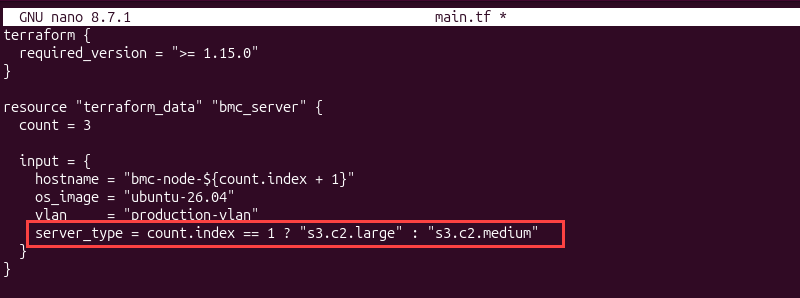
After updating the configuration, apply the change only to the modified server by specifying its resource address with the -target option:
terraform apply -target=terraform_data.bmc_server[1]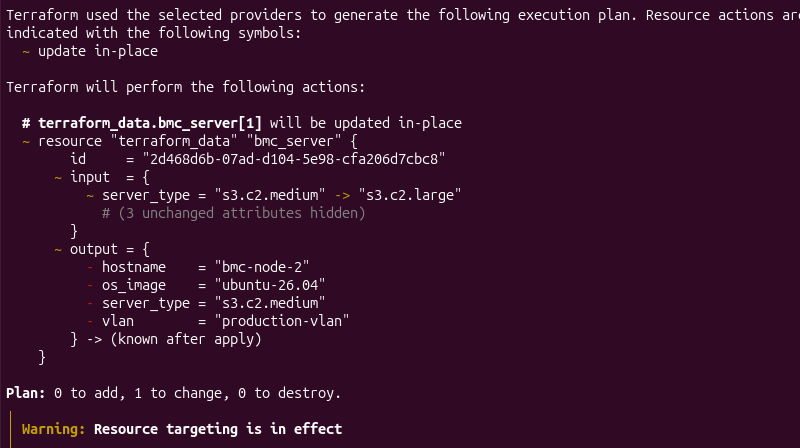
Terraform generates an execution plan that includes only the targeted resource and applies the requested update without modifying the remaining infrastructure.
As shown in the output, Terraform also warns that the -target option is intended for exceptional situations because it may exclude other pending configuration changes.
After completing the targeted update, verify that no additional changes remain:
terraform plan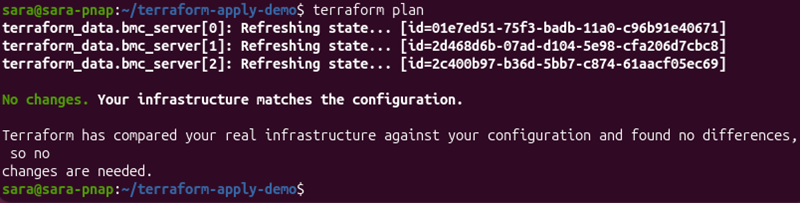
The output confirms the infrastructure matches the current Terraform configuration and that no additional changes remain after the targeted update.
Note: In this example, the targeted resource is independent of the remaining infrastructure, so running terraform plan after the update confirms that no additional changes are pending. In more complex deployments, targeted changes can leave other resources out of sync, which is why Terraform recommends verifying the configuration after using the -target option.
Forcing a Complete Hardware Re-Provisioning with the -replace Flag
The -replace option forces Terraform to destroy and recreate a specified resource during the apply operation, even when no configuration changes are detected. This option is useful when a resource becomes unavailable, becomes corrupted, or requires complete reprovisioning while preserving the existing Terraform configuration.
In this example, the database server is reprovisioned to recover from a simulated hardware failure. Instead of modifying the Terraform configuration, Terraform marks the existing resource for replacement and provisions a new server that matches the current configuration.
With the following command, Terraform generates an execution plan that indicates the specified resource will be destroyed and recreated while leaving the remaining infrastructure unchanged.
terraform apply -replace=terraform_data.bmc_server[2]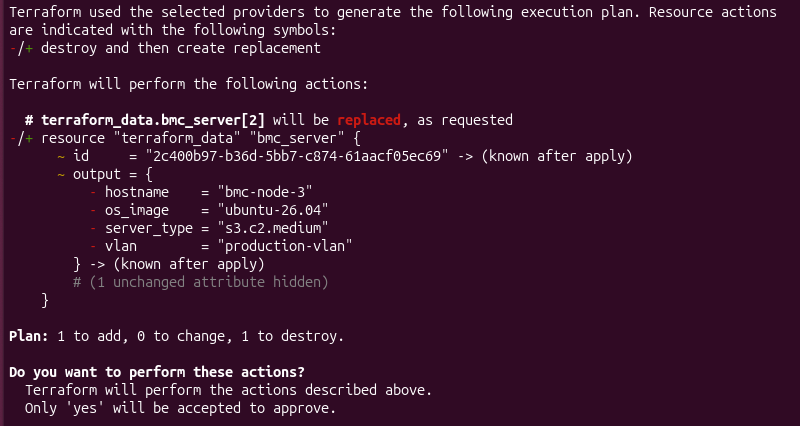
After confirming the operation, Terraform destroys the existing resource, provisions its replacement, and updates the Terraform state with the new resource information.
Verify that no additional infrastructure changes remain:
terraform planThe command should report that the infrastructure matches the current Terraform configuration.
Applying a Saved Binary Execution Plan in a CI/CD Pipeline
To ensure Terraform executes the exact changes that were reviewed and approved, generate and save an execution plan before applying infrastructure changes. This approach reduces the risk of unexpected infrastructure modifications and is used in CI/CD pipelines, where planning and deployment occur in separate stages.
In this example, the deployment is updated by changing the VLAN assigned to the Bare Metal Cloud instances. To simulate this scenario, modify the Terraform configuration in a text editor:
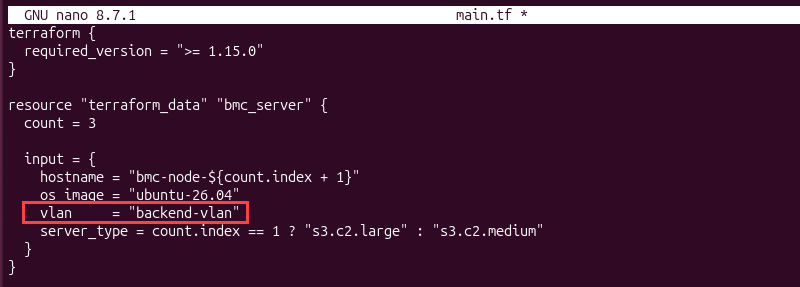
Save the execution plan by running:
terraform plan -out=deployment.tfplan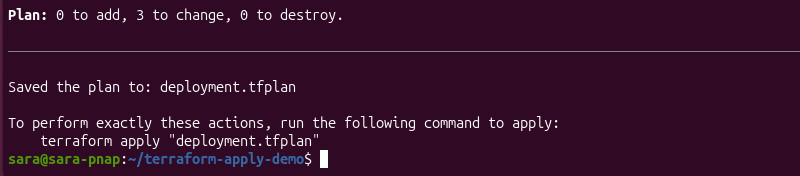
Terraform generates an execution plan and stores it in the deployment.tfplan binary file for later use.
Apply the saved execution plan using:
terraform apply deployment.tfplan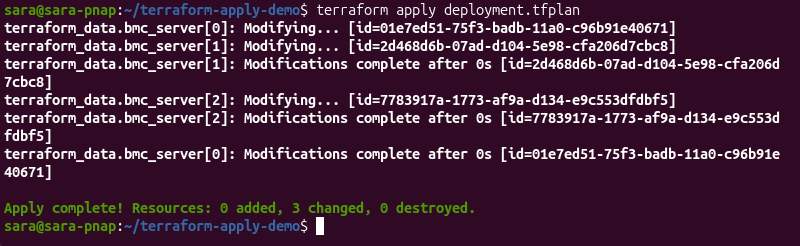
Because the execution plan has already been generated and approved, Terraform applies the saved plan directly instead of creating a new execution plan or prompting for confirmation.
This helps ensure the infrastructure changes match the reviewed plan, making it a common practice in CI/CD pipelines.
Verify that no additional infrastructure changes remain:
terraform planThe command should report that the infrastructure matches the current Terraform configuration, confirming that the saved execution plan was applied successfully.
Overriding Default OS Configurations via Runtime Variables
The -var and -var-file options let you override Terraform input variables at runtime without modifying the Terraform configuration. This approach is useful when deploying the same infrastructure across multiple environments that require different operating system images, network settings, or other configuration values.
In this example, the operating system image is stored in a variable instead of being hardcoded in the Terraform configuration.
The default deployment uses the values defined in terraform.tfvars. In this example, the file specifies Ubuntu 26.04 as the operating system for all Bare Metal Cloud instances.

A separate variable definition file, production.tfvars, contains an alternative set of values for a production deployment. In this example, the file specifies Ubuntu 24.04 to demonstrate how different environments can use different operating system images without modifying the Terraform configuration.

To temporarily override the default operating system for a single deployment, run:
terraform apply -var="os_image=ubuntu-24.04"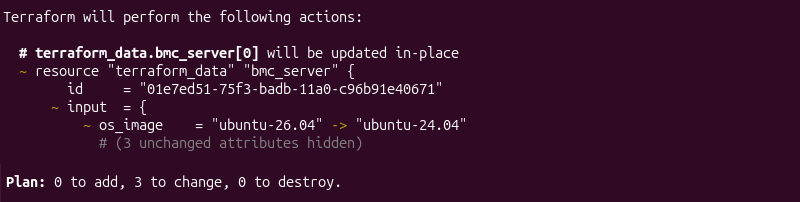
Terraform uses the value provided with the -var option instead of the value defined in terraform.tfvars. As a result, the execution plan updates the operating system image for all three Bare Metal Cloud instances from Ubuntu 26.04 to Ubuntu 24.04.
To apply a predefined set of variable values instead of specifying them individually, run:
terraform apply -var-file=production.tfvars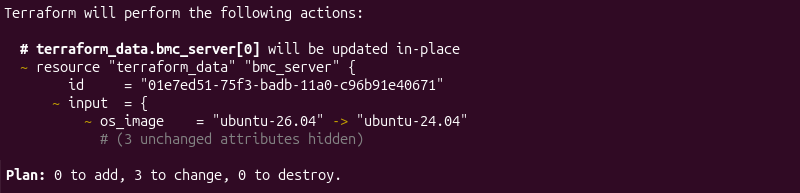
Terraform loads the variable values from production.tfvars and applies them for the current deployment. This simplifies deployments because you can maintain separate variable definition files for different environments, such as development, testing, and production.
To restore the default deployment values defined in terraform.tfvars, run:
terraform applyVerify that the infrastructure matches the current configuration:
terraform planThe command should report that the infrastructure matches the current Terraform configuration and that no additional changes are required.
Note: The -var and -var-file options override variable values only for the current Terraform command. They do not modify the Terraform configuration or variable definition files. Subsequent Terraform commands use the default values unless the override is specified again.
Restructuring Dedicated VLANs and BMC Network Blocks Interactively
The terraform apply command prompts for confirmation before applying infrastructure changes. This interactive workflow gives administrators an opportunity to review the execution plan before modifying network resources, reducing the risk of accidental configuration changes.
In this example, the VLAN assigned to the Bare Metal Cloud instances is updated to simulate a network reconfiguration. Modify the Terraform configuration to specify the new VLAN.
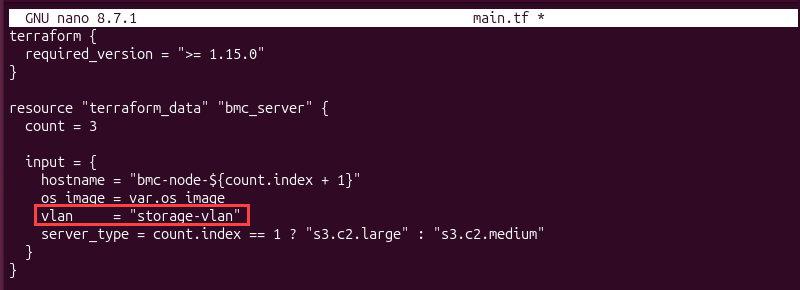
Apply the updated configuration by running:
terraform apply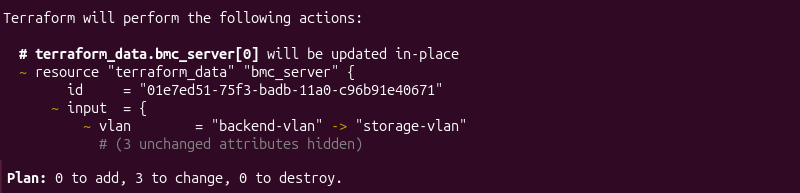
Terraform displays the proposed network changes and waits for confirmation before applying the new VLAN configuration. After you approve the operation, Terraform updates all affected Bare Metal Cloud instances and records the changes in the Terraform state.
Verify that the deployment matches the current configuration:
terraform planThe command should report that the infrastructure matches the current Terraform configuration and that no additional changes are required.
Performing a Refresh-Only Apply to Reconcile Out-of-Band Configurations
Infrastructure changes do not always originate from Terraform. Administrators may update server settings, network configurations, or other infrastructure components directly through the Bare Metal Cloud portal or API. When these changes occur outside Terraform, the infrastructure and the Terraform state can become out of sync.
The -refresh-only option refreshes the Terraform state to reflect the current infrastructure without modifying the deployed resources. This operation is useful for reconciling out-of-band changes before planning or applying additional infrastructure updates.
For example, an administrator changes the VLAN assigned to a Bare Metal Cloud instance directly through the BMC portal. Running a refresh-only apply updates the Terraform state to reflect the current infrastructure without attempting to revert the change.
Run the following command:
terraform apply -refresh-onlyTerraform compares the current infrastructure with the existing Terraform state, refreshes the stored resource information, and prompts for confirmation before updating the state. Because the operation only refreshes state information, it does not create, modify, or destroy infrastructure resources.
After the refresh completes, verify that the Terraform state accurately reflects the current infrastructure:
terraform planIf no additional configuration changes are pending, Terraform reports that the infrastructure matches the current configuration. Otherwise, the execution plan identifies any remaining differences that require review or a standard terraform apply operation.
Note: The -refresh-only option updates only the Terraform state. It does not modify the Terraform configuration or revert infrastructure changes made outside Terraform. If the refreshed infrastructure no longer matches the Terraform configuration, subsequent terraform plan or terraform apply commands identify those differences so they can be reviewed and resolved.
terraform apply Common Mistakes
Configuration errors, interrupted deployments, provider limitations, and state management issues in Terraform can cause unexpected behavior. Understanding these issues helps reduce downtime, avoid infrastructure inconsistencies, and simplify troubleshooting when deployments do not complete as expected.
The following sections describe some of the most common terraform apply issues, explain why they occur, and outline practical approaches for resolving and preventing them.
Handling Persistent State Locks (.terraform.tfstate.lock.info)
Terraform locks the state file before performing operations that modify infrastructure. State locking prevents multiple users or processes from updating the same state simultaneously, reducing the risk of conflicting changes and state corruption.
State locks may remain in place if a Terraform operation is interrupted unexpectedly, such as after a terminal crash, network interruption, or canceled deployment. In these situations, Terraform blocks subsequent operations until the lock is released and displays an error similar to the following:
Error: Error acquiring the state lockBefore removing a lock, verify that no other Terraform operation is currently running. If another user or automated process is actively applying changes, forcing the lock to release can corrupt the Terraform state.
When you confirm the lock is no longer in use, remove it with:
terraform force-unlock [LOCK_ID]Replace [LOCK_ID] with the identifier displayed in the error message.
Terraform removes the lock and allows subsequent operations to continue.
Note: Avoid using terraform force-unlock as a routine troubleshooting step. Only remove a state lock after confirming that no other Terraform process is using the state file. If you use a remote backend, investigate why the lock remained before forcing its removal.
Mitigating Remote Cloud API Rate Limits and Timeout Errors
Terraform communicates with cloud providers through their APIs during planning and deployment. Large infrastructure changes, high request volumes, temporary service disruptions, or unstable network connections can cause API rate limits, request timeouts, or failed operations.
Common symptoms include HTTP 429 (Too Many Requests) responses, timeout errors, or incomplete deployments. In many cases, rerunning terraform apply after the API becomes available completes the remaining changes successfully.
If the issue persists:
- Reduce the number of concurrent operations by using the
-parallelismoption. - Verify network connectivity between the Terraform client and the cloud provider.
- Check the cloud provider's service status and API quotas.
- Retry the deployment after waiting for any temporary rate limits to expire.
When managing large deployments, consider applying infrastructure changes in smaller batches to reduce the number of simultaneous API requests.
Recovering from Partial Failures and Half-Provisioned Environments
Infrastructure deployments sometimes fail before Terraform completes every planned operation. Network interruptions, provider outages, insufficient resource quotas, or manual cancellation may leave part of the infrastructure successfully provisioned while other resources remain incomplete.
Avoid manually deleting or recreating resources immediately after a failed deployment. Instead, inspect the current infrastructure and review the Terraform state to determine which resources were created successfully.
Begin the recovery process by reviewing the current deployment state:
terraform planTerraform identifies any remaining differences between the configuration, state, and deployed infrastructure.
After reviewing the execution plan, rerun:
terraform applyTerraform creates any missing resources, updates incomplete configurations, or skips resources that already match the desired state. This workflow allows Terraform to reconcile the deployment while minimizing unnecessary infrastructure changes.
Debugging Invalid Variable Types and Unresolved Input Prompts
Terraform validates input variables before applying infrastructure changes. Incorrect variable types, missing required variables, or invalid values prevent deployments from starting successfully.
For example, Terraform prompts for user input when a required variable has no default value and no value is supplied through a variable definition file or the -var option. Similarly, assigning a value that does not match the expected variable type causes Terraform to terminate with a validation error.
To resolve these issues:
- Verify that all required variables have assigned values.
- Confirm that supplied values match the variable types defined in variables.tf.
- Use terraform validate to identify configuration errors before running
terraform apply. - Store frequently used values in terraform.tfvars or environment-specific variable definition files to reduce manual input and prevent configuration mistakes.
Validating variables before deployment helps prevent unnecessary interruptions during infrastructure provisioning.
Note: For more information, refer to our guide to Terraform variables.
Managing Resource Schema Drift Across Provider Versions
Terraform providers evolve over time as cloud platforms introduce new features, deprecate existing resources, or modify resource schemas. Upgrading a provider without reviewing these changes can cause previously valid configurations to generate warnings, validation errors, or unexpected execution plans.
Before upgrading a provider, review the provider's release notes to identify deprecated resources, renamed arguments, and compatibility changes. After updating the provider, reinitialize the working directory by running:
terraform init -upgradeThen review the proposed infrastructure changes with:
terraform planTesting provider upgrades in a non-production environment helps identify compatibility issues before deploying infrastructure changes. Keeping Terraform configurations aligned with supported provider versions also reduces maintenance effort and minimizes unexpected deployment failures.
terraform apply Best Practices
The following recommendations can help you perform safer, more predictable terraform apply operations in development and production environments.
- Review the execution plan before applying changes. Verify that the proposed infrastructure changes match your expectations before approving the deployment.
- Use version control for Terraform configurations. Track infrastructure changes, collaborate safely, and maintain a history of configuration updates.
- Validate configurations before deployment. Run terraform fmt and
terraform validateto identify formatting issues and configuration errors before applying changes. - Use variable definition files for environment-specific values. Store reusable settings in files such as terraform.tfvars or environment-specific variable files instead of modifying the Terraform configuration.
- Generate and review saved execution plans for production deployments. Use the
-outoption to save plans so Terraform applies the exact changes that were reviewed and approved. - Protect the Terraform state file. Store state in a secure remote backend with state locking enabled to reduce the risk of corruption and conflicting deployments.
- Keep Terraform and providers up to date. Regularly review provider release notes, test upgrades in non-production environments, and update deprecated resources before they become unsupported.
- Avoid frequent use of targeted operations. Options such as
-targetand-replaceare useful for troubleshooting and recovery but should not replace normal infrastructure workflows. - Monitor deployments after completion. Verify that the infrastructure reaches the expected state by reviewing the deployment output and running
terraform planwhen appropriate. - Test infrastructure changes in a non-production environment first. Validate new configurations, provider upgrades, and infrastructure modifications before deploying them to production.
Conclusion
This tutorial explained what the terraform apply command is, its syntax, flags, and core options. It also elaborated on how the command works using practical examples. The article also presented common terraform apply mistakes and best practices.
Next, learn how the terraform plan command works.