Terraform commands are usually simple and easy to use, and fmt is a great example. It helps keep your configuration files clean and consistent, which matters in large projects with many team members working on the same code.
This article will explain how Terraform formatting works and show where the terraform fmt command fits into your usual workflow.
What Is terraform fmt Command?
The terraform fmt command formats the code in your Terraform configuration to follow Terraform's standard style for indentation, alignment, spacing, and other HashiCorp Configuration Language (HCL) rules.
Running this command in the terminal fixes formatting issues and makes your code more consistent and easier to read.
You can use it after writing or editing your configuration and before running commands like terraform validate, terraform plan, and terraform apply.
terraform fmt vs. terraform validate vs. TFLint
All three of these tools help you manage Terraform configurations, but they check for different things. Refer to the table below for comparison
| terraform fmt | terraform validate | TFLint | |
|---|---|---|---|
| Usage | Fix spacing, indentation, and alignment in config files. | Check the syntax, argument and attribute names, value types, and overall configuration structure. | Find additional issues like deprecated syntax, unused declarations, and provider-specific problems. |
| Behaviour | It automatically rewrites the files that need formatting. | It reports validation errors but does not change your configuration. | By default, it reports issues without proactively trying to resolve them. |
| Place in workflow | Run it after writing or editing Terraform files. | Use before planning or applying a configuration, or as part of a CI/CD workflow. | Linter tools like TFLint are used alongside standard Terraform commands for additional code checks. |
Note: If you work with Infrastructure as Code, the terraform fmt command can be a big help. As your configuration grows, it keeps formatting consistent and makes your code easier to manage.
terraform fmt Syntax
The command syntax is straightforward:
terraform fmt [options] [target]If you run the command without any additional arguments, Terraform formats all configuration files in the current directory. You can use options to change what the command does, like checking files without rewriting them or formatting files in subdirectories.
To format a specific file or directory, you can add its name after the command and any options.
fmt Command Options
Terraform has six options you can use with terraform fmt:
| Option | Description |
|---|---|
-check | Checks if configuration files are correctly formatted without making any changes. If files need formatting, it lists the file names and returns a non-zero exit status. |
-recursive | Checks and formats every file in the current directory and its subdirectories. |
-no-color | Removes color codes from the command output, which makes it easier to read in logs or other tools. |
-diff | Shows the formatting changes by comparing the formatted and current versions of the file. |
-write=false | Shows which files need formatting without writing the changes back to the source files. |
-list=false | Prevents Terraform from printing the names of the files that need formatting. |
Note: If you are looking for a platform to deploy your Terraform configuration, phoenixNAP Bare Metal Cloud lets you provision and manage physical servers as code.
terraform fmt Examples
The following examples use a Terraform configuration that provisions a PhoenixNAP BMC server, but terraform fmt works the same way with any project.
Formatting Configuration Files in the Current Directory
Once you finish writing or editing a Terraform configuration, the next logical step is to format the files before validating or planning the deployment. The exact order can vary, but most Terraform workflows follow these steps:
terraform fmtterraform initterraform validateterraform planterraform apply
To ensure your .tf files use Terraform's standard indentation and spacing, run the following command:
terraform fmtThis command updates the .tf files in the current directory to match formatting rules. If Terraform reformats a file, it prints the file name in the output.

In this example, the main.tf and outputs.tf output confirms that Terraform reformatted these two files. If there is no output, that means that all files are already correctly formatted.
Recursively Formatting Subdirectories and Modules (-recursive)
By default, fmt only formats Terraform files in the current directory. If you have configuration files in subdirectories, add the -recursive option to check and format the files in all the subdirectories as well:
terraform fmt -recursiveTerraform lists the files it formatted. In this example, the output shows the path to the main.tf file in the bmc-server subdirectory.

If nothing appears, it means that all the files in the current directory and all subdirectories are already formatted.
This option is especially helpful for larger projects with multiple Terraform modules, because modules are often defined in nested directories.
Checking Code Formatting Without Overwriting Files (-check)
To check files in the current directory without making any changes, use the -check option:
terraform fmt -checkThe -check option checks the Terraform files in the current directory to see if they follow the standard format, but does not change them.
If a file needs formatting, Terraform prints the file name and returns a non-zero exit status. For example, if you see main.tf in the output, this means that the file does not follow Terraform's standard formatting.
If there is no output, it means that all the checked files are already formatted, and the command returns an exit status of 0.

There is no exit status in the terminal, but it can be used in automated checks. For example, you can set up a pipeline that uses the -check option to find files that are not formatted correctly.
If the command returns a zero exit status, the process can move to the next step. If it returns a non-zero status, the check fails, and the process stops until the files are formatted.
Displaying Formatting Differences in Unified Diff Format (-diff)
Use the -diff option when you want to see what Terraform changes when it formats a file:
terraform fmt -diffThe command displays the differences between the original and formatted versions of each file. You can review the changes to each element.
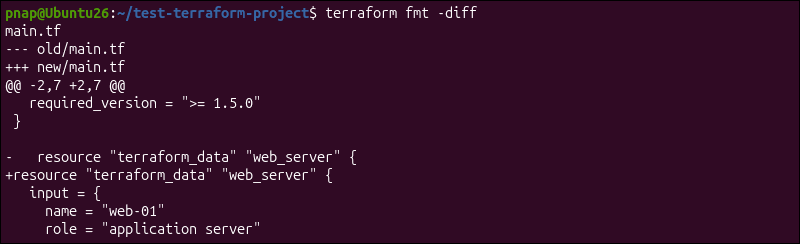
Terraform automatically writes the formatting changes to the files. If you want to see the differences without changing the files, use -diff together with -check:
terraform fmt -check -diffUsing both options lets you review formatting issues before making changes.
Running terraform fmt in CI/CD Pipelines Without Color Formatting (-no-color)
A CI/CD pipeline usually needs more than just the basic terraform fmt command. You can use multiple options to cover the entire project and make the output easier to read in pipeline logs. For example, the following command combines several options:
terraform fmt -recursive -check -no-colorHere's what each part of the command does:
-recursive. This tells Terraform to check configuration files in the current directory and all subdirectories.-check. Terraform only looks for formatting issues but does not fix them. If the file needs formatting, this option returns a non-zero exit status.-no-color. This option removes color formatting from the command output and makes pipeline logs easier to review.
You can set up the CI/CD pipeline to use the non-zero exit status from -check to fail the formatting check. This way, files must be formatted before moving to the next stage.
Processing Specific Configuration Files or Paths Directly
You do not need to format every Terraform file in the current directory. To format a specific file, add its name after the command:
terraform fmt outputs.tfThis command only processes the outputs.tf file. If Terraform makes any changes, it prints the file in the output.

You can also target a specific directory:
terraform fmt modules/bmc-server/This command formats only the configuration files in the bmc-server directory. It does not touch files in other directories or subdirectories unless you use the -recursive option.
Formatting a specific file or directory helps when you have edited only one part of a larger configuration and want to format that part directly.
terraform fmt Common Mistakes
The terraform fmt command returns an error if Terraform cannot read a configuration file or does not have permission to modify it. The following sections show how to fix some of the most common issues.
Resolving Syntax Errors That Block Formatting Execution
If a file has an invalid character, a missing bracket, or an incomplete expression, Terraform cannot parse it. When this happens, the command stops and returns an error that points to the affected file and line number:
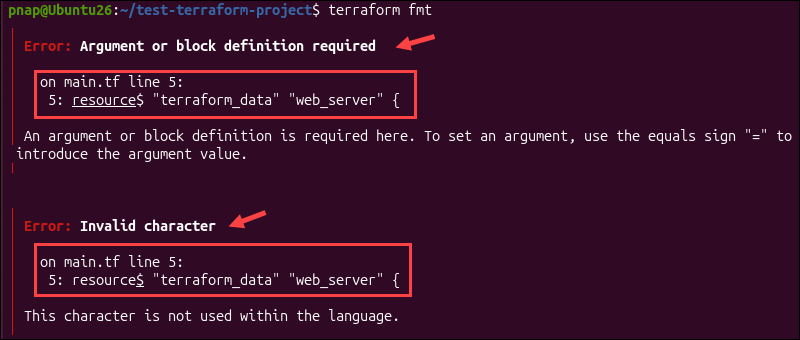
In this example, there is an invalid character ($) on line 5 of the main.tf file. Use the error message to find and fix the syntax issue.
Once you make the change, save the file and run terraform fmt again.
Before you move on to the planning phase, use the terraform validate command to make sure the configuration is syntactically valid.
Fixing Permission Denied and Read-Only File System Errors
The terraform fmt command reformats your files and saves the changes. If the current user does not have permission to modify a file, or the file system is read-only, Terraform cannot save the updates.
In this case, the command stops and displays an error like Failed to write:

To fix this issue, make sure the user running the command has permission to write to the Terraform files. On Linux, you can see the file permissions with this command:
ls -l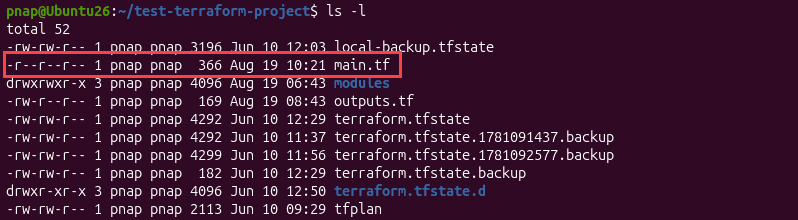
In this example, the user has read-only permissions for the main.tf file. To give the owner write permission, use the chmod command:
chmod u+w main.tfAfter updating the permissions, run terraform fmt again to format the main.tf file.
Try not to use elevated permissions like sudo only to make terraform fmt work. Fix the ownership or permissions so you can edit the project files as your regular user.
Handling Formatting Failures in Nested Submodules and Subdirectories
For most projects, you can run terraform fmt -recursive from the project directory and format all Terraform files at once.
But if the project is large and you are working on only one module, reformatting everything can affect files someone else is working on. Instead, you can use the fmt command to target specific parts of the configuration.
For example, if you are working on the bmc-server module, you can format its directory and any subdirectories using:
terraform fmt -recursive modules/bmc-server/If you need to narrow it down even more, you can target a specific file directly:
terraform fmt modules/bmc-server/main.tfOnce you have fixed the issue, run the targeted command again to make sure the file or directory is formatted correctly.
Managing Conflicts Between Local Formatters and Automated Git Hooks
To prevent unformatted Terraform files from being committed to Git, you can add a formatting check to your Git pre-commit workflow. If the hook only needs to check formatting without making changes, add this command to your pre-commit script:
terraform fmt -check -recursiveIf a file needs to be formatted, the -check option will return a non-zero exit status. The hook will also exit with the non-zero status, and Git blocks the commit until you fix the files.
You can also run into problems if the local environment and the Git hook use different Terraform versions. A file may be correctly formatted on your computer but still fail the automated check because the hook uses a different version with slightly different formatting rules.
If this happens, confirm that the local environment and the Git hook use the same Terraform version. The next section explains how to fix formatting issues caused by a version mismatch.
Addressing Version Compatibility Differences Across Terraform Releases
Terraform's formatting style can change with new releases. If you run terraform fmt using a newer version, it might reformat files that were already formatted with an older version.
If different environments use different Terraform versions, automated workflows might format the same file differently. To avoid this, make sure everyone working on the same project, including automated tools, uses the same Terraform version.
To see which Terraform version is installed, use:
terraform version
The version in this example is v1.15.5. But the message also states that a new version is available.
If you need to upgrade Terraform, the steps depend on how it was installed. For example, if you used the APT package manager to install Terraform on Ubuntu, you need to update the package list:
sudo apt updateEnter the following command to upgrade Terraform:
sudo apt install --only-upgrade terraform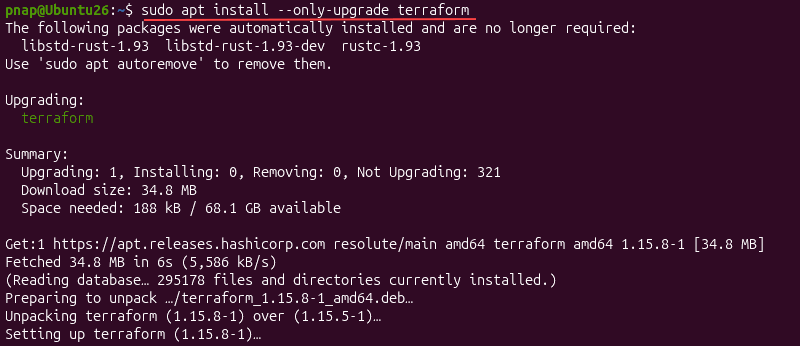
Once the upgrade is complete, check the version again:
terraform versionThe new Terraform version is v1.15.8.

After that, run:
terraform fmt -recursiveThis step is important as the new version might change formatting. Review the changes before committing, especially if you made other changes to the configuration.
terraform fmt Best Practices
Follow these best practices when using terraform fmt:
- Run
terraform fmtoften. The command takes only a few moments to complete. Use it every time after you edit configuration files, even several times as you work, to keep your files consistent. - Format files before other Terraform checks. Run
terraform fmtbefore theterraform validate,terraform plan, orterraform applycommands. This way, you can identify formatting issues early and keep them separate from problems with the configuration itself. - Make sure everyone uses the same Terraform version. Check the version used by developers, Git hooks, and CI/CD environments and keep them aligned to avoid formatting mismatches.
- Run
terraform fmtafter upgrading Terraform. A newer Terraform release may introduce changes to its canonical formatting style. To apply those changes after an upgrade, reformat the files that were formatted under the previous version. - Use the
-checkoption in CI/CD pipelines. The non-zero exit status returned by the-checkoption is ideal for automated workflows. A pipeline can use this status to stop the formatting check automatically without modifying the files. - Review formatting changes before committing them. This is especially useful after running
terraform fmt -recursiveor upgrading Terraform, when several files may change at once. Use the-diffoption if you want to see exactly what formatting changes Terraform makes. - Do not adjust formatting manually. You still need to edit configuration when there are syntax errors or invalid characters, but there is usually no reason to fix indentation, alignment, or spacing manually. Let Terraform handle these changes, so that everyone working on the project can reproduce the same formatting.
Conclusion
In this guide, you learned how the terraform fmt command works, when to use it, and how it helps keep your configuration files consistent.
If you are looking for a provider, read our Terraform providers guide to discover how they connect Terraform to platforms like phoenixNAP Bare Metal Cloud.