Before you plan or deploy your configuration, you need to run a few Terraform commands first.
terraform validate is one of these commands. Developers use it to check that their Terraform code is valid, consistent, and follows Terraform's configuration syntax.
Find out how the terraform validate command works and where it fits into your Terraform project workflow.
What Is the terraform validate Command?
The terraform validate command looks for syntax errors and inconsistencies in the Terraform configuration. It checks if:
- All the required arguments are included.
- The HashiCorp Configuration Language (HCL) syntax is valid.
- Resources, modules, and variables are correctly referenced.
- Arguments use the expected names and match the provider's schema.
- Values use the expected data types.
When the command finds an issue, it does not change the configuration or deploy infrastructure. It just shows the errors and warnings in the terminal. If there are no issues, Terraform confirms the configuration is valid.
How Does terraform validate Work?
terraform validate is a standard Terraform CLI command. You run it in your terminal from the current working directory. For it to work, Terraform needs access to the providers and modules referenced by your configuration.
This means you need to run terraform init to initialize your working directory before using terraform validate. Most developers follow this order, placing the validation in the middle of their workflow:
terraform fmtterraform initterraform validateterraform planterraform apply
Even if your configuration passes validation, it does not guarantee your infrastructure can be deployed. The terraform validate command does not connect to provider APIs or check if the resources you want to create are available.
To see how the configuration will actually work with real values and existing infrastructure, you need to run terraform plan.
terraform validate vs. terraform fmt
Both terraform fmt and terraform validate are used to check a Terraform configuration before deployment. However, there are subtle differences between them:
| terraform validate | terraform fmt | |
|---|---|---|
| Use to | Check syntax, attribute and argument names, and the overall structure of the configuration. | Fix spacing, indentation, and alignment in Terraform configuration files. |
| Behaviour | It reports validation errors but does not change the configuration. | Automatically rewrites .tf files that need formatting. |
| Place in workflow | Best to use after terraform init and before terraform plan. | Usually, the first command to run after writing or editing Terraform files. |
| CI/CD workflow | Used to detect invalid configuration before moving on to the planning or deployment stages. | Mainly used with the -check option to make sure .tf files are correctly formatted. |
Note: terraform validate is a useful tool in Infrastructure as Code workflows because it helps you find problems early and makes deployments more predictable.
terraform validate Syntax
The basic syntax is:
terraform validate [options]If you run the command without any options, Terraform validates the configuration in the current working directory. Terraform treats all the .tf configuration files in the directory as one configuration and validates them together.
terraform validate Flags
The following four options are often used with the terraform validate command:
| Option | Description |
|---|---|
-json | Returns validation results in JSON format. It also disables color in the output. |
-no-color | Removes terminal color codes from the output. |
-var="[name]=[value]" | Provides a value for an input variable in the current Terraform configuration. You can use it multiple times in the same command to set different values. |
-var-file=[filename] | Loads input variable values from a variable file. You can use it several times to load multiple files. |
If you use Terraform in an automated environment, you will mostly use the -json and -no-color options. For example, you can use -json when another tool needs to process the validation results, and -no-color when you want plain text output without any terminal formatting.
terraform validate Examples
The following examples use Terraform configurations for phoenixNAP Bare Metal Cloud (BMC). However, the terraform validate command works the same way with other Terraform providers.
Validating a Basic BMC Infrastructure Configuration File
This example main.tf file contains a BMC server configuration. There is a deliberate mistake in the setup. The server_type argument is not valid for a pnap_server resource:
terraform {
  required_providers {
    pnap = {
      source = "phoenixnap/pnap"
      version = "~> 0.33.0"
    }
  }
}

provider "pnap" {}

resource "pnap_server" "database_server" {
  hostname = "database-server-3"
  os = "ubuntu/jammy"
  server_type = "s2.c2.medium"
  location = "ASH"
  install_default_ssh_keys = true
}
Before you validate the configuration for the first time, you need to initialize the directory:
terraform initTerraform will download the required provider and set up the directory. You can now validate the configuration:
terraform validateTerraform displays two errors.
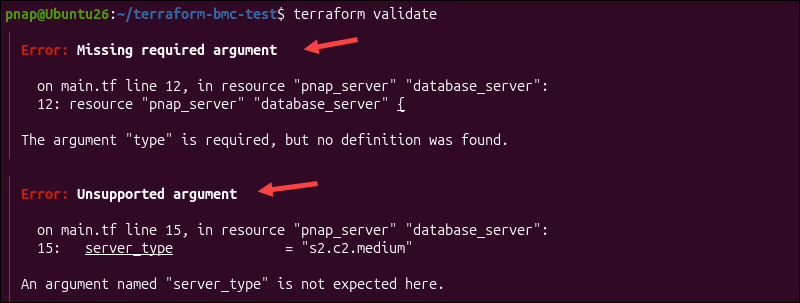
The first error indicates that the required type argument is missing from the configuration. The second error points out an unexpected argument called server_type on line 15 of the main.tf file.
To fix the issue, you need to open the main.tf file and change:
server_type = "s2.c2.medium"to:
type = "s2.c2.medium"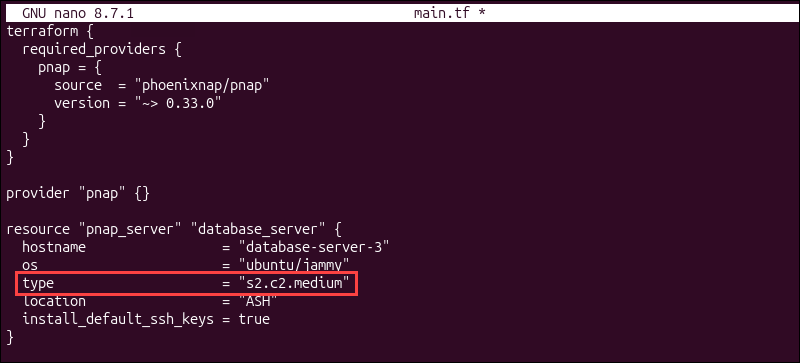
Save the file and run the validation command again:
terraform validateIf there are no more issues, Terraform returns:
Success! The configuration is valid.
At this stage, Terraform has checked that your configuration is valid and matches the installed provider schemas. It has not created the BMC server or contacted the BMC API yet.
Integrating terraform validate into Automated CI/CD Pipelines
The terraform validate command does not need to access remote infrastructure, which makes it very useful for CI/CD and automated tasks. It helps you find configuration problems before the pipeline starts planning or deploying infrastructure.
For example, the validation stage of your pipeline can start by checking the formatting of all Terraform files:
terraform fmt -check -recursiveThis command includes the following options:
-check. Reviews the formatting without making any changes.-recursive. Checks configuration files in all subdirectories.
If the formatting check fails, the pipeline can stop before moving on to validation. Once the formatting check is complete, initialize the working directory:
terraform init -backend=false -input=falseIn this command:
-backend=false. Skips the backend initialization.-input=false. The operation can continue without waiting for user input.
After the initialization finishes, run:
terraform validate -no-colorThe -no-color option removes terminal color codes so the results are easier to read in CI/CD logs. If the validation fails, you can configure the pipeline to stop before Terraform starts working with the actual deployment.
Once the validation step is successful, the pipeline can move on to the planning stage.
Parsing Machine-Readable Validation Output with jq
terraform validate provides output meant for people, which means it is not ideal for tools and scripts. Use the -json option to get a JSON object that is easier for machines to process:
terraform validate -jsonThe output shows if the configuration is valid, how many errors and warnings there are, and diagnostic information about each issue.

To extract specific details from this output, you need to use the jq command-line tool, which filters and reads the JSON data. If you have jq installed, try the following command:
terraform validate -json | jq '{valid, error_count, warning_count}'The pipe character (|) passes the JSON output from terraform validate to jq. The jq expression then selects the valid, error_count, and warning_count fields, leaving out the rest. In this example, the configuration is valid:

valid. This value istrue, which means the configuration is valid.error_count. The value is0, which means there are no errors.warning_count. There are no warnings, and the value is also0.
If Terraform finds issues, the JSON output will include a diagnostics[] section with details about each error or warning.
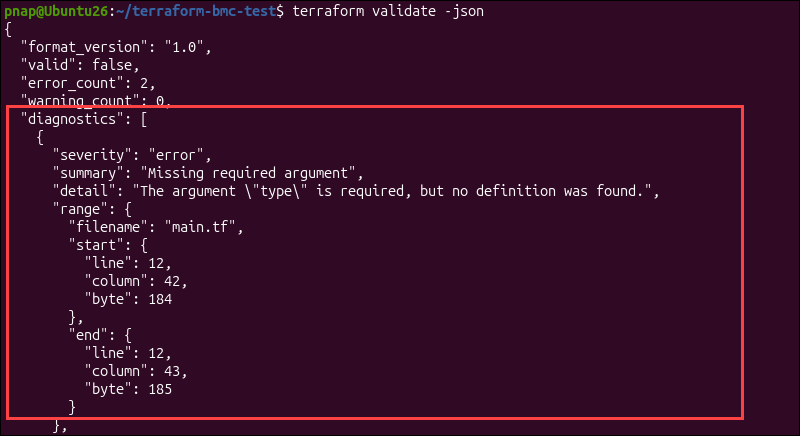
The diagnostics section can be quite long and detailed. You can use jq to extract only key parts of the validation result. For example, to show the severity of the issue and a short description of each problem, run:
terraform validate -json | jq -r '.diagnostics[] | "\(.severity): \(.summary)"'In this command:
.diagnostics[]. Loops through each diagnostic returned by Terraform..severity. Extracts the severity of the diagnostic, such aserrororwarning..summary. Extracts a short description of the problem.-r. Tells jq to print the result as plain text instead of a JSON string.
For example, for the previous invalid configuration, the terminal displays the following messages:
error: Missing required argument
error: Unsupported argument
Using jq to filter diagnostics makes your CI/CD pipelines and scripts more efficient. They can only use the information they need instead of processing the entire JSON response.
terraform validate Common Errors and Troubleshooting
This section covers common validation problems and explains how to solve them.
Resolving Initialization and Missing Provider Errors
Initialization errors are very common when you try to validate a new working directory.
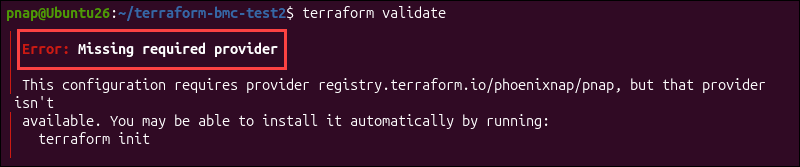
The Missing required provider error in this example occurred because Terraform cannot validate the configuration using only .tf files. It also needs access to the provider plugins and modules referenced by the configuration.
This means you need to initialize the working directory and install the required dependencies beforehand. Whenever you create a new project directory, run this command to initialize it:
terraform init Terraform will read your configuration, download the providers and modules, and get the directory ready for other Terraform commands.
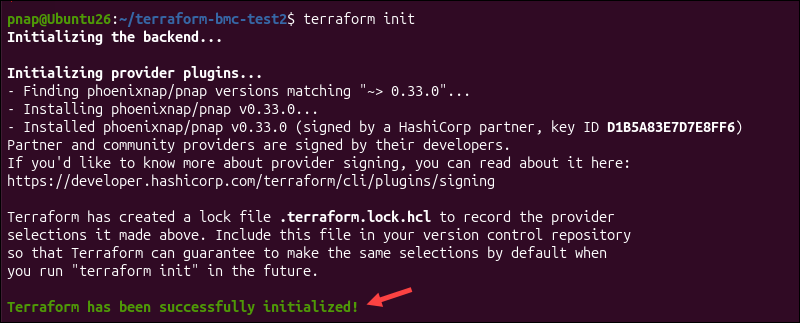
If you only want to prepare for validation without setting up the backend, use the -backend=false option:
terraform init -backend=falseEven though Terraform skips initializing the backend, the providers and modules will still be available. You can validate the configuration using:
terraform validate
After following these steps, the Missing required provider error should be resolved.
Fixing Common Configuration Errors
The neat thing about Terraform error messages is that they are detailed and explain where the problem is. The terraform validate command works the same way.
It tells you which file or part of the configuration caused the issue, including the file name, argument, data type, and even the exact line number.
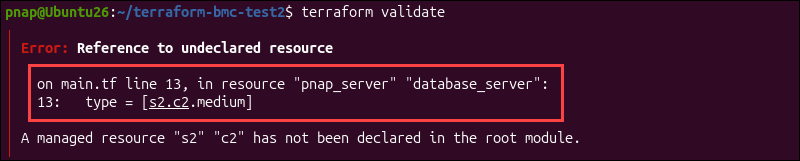
The most common configuration file errors include:
- Undeclared variables.
- Missing resource arguments.
- Incorrect resource references.
- Data type mismatches.
If you get one of these errors, read the error message and find the part of your setup that needs fixing. Update the code, save your changes, and run terraform validate again. For example, Terraform checks if references point to resources that actually exist in the configuration. This is an example BMC server:
resource "pnap_server" "email_server" {
  hostname = "email-server"
  os = "ubuntu/jammy"
  type = "s1.c1.small"
  location = "CHI"
}
However, the outputs.tf file refers to a different resource name:
output "server_id" {
  value = pnap_server.bmc_server.id
}
Terraform cannot find a resource called pnap_server.bmc_server, so it reports this as an invalid reference.
Open the outputs.tf file and change the reference to use the correct email_server resource name:
output "server_id" {
  value = pnap_server.email_server.id
}
Save the changes and run:
terraform validateYou can repeat these steps for other configuration errors. Use the validation message to find the problem, fix the configuration, and run the command again until everything checks out.
Troubleshooting Errors That Appear After Validation
Validation only checks if your configuration is valid and consistent. It does not check if deployment values, credentials, remote resources, or provider APIs will actually work.
In other words, even if your configuration passes validation, there is no guarantee that terraform plan or terraform apply will succeed.
Sometimes, a location or server type might not be available, provider credentials could be wrong, or Terraform might not be able to reach the remote service it needs for deployment. Validation cannot detect or fix any of these issues.
Note: As your deployments become more complex, it can be hard to inspect and review them. Here are best Terraform visualization tools that can help you spot issues in your configurations.
If an error happens during planning or deployment, treat it as a separate issue and do not change the configuration right away. First, check the input values, remote state, workspace settings, and credentials specific to that run.
terraform validate Best Practices
Follow these best practices when using terraform validate:
- Use
terraform fmtbeforeterraform validateto fix formatting issues before checking the configuration syntax. - You should run
terraform validatewhenever you create or update configuration files. This helps you catch problems before moving on to the planning stage and is especially useful in CI/CD workflows. - Every time you create a new working directory, use
terraform initto initialize it. This step letsterraform validateaccess the providers and modules referenced by the configuration. - Use the
-jsonoption if another program needs to process validation results. Machine-readable output is more reliable for automation than parsing Terraform's regular terminal messages. - A successful validation does not mean that a deployment will work. Always follow up with
terraform planto check the configuration with the real values and environment you plan to use. - When troubleshooting, read the full diagnostic message before changing the code. The message usually points out the file, line, and resource where the problem occurred so you can find it faster.
Conclusion
You can now validate Terraform configurations and find mistakes well before you start planning or deploying infrastructure.
Validation is just an early check and does not guarantee your deployment will work. To see how the configuration behaves with real infrastructure, you need to run the terraform plan command.