Terraform is an Infrastructure as Code (IaC) tool that uses configuration files to define and manage infrastructure. Before Terraform can create or modify resources, it must prepare the working directory and install the dependencies required by the configuration.
The terraform init command performs this initial setup and prepares the directory for other Terraform commands.
This guide will explain what the terraform init command does, how its syntax and options work, and how to use it for common provider, module, backend, CI/CD, and offline workflows.
Prerequisites
- A Linux system (this tutorial uses Ubuntu 26.04).
- Access to the terminal.
- Terraform installed.
- A user account with permission to run Terraform commands.
What Is terraform init Command?
The terraform init command initializes a Terraform working directory and prepares it for other Terraform operations. During initialization, Terraform configures the backend, installs the providers required by the configuration, downloads referenced modules, and creates or updates the dependency lock file when necessary. It is safe to run terraform init multiple times, including after you change the provider, module, or backend configuration.
Initialization prepares the working directory, but it does not create, modify, or destroy infrastructure. Resource changes are evaluated separately by commands such as terraform plan and terraform apply, which are explained in the following sections.
terraform init vs. terraform plan
terraform init and terraform plan serve different purposes in the Terraform workflow. Initialization prepares the working directory and its dependencies, while planning evaluates the configuration against the current state and determines what changes Terraform would make to the managed infrastructure.
The main differences are:
terraform init. Prepares the working directory by configuring the backend and installing required providers and modules.terraform plan. Creates an execution plan that shows the resource changes required to make the infrastructure match the configuration. It does not apply those changes.
A working directory must be initialized before commands that depend on its initialized configuration can run. Therefore, terraform init runs before terraform plan in the Terraform workflow.
terraform init vs. terraform get
Both terraform init and terraform get download Terraform modules, but terraform init performs the broader initialization required by a working directory. terraform get is limited to downloading and updating modules and does not perform the other initialization tasks Terraform requires.
The distinction is important:
terraform init. Initializes the working directory, including backend configuration, provider installation, module installation, and dependency locking.terraform get. Downloads or updates modules declared by the root module.
terraform get is useful for niche workflows, while terraform init suits most users.
terraform init Syntax
You can run the terraform init command with no options. However, flags control provider and module upgrades, backend configuration, state migration, locking, and command output.
The following sections explain the standard syntax and the most useful terraform init flags and options.
Standard Command-Line Syntax
The standard terraform init syntax is:
terraform init [options]The options are not mandatory. When you run terraform init without any options, it initiates the workflow for the current Terraform working directory. Terraform initializes the configured backend, installs the providers and modules required by the configuration, and creates or updates the dependency lock file when necessary.
Terraform init Flags and Options
The flags extend the standard initialization workflow for situations that require more control or specific behavior. Other options are useful when you run Terraform in automation or need to control provider installation.
The following table presents the most relevant terraform init options and explains when to use each:
| Option | Description |
|---|---|
-upgrade | Upgrades previously selected providers and modules to the newest versions allowed by the configured version constraints. For providers, Terraform ignores the selections recorded in .terraform.lock.hcl when choosing the new version. |
-reconfigure | Reinitializes the backend using the current configuration without attempting to migrate existing state from the previous backend configuration. |
-migrate-state | Attempts to migrate existing state to a newly configured backend. Terraform may request confirmation before migrating workspace state. |
-force-copy | Automatically approves state migration prompts. This also enables -migrate-state. |
-backend-config=... | Provides additional backend configuration through command-line arguments or a configuration file. This is useful when some backend settings are supplied separately from the Terraform configuration. |
-backend=false | Skips backend initialization. Use this only for workflows where the working directory has already been initialized with its backend, because some other initialization steps depend on an initialized backend. |
-input=false | Disables interactive input. Terraform returns an error instead of waiting for input when initialization requires information that was not provided. This is useful in CI/CD environments. |
-lock=false | Disables state locking during state-related operations performed by initialization. |
-lock-timeout= | Specifies how long Terraform waits to acquire a state lock before failing. The default is 0s, which means Terraform fails immediately if the lock is already held. |
-lockfile=readonly | Prevents Terraform from modifying .terraform.lock.hcl while still verifying provider checksums against the entries already recorded in the file. |
-plugin-dir= | Forces provider installation to use providers from the specified directory. This is intended for exceptional cases, such as testing a locally built provider. |
-get=false | Skips child module installation. This is intended for specific workflows where the modules have already been initialized. |
-json | Produces machine-readable JSON output, which is useful when another tool needs to process Terraform's output. |
-no-color | Disables color codes in command output, which makes logs easier to read or process in automated environments. |
terraform init Examples
Practical examples demonstrate how terraform init prepares a Terraform working directory and handles changes to its providers, modules, and backend configuration. These scenarios show when initialization is required and how the command behaves as a BMC-oriented Terraform configuration evolves.
The following examples demonstrate common terraform init workflows.
Note: The examples in the following sections are performed in phoenixNAP's Bare Metal Cloud environment. Learn more about our automation tools and how to handle Bare Metal Cloud deployments.
Initializing a Bare Metal Cloud Environment for the First Time
When you create a new Terraform project for Bare Metal Cloud (BMC), the first step is to initialize its working directory. The terraform init command reads the provider requirements in the Terraform configuration, downloads the required provider, and creates the files and directories Terraform needs for subsequent operations.
Terraform identifies a provider in the required_providers block using the following general syntax:
terraform {
  required_providers {
    [provider-name] = {
      source  = "[provider-source]"
      version = "[version-constraint]"
    }
  }
}
The [provider-name] is the local name Terraform uses to refer to the provider in the configuration. The source argument identifies where Terraform obtains the provider, while version specifies the versions the configuration allows.
For this example, we use the pnap provider from phoenixNAP to manage Bare Metal Cloud resources. The phoenixNAP Terraform provider provisions and manages BMC infrastructure.
Follow the steps below to create and initialize a new Terraform working directory.
1. Use mkdir to create a directory named bmc-terraform and cd to navigate to it:
mkdir bmc-terraform && cd bmc-terraform2. Use Nano or a different text editor to create a file named main.tf:
nano main.tf3. Add the following configuration to main.tf:
terraform {
  required_providers {
    pnap = {
      source  = "phoenixnap/pnap"
      version = "0.33.0"
    }
  }
}

provider "pnap" {
}
The required_providers block tells Terraform which provider the configuration requires. Here, pnap is the local provider name, phoenixnap/pnap is the provider source, and 0.33.0 specifies the provider version to install.
The provider "pnap" block declares the provider for use by the configuration. This initialization example requires no provider-specific settings.
4. Use ls to verify main.tf exists in the project directory:
ls
The output includes only main.tf. The.terraform directory or .terraform.lock.hcl file do not exist yet because the working directory has not been initialized.
5. Run terraform init to initialize the working directory:
terraform init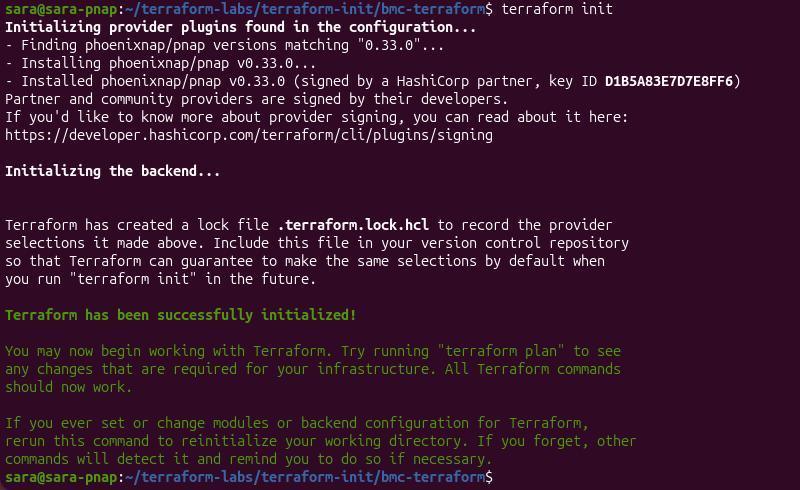
Terraform reads the provider requirement in main.tf, downloads phoenixnap/pnap v0.33.0, and initializes the working directory. It also creates .terraform.lock.hcl to record the selected provider version and checksums. The command completes with a message confirming the configuration was initialized successfully.
6. Use ls -la to review the files created during initialization:
ls -laThe directory now contains the .terraform directory and .terraform.lock.hcl file in addition to main.tf.
The .terraform directory contains working-directory data, including the installed provider. The .terraform.lock.hcl file records the provider selection and checksums so Terraform can maintain consistent provider installations across subsequent initializations.
The Terraform working directory is now initialized and ready for the next Terraform operation. The configuration has not created or modified any Bare Metal Cloud resources because terraform init prepares Terraform and its dependencies rather than applying infrastructure changes.
Upgrading phoenixNAP BMC Provider to the Latest Release
Terraform uses the provider version recorded in the dependency lock file when that version satisfies the version constraint in the configuration.
This file, stored as .terraform.lock.hcl, records the specific provider versions and checksums Terraform selected for the configuration. This helps Terraform use consistent provider versions across subsequent runs unless the configuration or an explicit upgrade changes the selection.
Therefore, changing the configuration to allow a newer provider version does not cause Terraform to install that version. Use the -upgrade option with terraform init to make Terraform check for newer provider versions that satisfy the configured constraints.
For example, if the project currently uses an older version of the phoenixNAP provider, update the version constraint in main.tf to allow the newer release:
terraform {
  required_providers {
    pnap = {
      source  = "phoenixnap/pnap"
      version = "~> 0.33"
    }
  }
}

provider "pnap" {
}
The ~> 0.33 constraint allows Terraform to select compatible 0.33.x releases. In this example, Terraform selects 0.33.0.
Run the following to update the provider:
terraform init -upgrade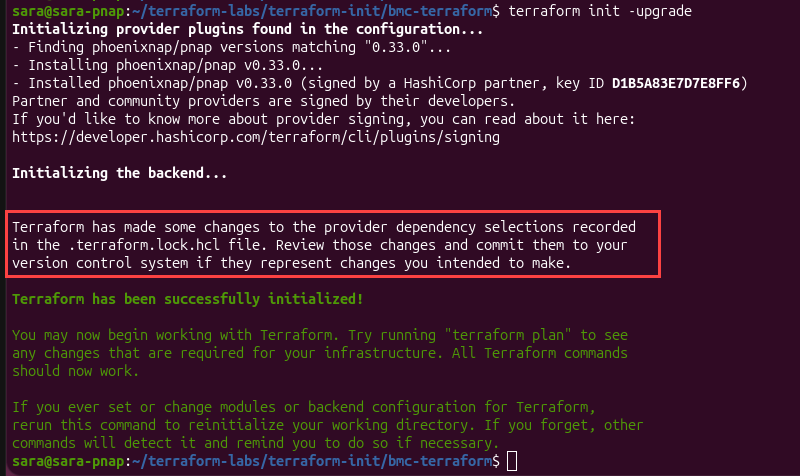
Terraform checks for provider versions that satisfy the updated constraint and installs the selected version. The output also reports that Terraform changed the provider dependency selections recorded in .terraform.lock.hcl.
The -upgrade option is useful when a provider has released a newer version, and you want Terraform to reconsider the provider version currently recorded in the lock file. Without -upgrade, Terraform normally continues using the locked version when it satisfies the configuration's version constraint.
To verify the selected provider version in the lock file, use grep:
grep 'version' .terraform.lock.hcl
The provider is now upgraded to the latest version, and the updated dependency selection is recorded in .terraform.lock.hcl for subsequent Terraform operations.
Reinitializing a Working Directory After Adding a BMC Module
Terraform modules organize related infrastructure resources into reusable components.
A Terraform project can contain a root module, which consists of the configuration files in the main project directory, and one or more child modules stored in separate directories.
In this example, the root module contains the main BMC configuration, while modules/server contains the configuration for a reusable BMC server component.
Take the following steps:
1. Create a modules/server directory for the child module. Keeping the module in its own directory separates its configuration from the root module and allows the root configuration to reference it as a separate component.
2. Use nano to create main.tf inside the modules/server directory:
nano modules/server/main.tf3. Add the BMC server resource to the file:
terraform {
  required_providers {
    pnap = {
      source = "phoenixnap/pnap"
    }
  }
}

resource "pnap_server" "example" {
  hostname = "terraform-init-example"
  os       = "ubuntu/jammy"
  type     = "s1.c1.small"
  location = "PHX"
}
The resource belongs in the child module because the module is responsible for defining the BMC server component. The root main.tf instead calls the module, keeping the root configuration separate from the resources managed by the module.
4. Add the following module block to the root main.tf:
module "server" {
  source = "./modules/server"
}
The source argument tells Terraform where to find the child module. Here, ./modules/server points to the module directory within the current project.
5. Run terraform init from the root project directory:
terraform init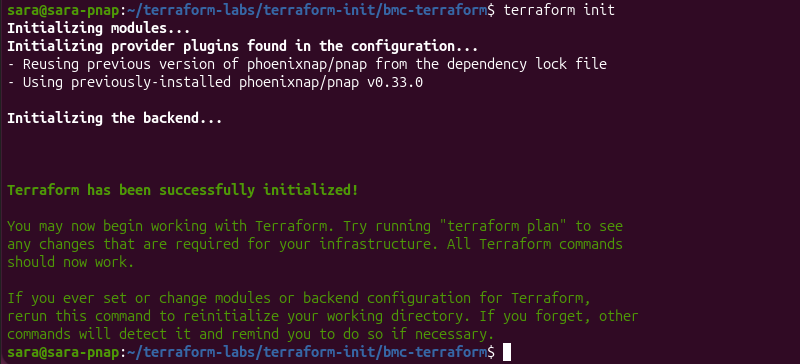
Terraform detects the newly referenced module and initializes it before processing the provider configuration. The output shows the module path and confirms Terraform initialized successfully.
Executing Headless Backend Initialization inside a CI/CD Pipeline
CI/CD pipelines run Terraform without a user needed there to answer prompts. That makes interactive initialization a problem because if Terraform needs input, the pipeline can stall indefinitely.
Use terraform init -input=false to make initialization headless by telling Terraform to proceed without prompting. As part of initialization, Terraform also initializes the configured backend, which determines where Terraform stores and accesses its state.
In the example, the project uses Terraform's default local backend to demonstrate the complete non-interactive initialization workflow without setting up a remote state service.
Run the following command from the Terraform project directory:
terraform init -input=false
The -input=false option tells Terraform not to request interactive input during initialization. It does not automatically supply missing values, credentials, or configuration. If Terraform needs information not provided through the configuration or another supported mechanism, the command fails instead of waiting for a user to provide it.
After the command initializes the modules referenced by the configuration, Terraform checks the provider dependency recorded in .terraform.lock.hcl and reuses the provider already installed in the working directory:

Terraform next initializes the configured backend. Because this project uses the default local backend, this example doesn't involve a remote state backend:
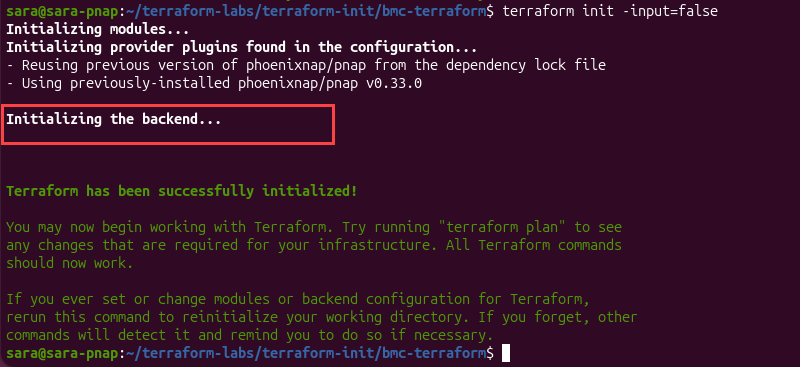
Terraform completes the initialization without requesting input:
The successful result shows -input=false does not change what Terraform initializes. Terraform still initializes the modules, resolves the required providers, and initializes the backend. The option only changes how Terraform handles interactive input, making the command suitable for unattended execution.
In a CI/CD pipeline, provide all required configuration, credentials, and other inputs through non-interactive mechanisms before running terraform init -input=false. This lets the pipeline fail immediately when required information is missing, instead of waiting indefinitely for manual input.
Reconfiguring a Terraform Working Directory After Backend Changes
Terraform uses a backend to determine where it stores and accesses state. The default local backend stores state on the local filesystem. Backend settings are part of the Terraform working directory's initialization data, so changing those settings requires Terraform to reinitialize the working directory.
For example, the project can explicitly configure the local backend and specify the path where Terraform should store its state:
terraform {
  backend "local" {
    path = "terraform.tfstate"
  }

  required_providers {
    pnap = {
      source  = "phoenixnap/pnap"
      version = "~> 0.33"
    }
  }
}
The path argument specifies the location of the local state file. In this example, Terraform uses terraform.tfstate in the project directory.
Running terraform init initializes the explicit backend configuration:
terraform initThe backend configuration can later change. For example, change the path argument to:
backend "local" {
  path = "bmc-state/terraform.tfstate"
}
This keeps the local backend but changes the location where Terraform stores its state.
When an already initialized backend configuration changes, Terraform requires reinitialization. Use terraform init -reconfigure to tell Terraform to disregard the previously initialized backend configuration and use the current settings instead.
Enter this command:
terraform init -reconfigure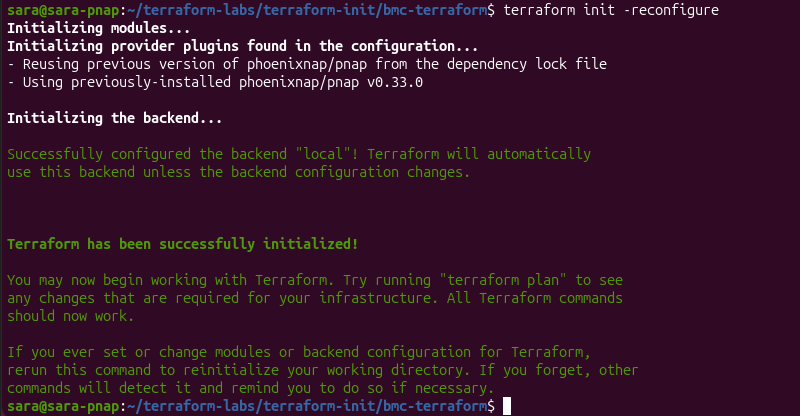
The output shows Terraform initializing the modules and provider configuration again, followed by the backend initialization:
The new backend configuration is recorded in .terraform/terraform.tfstate. Verify the configured state path with:
grep -A5 '"backend"' .terraform/terraform.tfstate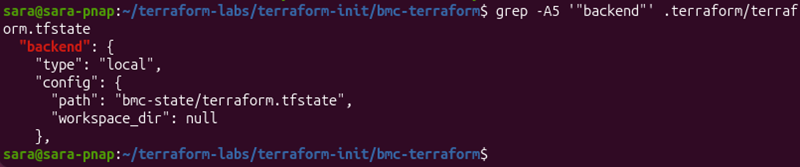
terraform init Common Mistakes
Errors during terraform init occur when Terraform cannot access or interpret one of the dependencies required to initialize the working directory. Backend configuration, provider versions, module sources, and network access can all affect initialization. Understanding the cause of an initialization error helps prevent unnecessary changes to the configuration or dependency files.
The following sections cover common terraform init errors and the steps to resolve them.
Resolving Backend Initialization and Credentials Authentication Errors
Backend initialization fails when Terraform cannot connect to the configured backend or authenticate with it. This is particularly common with remote backends, where Terraform needs valid credentials and sufficient permissions to access the state storage.
Common causes include:
- Missing or expired credentials.
- Credentials that do not have permission to access the backend.
- Incorrect backend configuration, such as an invalid bucket, workspace, endpoint, or region.
- Network access restrictions that prevent Terraform from reaching the backend.
- Credentials supplied directly in backend configuration instead of through a safer mechanism.
For remote backends, provide credentials through environment variables or the backend's supported authentication mechanism rather than hardcoding sensitive values in the Terraform configuration. Backend configuration can be stored locally, so putting credentials directly into backend configuration can expose them on the system.
If initialization reports an authentication error, first verify the credentials are available to the process running Terraform and that they have the required permissions. Then verify the backend configuration before reinitializing.
Fixing Provider Version Incompatibilities and Dependency Lock Conflicts (.terraform.lock.hcl)
Terraform uses .terraform.lock.hcl to record the provider versions and checksums selected for a configuration. This allows subsequent terraform init runs to reuse the same provider selections instead of selecting new versions each time.
A common problem occurs when the provider version constraints in the configuration change, but the version recorded in the lock file no longer satisfies that constraint. Terraform sometimes reports an error that indicates the locked provider does not match the configured version constraint.
The appropriate action depends on the situation:
| Situation | Action |
|---|---|
| The existing locked version is still valid. | Run terraform init and let Terraform reuse it. |
| User intentionally changed the provider version constraint. | Run terraform init -upgrade to allow Terraform to select a different matching version. |
| The lock file contains unintended changes. | Review the changes before storing the file to version control. |
| The configuration must run on additional platforms. | Ensure the lock file contains the required provider checksums for those platforms. |
Do not delete .terraform.lock.hcl because initialization reports a version conflict. First determine whether the configuration or the locked dependency selection needs to change. The lock file is intended to provide consistent provider selections across environments.
Handling Network Timeouts and Failed Provider Registry Downloads
During initialization, Terraform sometimes needs to contact a provider registry to find or download provider packages. A network problem can prevent initialization even when the Terraform configuration itself is valid.
Typical problems include:
- Connection timeouts.
- DNS resolution failures.
- TLS or certificate errors.
- Proxy or firewall restrictions.
- Interrupted provider downloads.
- Temporary connectivity problems.
To fix the issue, check whether the machine running Terraform can reach the required provider registry. If the environment uses a proxy or firewall, verify Terraform can make the required connections. For restricted or offline environments, Terraform can use a filesystem or network mirror to install providers instead of downloading them directly from their normal sources.
Avoid repeatedly running terraform init -upgrade as a troubleshooting step. If the problem is network connectivity, upgrading dependencies does not solve the underlying connection failure.
Debugging Missing Module Source Paths and Invalid Git URLs
Terraform initializes child modules by reading their source arguments and retrieving the referenced module from the specified location. A module initialization error usually indicates an issue with the module source, not Terraform itself.
For local modules, verify the referenced directory exists relative to the root module. For example:
module "server" {
  source = "./modules/server"
}
The ./modules/server directory must exist and contain valid Terraform configuration files.
For Git-based modules, check that:
- The Git repository URL is correct.
- The Git repository is accessible from the machine running Terraform.
- The requested branch, tag, or commit exists.
- Authentication is configured if the repository is private.
- The
sourcesyntax is valid.
If a module's source changes, run terraform init again so Terraform can retrieve the module using the new source. Use -upgrade when you specifically want Terraform to update installed modules.
Addressing State Migration Failures During Remote Backend Re-configuration
Changing a backend is more significant than changing an ordinary Terraform setting because the backend determines where Terraform stores and accesses state. Therefore, Terraform requires reinitialization when the backend configuration changes.
The -reconfigure and -migrate-state options address different situations
-reconfigure. Tells Terraform to disregard the previously initialized backend configuration and use the current configuration without migrating existing state.-migrate-state.Tells Terraform to move existing state to the newly configured backend.
The following diagram shows when to use these two arguments when changing a backend configuration.
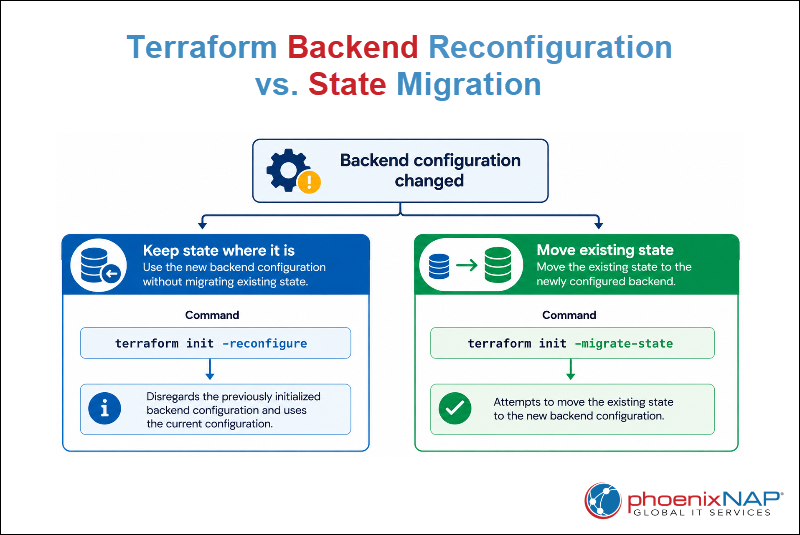
Before changing or migrating a backend, back up the existing state and verify the destination backend is correctly configured. This reduces the risk of losing access to the state or causing Terraform to use an unintended state file.
If migration fails, do not repeatedly retry with different backend settings without first determining where the existing state resides and whether the destination is accessible. An incorrect backend configuration can cause Terraform to use the wrong state, which can affect managed infrastructure.
terraform init Best Practices
Using terraform init correctly helps keep provider versions, modules, backend configuration, and automated Terraform environments consistent.
The following best practices help keep Terraform initialization predictable and maintainable:
- Run
terraform init after cloning or creating a Terraform configuration. Initialize a working directory before Terraform can perform operations such as planning or applying infrastructure. - Store .terraform.lock.hcl in version control. The lock file records provider selections and checksums so different environments can use consistent provider versions.
- Use
terraform init -upgradeintentionally. Use it when you want Terraform to reconsider existing provider or module selections rather than as part of every initialization. - Run
terraform initafter changing providers, modules, or backend configuration. Reinitializing the working directory ensures Terraform uses the updated dependencies and configuration. - Use
-input=falsein automated environments. CI/CD jobs should not wait for interactive input. Provide required configuration and credentials through non-interactive mechanisms before running Terraform. - Keep backend credentials out of Terraform configuration files. Use environment variables or the backend's authentication mechanism instead of hardcoding sensitive credentials.
- Back up state before changing or migrating backends. Verify the destination backend and determine whether the operation requires
-reconfigureor-migrate-state. - Do not store the .terraform directory. Terraform manages this directory locally, and it can contain cached providers, modules, and backend configuration.
- Use provider installation mirrors for restricted environments. Configure an appropriate provider installation method when Terraform runs in an air-gapped or otherwise restricted environment.
- Review dependency changes before storing them. Review changes to .terraform.lock.hcl after using
-upgrade and make only intentional changes.
Conclusion
This article explained what the terraform init command is, its syntax, and common options. It also elaborated on how the command works using different practical examples. The tutorial also presented common terraform init mistakes and best practices.
Next, learn how other Terraform commands work, such as terraform fmt, terraform import, terraform destroy, and terraform count meta-argument.