Projects running on Infrastructure as Code platforms depend on predictable workflows that show state changes before execution. Execution previews help prevent problems such as syntax misconfiguration, unauthorized state drift, and unintended resource destruction.
This article will provide an overview of the terraform plan command. It includes basic syntax, practical usage examples, and troubleshooting strategies.
What Is terraform plan Command?
The terraform plan command creates an execution preview by examining declarative configuration files against current state data. Use this command to inspect proposed infrastructure changes before applying them.
When the plan command is executed, Terraform:
- Reads local standard config files containing TF extensions.
- Reads existing state data stored locally or within remote backends.
- Issues concurrent read calls to provider APIs to refresh resource attributes.
- Constructs a directed acyclic graph (DAG) to trace dependency chains across defined resources.
- Compares live resources to the configuration files to show needed changes.
The command output is a textual summary containing attribute values, force-replacement notices, and total counts across additions, changes, and destructions. It details specific actions using the following indicators:
- A plus symbol (
+) denotes resource creation. - A minus symbol (
-) signals resource destruction. - A tilde symbol (
~) indicates in-place resource modification. - A combined minus-then-plus symbol (
-/+) highlights resource destruction followed by recreation. This action is triggered when changes target immutable resource parameters.
terraform plan vs. terraform apply
The terraform plan command is a read-only dry-run mechanism. It queries remote provider APIs to inspect current configurations, computes deltas, and prints execution outcomes without making changes on target infrastructure.
In contrast, terraform apply executes explicit API write operations to create, update, or destroy infrastructure resources.
Note: While terraform apply automatically triggers an internal plan phase before prompting for execution approval, running terraform plan enables decoupled review phases within CI/CD pipelines.
terraform plan vs. terraform refresh
The terraform refresh command queries remote cloud provider APIs to update stored state files with real-world infrastructure parameters. It does not read local HCL config files, calculate infrastructure deltas, or display proposed changes.
The terraform plan command incorporates state refreshing as a preliminary sub-routine, followed by HCL comparison and execution graph calculation.
Note: HashiCorp guidelines recommend using terraform plan -refresh-only instead of the legacy terraform refresh command to safely review state drift.
terraform plan Syntax
Terraform parses passed command arguments sequentially. It applies configuration overrides, state targets, and output directives before reading core HCL files. Use specific syntax variations to control variable inputs, execution concurrency, state file locations, and output styling.
Standard Command-Line Syntax
The basic terraform plan syntax accepts target directory paths and options:
terraform plan [options] [directory]When executed without arguments, Terraform targets the current working directory. It checks for initialized .terraform directories containing provider plugins and module sources. Execution fails if configuration parsing errors occur or if required provider plugins are uninitialized.
terraform plan Options
Optional command parameters modify plan generation behavior and control output formats. The table below contains the available terraform plan options:
| Option | Type | Description |
|---|---|---|
-out=[path] | String path | Saves generated execution plan binary file to target disk path. |
-var '[key]=[value]' | Key-value pair | Sets individual input variable value directly via command line interface. |
-var-file=[path] | File path | Loads variable definitions from specified .tfvars or .tfvars.json file. |
-target=[address] | Resource address | Limits plan scope exclusively to specified resource and its dependencies. |
-refresh-only | Boolean flag | Inspects real-world state drift without proposing HCL configuration changes. |
-no-color | Boolean flag | Disables terminal color formatting codes for plain text log compatibility. |
-destroy | Boolean flag | Generates a specialized execution plan aiming to destroy all tracked resources. |
-detailed-exitcode | Boolean flag | Returns specific numeric exit codes based on plan comparison findings. |
terraform plan Examples
The following scenarios show how to use the command for local development testing, continuous delivery execution, variable targeting, and state reconciliation.
Note: The following examples have been tested using phoenixNAP Bare Metal Cloud, an API-driven IaaS platform that lets users provision and scale dedicated single-tenant servers using modern DevOps tools like Terraform.
Generating and Reviewing Execution Plan for First Time
When running the command for the first time, use it without any options within an initialized working directory that contains the necessary configuration files:
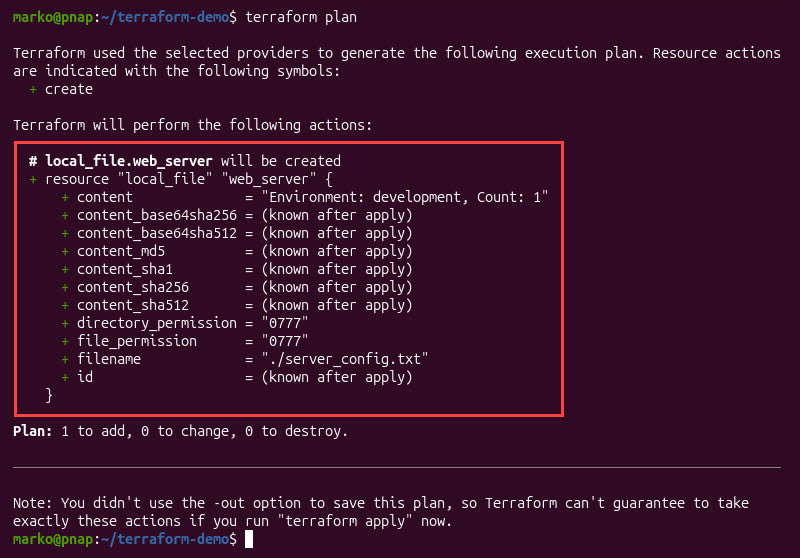
terraform planThe engine downloads state references, queries target cloud provider APIs, and outputs proposed creation actions. Standard output displays resource additions marked with green plus signs (+), listing known static values alongside (known after apply) placeholders for dynamic provider attributes like assigned IP addresses or generated IDs.
Saving Plan Output to File for Automation (-out)
Exporting execution plans to binary files ensures the execution is the same across all application phases. To save a plan output, execute the plan command with the -out option. Specify a target binary file output path:
terraform plan -out=tfplan.binary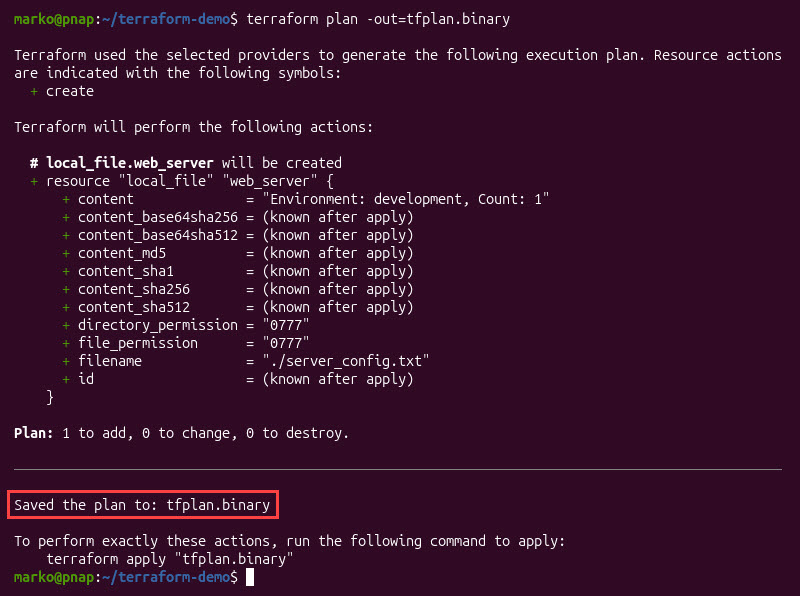
Pass the saved file into terraform apply to run the exact changes without checking live cloud resources again:
terraform apply tfplan.binaryPassing Variable Values Directly via Command Line (-var)
Injecting variables via the command line lets users adjust parameters during manual testing without editing configuration files. Variables passed this way override default variable assignments defined inside HCL blocks.
Pass inline variable values using individual -var flags during execution:
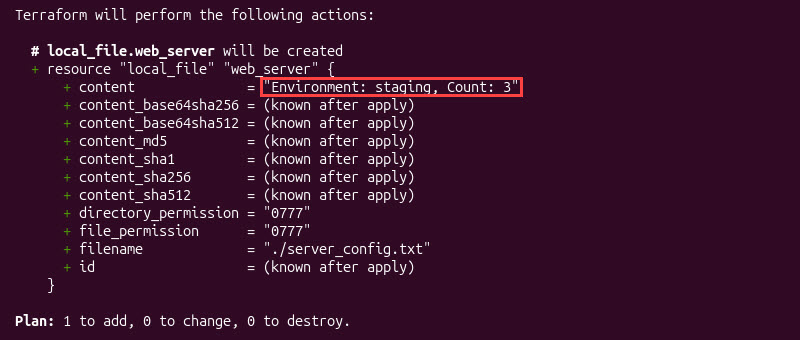
terraform plan -var "environment=staging" -var "instance_count=3"The engine processes the provided key-value pairs, replacing variable references within HCL blocks before calculating resource changes. String values, numbers, and boolean types parse directly through CLI inputs:
Targeting Specific Infrastructure Resources (-target)
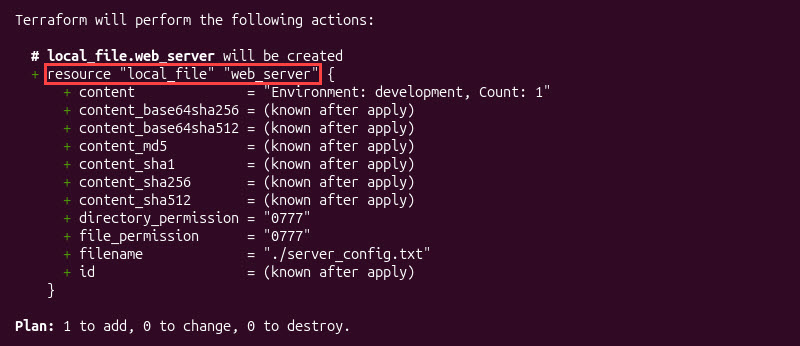
Targeting specific resources focuses calculations on individual modules or chosen resources instead of the entire setup. Pass explicit resource addresses using the -target parameter flag:
terraform plan -target=local_file.web_serverTerraform restricts the dependency graph to the specified resource and its direct dependencies. The proposed actions relate to the targeted infrastructure subset:
Running Plan in Refresh-Only Mode (-refresh-only)
Refresh-only executions detect infrastructure drift between physical cloud environments and stored state files without changing local HCL code. Use the -refresh-only flag to compare stored state against live assets:
terraform plan -refresh-only
The engine compares live resource parameters against recorded state file values, and reports detected discrepancies. The output displays state update proposals without proposing resource modifications.
Generating Plans for Specific Environments Using Workspace Files (-var-file)
Environment-specific variable files allow unified HCL codebases to run separate development, staging, and production environments. Variable files supply unique CIDR blocks, instance sizes, and resource tags per environment.
Specify target environment definition files using the -var-file flag:
terraform plan -var-file="config/production.tfvars"Terraform reads the variable file and assigns those values to any declared variables. This keeps environment settings separate while using the same configuration files across teams.
Executing terraform plan in CI/CD Pipelines Without Color Formatting (-no-color)
Disabling color formatting ensures readable logs in CI/CD output consoles and log-archiving tools. Append the -no-color flag to pipeline script execution commands:
terraform plan -no-color -out=pipeline.plan > plan_output.logThe engine outputs plain text logs. This allows CI/CD build steps to capture, redirect, and parse log streams without string corruption caused by ANSI style codes.
terraform plan Common Mistakes
The common causes for errors during execution planning are:
- Syntax errors.
- State inconsistencies.
- Credential failures.
- Dependency resolution issues.
The following sections show examples of the most common mistakes and how to fix them.
Resolving Missing Variable and Undeclared Input Parameter Errors
Undeclared input parameters violate HCL parsing rules. A missing variable declaration can trigger an interactive execution prompt or kill a process inside a non-interactive pipeline runner.
When a configuration references a variable without defined values or default assignments, Terraform pauses execution to request input. In automated CI/CD environments without interactive TTY inputs, this causes execution to fail immediately with an input error alert. Additionally, passing undeclared variables via -var flags produces validation errors.
Fix these errors by defining default values inside the variables.tf file, populating .tfvars files, or setting explicit environment variables using the TF_VAR_[name] naming convention.
Fixing State Drift and Out-of-Sync Local Lock Files
Simultaneous deployment attempts cause state locking conflicts and out-of-sync dependency lock files. Lock file mismatches halt execution plans to prevent state file corruption.
State locking mechanisms prevent concurrent operations from changing target backend state files. If a previous run crashes unexpectedly or another operator maintains an active lock, execution halts with an Error acquiring the state lock message.
Remove persistent stale locks using the force-unlock command with the associated Lock ID:
terraform force-unlock [lock_id]Mismatched provider plugin versions cause dependency lock file conflicts. Synchronize local provider locks by running the following command:
terraform init -upgradeHandling Missing Cloud Credentials and Provider Authorization Failures
During execution, provider plugins send preliminary authentication calls to vendor APIs. Missing environment variables cause immediate provider authorization failures. Missing identity and access management (IAM) permissions on authenticated credentials also prevent providers from reading current resource states.
Authentication failures occur when provider configurations lack valid API keys, security tokens, or region settings. To resolve access errors:
- Export valid session tokens.
- Verify cloud IAM policy grants.
- Explicitly define provider region attributes within provider config blocks.
Debugging Invalid Resource Target Syntax and Unresolved Dependencies
Passing bad target addresses (such as omitting resource types or misaddressing module paths) causes target parsing failures. For example, passing -target=[web_server] fails because Terraform requires the full address type format: -target=[instance].[web_server].
Furthermore, targeting single resources that depend on uncreated infrastructure, such as virtual private cloud (VPC) subnets or IAM roles, forces execution plan calculations to fail.
Correct targeting errors by providing fully qualified resource addresses and including required upstream dependencies in targeting chains.
Addressing Unintended Resource Destruction Warnings
Cloud provider APIs contain immutable resource parameters that cannot mutate in place after initial creation (e.g., storage encryption keys). When configuration updates alter immutable fields, Terraform marks the existing resource for destruction before creating a replacement (-/+). Unintentional structural refactoring or renaming of module paths can also trigger full resource-recreation warnings.
Prevent accidental destructions by adding moved blocks during code refactoring. Alternatively, add prevent_destroy lifecycle rules to HCL resource blocks:
lifecycle {
  prevent_destroy = true
}
terraform plan Best Practices
Standardizing plan management secures infrastructure and prevents deployment failures. The following practices form clear planning workflows:
- Always save execution plans to output files using
-outin CI/CD pipelines to ensure applied changes match plan outputs. - Require
terraform planchecks in pull requests to catch errors before merging code. - Utilize
-detailed-exitcodein automated pipeline scripts to determine whether configuration drift exists (exit code 2), no changes exist (exit code 0), or execution errors occurred (exit code 1). - Maintain strict .gitignore rules to avoid committing sensitive variable values or generated plan binary files to version control repos.
- Leverage
movedblocks within HCL code when refactoring resource identifiers to prevent unnecessary resource destruction cycles during plan generation. - Restrict
-targetparameter overrides to emergency hotfixes and initial state bootstrap operations. - Execute
-refresh-onlyplans periodically to detect unrecorded cloud environment drift without risking unintended code changes. - Enforce centralized remote backend state storage with active state locking methods to prevent concurrent plan calculations and state corruption.
Conclusion
After reading this article, you understand how to run safe, predictable infrastructure workflows with the terraform plan command. The article presented the command syntax, practical examples, common error fixes, and best practices you need to manage your Terraform deployments.
Next, read our terraform show command guide to learn how to display state files and execution plans in a human-readable format.