Terraform uses environment variables to adjust its behavior and configuration. Environment variables control various functions, including logging verbosity and input prompts, all without using HCL.
This article will explain what Terraform environment variables are, why they matter, and how they differ from HCL Terraform variables.
Prerequisites
- Access to the command line/terminal.
- Terraform installed.
What Are Terraform Environment Variables?
Terraform environment variables are shell variables that Terraform reads at runtime to change its behavior. They are prefixed with TF_ and are set in a terminal session, shell profile, a CI/CD pipeline's settings, or a container's environment.
There are three variable subtypes:
TF_VAR_[name]. Supplies values to Terraform input variables.TF_[name]. Controls Terraform's CLI/runtime behavior.Provider-specific environment variables. Configures Terraform provider authentication and other provider-specific settings.
Terraform does not require setting variables inside any .tf file or configuration. It automatically picks up the values without an explicit reference in the configuration.
Why Are Terraform Environment Variables Important?
Environment variables separate how Terraform runs from what it manages. They enable the same Terraform configurations to run in different modes without changing the .tf files.
Terraform environment variables are essential for several reasons:
- Portability. The same configuration behaves differently in different environments. Variables are code-independent and enable code reuse across local development, staging, and production.
- Automation compatibility. CI/CD systems ignore interactive prompts. Environment variables provide inputs as needed, allowing Terraform to run unattended.
- Debugging. Environment variables control log details through a shell-level toggle without altering or redeploying configuration.
- Credentials and secrets. Provider credentials and sensitive inputs are often injected via environment variables to avoid hard-coding or committing them to version control systems.
Environment variables help keep Terraform configurations flexible, portable, and consistent across different environments.
Environment Variables vs. HCL Variables
Both environment variables and HCL variables configure Terraform. However, they reside in different places and have different roles.
The table below compares distinct aspects between environment and HCL variables.
| Aspect | Environment Variables | HCL Variables |
|---|---|---|
| Definition | Shell, CI/CD settings, .env files. | .tf and .tfvars files. |
| Declaration | TF_VAR_[name] for input variables. TF_[name] for CLI behavior. | variable "[name]" {[value]} blocks. |
| Scope | Affects the entire Terraform process (CLI behavior, workspace, logging, etc.). | Affects only the values passed into the configuration. |
| Version Control | Not committed. | Often committed, except variable files that contain sensitive values. |
| Precedence | TF_VAR_[name] is overridden by CLI arguments and variable files. | The default argument is used when no other value is supplied through a higher-precedence source. |
| Use Case | CI/CD automation, storing secrets, workspace selection, logging. | Declaring default configuration inputs. |
Environment variables are one way to supply those inputs. Additional variables control Terraform CLI behavior and have no HCL equivalent.
Terraform Environment Variables Benefits
The main benefits of using environment variables are:
- No secrets in code. Sensitive values passed through
TF_VAR_[name]never appear in .tf or .tfvars files. - Consistent behavior. CI/CD pipelines can standardize logging, input handling, and workspaces across jobs without duplicating flags and commands.
- Faster debugging. Some environment variables provide immediate and detailed insight into what Terraform and its providers are doing without adjusting configuration.
Note: Environment variables also help when provisioning Infrastructure as Code (IaC). Teams that run Terraform against phoenixNAP Bare Metal Cloud can use the TF_VAR_[name] pattern to pass PNAP_CLIENT_ID and PNAP_CLIENT_SECRET credentials.
Terraform Environment Variables: List
The table below shows every variable covered in this guide:
| Variable | Purpose |
|---|---|
TF_VAR_[name] | Sets the value of a declared input variable. |
TF_LOG | Sets the logging verbosity level. |
TF_LOG_PATH | Sets the file path for logs. |
TF_LOG_CORE | Sets logging verbosity for Terraform's core engine. |
TF_LOG_PROVIDER | Sets the logging verbosity for provider plugins. |
TF_INPUT | Disables interactive prompts for unset variables. |
TF_IN_AUTOMATION | Adjusts CLI output for automated environments. |
TF_CLI_ARGS | Adds default arguments to every Terraform command. |
TF_CLI_ARGS_[name] | Adds default arguments to a specific Terraform command. |
TF_DATA_DIR | Adjusts the location of Terraform's working data directory. |
TF_WORKSPACE | Selects an active workspace. |
TF_CLI_CONFIG_FILE | Points Terraform to a custom configuration file. |
TF_PLUGIN_CACHE_DIR | Sets a shared directory for caching provider plugins. |
TF_REGISTRY_DISCOVERY_RETRY | Sets the retry count for registry discovery requests. |
TF_REGISTRY_CLIENT_TIMEOUT | Sets the timeout in seconds for registry client requests. |
Detailed explanations and examples are in the sections below.
TF_VAR_name
TF_VAR_[name] sets the value of an input variable from the environment. The variable has lower precedence than variable files and CLI arguments, but higher than the variable's default argument.
Provide the Terraform input variable name in the placeholder. For example, if the configuration file contains the following variables:
variable "region" {
  type    = string
  default = "us-east-1"
}

variable "instance_count" {
  type    = number
  default = 1
}
Set the variables with:
export TF_VAR_region=us-east-1Export the second variable separately:
export TF_VAR_instance_count=2Lastly, preview the changes with:
terraform plan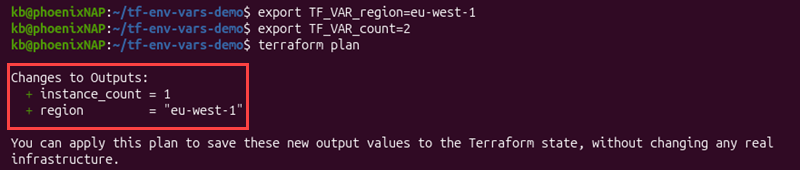
The variables set the ones declared in the configuration file, overriding the default values.
TF_LOG
The variable sets Terraform's logging verbosity. Accepted values are:
- TRACE. The most verbose log level available. Provides detailed information for troubleshooting Terraform operations, such as internal code executions, state transitions, logic paths, and HTTP request/response bodies. Use it for deep debugging or when working with HashiCorp support.
- DEBUG. Highly detailed logs focused on operational flow. Shows developer-level details. Excludes low-level messages found in TRACE. Developers and administrators use this level to analyze unexpected behavior.
- INFO. General, high-level operational logs. It logs major milestones and removes technical details found in DEBUG and TRACE. Useful when analyzing long-running executions.
- WARN. Shows non-fatal warnings, deprecations, or suboptimal configurations. The warnings do not stop Terraform from running, but they point to future issues. Use this level when auditing the environment for best practices.
- ERROR. Filters logs to show only error-level messages. It captures fatal events that prevent plan generation. Use it to quickly pinpoint an error when a CI/CD pipeline fails.
For example:
export TF_LOG=TRACETest with:
terraform plan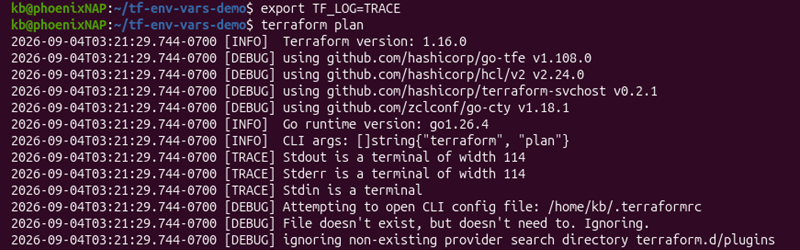
The output shows detailed logs in plain text.
Note: To turn off logging, clear the environment variable. Set it to an empty value or use unset [variable_name].
TF_LOG_PATH
Set the TF_LOG output to a file path using TF_LOG_PATH. Without the path, TF_LOG prints the result to the terminal.
For example, assuming TF_LOG is set to DEBUG, state the file path with:
export TF_LOG_PATH=./terraform.logApply with:
terraform apply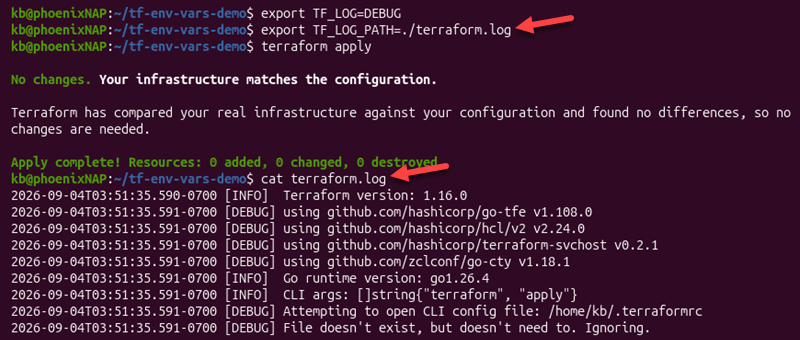
Save logs to a file to capture a full debug session for later analysis or when supplementing a support ticket.
TF_LOG_CORE
This variable controls the logging verbosity level for Terraform's core engine. It is separate from provider logging and captures only the core workflow (such as graph building, state operations, plan/apply logic).
It uses the same levels as the TF_LOG variable. For example:
export TF_LOG_CORE=TRACERun terraform plan:
terraform plan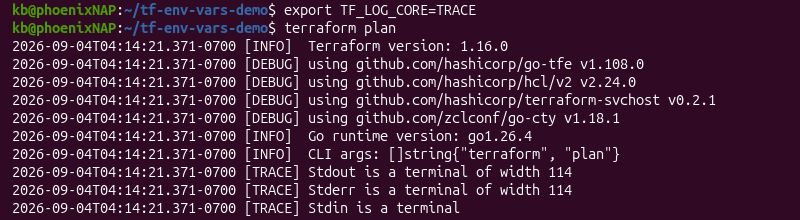
The output shows core engine logs without provider logs.
TF_LOG_PROVIDER
Use this environment variable to isolate provider-specific issues. It controls the logging verbosity for provider plugins, separate from core logging.
For example:
export TF_LOG_PROVIDER=DEBUGApply with:
terraform apply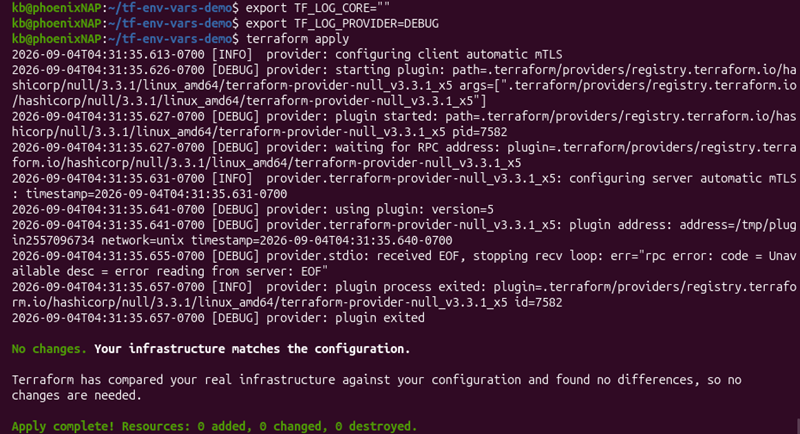
The output shows provider logs without core engine logs. Unset TF_LOG_CORE to show only the provider logs in the output.
TF_INPUT
The variable controls Terraform's interactive prompts. When Terraform variables don't have a supplied value, Terraform prompts for any required input variables without a value.

Set the TF_INPUT variable to false or 0 to disable interactive prompts:
export TF_INPUT=0Apply with:
terraform apply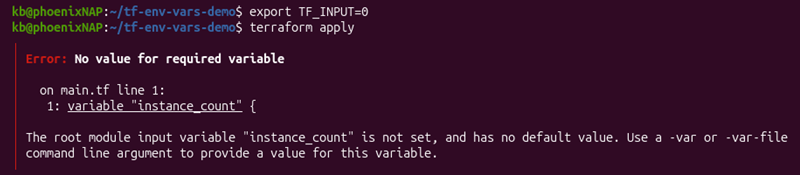
The variable tells Terraform to stop asking for input interactively and instead throw an error. Use this feature to avoid hanging indefinitely for a non-interactive CI/CD job.
Note: The behavior is identical to passing an -input=false flag to every command.
TF_IN_AUTOMATION
The environment variable signals to Terraform that it is inside an automated environment or a CI/CD system. It adjusts human-readable output for automated environments.
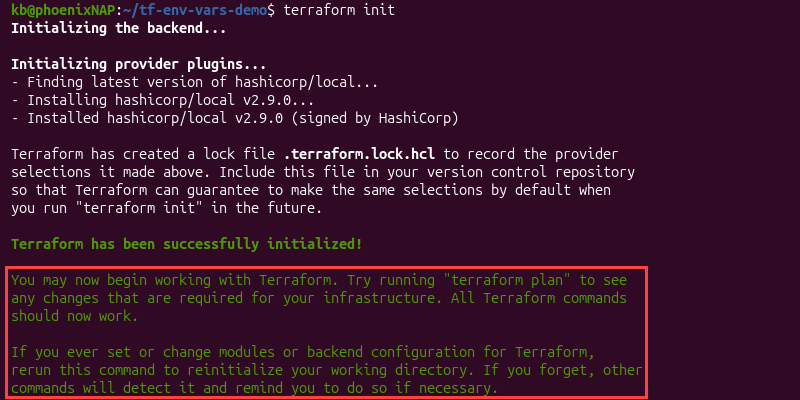
When the value is non-empty, Terraform adjusts the human-readable output since the output is intended for automated environments rather than interactive use.
For example:
export TF_IN_AUTOMATION=1Apply with:
terraform init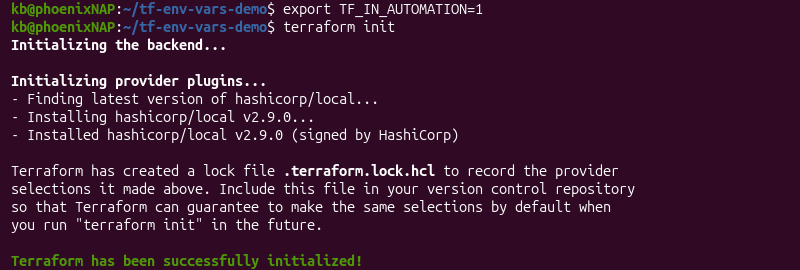
The change is cosmetic and does not alter Terraform's behavior.
TF_CLI_ARGS
The variable appends arguments to every Terraform command invoked in the shell session. Arguments are added after the subcommand and before manually typed flags.
For example, change a variable using the TF_CLI_ARGS variable:
export TF_CLI_ARGS="-var=\"instance_count=99\""Apply without variables:
terraform apply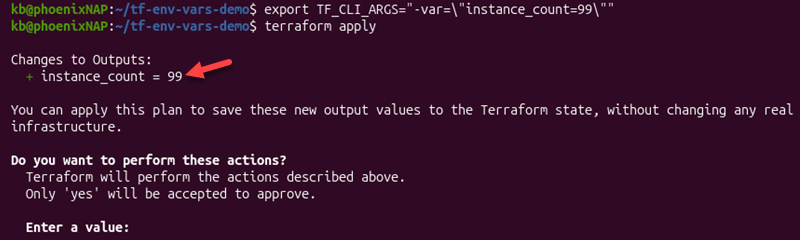
The output shows the environment variable appended to the terraform apply command.
TF_CLI_ARGS_name
To append additional arguments to a specific Terraform command, use TF_CLI_ARGS_[name]. For example:
export TF_CLI_ARGS_plan="-var=\"instance_count=99\""The variable applies to the terraform plan command, while apply stays unaffected.
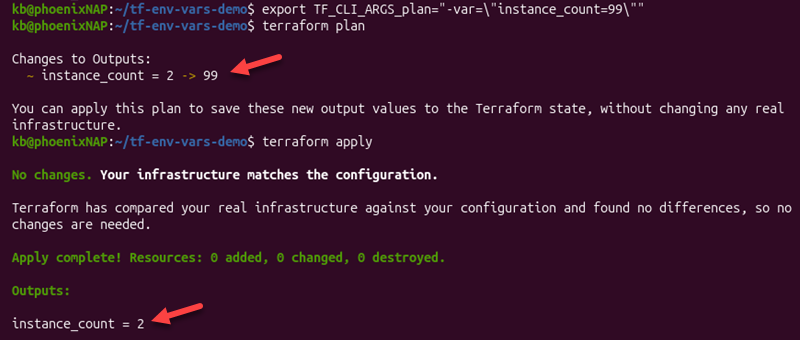
Use this approach when the flag applies to only one subcommand and to limit the scope.
TF_DATA_DIR
Terraform stores its per-working-directory data in a .terraform subdirectory of the current directory. Adjust the location with the TF_DATA_DIR environment variable:
export TF_DATA_DIR=./.my-hidden-cacheInitialize the project:
terraform init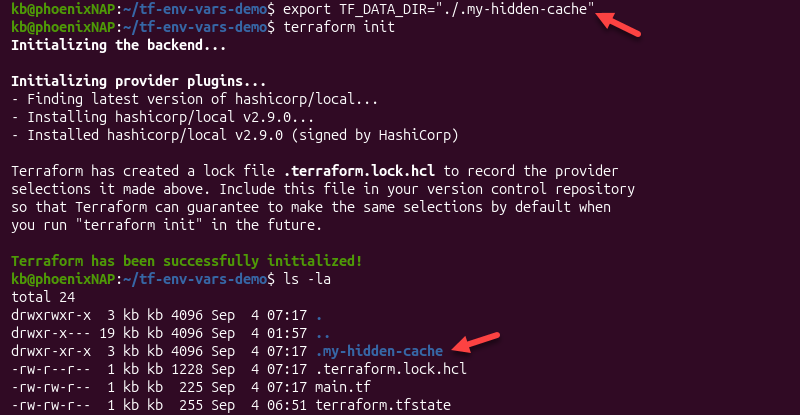
Keep the variable consistent across every command in a workflow (init, plan, apply) to avoid issues.
TF_WORKSPACE
Use TF_WORKSPACE to select the active Terraform workspace without running the terraform workspace select command:
export TF_WORKSPACE=defaultConfirm the workspace change worked with:
terraform workspace list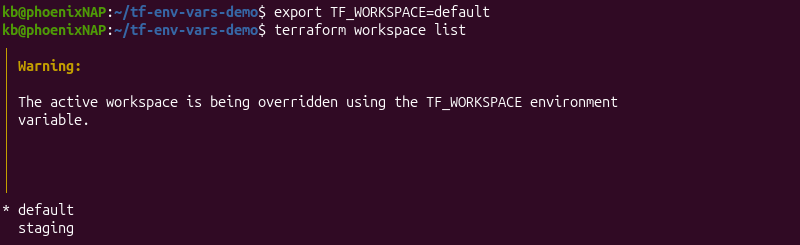
The output shows a warning that the environment variable overrides the workspace.
TF_CLI_CONFIG_FILE
The variable points Terraform to a custom CLI configuration file instead of the default ~/.terraformrc (terraform.rc on Windows).
To demonstrate this setup, use mkdir -p to create a new directory and parent directories:
mkdir -p $HOME/tf-plugin-cacheCreate a custom config file (ci.terraform in the example) and add the following data:
plugin_cache_dir = "/home/kb/tf-plugin-cache"The file sets the plugin cache directory to a new location.
Export the custom config file as the new CLI config file:
export TF_CLI_CONFIG_FILE=./ci.terraformInitialize the project:
terraform initLastly, list the tf-plugin-cache directory contents to confirm the reroute worked:
ls -R ~/tf-plugin-cache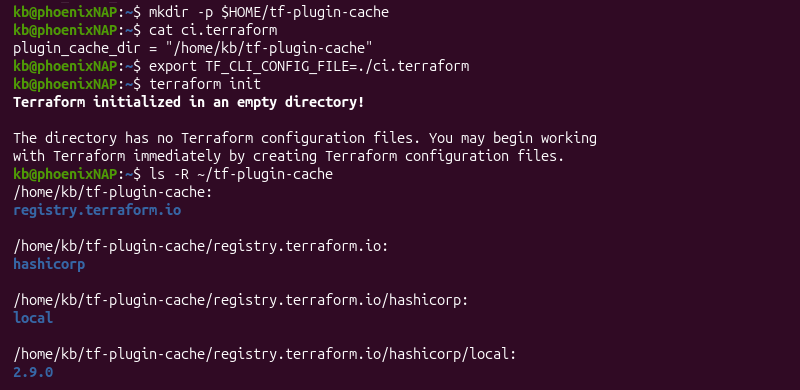
The output shows that Terraform read the local ci.terraform file and stored the plugin cache data in the tf-plugin-cache directory.
TF_PLUGIN_CACHE_DIR
The variable sets the directory that Terraform uses to cache downloaded provider plugins. It prevents multiple configurations or repeated init runs from downloading the same provider binaries. For example, set the environment variable to a custom location:
export TF_PLUGIN_CACHE_DIR=$HOME/.terraform.d/plugin-cache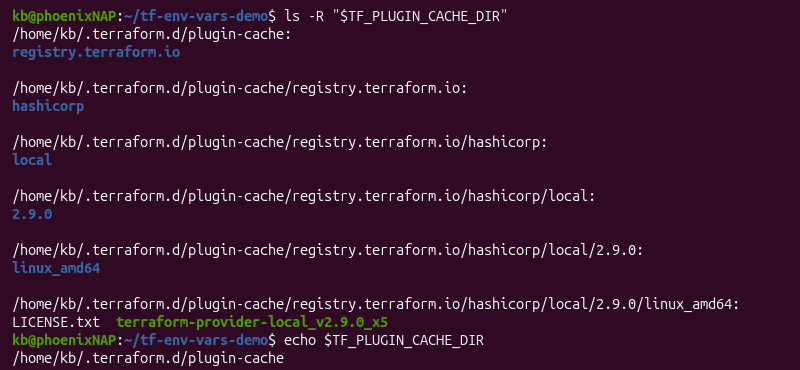
Terraform uses this location to cache provider plugins. Use this variable in CI/CD environments to persist the plugin cache directory and reduce init time.
TF_REGISTRY_DISCOVERY_RETRY
The TF_REGISTRY_DISCOVERY_RETRY sets the maximum number of retries Terraform's registry client attempts for connection errors and retryable 500-range responses.
The default value is one, meaning there are no retries after the first attempt. Set it to five with:
export TF_REGISTRY_DISCOVERY_RETRY=5Use the variable in environments with unreliable network paths.
TF_REGISTRY_CLIENT_TIMEOUT
Use it to set the timeout (in seconds) for requests made by Terraform's registry client during provider and module discovery.
The default value is 10 seconds. Set the timeout to 30 seconds with:
export TF_REGISTRY_CLIENT_TIMEOUT=30Increase the variable in environments where registry requests are slow but succeed after some time.
How to Set Terraform Environment Variables Across Different OS?
The method for setting a Terraform environment variable depends on the underlying OS. The sections below briefly explain how to set environment variables on Linux, macOS, and Windows.
Linux and macOS
Linux and macOS use the same method for exporting Terraform environment variables. Use the export command for the current shell session:
export [variable_name]To persist a variable across sessions, add the export line to the shell's profile file (.bashrc, .zshrc, or .profile in the home directory). Source the file after any change:
source ~/.bashrcTo avoid exporting a variable into a session, write the variable on the same line as the Terraform command it affects. For example:
TF_LOG=DEBUG terraform plan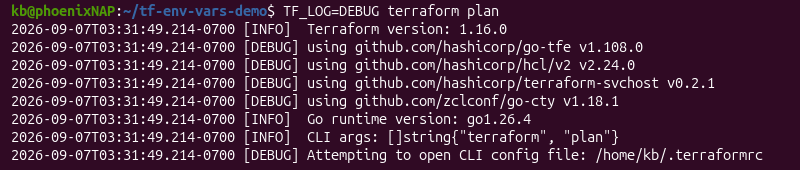
The variable exists only for that command, not the terminal session.
Windows
Windows PowerShell uses $env: to set a variable for the current session. For example:
$env:TF_LOG = "DEBUG"To persist a variable across sessions, use the following format:
[System.Environment]::SetEnvironmentVariable("[variable_name]", "[value]", "[user]")For Command Prompt (cmd.exe), use the set command for the current session:
set TF_LOG=DEBUGTo persist a variable, use setx instead:
setx TF_LOG DEBUGAlternatively, access the Environment Variables dialog through the UI.
How to Manage Terraform Environment Variables in CI/CD Pipelines
CI/CD pipelines use environment variables to add Terraform input variables. This lets you pass configuration at runtime instead of hard-coding values in files.
Terraform automatically recognizes environment variables using the TF_VAR_[variable_name] convention and maps them to the appropriate Terraform input variable.
For example, the following Terraform variables can be supplied with:
TF_VAR_region=eu-west-1TF_VAR_instance_count=2The variables let environment-specific configuration live outside the Terraform source code. It also enables testing different values for different CI/CD environments.
The sections below show how to configure Terraform variables with GitHub Actions, GitLab CI/CD, and HCP Terraform with Hashicorp Vault.
GitHub Actions Setup Example
GitHub Actions supports environment variables at the workflow, job, and individual step levels. Map the values to TF_VAR_[variable_name] so Terraform receives these values when the workflow runs.
For example, if the Terraform configuration defines the following variables without hard-coding default values:
variable "region" {
  type = string
}

variable "instance_count" {
  type = number
}
GitHub Actions workflow provides these values as variables and secrets:
name: Terraform

on: [push]

jobs:
  terraform:
    runs-on: ubuntu-latest

    env:
      TF_IN_AUTOMATION: "1"
      TF_INPUT: "0"
      TF_VAR_region: ${{ vars.TF_REGION }}
      TF_VAR_instance_count: ${{ secrets.TF_INSTANCE_COUNT }}

    steps:
      - uses: actions/checkout@v4

      - uses: hashicorp/setup-terraform@v3

      - run: terraform init

      - run: terraform plan
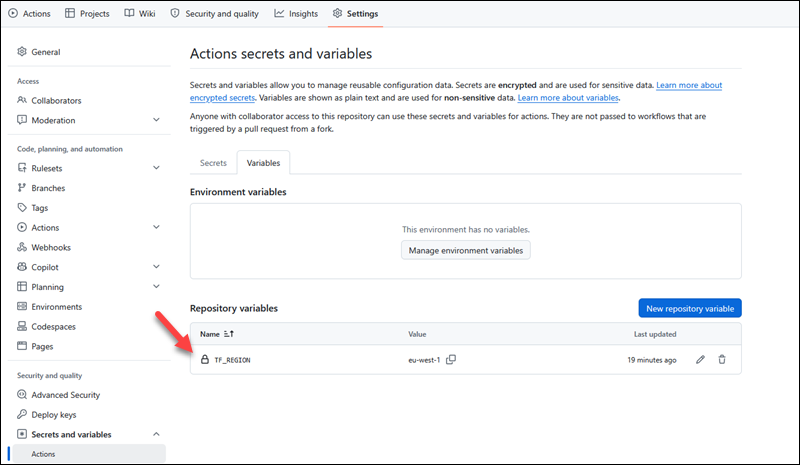
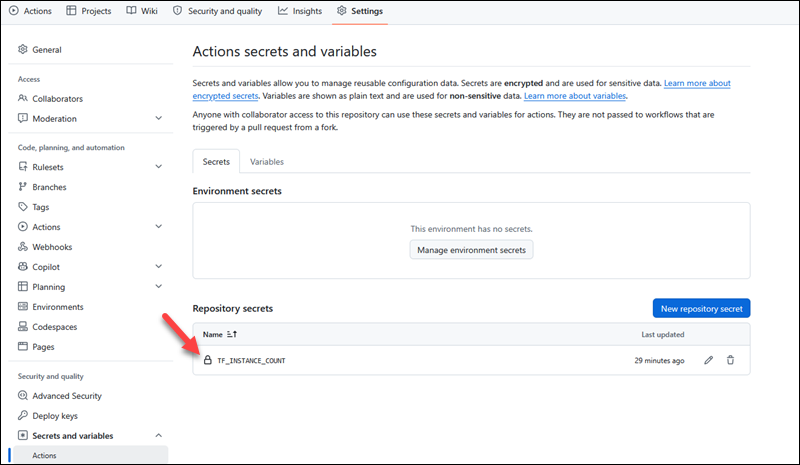
The example code expects the vars and secrets values. To add these values, navigate to a project's Settings -> Secrets and variables -> Actions page and add each:
- TF_REGION. A GitHub Actions repository variable.
- TF_INSTANCE_COUNT. A GitHub Actions repository secret.
Run the workflow to see the values in action.
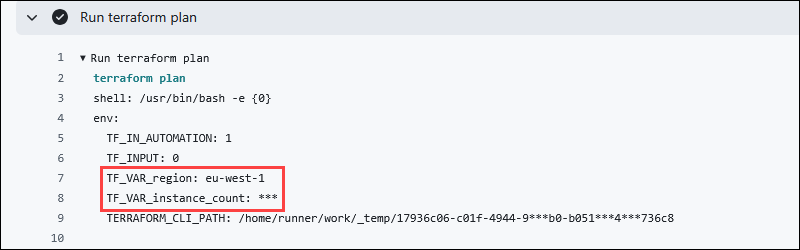
GitHub masks the registered secret, while the variable value is visible in the logs.
GitLab CI/CD Pipeline Integration
GitLab CI/CD provides a similar mechanism through CI/CD variables. Configure the variables in the GitLab project instead of storing them directly in the .gitlab-ci.yml file.
Use the same Terraform configuration with GitLab:
variable "region" {
  type = string
}

variable "instance_count" {
  type = number
}
In GitLab, navigate to Settings->CI/CD->Variables page and click Add Variable to create variables.
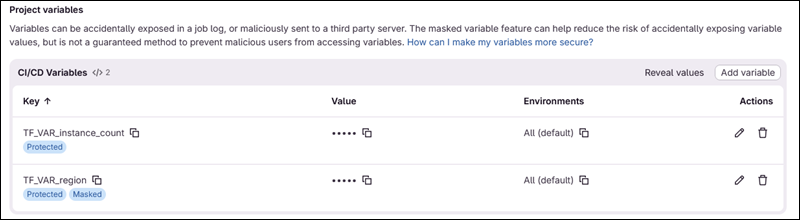
Use the masking and visibility options to hide values in job logs and to protect variables. The .gitlab.ci.yml file does not contain the values, and they are configured as environment variables:
image:
  name: hashicorp/terraform:latest
  entrypoint: [""]

stages:
  - validate
  - plan

variables:
  TF_IN_AUTOMATION: "true"
  TF_INPUT: "false"

terraform_validate:
  stage: validate
  script:
    - terraform init
    - terraform validate

terraform_plan:
  stage: plan
  script:
    - terraform init
    - terraform plan
The pipeline doesn't hang waiting for interactive input, and it also hides sensitive values. Likewise, variables such as TF_IN_AUTOMATION and TF_INPUT help control an automated CI/CD workflow.
Terraform Cloud & HashiCorp Vault Integration
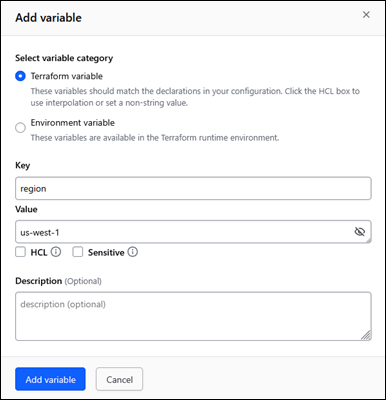
Terraform Cloud (HCP Terraform) supports both Terraform variables and environment variables in a workspace's variable settings.
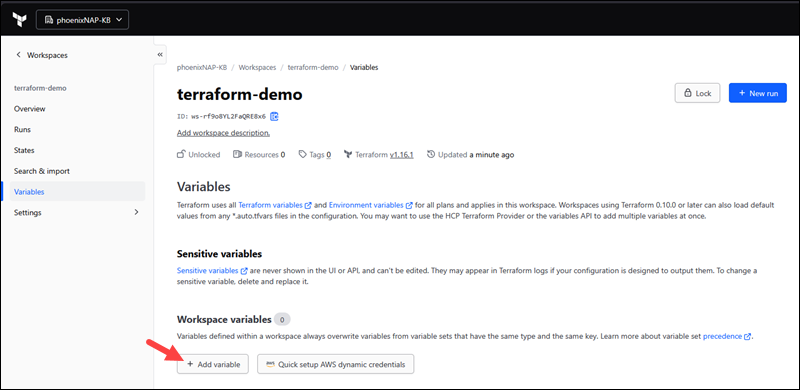
Use the "Sensitive" flag to prevent a value from displaying.
For dynamic secrets, HashiCorp Vault integrates with Terraform through the vault provider. It allows configurations to fetch short-lived credentials at runtime instead of reading them from a static environment variable. For example:
provider "vault" {
  address = "https://vault.example.com"
}

data "vault_generic_secret" "pnap_credentials" {
  path = "secret/data/pnap"
}

provider "pnap" {
  client_id     = data.vault_generic_secret.pnap_credentials.data["client_id"]
  client_secret = data.vault_generic_secret.pnap_credentials.data["client_secret"]
}
The pattern avoids storing credentials as an environment variable anywhere. Vault can issue short-lived credentials to Terraform when they are requested, depending on the configured secret engine and lease settings.
Best Practices for Sensitive Environment Variables
Implement best security practices to secure sensitive environment variables:
- Don't commit ignore files. Don't commit .env files or shell profiles that contain secrets to a version control system, even if the repository is private. Instead, add them to ignore files to keep them private.
- Mask/protect variables. Use CI/CD platform options to mask/protect variables. Avoid using plain variables for any private data.
- Use dynamically issued credentials. Choose short-lived, dynamically issued credentials from a secrets manager whenever available.
- Limit to protected branches. Restrict sensitive data to protected branches and environments. Don't expose secrets and credentials to all branches, forks, or pull request pipelines, and apply least-privilege principles.
- Avoid printing. Higher debug levels and some commands leak secret values. CI/CD job logs expose these variables and make them readable.
- Rotate credentials. Create new credentials and rotate them regularly. If you suspect exposure, rotate the credentials immediately.
- Separate credentials. Use different credentials per environment (dev, staging, production). If credentials are leaked in one environment, the others stay protected.
Following these practices reduces the risk of exposing sensitive environment variables.
Terraform Environment Variables FAQs
The following sections answer some common questions about Terraform environment variables through hands-on examples.
How do I set Terraform environment variables for complex data types like maps or lists?
For complex types, such as lists or maps, use HCL literal syntax as a quoted string. For example, if the configuration file has the following:
variable "availability_zones" {
  type    = list(string)
  default = []
}

variable "tags" {
  type    = map(string)
  default = {}
}
Provide the list type with:
export TF_VAR_availability_zones='["us-east-1", "us-east-2"]'Or the map type using:
export TF_VAR_tags='{ team = "delta", env = "dev" }'Preview the values with:
terraform plan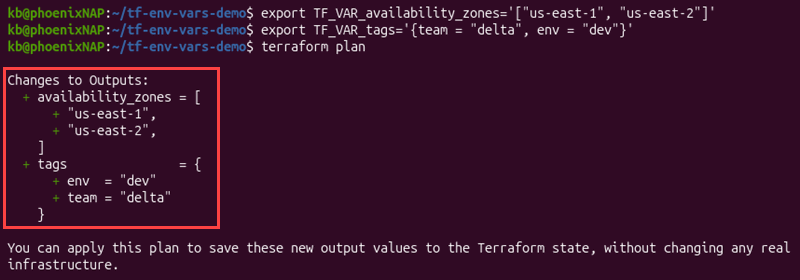
The process converts the literals to the appropriate type.
What happens if TF_LOG is set to an invalid level?
Terraform shows a warning that the level is invalid. It defaults to TRACE and shows available levels instead.
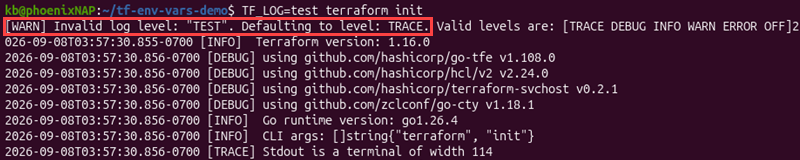
The command does not fail or disable logging.
How do TF_CLI_ARGS environment variables interact with command line flags?
The TF_CLI_ARGS and TF_CLI_ARGS_[name] values insert directly after a subcommand and before any manually typed flags on the command line. For example:
export TF_CLI_ARGS_plan="--input=false"terraform plan --input=trueThe commands are equivalent to:
terraform plan --input=false --input=trueManually typed flags always take precedence over the environment variables.
Does TF_VAR_ override values defined in terraform.tfvars?
The order in which values are checked in a Terraform CLI workflow is:
-varand-var-filearguments.- .auto.tfvars and *auto.tfvars.json files.
- terraform.tfvars.json file.
- terraform.tfvars file.
TF_VAR_[name]environment variables.- The
defaultvalue invariableblocks.
Therefore, the opposite is true for a Terraform CLI workflow. HCP Terraform has additional variable and variable-set precedence rules. A value set in terraform.tfvars overrides a TF_VAR_[name] environment variable for the same variable name in the CLI.
How do I clear or unset a Terraform environment variable?
To unset a Terraform environment variable on Linux or macOS, use unset:
unset TF_[name]For PowerShell, use:
Remove-Item Env:TF_[name]In Command Prompt, clear a variable with:
set TF_[name]=An empty value clears the variable for the session.
Can I use environment variables directly inside .tf HCL files?
HCL has no syntax for reading an environment variable by name. HCL configuration only reads the TF_VAR_[name] value and populates a declared variable "[name]" {} block.
All other environment variables are only visible to the Terraform CLI process. Expressions inside .tf files cannot access these variables.
Conclusion
This guide explained how to use various Terraform environment variables in different environments. Environment variables provide a convenient way to control CLI behavior, supply input values, and manage secrets without modifying configuration files.
Next, learn more about Terraform backends and how they work.