Terraform needs a way to track the resources it manages and connect them to the resources in the configuration. To keep them aligned, Terraform writes the relevant details to the Terraform state file.
In this article, you will find out how the Terraform state file works, what kind of information it contains, and where it is stored.
What Is Terraform State?
Terraform records details about the servers, databases, and networks it manages in the state file. By default, the terraform.tfstate file is stored locally inside the working directory.
Terraform populates this file with:
- Resource names, types, IDs, and attributes.
- Information about the Terraform version.
- Details about the providers used.
- Dependencies between resources.
- Any output values you have defined.
Before Terraform makes changes to your infrastructure, it compares the state file, your configuration files, and provider information. If there are differences, Terraform decides if it needs to create, modify, or remove resources so the infrastructure and configuration match.
Terraform also updates the state file whenever it makes changes. This keeps the file in sync with your infrastructure.
Note: phoenixNAP's Infrastructure as Code solutions work with Terraform, making it easier to set up and manage your infrastructure, even for complex deployments.
Terraform State File Structure
The state file is in JSON format, which means you can open and read it. However, you should avoid editing the state file because even a small mistake can cause serious issues.
This section helps you understand how the state is structured and where to look if you need to troubleshoot a problem.
Metadata Versioning
At the top of the state file, you'll find metadata about the file itself. This gives Terraform basic information about the state before it starts reading the resource data stored below. For example:
{
  "version": 4,
  "terraform_version": "1.15.8",
  "serial": 55,
  "lineage": "96ab89fe-1ca4-c097-1a17-de7f857ff0ec"
}
The values in these fields help Terraform identify and manage the state file:
version. The number 4 shows which format was used to structure the state file.terraform_version. The version number 1.15.8 tells Terraform which version last wrote to the state file.serial. This number increases each time Terraform writes a new version of the state. Terraform uses it to see which copy is the most recent.lineage. A unique ID assigned to the state file when it was first created. Terraform checks this to see if two state files are from the same history or from different setups.
Note: If you want to inspect a Terraform state file faster, try using the jq command. It lets you format and filter the JSON output without changing the file itself.
Output Values
Terraform stores output values from the root module in the outputs section of the state file. These are written to the state when Terraform applies the configuration. Outputs can contain simple values, like a server ID, or more complex information about several resources.
For example:
"outputs": {
    "infrastructure_components": {
      "value": [
        {
          "name": "web-01",
          "type": "server",
          "environment": "test",
          "location": "PHX"
        },
        {
          "name": "db-01",
          "type": "database",
          "environment": "test",
          "location": "PHX"
        },
       {
          "name": "lb-01",
          "type": "load balancer",
          "environment": "test",
          "location": "ASH"
        }
    ],
    "type": [
        "list",
        [
           "object",
           {
              "environment": "string",
              "location": "string",
              "name": "string",
              "type": "string"
           }
        ]
      ]
   }
}
In this example, infrastructure_components is the output name. It includes details about three components: a server, a database, and a load balancer:
value. This field contains the actual information saved for each component.type. Thetypefield tells Terraform what kind of data the output contains. In this case, it is a list of objects.- Each object in the list has the same four fields:
name,type,environment, andlocation. All four values are stored as strings.
The output values appear in this section of the state file only if you defined them in an output block, usually in an outputs.tf file in the root module.
Managed Resources
The resources section lists the infrastructure Terraform manages. Each entry connects a resource in the state file to a resource block in your configuration. For example:
"resources": [
  {
    "mode": "managed",
    "type": "pnap_server",
    "name": "db_server",
    "provider": "provider[\"registry.terraform.io/phoenixnap/pnap\"]"
  }
]
The fields in this entry include:
mode. Themanagedvalue means that Terraform is responsible for managing this resource.type. Thepnap_servervalue identifies the resource type. It matches the first label in the resource block.name.db_serveris the name you give to the resource block in the configuration. It matches the second label in the resource block.provider. This shows which provider Terraform uses to manage the resource. In this example, the resource belongs to the phoenixNAP pnap provider.
Together, type and name form the resource address pnap_server.db_server. Terraform uses this address to identify this resource in the configuration and state.
Resource Instances and Attributes
A managed resource can have one or more instances. Terraform stores these in the instances section, along with the attributes it knows about each one.
Here is an example:
"instances": [
  {
    "schema_version": 0,
    "attributes": {
      "id": "759e2b84-4163-04e4-29a4-5b55b4b3d39f",
      "hostname": "db-01",
      "os": "ubuntu/jammy",
      "type": "s1.c1.medium",
      "location": "PHX",
      "status": "powered-on",
      "pricing_model": "HOURLY",
      "network_type": "PUBLIC_AND_PRIVATE",
    }
  }
]
The main parts of this entry are:
schema_version. Shows which version of the resource structure the provider uses. The current pnap_server schema includes a shared gateway address and separate details for public networks, private networks, and IP blocks.attributes. Contains the values Terraform knows about the resource. Some values such as the hostname, location, and server type come from your configuration. Others, like the server ID and status, are returned by the provider.
The id value stores the unique ID the provider assigns to the server. This field enables Terraform to link the resource address to the real Bare Metal Cloud (BMC) server. For example, the Terraform resource address pnap_server.db_server is connected through the state to the BMC server with this ID:
759e2b84-4163-04e4-29a4-5b55b4b3d39fTerraform uses this connection whenever it needs to check, update, or remove the server.
Resource Dependencies
Terraform analyzes references in configuration files and tries to determine if any of the resources depend on each other. For example, if a server needs a value from a private network before it can be provisioned, Terraform knows that it needs to create the private network first.
These relationships are recorded in the state file under the dependencies field, like in this example:
{
  "type": "pnap_server",
  "name": "db_server",
  "instances": [
    {
      "dependencies": [
        "pnap_network.private_network"
       ]
     }
  ]
}
The type and name fields identify pnap_server.db_server, while the dependencies field shows that it depends on pnap_network.private_network.
Terraform State Use Cases
The information in the state file helps Terraform:
- Map configuration resources to real infrastructure. The state file links each resource in your configuration to the actual resource created by the provider. For example, it can connect a resource like
pnap_server.db_serverto the unique ID of a specific server in your infrastructure. Thanks to the state, Terraform knows which server that resource block refers to, so it does not treat it as a new resource every time you use terraform apply. - Figure out what needs to change. When you run commands like terraform plan, Terraform refreshes its information about the current infrastructure and compares it with the state and configuration. It then determines what needs to be updated to match the configuration.
- Track resource dependencies. The state file keeps a record of how resources depend on one another. For example, a server might need a network to exist first, or a network attachment might depend on both the server and the network. Terraform finds these relationships from your configuration and saves them in the state file. This helps Terraform update or remove resources in the right order.
- Store resource information between runs. The state file serves as a persistent record that Terraform checks the next time it runs. This way, Terraform can find and manage the resources it controls without having to discover them from scratch each time.
Terraform State Storage
By default, Terraform stores state locally in the terraform.tfstate file. You can also configure a remote backend and keep the state in a shared storage location.
The main differences are:
| Local State | Remote State | |
|---|---|---|
| Storage location | Stored in the project directory on your computer. | Stored with a remote, third-party service. |
| Team access | Each user can end up working with a separate copy. | Everyone works with the same state. |
| Access control | Depends on the permissions on your computer. | Can use the access controls provided by the storage service. |
| Encyrption | Depends on your computer and file system. | Most services support encryption at rest and in transit. |
| State locking | Not available with the default local setup. | Available with backends that support locking. |
| Backups and versioning | You need to manage them yourself. | Many storage services provide backup or versioning options. |
| Best for | Learning, testing, and small individual projects. | Teams, CI/CD pipelines, and production infrastructure. |
If you are working on a small project, using a local state is usually fine. But when more people or automation tools are involved in managing the same infrastructure, remote state becomes a necessity, not an option.
Note: Read our article on remote backends to see the available options and compare them at a glance.
State Management Commands
Terraform manages most state operations for you when you run commands like terraform apply or terraform destroy. But it also has commands that let you review and change the file directly.
Refer to the sections below to learn more about these commands.
Inspecting State with terraform show
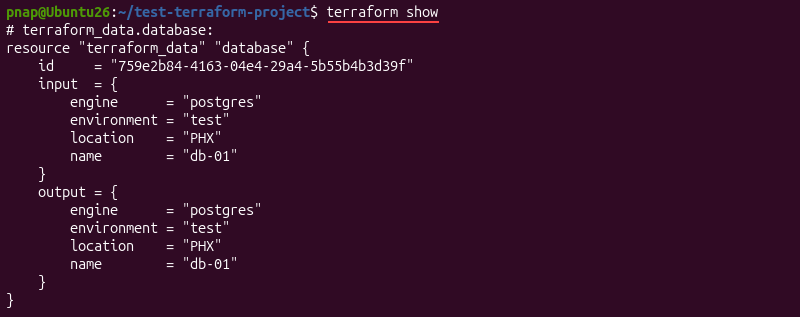
The terraform show command lets you view the current state in an easy-to-read format. To use it, run:
terraform showThe output lists the resources Terraform is tracking and their saved details. This displays what Terraform currently knows about your setup:
To get the output in JSON format, run:
terraform show -json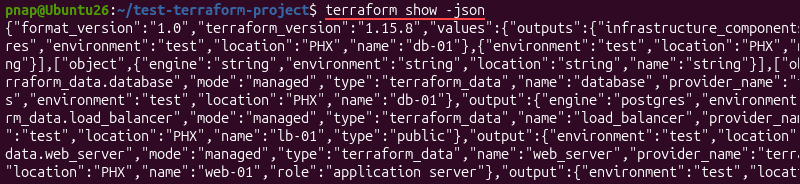
The JSON format is useful when you want to pass state data to another tool or script. Just remember, this output might show sensitive information in plain text.
Listing Managed Resources with terraform state list
If you only need to see which resources Terraform manages, use:
terraform state listTerraform displays the address for each resource it currently tracks. For example:
terraform_data.database
terraform_data.load_balancer
terraform_data.web_server
You can also enter a specific resource address to filter the results. This is useful if you only want to check whether Terraform is tracking a specific resource or resource instance. For example:
terraform state list terraform_data.load_balancerIf the resource is in the state, Terraform returns its address. If there is no matching resource, the command shows no results.
Moving Resources with terraform state mv
The terraform state mv command changes the address Terraform uses to track an existing resource. It only updates the state mapping and does not delete or recreate the server. Use this syntax:
terraform state mv [source] [destination]If you rename or reorganize a resource in the configuration, you also need to update its address in the state. For example, if you rename terraform_data.database to terraform_data.db_server, enter the following command:
terraform state mv terraform_data.database terraform_data.db_serverTerraform now tracks the existing server using the new resource address.

After moving the resource, you should run terraform plan to confirm that Terraform does not plan any unexpected changes.
Removing Resources with terraform state rm
The terraform state rm command tells Terraform to stop tracking a resource. For example:
terraform state rm terraform_data.load_balancerTerraform removes the resource from the state but does not destroy the actual infrastructure. The server keeps running, but Terraform stops managing it.

If you want Terraform to stop managing the resource, you also need to remove it from the configuration. Otherwise, the next terraform plan may want to create a new resource to replace the one it no longer finds in state.
Importing Existing Infrastructure with terraform import
If you already have a server you created outside of Terraform, you can use terraform import to connect that server to a resource block in your configuration. The basic syntax is:
terraform import [address] [id]For example:
terraform import pnap_server.email_server 55ghtw9fd50b11fc50d7Terraform uses the resource ID to find the existing server and add it to the state. It does not create a new server.
The terraform import command only adds the resource to the state. You still need a matching resource block in your configuration, and you may need to update its arguments to match the existing resource.
Terraform State Refresh and Drift Detection
An out-of-band infrastructure change occurs when someone:
- Edits a resource through a cloud or provider console.
- Uses another automation tool to modify the infrastructure.
- Changes a resource directly through an API.
- Deletes a resource manually.
When a change like this happens outside of Terraform, the actual infrastructure no longer matches the Terraform configuration or its recorded state. This situation is called configuration drift.
Detecting Drift During the Plan Phase
Terraform refreshes its information about existing resources during normal operations. If there are any differences between its records and the real infrastructure, Terraform finds them.
When you run terraform plan, Terraform reads the current state and contacts the configured providers to check existing resources. It compares three things:
- The Terraform configuration.
- The existing state.
- The current state of the real infrastructure.
If Terraform finds any differences, it adds the required action to the execution plan:
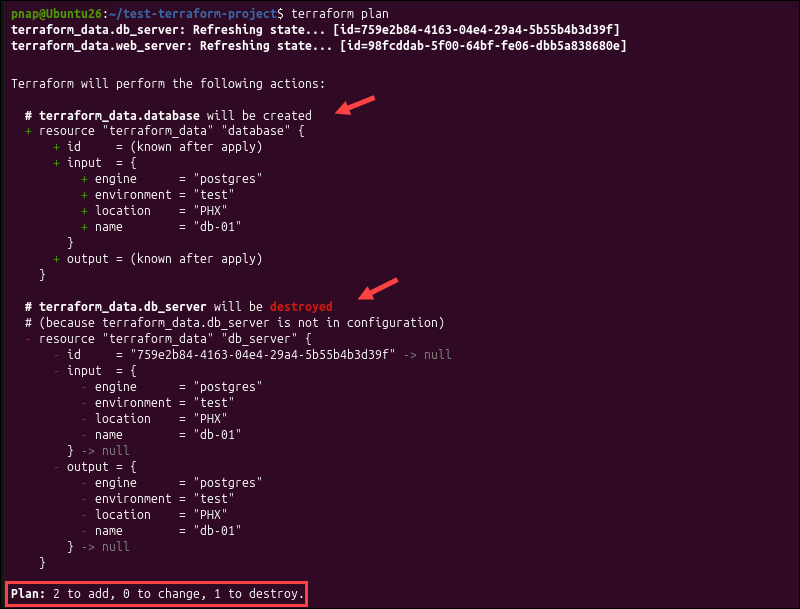
In this example, Terraform plans to add two resources and destroy one to bring the infrastructure in line with the configuration.
Reconciling State Discrepancies
If Terraform finds a difference, your next step depends on which version of the infrastructure you want to keep. If the Terraform configuration is still correct, run:
terraform applyTerraform treats the configuration as the goal and makes the changes needed to bring the infrastructure back in line.
If you made the change outside Terraform on purpose, update the configuration to match the new setup. You can use the -refresh-only mode, which updates the state with changes that have already happened, without changing the infrastructure:
terraform apply -refresh-onlyThe most important step is to review the differences before deciding what to do next. Terraform can show when the configuration, state, and actual infrastructure do not match, but you need to choose which version to keep.
Managing Terraform State in Bare Metal Cloud
These examples use the pnap provider to manage two BMC web servers, a private network, a database server, and a load balancer.
Note: If you want to deploy servers quickly without getting locked into proprietary technologies, phoenixNAP Bare Metal Cloud gives your Terraform projects the flexibility to do both.
Tracking a BMC Server in Terraform State
After you run terraform apply and Terraform provisions the servers in your configuration, it saves the resources in the state file. Use the state list command to display the BMC resources the state is currently managing:
terraform state listThe output includes the BMC database server:
pnap_server.db_server
This address connects the db_server resource in the configuration to the actual BMC server. To see the information Terraform stores for it, run:
terraform state show pnap_server.db_serverThe output includes details such as the server ID, hostname, location, status, operating system, and pricing model:
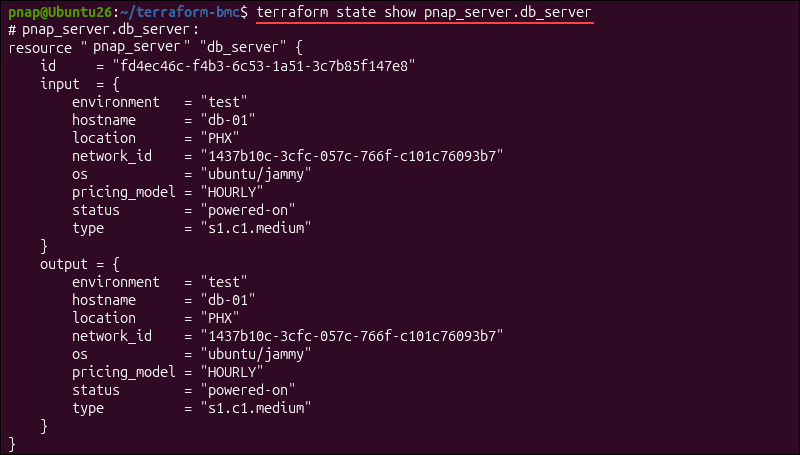
The server ID is especially important. Terraform uses the information in the state to identify the existing BMC server in future plans and updates, so it does not treat it as a new server every time.
Checking What Happens When a BMC Server Changes
The server configuration might change from what Terraform last recorded. For instance, someone might update a server setting outside of Terraform or remove a server by mistake using the BMC portal.
When you run terraform plan, Terraform looks at the current infrastructure and compares it to the configuration and state it has saved. If a BMC server is missing and is not where Terraform expects it, the plan will show the changes and what Terraform plans to do.
In this example, Terraform plans to create the resource again using the values defined in the configuration:
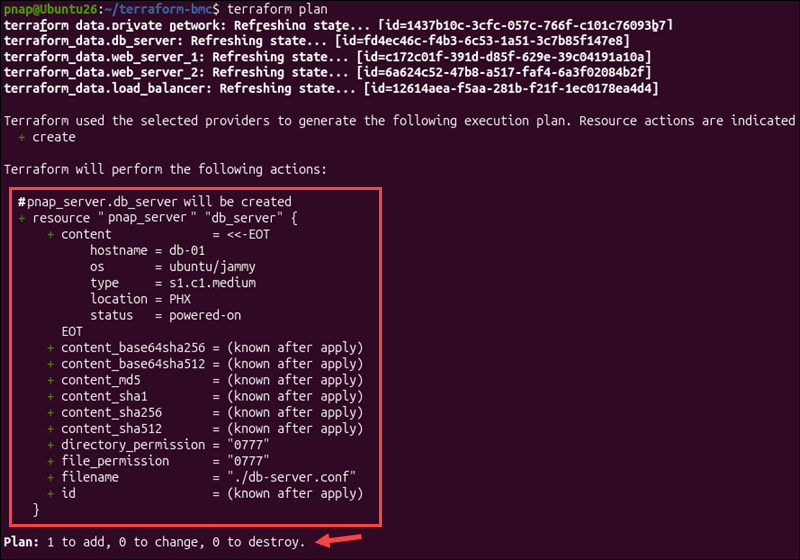
This is why you should not treat the state as just a static inventory file. Terraform keeps using it as a reference when it checks the infrastructure it manages.
Removing a BMC Server from State Without Deleting It
The BMC resource in the Terraform state and the physical BMC server are separate entities. For example, run:
terraform state rm pnap_server.web_server_2When you do this, Terraform removes the resource from its state but does not delete the actual BMC server:

If you run terraform state list again, pnap_server.web_server_2 will not appear in the list:

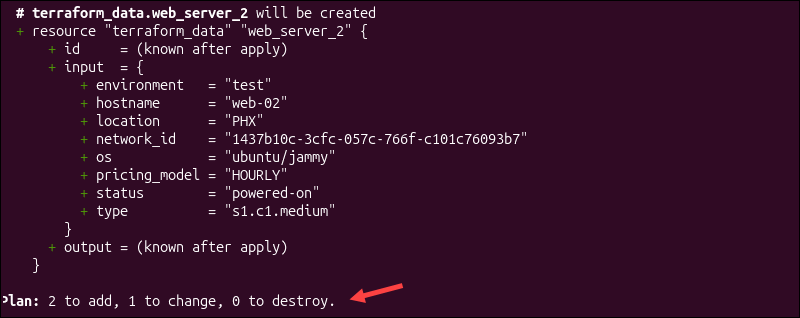
However, the server is still running in BMC. This difference matters. Removing a resource from the state just means that Terraform stops tracking it.
It does not destroy the server. If the resource block is still in your configuration, Terraform tries to create it again during a future plan:
Managing State for Multiple BMC Environments
In a small BMC project, you might keep all resources in one state file. As the infrastructure grows, it's easier to manage different environments if you split the file. For example, you can have separate states for development and production BMC servers.
This way, each Terraform operation only works with the resources it needs, instead of a large group of unrelated ones. If your environments share the same configuration, you can use Terraform workspaces to keep their state files separate. Enter the following command to create a new workspace:
terraform workspace new [environment_name]You can pick any name for your environments and can create as many as you need. Each environment uses the same Terraform configuration but has its own state file. To see the current workspaces, run:
terraform workspace listThe asterisk shows which workspace you are currently working in:

To switch to another workspace, such as the development workspace, use this command:
terraform workspace select developmentIf your environments need more separation, put them in different project directories, each one with its own Terraform configuration and backend. Whatever method you choose, always check which state Terraform is using before running commands that change or delete BMC resources.
Storing Shared BMC State Remotely
When several team members or a CI/CD pipeline need to manage the same BMC resources, it's best to move the state to a remote backend. If the state stays in a local terraform.tfstate file, other users and automation jobs will have a hard time accessing it, and you'll quickly end up with multiple different versions of the file.
For example, if you already have an Amazon S3 bucket available for state storage, just add an s3 backend block to the terraform block in your configuration:
terraform {
  required_providers {
    pnap = {
      source = "phoenixnap/pnap"
      version = "~> 0.33"
    }
  }

  backend "s3" {
    bucket = "my-remote-bmc-state"
    key = "production/terraform.tfstate"
    region = "us-west-2"
    encrypt = true
    use_lockfile = true
  }
}

provider "pnap" {}
The pnap provider continues to manage the BMC infrastructure. The s3 backend only changes where Terraform saves the state. If the project already has a state file and you need to move it to the new backend, use the following command:
terraform init -migrate-stateTerraform will set up the new backend and ask you if you want to migrate the existing state to it. For this to work, the S3 bucket must already exist, and Terraform must have permission to access it.
Keep in mind that each backend type has its own set of configuration arguments. In this example, setting the use_lockfile argument to true prevents two users from changing the same state at the same time.
Common Mistakes with Terraform State
Common issues with Terraform state include having multiple copies of the file, several users trying to make changes at the same time, or someone editing the file outside Terraform.
Even small mistakes can cause Terraform to have incomplete or outdated information about your resources. The following section covers some of the most common problems.
Concurrent Modifications Without State Locking
Commands such as terraform apply, terraform plan, and terraform destroy support the -lock=false option. For example, you can run:
terraform apply -lock=falseThis option disables state locking and removes the protection that stops multiple operations from writing to the state at the same time.
You should not let two Terraform operations update the same state at once. For example, one developer might run terraform apply while a CI/CD pipeline is already making changes to the same state, and both try to write different updates.
This can cause one operation to overwrite the changes made by the other.
To avoid this, use a backend that supports state locking when multiple people or automation tools work on the same infrastructure. If the backend supports it, Terraform will manage the lock for you.
Committing State Files to Version Control
When you commit a file to a version control system like Git, it stores that version in the repository history, so other users can pull it along with the rest of the project.
It is not recommended to commit state files. The state changes as Terraform manages your infrastructure, and these files may include sensitive information about your setup or authentication details.
Version control can also create extra copies of the file that may become outdated. For instance, if two developers pull the same state file from Git and then run Terraform separately, each would end up working with a different view of the actual infrastructure.
Note: If you want to learn more about Git, read our article on what is Git. For a beginner-friendly guide to Git workflows, see the How to Use Git tutorial.
To prevent Git from tracking local state files, you can add them to a .gitignore file in the root of your Git repository. For example:
terraform.tfstate
terraform.tfstate*
The .gitignore file tells Git which files and directories to skip when you add and commit changes to your project.
Manual State File Editing
You can open and edit the state file with a text editor because it uses a human-readable format (JSON). Still, there is usually no need to edit it directly. If you want to change the state, Terraform has plenty of state commands for inspecting, moving, and removing resources, as shown in the examples above.
Terraform relies on the data in the state file staying consistent. Even small changes to IDs or attribute values can stop Terraform from matching the state to the actual infrastructure.
If you must make manual changes, make sure you have a recent backup or that your remote backend supports state versioning.
Conflicting Copies of Terraform State
If you have conflicting state files, do not just pick one as the standard or merge them and run terraform apply.
Make sure the state file represents the actual infrastructure. If you try to combine state files through Git or by manually merging their JSON contents, you can end up with an incorrect state. Terraform could then suggest changes based on outdated or incorrect information.
Start by comparing the contents of each state file with the actual resources and determine which mappings are correct.
If an existing BMC resource is missing from the state, you can use terraform import to restore the mapping. You need the resource ID so Terraform can identify the resource and add it to the correct address in the state.
Best Practices for Terraform State Management
Follow these best practices when working with Terraform state.
Use Remote State by Default
Local state is fine if you are learning Terraform or working alone on a small project. If more people or automation tools are involved, store the state in a remote backend.
A remote backend lets everyone use the same up-to-date state, instead of having separate copies on different machines. When choosing a backend, check for features like:
- State locking.
- Encryption.
- Access controls.
- State versioning.
This matters even more for production systems, since an outdated or overwritten state file can impact many resources.
Implement Least Privilege Access Controls
Not everyone in a Terraform project needs full access to its state. State can contain resource IDs, IP addresses, configuration details, and potentially sensitive values. Give access only to the users and automation processes that truly need it.
For example, if a CI/CD pipeline only needs to run Terraform, it should just have the permissions needed to read and update the relevant state.
Use the same approach for the remote backend. Access to the infrastructure provider and access to Terraform state are separate permissions, so manage them separately.
Keep State Backups
If a state file gets damaged or deleted by mistake, Terraform might not be able to track the resources it manages. You should keep backup copies of important state files so you can restore an earlier version if needed.
When using a remote backend, enable versioning or history features if they are available. This way, you can go back to a previous state version if something goes wrong.
For local state, Terraform usually makes a backup each time it saves a new state:
terraform.tfstate.backupThis single local backup may not be enough for important infrastructure. For shared or production state, use a backend that has reliable state storage and recovery options.
Separate State Files by Environment
Use a separate state file for development, staging, and production infrastructure.
This way, changes in one environment will not affect resources in another. It also reduces the number of resources Terraform needs to evaluate during each run.
Separate state files also make it easier to set role-based access controls. For example, developers can update the development state, but only a deployment pipeline or a small group of users can access the production state.
Conclusion
You've learned how Terraform state tracks managed infrastructure, detects changes, and keeps resource information up to date in both local and remote setups.
Terraform has many commands you can use to view and manage state directly. To see how these commands fit into the overall CLI workflow, check out our Terraform command cheat sheet.