Ubuntu 26.04, the latest Ubuntu LTS version codenamed Resolute Raccoon, was released in April 2026. Upgrading your Ubuntu system ensures it stays secure, stable, and compatible with newer software.
On servers, upgrades are typically performed via the CLI, but a graphical upgrade is also possible if a desktop environment is installed.
This guide will cover the CLI and GUI approach for upgrading to Ubuntu 26.04, along with verification steps and common issues.
Prerequisites
- Dual-core CPU or better.
- A minimum of 4-6 GB RAM.
- At least 25 GB of storage.
- A stable internet connection.
Upgrade to Ubuntu 26.04 via GUI
If an Ubuntu Server has a desktop environment installed (for example, GNOME via ubuntu-desktop), you can perform the upgrade using built-in graphical tools. This method is straightforward and suitable for systems that already use a GUI.
The upgrade from earlier Ubuntu versions to 26.04 LTS is not available via GUI until the first point release (26.04.1). Until then, the system may only offer interim releases such as 25.10. Additionally, if you are currently on an older Ubuntu LTS or interim release (e.g., Ubuntu 22.04 LTS or 25.04), you must first upgrade to Ubuntu 24.04 LTS or 25.10 before proceeding to 26.04 LTS.
Important: Before upgrading, back up important data or create a snapshot/system image.
Step 1: Install Available Updates
The Software Updater tool checks for both package updates and new Ubuntu releases. It is the entry point for upgrading via a graphical interface. Follow these steps:
1. Open the application menu and search for Software Updater.
2. Launch the tool and wait for it to refresh package information.
3. If updates are listed, click Install Now.
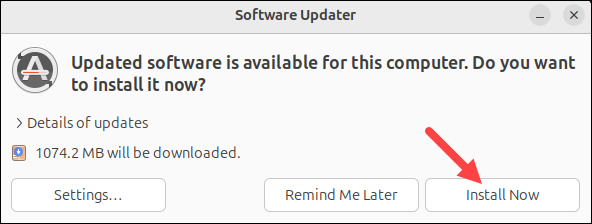
4. Wait for all updates to finish installing.
If the system requires a restart after updates, reboot before proceeding.
Step 2: Configure Release Upgrade Settings
Ubuntu determines which upgrades to offer based on your release settings. Configure these settings to control whether you receive only LTS upgrades or all releases.
1. Open Software & Updates from the applications menu.
2. Click the Updates tab.
3. Set Notify me of a new Ubuntu version to:
- For long-term support versions (recommended for servers), or
- For any new version (to receive interim releases such as 25.10).
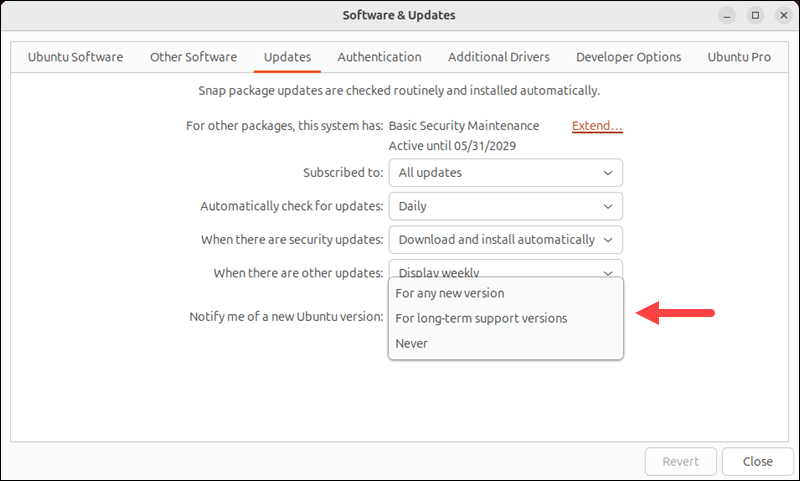
4. Close the window to apply changes.
Step 3: Start the Upgrade
Once Ubuntu 26.04 becomes available, Software Updater displays an upgrade prompt. Do the following:
1. Click Yes, Upgrade Now in the notification window.
2. Review the release notes presented in the dialog.
3. Click Upgrade again to confirm.
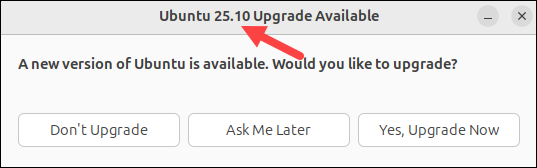
If your system is set to receive any version, you may be prompted to upgrade to 25.10 instead of 26.04, as in the screenshot below:
Step 4: Follow the Upgrade Prompts
During the upgrade, several prompts require your input. These determine how the system handles existing configurations and packages.
In this stage, you will:
- Confirm the upgrade.
- Review package changes.
- Decide how to handle modified configuration files.
- Approve removal of obsolete packages.
Make decisions carefully, especially on systems with custom configurations. If unsure about configuration changes, keeping your current version is usually the safer option on servers.
Step 5: Complete the Upgrade and Restart
Once all packages are installed and configured, the system prompts for a restart. Click Restart Now and wait for the system to reboot.
After logging back in, the system should be running the upgraded version of Ubuntu.
Upgrade to Ubuntu 26.04 via Command Line
The command-line method is the standard and recommended approach for Ubuntu Server. It provides full control over the upgrade process and works on both headless and GUI-enabled systems.
Important: The direct upgrade from Ubuntu 24.04 LTS to 26.04 LTS is not enabled by default until 26.04.1 is released. To upgrade earlier, you must use the -d flag, which allows access to the development or not-yet-enabled release channel.
Follow the steps in the sections below to upgrade your system.
Step 1: Update Package Lists
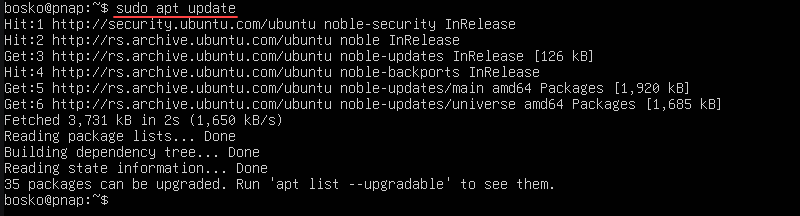
Start by refreshing the package index to ensure your system has the latest metadata:
sudo apt updateThis command retrieves updated information about available packages.
Step 2: Upgrade Installed Packages
Upgrade all installed packages to their latest versions. This prepares the system for a smooth release upgrade. Run the following command:
sudo apt dist-upgrade -o APT::Get::Always-Include-Phased-Updates=true -y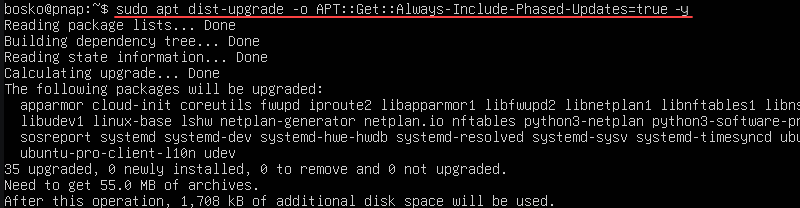
This step resolves dependencies and installs required updates.
Step 3: Check for Available Releases
Before starting the upgrade, check which releases are available:
do-release-upgrade -cDepending on your configuration, the system may offer an interim release (such as 25.10) instead of 26.04, or say that there are no available releases if your system is set to LTS-only upgrades, as in the example below:

The file /etc/update-manager/release-upgrades defines what do-release-upgrade is allowed to show. It has one key parameter:
Prompt=ltsThe possible parameter values are:
Prompt=lts- only LTS upgrades (24.04 > 26.04).Prompt=normal- all releases (24.04 > 25.10 > 26.04).
Note: Setting Prompt=normal will not list 26.04 until Canonical releases 26.04.1, and it will show only the next interim release (25.10). However, an upgrade is possible if you specify the -d flag.
Step 4: Start the Release Upgrade
Run the upgrade tool to begin the process:
sudo do-release-upgradeThis upgrades to the next available release based on your current settings.
To upgrade directly to Ubuntu 26.04 before it is officially enabled, use:
sudo do-release-upgrade -dImportant: The -d flag allows upgrades to development releases or to newly released versions that have not yet been enabled for general LTS upgrades. This is not recommended for production servers, as it may include unstable packages or incomplete upgrade paths. Use this option only for testing or non-critical environments, or wait until the official upgrade path is enabled (for example, after the 26.04.1 release).
Step 5: Follow Interactive Prompts
The upgrade tool runs interactively and guides you through the process:
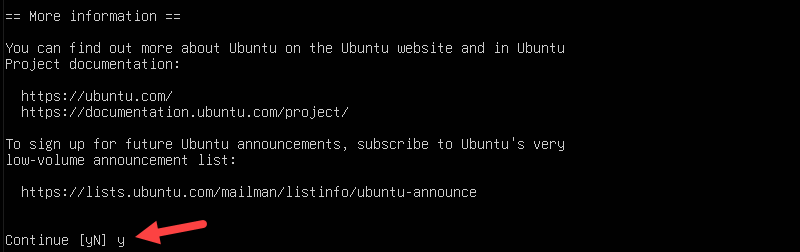
1. First, confirm the upgrade. Type y and press Enter to confirm:
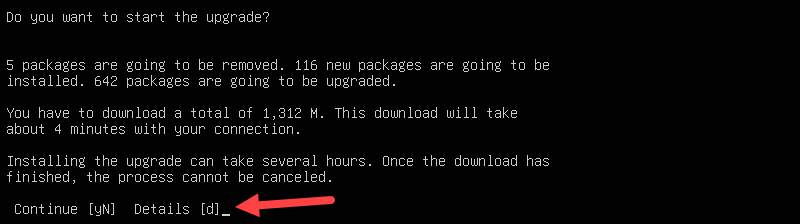
2. Review package changes and confirm with y and Enter:
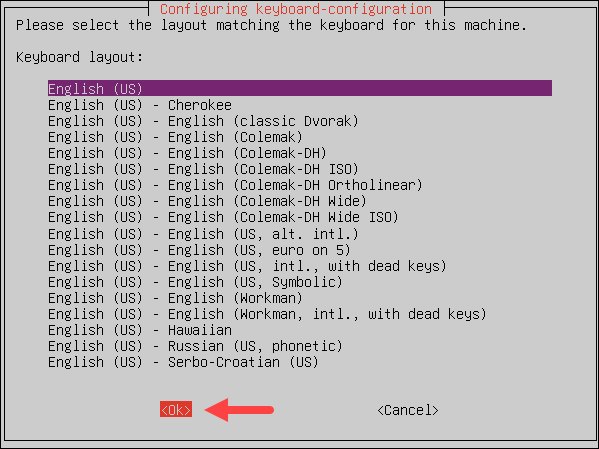
3. Next, handle configuration file prompts. First, select your keyboard's country of origin:
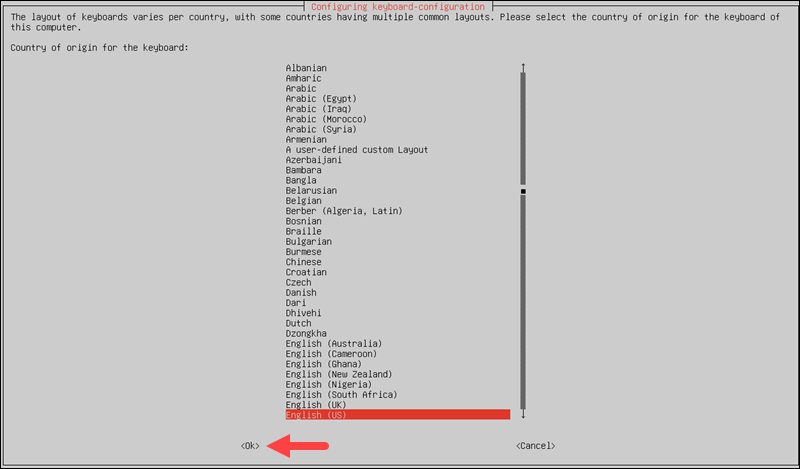
Then, select your keyboard layout:
4. Approve removal of obsolete packages with y and confirm your choice with Enter:

The system downloads and installs required packages. This step may take time depending on system performance and network speed.
5. Lastly, restart to complete the upgrade:

Verify Ubuntu Version
After completing the upgrade and rebooting the system, verify that Ubuntu 26.04 is installed. This confirms that the upgrade process completed successfully and that the system is running the expected release.
Verify via GUI
If your system includes a desktop environment, you can check the Ubuntu version through the graphical interface.
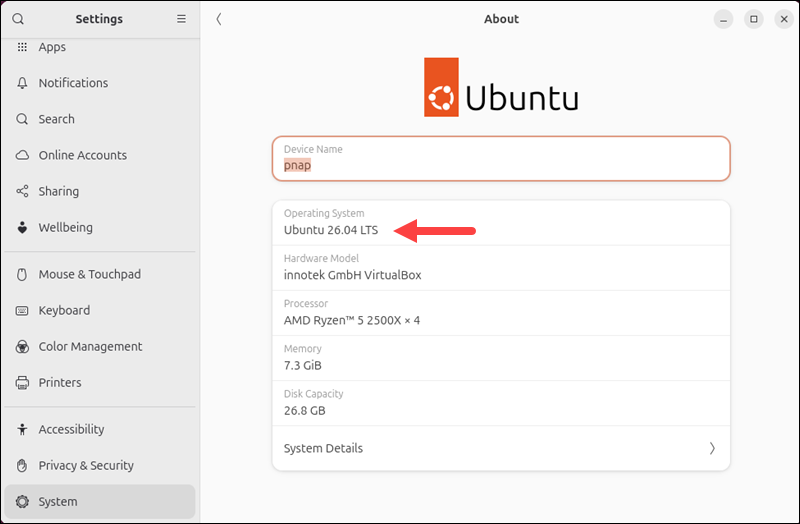
1. Open the applications menu and search for Settings.
2. In Settings, navigate to the About section.
3. Look for the Operating System field. It should display Ubuntu 26.04 LTS.
Verify via Command Line
On server systems or headless environments, use the command line to confirm the installed version. This method is reliable and always available.
Run the following command:
lsb_release -aThe command output displays detailed information about the current Ubuntu release:

Alternatively, use:
cat /etc/os-releaseCommon Problems When Upgrading to Ubuntu 26.04
Upgrades are generally reliable, but some issues can still occur. The following sections cover the most common scenarios.
Upgrade to 26.04 Not Available
If Ubuntu 26.04 does not appear in either the CLI or GUI, this is expected behavior before the first point release.
- CLI may report no new release or offer only the next interim version.
- GUI may show no upgrade or only interim releases (e.g., 25.10).
Ubuntu enables LTS-to-LTS upgrades only after the .1 release (26.04.1).
Could Not Find the Release Announcement
If you see the following message:
Could not find the release announcement
The server may be overloaded.
This means that no upgrade path is currently enabled, not that the server is actually overloaded. There are multiple reasons why this can happen:
- Ubuntu has not yet enabled the upgrade path.
- The system cannot retrieve a valid meta-release file.
- The requested upgrade is not officially available yet.
To proceed, wait for the official upgrade window (26.04.1), or force the upgrade with:
sudo do-release-upgrade -dInterim Release Offered Instead of 26.04
If you see an upgrade to 25.10 instead of 26.04, your system is set to receive all releases, including interim ones. You can change which releases you receive by configuring the update notifications.
1. Open Software & Updates.
2. Set Notify me of a new Ubuntu version to For long-term support versions. This option ensures direct LTS-to-LTS upgrades once available.
Broken Packages
Dependency issues can interrupt the upgrade. To fix them, run the following commands:
sudo apt --fix-broken installsudo dpkg --configure -aServices Fail After Upgrade
Some services may fail due to updated dependencies or configuration changes. You can check failed services with:
systemctl --failedTo view logs, run:
journalctl -xeDisk Space Issues
Insufficient disk space can stop the upgrade. To check available space, run the following command:
df -hTo free up space, you can remove unnecessary dependencies and clear the local package cache with:
sudo apt autoremovesudo apt cleanConclusion
This tutorial showed how to upgrade from earlier OS releases to Ubuntu 26.04. Upgrading Ubuntu Server to 26.04 requires understanding how Ubuntu stages release availability. While both GUI and CLI methods are supported, the command-line approach remains the most reliable, especially on server systems.
Next, learn everything about the Ubuntu system requirements.