Docker Desktop utilizes Windows Subsystem for Linux (WSL) to operate on Windows. Errors related to WSL and Docker Desktop can interrupt the connection between the Docker engine and the underlying Linux kernel integration.
This article will outline how to troubleshoot the Docker Desktop: Unexpected WSL error.
What Is Docker Desktop?
Docker Desktop is a platform for building, testing, and deploying containers. It packages key components (Docker Engine, CLI, Compose, and a GUI) to provide a local environment that simulates production.
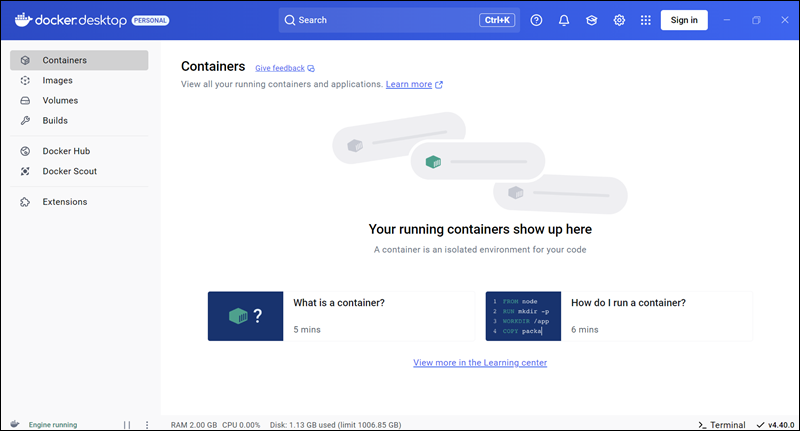
On Windows, Docker Desktop manages containers and images and hides virtualization details. It supports both Windows and Linux containers, though most workflows use Linux. The GUI enables container management without the command line.
What Is WSL?
WSL lets users run Linux directly on Windows, removing the need for virtual machines (VMs). It allows Linux tools to work within the Windows file system.
WSL has evolved through two iterations:
- WSL 1 used a translation layer to map Linux system calls to the Windows kernel.
- WSL 2 (which Docker Desktop requires for best performance) utilizes a lightweight utility VM to run a Linux kernel. This approach boosts file system performance and ensures full system-call compatibility.
How Do Docker Desktop and WSL Work Together?
Docker Desktop uses WSL 2 as its backend. The Docker daemon runs in a hidden docker-desktop WSL distro, letting containers run on a Linux kernel but stay accessible from Windows.
The architecture provides a shared environment in which Windows handles the user interface and file editing, while WSL manages containerized processes. Data flows between the two systems over a specialized internal network and 9P protocol file shares.
This relationship allows developers to use Windows-based development environments to edit code that runs in a Linux container.
What Is Docker Desktop: Unexpected WSL Error?
The "Unexpected WSL Error" is a generic failure state showing a breakdown in communication between Docker Desktop and the WSL subsystem. This error typically occurs during application startup or when the Docker engine attempts to initialize background Linux distributions.
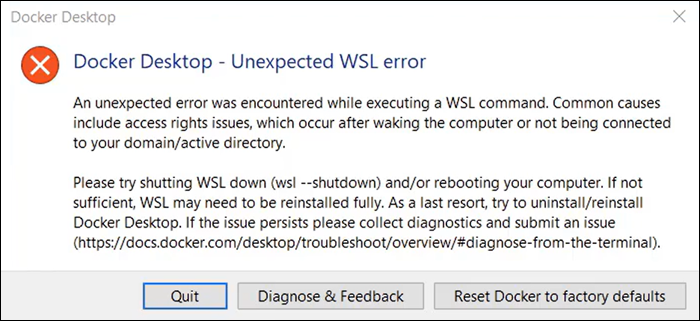
The error signifies that the Docker daemon cannot access the required Linux kernel resources or that the WSL service itself has stopped responding.
When this error occurs, Docker Desktop usually stays in a stopped or starting state. The causes of this behavior range from corrupted registration files to service timeouts. Identifying the specific cause requires an investigation into the WSL status and the Windows system logs.
What Causes Unexpected WSL Errors in Docker Desktop?
Unexpected WSL errors are caused by several configuration faults or environmental conflicts within Windows.
The following issues prevent the Docker engine from successfully anchoring its processes to the Linux kernel:
- Feature disabled. The Windows Subsystem for Linux feature or the Virtual Machine Platform is not active in the Windows Features menu.
- Incompatible versions. The installed version of WSL does not meet the minimum requirements of the specific Docker Desktop build.
- Networking conflicts. Misconfigured network interfaces or DNS settings within the WSL block communication.
- Service initialization failures. The LxssManager service fails to start or times out during the boot sequence.
- Resource restrictions. The host system does not have sufficient disk space or memory to initialize the WSL utility virtual machine.
- Authorization issues. Incorrect folder permissions or restricted user rights prevent access to the WSL root file system.
- Kernel obsolescence. The Linux kernel component of WSL requires a manual update via the Microsoft Store or a standalone installer.
How to Solve Unexpected WSL Errors in Docker Desktop?
Resolving WSL errors may require checking both Windows and the Linux subsystem for problems. Try the common fixes described in the sections below.
Verify WSL Installation and Status
Check the current state of the WSL environment through the command line. Confirm the feature is active by running the following command in an elevated PowerShell window:
wsl --statusIf the system reports that WSL is not enabled:
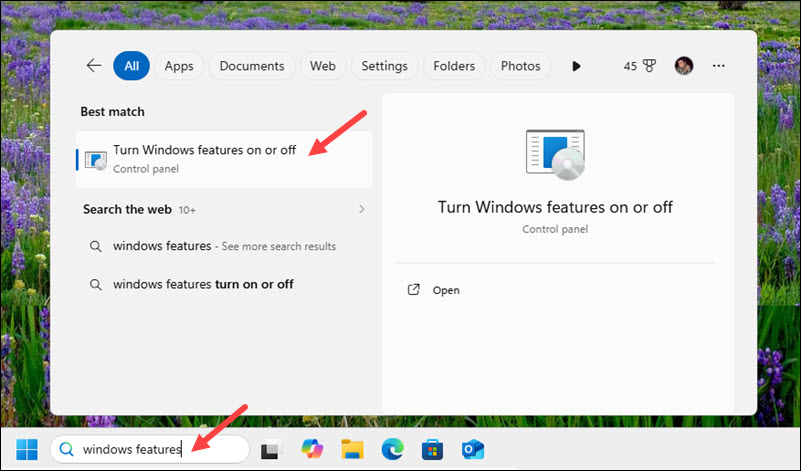
1. Search for windows features and click Turn Windows features on or off in the search results.
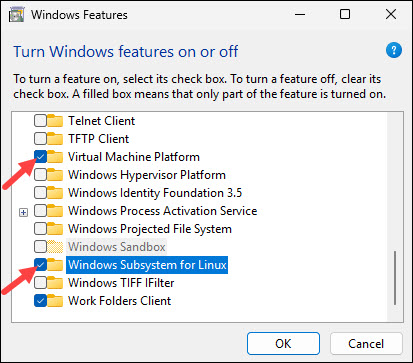
2. Activate the Windows Subsystem for Linux and Virtual Machine Platform components.
To ensure the kernel is up to date, check the installed versions using the command below:
wsl --versionLastly, check the list of all distributions:
wsl -l -vThe output must show the docker-desktop and docker-desktop-data distributions as "Stopped" or "Running," and their version must be "2".

Troubleshoot Networking and DNS
Networking issues often prevent Docker from communicating with its internal Linux backend. To troubleshoot the network:
1. Open the terminal of the default Linux distribution, such as Ubuntu.
2. Execute the command below to verify that network interfaces have assigned addresses:
ip addrCheck if any of the following interfaces are marked as DOWN:
- Loopback (
lo). Used for internal communication within the Linux environment. - Ethernet (usually
eth0). The virtual network card connecting WSL to Windows. - Docker bridge (
docker0). The virtual switch created by Docker to manage container-to-container communication.
3. Inspect the DNS settings by viewing the /etc/resolv.conf file to ensure the nameservers are valid:
cat /etc/resolv.confIf connectivity remains blocked, check the Windows Defender Firewall settings. Ensure that no inbound or outbound rules prevent the wsl.exe or docker.exe processes from accessing the local network.
To resolve networking issues, a full network reset can be performed by running the following commands in PowerShell:
wsl --shutdownipconfig /releaseipconfig /renewResolve Version Incompatibilities
Conflicts between the Docker Desktop application and the WSL kernel version often result in Unexpected WSL Error messages.
Open Docker Desktop and note the current version number in the lower-right corner of the window:
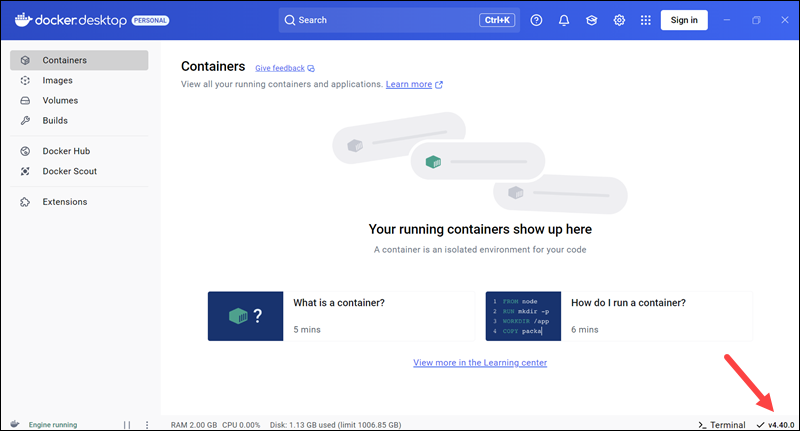
Compare this against the version displayed by the wsl --version command.
Download and install Docker Desktop from the official website for the latest bug fixes. The setup wizard usually updates WSL components automatically. If errors persist, update "WSL" or distributions like "Ubuntu" in the Microsoft Store.
Perform Advanced Environment Resets
If standard updates fail, a deeper reset of the WSL environment may be necessary. Use the following command to remove a corrupted distribution:
wsl --unregister [distribution]For example, to unregister Ubuntu 24.04, type:
wsl --unregister Ubuntu-24.04Warning: The wsl --unregister command instantly deletes the entire root filesystem of the distribution, including all files, databases, and saved settings in the home directory. Back up your data first.
Reinstall the distribution using:
wsl --install -d [distribution]This process deletes the data within that specific distribution but often clears persistent configuration errors.
For more detailed diagnostics, enable verbose logging by following the steps below:
1. Press Win + R to open the Run dialog.
2. Type regedit, and hit Enter.
3. Paste the following path into the address bar at the top and press Enter:
HKEY_CURRENT_USER\Software\Microsoft\Windows\CurrentVersion\Lxss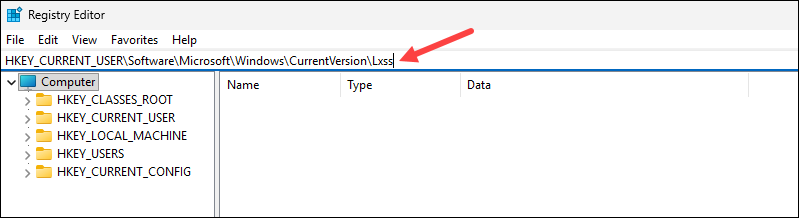
4. Right-click an empty space in the right-hand pane.
5. Select New > DWORD (32-bit) Value and name it DebugFlags.
6. Double-click the new DebugFlags entry.
7. Enter 8000000F in the Value data field and click OK.
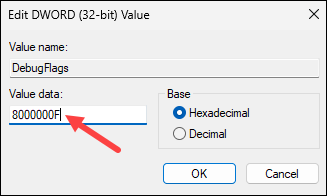
Note: Ensure the Base is set to Hexadecimal.
8. Restart WSL by executing the command below in PowerShell:
wsl --shutdownReview the resulting logs in the %TEMP%\WSL directory to pinpoint specific system call failures. Additionally, examine the Windows Event Viewer under Applications and Services Logs for LxssManager entries to identify service-level crashes.
Note: Delete the DebugFlags value or set it back to 0 once you finish troubleshooting. Verbose logging can impact performance and, over time, fill system logs with unnecessary data.
How to Avoid Docker Desktop Unexpected WSL Error in the Future?
Prevent WSL errors by keeping Windows and virtualization components up to date with scheduled updates and monitoring.
Some of the suggestions include:
- Enable automatic updates. Configure Docker Desktop to look for updates on startup to ensure the latest compatibility patches are active.
- Monitor disk space. Maintain at least 10% free space on the system drive to allow the WSL virtual hard disk (VHDX) to expand as needed.
- Maintain kernel updates. Check the Microsoft Store for Linux kernel updates frequently to stay up to date with Windows security changes.
- Avoid manual file modification. Refrain from altering files within the WSL rootfs directory through Windows File Explorer, as this can corrupt permissions.
- Use proper shutdown procedures. Always close Docker Desktop and run
wsl --shutdownbefore performing major Windows updates or system backups. - Limit concurrent virtualization. Minimize the use of other heavy virtualization software that might compete with Hyper-V or the Virtual Machine Platform for resources.
Conclusion
After reading this troubleshooting guide, you should know how to diagnose and fix Docker Desktop: Unexpected WSL Error. The article explored the impact of version incompatibilities and provided step-by-step troubleshooting for network conflicts, kernel updates, and environment resets.
Next, read about best practices for managing Docker containers.