The screen command is a command-line tool that allows users to run and manage multiple shell sessions within a single terminal. It is used to keep processes running in the background, even after you disconnect from a session.
However, active or detached screen sessions sometimes need to be terminated, such as when they are no longer required or become unresponsive.
This guide will explain how to identify and kill screen sessions on Linux, macOS, and Windows, and will show force-termination methods and troubleshooting steps.
Prerequisites
- A Unix-like environment.
- Access to a terminal.
screeninstalled.
How to Kill Screen Session
Before you terminate a screen session, identify the correct one and confirm you have permission to manage it. This way, you won't accidentally stop the wrong process or encounter permission errors.
Take the following preparation steps:
1. List active screen sessions with the ls command:
screen -ls
2. Identify the session ID. Each session includes a numeric ID and a name, for example, 24420.test_session. Use this value to target a specific session.
3. Confirm session ownership with the whoami command. It verifies the current user:
whoami
If the session belongs to another user, elevated privileges are required.
Note: These preparation steps are the same on Linux, macOS, and Windows (WSL), because the screen command behaves consistently across these environments.
The following sections show how to terminate screen sessions in different operating systems (OSs).
Kill Screen Session on Linux
Use the following command with the session ID to terminate a specific session in Linux:
screen -S 24420.test_session -X quitIn this case, the screen session is 24420.test_session. The command sends a quit signal to the screen session, which stops all running processes. There is no output.
To verify the session is terminated, use the screen -ls command:
screen -ls
Since the session is no longer listed, the termination was successful.
Kill Screen Session on macOS
The process on macOS is the same because screen behaves consistently across Unix-like systems.
Use the following command with the session ID to terminate the session:
screen -S 39801.test_session -X quitVerify the session is no longer active with the screen -ls command:
screen -ls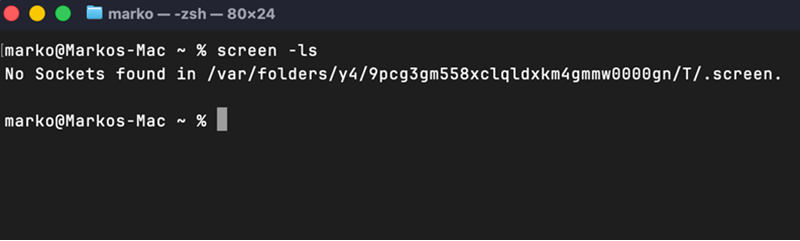
If the session does not appear in the output, it has been successfully terminated.
Kill Screen Session on Windows (WSL)
Windows Subsystem for Linux (WSL) provides a Linux environment inside Windows without a virtual machine. It runs Linux distributions such as Ubuntu directly on the system, which allows you to use standard Linux commands and tools.
Because of this, screen behaves the same in WSL as it does on a native Linux system.
Therefore, use the same command to terminate the session with the appropriate session ID:
screen -S 4944.test_session -X quitVerify the session is no longer active with:
screen -ls
Run these commands inside the WSL terminal where the screen session was created.
Force Kill Screen Session
In some cases, a screen session does not respond to the standard commands. In these situations, terminate the process manually using its process ID (PID).
To do that, take the following steps:
1. Find the screen process ID with the ps command piped with grep:
ps aux | grep -i screen
The screen -ls command used in earlier cases does not list unresponsive or corrupted sessions and does not display process IDs. The ps command locates the actual running screen process.
Note the PID. In this example, it is 5087.
2. Terminate the process with the kill command:
kill 5087If the process does not terminate, use the kill -9 command to force it:
kill -9 5087The kill command does not produce output on success. If an error occurs, it displays a message that indicates the issue.
3. Use the screen -ls command to confirm the session is no longer active:
Use this method only when the standard ones fail, because it abruptly terminates processes and causes data loss or incomplete tasks.
Kill Screen Session: Common Errors and Troubleshooting
Terminating screen sessions is straightforward. However, errors occur when the session ID is incorrect, permissions are insufficient, or the session is in an inconsistent state.
The following sections describe the most common issues and how to resolve them.
Session Not Found
This error appears when the specified session does not exist, or the session ID is incorrect. For example:
screen -S 24420.test_session -X quit
This means the session was already terminated, the session ID was typed incorrectly, or the session belongs to a different user.
To resolve the issue, list active sessions using screen -ls and copy the session ID. Then run the command again with the correct value and ensure you are using the same user who created the session.
Permission Denied
This issue occurs when you attempt to manage a session owned by another user.
Although the message is not explicit, it often indicates a permission issue. Screen sessions are tied to the user who created them, so other users cannot manage them directly.
To resolve this, verify the current user with the whoami command and switch to the correct account.
Session Still Listed After Killing
In some cases, a session still appears even after you attempt to terminate it.
This happens when the session does not shut down cleanly or when the process is still running.
In this situation, list running processes with the ps aux | grep screen command to identify the associated PID. Then, terminate the process manually with the kill command, and verify the session is no longer listed.
Unresponsive or Stuck Session
A session sometimes ignores the standard quit command and remains active. This behavior indicates one or more processes inside the session are stuck.
When this happens, identify the process ID and terminate it with kill -9. This stops the session immediately, even if it is not responding.
Force Kill Side Effects
Forcefully terminating a screen session interrupts running processes.
Because kill -9 stops processes immediately without cleanup, it can result in data loss or incomplete operations. Files being written may become inconsistent, and temporary data may be lost. For this reason, always use the standard quit method first and rely on force kill only when necessary.
Screen Command Not Found
This error appears when the screen utility is not installed on the system.
screen -ls
To resolve this, install screen using the package manager:
sudo apt install screen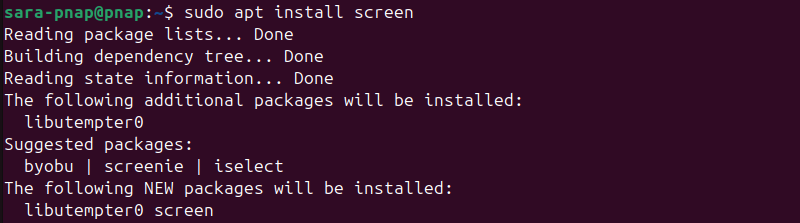
After installation, rerun the command to confirm screen is available.
Conclusion
This tutorial showed you how to kill a screen session on different OSs, including the necessary preparation steps. It also elaborated on common errors and how to solve them.
Next, learn how to list all processes in Linux.