Linux systems use a service manager called systemd to start, stop, and restart services. Service behavior is defined in unit files, which contain configuration details for each service.
When you create or modify a unit file, systemd does not automatically detect the changes. The systemctl daemon-reload command reloads systemd’s configuration so it recognizes updated unit files without restarting the system.
This guide will explain what systemctl daemon-reload does, when to use it, how it fits into the systemd workflow, and how it compares to related commands.
What Is systemctl daemon-reload?
The systemctl daemon-reload command reloads the systemd manager configuration. It instructs systemd to re-scan unit files and rebuild its internal dependency tree.
Systemd reads unit files from predefined directories, such as /etc/systemd/system/ and /lib/systemd/system/. After the initial load, it keeps this configuration in memory to efficiently manage services.
When you run systemctl daemon-reload, systemd:
- Reloads all unit files from disk.
- Rebuilds dependency relationships between units.
- Updates its internal state without interrupting running services.
This command does not restart services or apply changes to already running units. It only ensures that future operations use the updated configuration.
When to Use daemon-reload
Since systemd does not automatically detect changes to unit files, use the systemctl daemon-reload command to apply changes to these files.
Use the command when you have to:
- Edit a service unit file. After you modify settings in files like /etc/systemd/system/[service].service, reload systemd to apply the changes.
- Create a new unit file. When you add a new service, systemd must be reloaded to detect and register it.
- Delete a unit file. When you remove a unit, the system requires a reload, so systemd stops referencing it.
- Change dependencies or overrides. Updates to drop-in files or dependency directives require a reload to rebuild relationships.
- Copy or move unit files. Any manual change to unit file locations requires systemd to re-scan its directories.
systemd Workflow Example
To understand how systemctl daemon-reload fits into the system, note that systemd ignores new or modified unit files until you reload its configuration
The following example shows how systemctl daemon-reload fits into a workflow when you create and manage a custom service.
Note: You need sudo or root permissions to create and manage systemd unit files.
Take the following steps:
1. Create a service unit file using a text editor. In this example, it's Nano.
sudo nano /etc/systemd/system/myapp.serviceThe command creates a file called myapp.service in the /etc/systemd/system/ directory.
2. Add the following configuration and save and exit the file:
[Unit]
Description=My App Service

[Service]
ExecStart=/usr/bin/sleep 300

[Install]
WantedBy=multi-user.target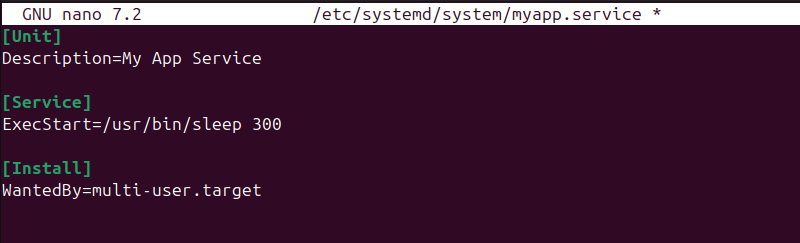
This configuration defines a simple service that runs the sleep command. The service starts a process that waits for 300 seconds and then exits, which is useful for testing systemd behavior.
3. Use systemctl daemon-reload to reload unit files:
sudo systemctl daemon-reloadThe command reloads systemd so it detects the new myapp.service file, but displays no output.
4. Use the following command to enable the service at boot:
sudo systemctl enable myapp.service
The command creates the necessary symlink so the service starts automatically on system boot.
5. Start the service:
sudo systemctl start myapp.service6. Since the previous command has no output, check the service status with:
sudo systemctl status myapp.service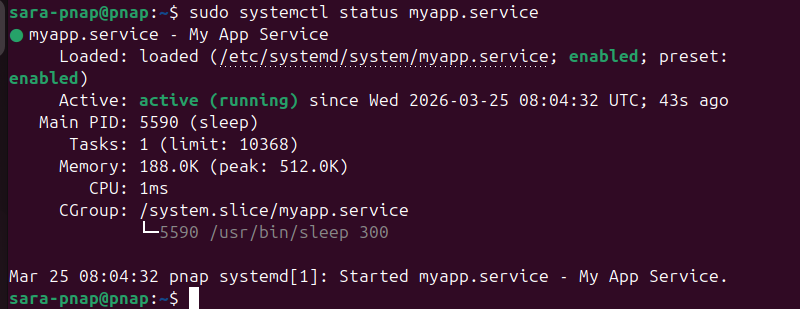
The output shows the current status and confirms whether the service is running.
systemctl daemon-reexec vs. daemon-reload vs. reload
Systemd provides several commands that sound similar but perform different tasks.
The systemctl daemon-reexec, systemctl daemon-reload, and systemctl reload commands affect different systemd process parts.
It is important to understand the difference because using the wrong command can lead to no effect or unintended behavior. For example, when you reload a service, it does not apply unit file changes, while reloading the systemd manager does not restart or reload running services.
The following table compares these commands and their purpose:
| Aspect | systemctl daemon-reload | systemctl daemon-reexec | systemctl reload [service] |
|---|---|---|---|
| Scope | systemd manager. | systemd process. | individual service. |
| Function | Reloads unit files and rebuilds dependency tree. | Restarts systemd process while preserving state. | Reloads the service configuration using its defined reload command (ExecReload). |
| Effect on running services | No. | No. | Yes, if supported. |
| Usage | After you have created or modified unit files. | After updating systemd binaries or core components. | Reloads service configuration without a restart. |
Conclusion
This tutorial explained what the systemctl daemon-reload command is and when to use it. It also presented an example of systemd workflow and showed the difference between different systemd commands.
Next, learn how to view and edit the systemd logs with journalctl.